Blur faces in video with tracking tools, then inspect every frame. Check profile views, occlusion and exports before sharing sensitive footage. Keep an untouched copy of a representative clip. Apply the effect to a short sample, compare it in motion with the original, and check edges, audio sync and export quality. Record the settings that produced an acceptable result.
Research guide. Vendor information and third-party reports are distinct from our own test results. See how we evaluate tools. We may earn a commission from qualifying purchases through affiliate links. Affiliate disclosure.
-
Imagy , best for quick photo anonymization and short-form video; one-click detection with a creator-friendly UI
-
BGBlur , best for motion-aware face blur in longer clips; holds tracking through fast movement and partial occlusion
-
Check whether this tool uploads footage or processes it on-device. A browser interface is not evidence of local processing; confirm the current data-handling policy before using confidential footage.
All three offer a free tier or trial. None require installation.
Key Takeaways
The strongest AI face-blur workflow pairs a browser-based tool for photos and short clips with a motion-tracking tool for longer video, verified against a privacy policy before any file leaves your machine.
| Point | Details |
|---|---|
| Match tool to format | Use Imagy or Blur.me for photos; use BGBlur for motion-tracked video blur. |
| Verify privacy model | Confirm browser-based or on-device processing before uploading sensitive footage. |
| Check export terms | Free tiers may watermark exports; confirm removal cost before publishing. |
| BGBlur processing speed | A typical 5-minute 1080p clip processes in 1-3 minutes with files deleted after export. |
| Use the directory to compare workflow options, then confirm current features and terms with the provider. | Use the directory to compare workflow options, then confirm current features and terms with the provider. |
Table of Contents
- How do Imagy, Blur.me, and BGBlur compare side by side?
- How to blur faces quickly: step-by-step for photos and videos
- What you need to know about browser-based vs cloud processing
- How to choose the right AI face-blur tool: checklist and red flags
- Use the directory to compare workflow options, then confirm current features and terms with the provider.
- A candid note on real-world tradeoffs
- TechVideoBlog covers the tools these providers don’t tell you about
- Sources
- FAQ
How do Imagy, Blur.me, and BGBlur compare side by side?
| Dimension | Imagy | Blur.me | BGBlur |
|---|---|---|---|
| Best for | Quick photo anonymization, short-form video | Browser-based edits, small batch jobs | Motion-aware blur in longer video clips |
| AI capabilities | Auto face detection, static and short-clip tracking | Auto face detection, image-focused | Motion-tracked blur, holds through pans and occlusion |
| Processing model | Browser-based | Browser-based / on-device | Browser-based; files deleted after export |
| Supported formats | Common image formats, short video | JPEG, PNG, common image formats | MP4 (1080p, 4K); typical 5-min 1080p clip in 1-3 minutes |
| Batch processing | Limited | Small batch support | Single-clip focused |
| Ease of use / UX | Very simple; one-click workflow | Clean UI, immediate preview | Straightforward upload-and-process flow |
| Pricing / free tier | Free tier available | Free tier available | Free tier available |
| Privacy / data retention | Browser-based; no stated server retention | On-device processing | Files not stored after processing |
| Output quality | Clean export, no watermark on free tier | Standard image export | Video export; check watermark terms on free plan |
Imagy suits creators who need fast turnaround on thumbnails, profile photos, or short clips. The UI is genuinely minimal: upload, detect, export. No settings to wade through.
Blur.me earns its place for batch image jobs. The immediate preview before export is a practical differentiator , you see exactly what the blur covers before committing.
BGBlur is the strongest pick for video. Motion-aware tracking is the critical differentiator for video use cases, and BGBlur’s implementation holds through camera pans and partial face occlusion where static-frame tools fail. A typical 5-minute 1080p clip processes in 1-3 minutes, and files are deleted after export.
Pricing note: All three offer a free entry point. BGBlur’s free plan may add watermarks to exports; confirm before publishing. Tools like BlurFaces also offer client-side photo processing with optional paid unlocks for longer video exports, which is worth knowing if you need account-free access.
How to blur faces quickly: step-by-step for photos and videos
For photos
- Upload your image to Imagy or Blur.me.
- Let the AI auto-detect faces. Review the detection overlay , most tools highlight detected regions before applying the effect.
- Adjust blur strength or switch to pixelation if the platform requires a harder anonymization style.
- Export. For thumbnails, use a moderate blur; for full-screen publishing, increase intensity so faces are unrecognizable at any zoom level.
For video
- Upload your clip (MP4 at 1080p or 4K) to BGBlur.
- Let the AI run its detection pass. Preview the motion-tracking overlay before committing , this is where you catch missed faces or false positives.
- Add manual masks for any face the detector missed, particularly in low-light frames or fast-motion sequences.
- Set your export resolution to match your source file. Avoid re-encoding at a lower bitrate unless file size is a hard constraint.
For batch jobs
-
Name files consistently before uploading (e.g.,
clip_001.mp4,clip_002.mp4) so export files map cleanly to originals. -
Queue files in the order you want them processed and set a single export preset for the whole batch.
-
Run a spot-check on the first and last file in the queue before walking away.
Pro Tip: For thumbnails, a light-to-medium blur (moderate blur intensity) reads as intentional and styled. For street footage or documentary clips where legal anonymization is the goal, push to maximum intensity and verify the result at full resolution before export.
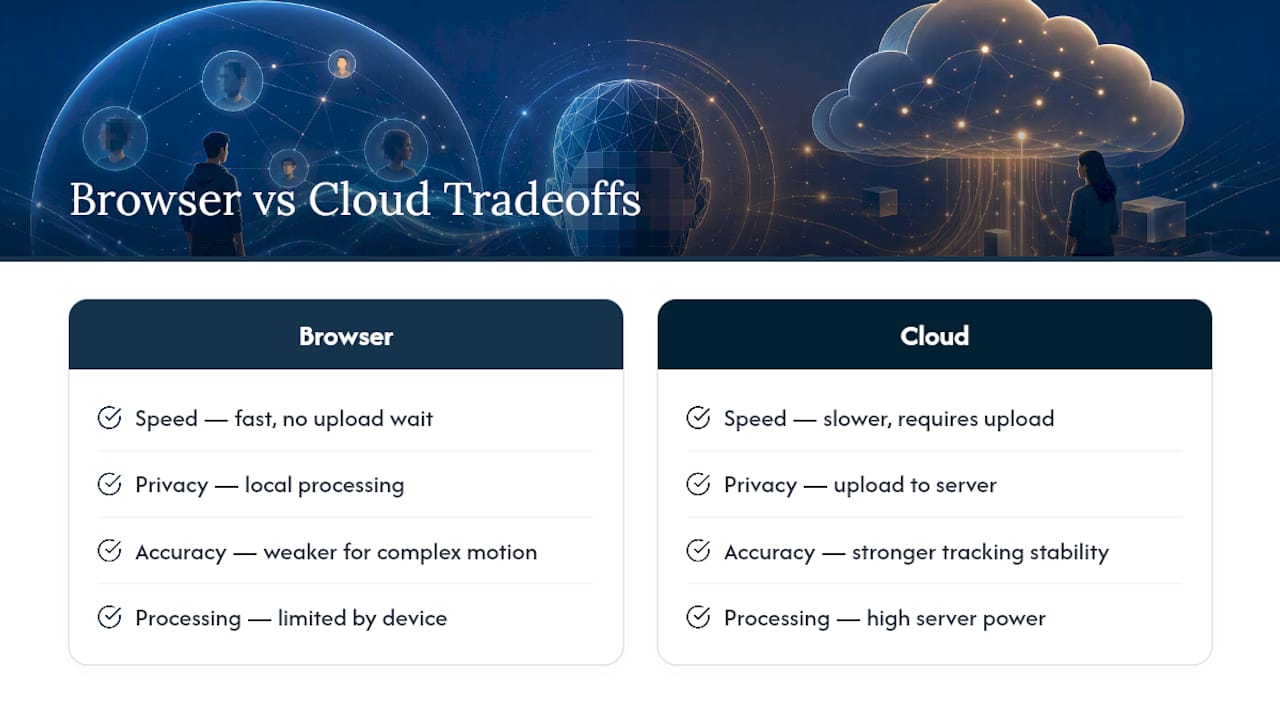
What you need to know about browser-based vs cloud processing
Check whether this tool uploads footage or processes it on-device. A browser interface is not evidence of local processing; confirm the current data-handling policy before using confidential footage.
For most creators, browser-based is the safer default. Tools like AICreate’s Face Blur & Mask use Google’s MediaPipe face landmarker , 478 3D facial landmarks, running entirely on-device , which means zero server exposure. WuTools’ Face Blur Anonymizer goes further: it runs on-device using face-api.js and exports an auditable JSON/CSV redaction report for teams that need a paper trail.
Trust signals to verify before uploading:
- An explicit “no retention” or “files deleted after processing” statement (BGBlur states this directly)
- GDPR-ready workflow notes or a clear data-deletion policy
- The ability to test the tool offline or observe that no network requests fire during processing
- A published privacy policy that names what data, if any, is logged
Microsoft’s developer guidance on biometric models recommends privacy-aware deployment as a design principle, not an afterthought. That framing applies equally to consumer tools: if a tool can’t tell you where your file goes and when it’s deleted, treat that as a red flag.
U.S. creators should also confirm they have consent or a legal basis before blurring faces in footage that includes identifiable individuals, particularly for commercial use.
Pro Tip: To verify a browser tool’s privacy claim, open your browser’s network inspector (DevTools → Network tab) before uploading. If you see outbound requests carrying your file data during processing, the tool is not fully on-device , regardless of what the marketing copy says.
How to choose the right AI face-blur tool: checklist and red flags
Work through these questions before committing to any tool or paid plan:
- Primary use case: Photos only, short video, or long-form video with motion? Match the tool to the format.
- Maximum file resolution: Does the tool support 4K, or does it cap at 1080p?
- Batch needs: Do you process one file at a time or dozens? Not all tools queue multiple files.
- Privacy requirements: Is on-device processing required, or is cloud upload acceptable for your content type?
- Output format rules: Does your platform require a specific codec or container? Confirm the tool exports it.
- Processing time: Is a 1-3 minute turnaround per clip acceptable, or do you need near-real-time?
Questions to ask before you pay:
- Does the free tier watermark exports? If so, is the watermark removable on a paid plan?
- What is the maximum clip duration on the free tier?
- Is there a file size cap per upload?
- What is the data retention period, and can you request deletion?
Red flags:
- No privacy policy linked anywhere on the site
- Forced upload with no stated deletion timeline
- Watermark costs buried in fine print rather than listed on the pricing page
- Vague output format descriptions (“standard video”) with no codec or container specified
How to Evaluate This Workflow
Keep an untouched copy of a representative clip. Apply the effect to a short sample, compare it in motion with the original, and check edges, audio sync and export quality. Record the settings that produced an acceptable result.
This is a suggested evaluation process, not a report of a completed TechVideoBlog benchmark.
A candid note on real-world tradeoffs
Check whether this tool uploads footage or processes it on-device. A browser interface is not evidence of local processing; confirm the current data-handling policy before using confidential footage.
The practical middle ground for most creators: use a browser tool for anything under two minutes, and route longer clips through a motion-tracking tool like BGBlur where the detection quality justifies the upload. Before publishing, always run a final preview at full resolution. Detection misses that look fine in a compressed preview become obvious at full screen.
TechVideoBlog covers the tools these providers don’t tell you about

Sources
FAQ
How do I blur just my face in a picture?
Upload your photo to a browser-based tool like Imagy or Blur.me, let the AI auto-detect your face, adjust blur intensity, and export. The whole process is quick for a single image.
What is the best free face-blurring tool?
For photos, Blur.me offers a free browser-based option with immediate preview and no account required. For video with motion tracking, BGBlur’s free tier handles 1080p clips with files deleted after export.
Can AI remove or reverse a face blur?
Research from UC Berkeley and related digital privacy work confirms that sufficiently strong blur or pixelation is not reversible by current AI deblurring models. Weak or low-intensity blur, however, can sometimes be partially reconstructed, which is why maximum-intensity settings matter for legal anonymization.
Is there an app that blurs my face automatically?
Yes. BGBlur, Imagy, and Blur.me all detect and blur faces automatically without manual masking. BGBlur adds motion tracking for video, so the blur follows the face through the frame without you drawing keyframes.