AI eye contact correction can reliably fix the off-axis gaze that plagues most talking-head footage, and it works well enough now that reshooting is rarely necessary. The tools worth trying first are Descript, Kapwing, Captions, and StoryCut, each handling the same core problem a little differently. Evoto deserves a mention too, though it’s built for photos, not video. The one caveat: extreme head turns and low-resolution footage still trip these tools up, and cloud-based options mean your footage leaves your machine.
TL;DR:
- AI eye contact correction tools work best on normal head turns and high-resolution footage, but struggle with extreme angles or low-quality videos.
- Using the correction during editing with built-in effects is more seamless than standalone web tools, especially for ongoing projects.
- Precise setup, such as keeping the camera close and maintaining good lighting, reduces correction needs and yields more natural results.
- Heavy corrections often cause flickering or unnatural eye movements, making it essential to optimize source footage first.
- The correction process involves face detection, gaze estimation, pixel repositioning, and smoothing, which can be disrupted by fast motion or poor lighting conditions.
Table of Contents
- Best AI Eye Contact Correction Tools Compared
- How Does AI Eye Contact Correction Actually Work?
- Step-by-Step Workflow to Correct Eye Contact in Your Video
- Recording Tips That Make Eye Contact Correction Look Natural
- When Does AI Eye Contact Correction Fail?
- How TechVideoBlog Tested These Tools
- What Creators Get Wrong About Eye Contact Correction
- Where to Find Full Tool Tests and Comparisons
- Sources
- FAQ
Best AI Eye Contact Correction Tools Compared
Five tools cover most of what creators need, but they split into two camps: editor-integrated effects you apply during your normal edit, and standalone web services built for a quick upload-and-fix pass. Knowing which camp fits your workflow matters more than any feature checklist.
| Tool | Platform | Ease of use | Pricing shape | Privacy | Best for |
|---|---|---|---|---|---|
| Descript | Desktop/web editor | Easy, toggle-based | Included in editor plans | Processes within your project | Editors who already cut inside Descript |
| Kapwing | Web studio | Very easy, one-click | Free tier limited; Pro unlocks exports | Cloud-based | Social clips and browser-only workflows |
| Captions | Web (cloud) | Easy, upload and download | Subscription-based | Cloud, server-side (NVIDIA Maxine) | Fast one-click fixes without local GPU |
| StoryCut | Web/desktop | Moderate, more controls | Tiered plans | Varies by plan | Creators who want intensity control before export |
| Evoto | Desktop app | Easy for stills | Subscription | Local processing option | Photographers and headshot editors, not continuous video |
Descript’s Eye Contact effect works as a toggle you apply to a clip or a portion of one, which makes it the natural pick if you’re already trimming and captioning inside Descript. You don’t need to export to a separate tool and re-import.
Kapwing’s AI Eye Contact tool lives inside a browser-based studio alongside a teleprompter and quick export options, and it’s post-production only. Advanced exports typically require a Pro subscription.
Captions runs correction on its own servers using NVIDIA Maxine, so there’s no local GPU requirement. You upload, it corrects, you download. That server-side model is convenient but worth noting if your footage is sensitive.
StoryCut advertises frame-by-frame gaze correction with intensity controls and a real-time preview, which gives you more say over how strong the effect looks before you commit to an export.
Evoto’s Direct Gaze and AI Iris Correction are built for still images, with full-resolution, non-destructive edits. It’s suitable for headshots, not continuous video lessons.
If you edit inside one tool already, start with that tool’s built-in effect. If you need a fast fix for a single social clip, a web tool wins. If you want fine control over how subtle the correction looks, look for intensity sliders before you commit.
How Does AI Eye Contact Correction Actually Work?
The process runs through a few consistent stages regardless of which tool you pick.
- Face and eye detection: the model locates the face, then isolates the eye region frame by frame.
- Gaze estimation: it calculates how far off-center the pupils are pointing relative to the camera.
- Sub-pixel repositioning: the software shifts the iris and eyelid pixels toward a forward-facing position without warping the rest of the face.
- Temporal smoothing and blending: corrections get smoothed across frames so the eyes don’t jump or flicker between cuts.
Resolution, motion, and lighting all affect how convincing that last step looks. Low-resolution webcam footage gives the model fewer pixels to work with, so corrections look smeared or blocky. Fast head motion or motion blur confuses the temporal smoothing step, which is where you get the flickering or “swimming” eye artifacts creators complain about most.
Mutual gaze is one of the more consistently cited cues in research on face-to-face and mediated communication. It shapes how connected and engaged a viewer feels toward the person on screen, which is exactly why this correction category exists. Fix the gaze, and a viewer’s sense of being spoken to directly tends to follow.
Pro Tip: *Check your source footage before you touch any correction tool.
Step-by-Step Workflow to Correct Eye Contact in Your Video
This sequence works whether you’re using a browser tool or a desktop plugin.
- Pick your clip and trim it to just the talking segment. Shorter clips process faster and are easier to review.
- Confirm the eyes are visible and not obscured by hair, glasses glare, or a hand gesture.
- Upload or import the clip into your chosen tool.
- Run the eye-contact effect and set the correction intensity if the tool offers a slider.
- Preview with a before/after toggle or split-screen view. This is where you catch overcorrection.
- Export using the codec and bitrate your platform recommends, then bring the file back into your main timeline.
In Descript, you apply the effect directly to a clip in your existing project, no round-trip required. In Kapwing, you’re working entirely in the browser, so plan for upload time on longer files. Desktop plugins generally give you the option to send footage straight back into Premiere or Resolve once correction finishes, which keeps your color grade and audio sync intact.
For verification, zoom into the eyes at full resolution and check blink timing against the audio. If a blink looks frozen or the eye shape looks slightly off during a head turn, dial back the intensity and re-export.
Recording Tips That Make Eye Contact Correction Look Natural
The less correction a clip needs, the more natural the result looks, so a few setup choices upfront save you editing time later.
- Keep the camera close enough that the eyes occupy real pixel space in the frame. Detection accuracy drops fast on tiny, distant eyes.
- Preserve a visible catchlight, the small light reflection in the eye, by keeping a soft key light near your camera axis.
- Place your teleprompter or notes as close to the lens as possible to reduce the angle the AI has to correct in the first place.
- Watch for glasses glare, which can hide the pupil entirely, and be aware that scenes with multiple faces or low-res webcam footage will need more manual review.
Pro Tip: A cheap ring light positioned just behind your webcam does double duty: it improves your catchlight and gives the AI a cleaner, higher-contrast eye to track. For more on camera positioning and natural presence, CineVisual Studios has a solid breakdown of looking natural on camera, which applies just as well to solo creators as it does to wedding films.
When Does AI Eye Contact Correction Fail?
Extreme head turns, occluded eyes, multi-face scenes, and heavily compressed or low-resolution footage are where these tools break down. The correction either can’t find a clean gaze target or introduces artifacts that are more distracting than the original problem.
Watch for these signs that a fix didn’t take:
- Mismatched catchlights between the original and corrected eye.
- Frozen or unnatural blink timing.
- A pupil or iris shape that looks slightly warped during head movement.
On the ethics side, get permission before applying a face-altering effect to footage of someone else, and check your platform’s policy on AI-modified video before you publish. If the underlying problem is motion or something blocking the eyes, correcting after the fact is the wrong tool. Reshoot instead.
How TechVideoBlog Tested These Tools
An evaluation of each tool considered criteria such as interface usability without prior tutorial, subtlety of correction at default settings, processing time, cloud or local operation, and integration into existing edits.
- Web-based services like Kapwing and Captions were fastest to get a result from cold, since there’s no software to install.
- Desktop-integrated tools like Descript were smoother once you’re already inside a project, with less back-and-forth between apps.
- StoryCut’s intensity controls gave the most predictable output when a clip needed a lighter touch rather than a full correction.
If you’re fixing a single social short, start with a web tool for speed. If you’re building a course lesson or an interview series where consistency across many clips matters, an editor-integrated option like Descript, paired with a category-leading AI video editor, tends to save more time over a full project.
What Creators Get Wrong About Eye Contact Correction
Most advice on this topic treats eye contact correction as a fix-everything button, and that’s where expectations go sideways. The tools are good at nudging a slightly off-axis gaze back toward the lens. They are not good at rescuing a clip where someone spent half the take looking down at notes on a desk.
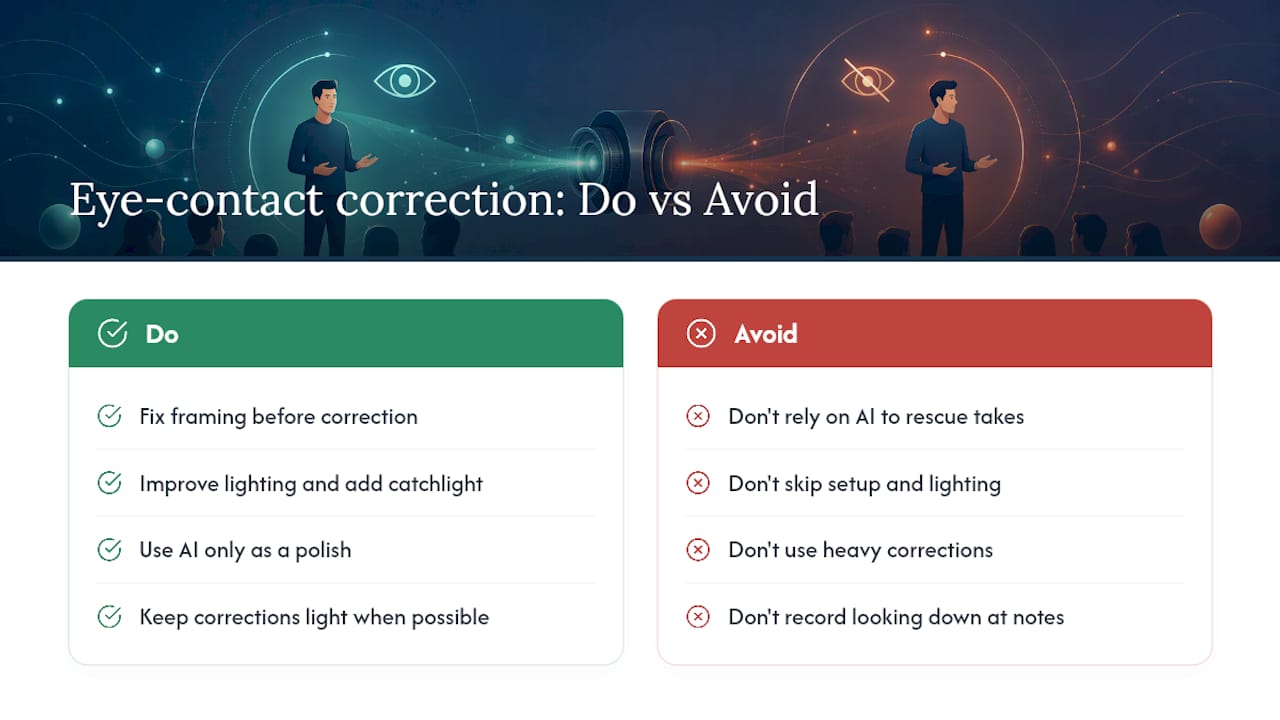
The conventional wisdom skips the setup work entirely and jumps straight to “just run it through an AI tool.” That’s backwards. A creator who places their script six inches from the lens and gets a decent catchlight will need a lighter correction, and lighter corrections are the ones that hold up under scrutiny. Heavy corrections are where you start seeing the flicker and the slightly dead-eyed stare that makes viewers feel like something’s off, even if they can’t say what.
If there’s one priority to take from all this, it’s sequencing: fix your framing and lighting first, treat the AI tool as a polish layer, not a rescue operation. Creators who skip straight to correction intensity sliders are solving the wrong problem.
— H
Where to Find Full Tool Tests and Comparisons
Techvideoblog runs hands-on tests on every tool in this space, so you don’t have to install five apps just to find the one that fits your workflow. We check pricing limits, output subtlety, and file-size caps before we ever recommend anything. For a full walkthrough of editors that pair well with gaze correction, including which ones handle continuous talking-head footage best, visit the best AI video editors directory on Techvideoblog. If you’re producing lesson-style content, our AI tools for coaching videos guide breaks down which options hold up across long recording sessions. Start there, pick the tool that matches your workflow, and run a quick before/after test on your next recorded clip.
FAQ
What Is the 3 Second Eye Contact Rule?
It’s a presentation guideline suggesting speakers hold eye contact with one point, or one person in a live audience, for about three seconds before shifting, to appear engaged without staring. In recorded video, the equivalent is holding a steady gaze at the lens rather than glancing repeatedly at notes or a monitor.
Is There a Free Online Tool to Correct Eye Contact?
Kapwing offers a web-based eye contact tool with a free tier, though advanced export options typically require a paid Pro plan. Most other tools in this space, including Captions and StoryCut, operate on subscription or credit-based pricing rather than a fully free model.
What Is the Eye Contact Trick?
The common version involves positioning your script or notes as close to the camera lens as possible, sometimes using a teleprompter, so your eyeline naturally lands near the lens instead of drifting to a screen below it. This reduces how much correction any AI tool needs to apply afterward.
Can CapCut Fix Eye Contact?
CapCut is not among the tools built specifically for AI gaze correction; creators looking for that feature typically turn to purpose-built options like Descript, Kapwing, Captions, or StoryCut instead.