Animated captions fall into several recognizable families, including karaoke word-by-word, typewriter, bounce, slide or mask reveals, fade, neon or decorative, and lower thirds. Pick based on legibility and sync first, expressive motion second — the style should never outrun the audio or the eye. For delivery, burn the animated version into your feed export, but keep a separate WebVTT: Captions and audio description or SRT track alongside it so accessibility isn’t sacrificed for style.
TL;DR:
- Karaoke and bounce styles perform well on TikTok and Reels, where audiences tolerate more stylization and faster pacing.
- For YouTube long-form videos and professional content, lower thirds and restrained fade captions better balance information density and readability.
- Accurate timing, sufficient contrast, and maximum two lines per caption are essential for accessibility, especially when using animated effects.
- Browser-based tools are quick for single posts but often lack precision, while timeline editors offer frame-perfect control for reusable, accessible captions.
- Using a combination of burned-in animation and a separate WebVTT or SRT track ensures accessibility is preserved even if animation breaks or is stripped by platforms.
Table of Contents
- What Are the Main Animated Caption Styles?
- When Should You Use Each Caption Style?
- How Do You Keep Animated Captions Accessible?
- Should You Use an Online Generator or a Timeline Editor?
- How Do You Make a Captioned Social Clip Fast?
- Where Can You Find Templates and Starter Assets?
- What We Learned Testing Caption Presets
- Compare Caption Tools Before You Commit to a Style
- Sources
- FAQ
What Are the Main Animated Caption Styles?
Every animated caption style traces back to a handful of motion families, and W3C’s WAI documentation groups the most common ones by how the text behaves on screen rather than by platform trend.
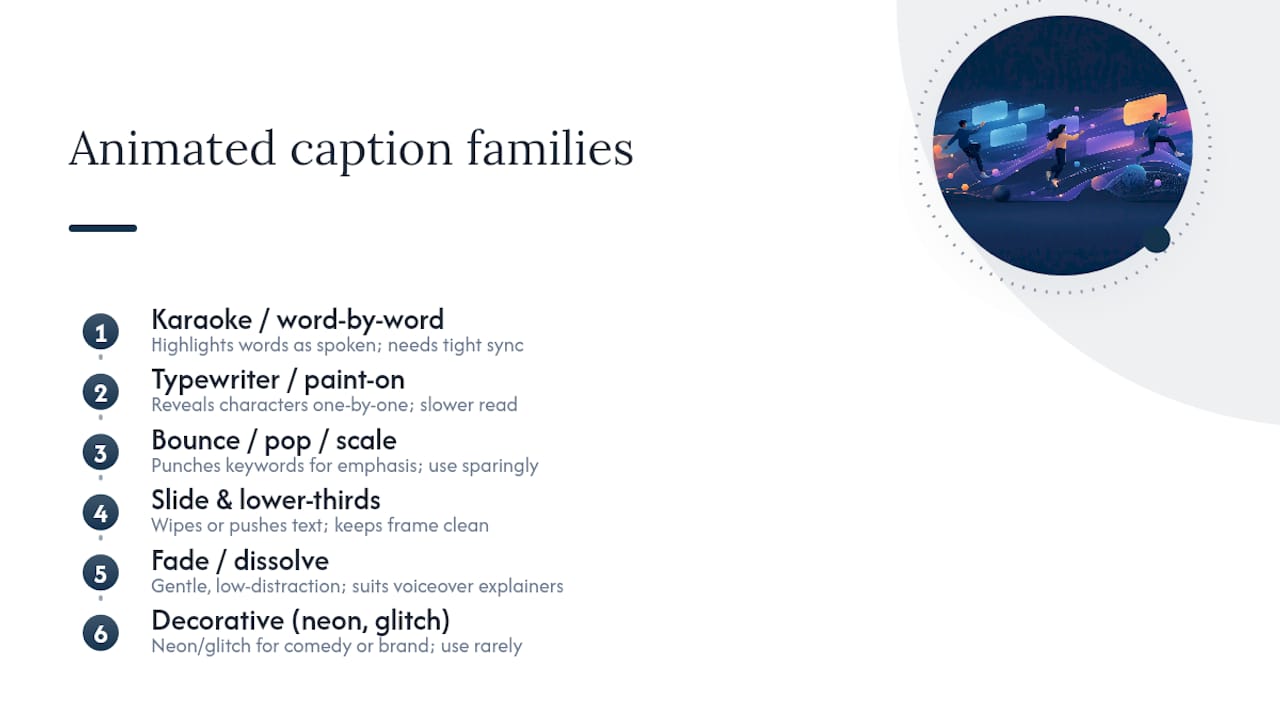
Karaoke/word-by-word highlights each word as it’s spoken, usually with a color fill or bold weight sweeping across the line. It’s the most popular style for short-form because it forces the eye to track pace, but it only works when timing is accurate. Get the sync wrong and the highlight lags or leads the voice, which is more distracting than no animation at all.
Typewriter/paint-on reveals text character by character, giving a tutorial or documentary feel. It reads slower than karaoke, so it fits narration-heavy clips better than fast dialogue.
Bounce/pop/scale effects punch in on a word for emphasis, usually a single keyword per sentence. Overusing this style turns every caption into a punchline, so reserve it for genuine emphasis points.
Slide and mask reveals push text in from an edge or wipe it into view, and lower-thirds place captions in a fixed lower-screen band. Both keep the frame clean, which matters for interviews and talking-head content.
Fade/dissolve is the lowest-distraction option, gentle enough for voiceover-heavy explainer content.
Neon, glitch, and decorative styles work for comedy or brand-heavy shorts, but use them sparingly. The same affective captioning research that studied Deaf and Hard-of-Hearing viewers found that font-color and shadow-color changes conveyed emotion effectively, while heavy decorative treatments tended to reduce readability instead of adding clarity.
When Should You Use Each Caption Style?
Platform expectations shape which animated caption style actually lands. A decade-long review of social video caption research found that TikTok audiences tolerate far more stylization than YouTube viewers, who expect near-transcript accuracy and a more professional finish.
- TikTok and Reels: karaoke and bounce styles perform well; viewers expect motion and forgive occasional stylistic flourish.
- YouTube long-form: lower thirds or restrained fade work better; heavy animation competes with information density.
- Instagram Reels: slide/mask reveals keep captions tidy without overwhelming short vertical frames.
- Tutorials: typewriter or fade for a calm, readable pace that matches step-by-step narration.
- Interviews: lower thirds, since they preserve a professional layout and don’t obscure the speaker.
- Comedy and promos: bounce or neon accents on punchlines, used selectively rather than throughout.
Short-form clips can carry faster caption cuts and shorter line lengths; long-form content needs steadier pacing and fewer motion effects per minute, since fatigue sets in fast when every line pops or slides.
How Do You Keep Animated Captions Accessible?
Animation is decoration on top of a caption system that still has to work for everyone, including viewers who rely on captions rather than audio. Section508 sets the baseline: two lines maximum, synchronized timing, sans-serif fonts, and enough contrast to read against any background. Rapid flashing or fast-cutting animation is explicitly discouraged because it competes with comprehension rather than supporting it.
Word-level karaoke timing only helps if the timing is actually correct. Manually check overlapping speakers, fast dialogue, and lines split across cuts, since auto-generated timing frequently misses these cases.
The W3C/WAI and Section 508 standards both treat synchronization as a requirement, not a nice-to-have. Motion is secondary to correct timing and adequate on-screen duration.
Pro Tip: Export your animated caption layer as burned-in video for feeds, but always generate the matching WebVTT or SRT file first. If the animation breaks or a platform strips it, the timed track is your fallback.
Should You Use an Online Generator or a Timeline Editor?
Browser-based caption generators are built for speed. They auto-transcribe, apply a preset style, and export fast, which makes them ideal for single social posts where you need something out the door in minutes. The trade-off is limited control over positioning and often a cap on export resolution or length on free tiers.
Timeline-native editors like Premiere Pro, Final Cut, and DaVinci Resolve give you frame-accurate timing control and reusable presets, including Motion Graphics Templates (MOGRTs) you can drop into future edits without rebuilding animation from scratch. That control comes at the cost of setup time.
A hybrid workflow often wins for creators producing regularly: generate the transcript and SRT/VTT file quickly with a browser tool, then bring that transcript into your editor to burn a styled animated layer on top. Before locking into any tool, confirm it offers these:
- Editable transcript with manual timing correction
- Word-level timing (not just line level)
- Safe-position controls so captions avoid logos or UI overlays
- Native SRT/VTT export alongside the burned-in file
Techvideoblog’s best AI caption generators roundup breaks down which browser tools handle each of these well.
How Do You Make a Captioned Social Clip Fast?
- Generate an auto transcript, then correct misheard words and punctuation before styling anything.
- Apply a preset that matches your chosen style family. Karaoke for pacing, lower thirds for interviews, fade for narration.
- Turn on word-level timing only if you’ve verified it against the audio. Fix any lines that lag or lead.
- Adjust safe position, on-screen duration, and line breaks, then read the captions back at normal speed to check pacing.
- Export a burned-in MP4 for your feed and a separate SRT or WebVTT file for accessibility and platform re-upload.
If you can’t follow the story from captions alone, the timing or line length needs another pass.*
A guide on publishing captions in under 90 seconds walks through this exact sequence with tool-specific shortcuts for Shorts and Reels.
Where Can You Find Templates and Starter Assets?
You don’t need to build every animated caption style from a blank timeline. MOGRTs, editor-native presets, and downloadable style packs from browser generators all give you a working starting point.
- MOGRTs drop directly into Premiere and carry their own timing controls, useful for reusable lower-third or karaoke setups.
- Editor presets in DaVinci or Final Cut save your font, color, and motion settings for reuse across projects.
- Online style packs from generator tools apply instantly but often need font and contrast checks before export.
Before adopting any template, confirm it supports safe-position adjustment and doesn’t lock font size below a readable minimum. Techvideoblog’s video editor auto captions guide covers which editors ship with the most flexible presets.
What We Learned Testing Caption Presets
Quick-generator presets held timing well on clean, single-speaker audio but needed manual fixes on overlapping speech and fast cuts. Templates were easy to apply but rarely matched an editor’s precision out of the box. For anything beyond a single quick post, timeline-native tools paired with a preserved SRT or WebVTT track gave the most reliable, accessible result.
— H
Compare Caption Tools Before You Commit to a Style
The directory is an alternative to guessing which caption tool actually holds timing under real editing conditions. Listings are based on hands-on workflow tests and pricing verification rather than marketing copy, so users can see which generator handles word-level sync accurately before building a style around it.

If you’re still deciding between a quick browser generator and a timeline-native workflow, start with the AI captions and subtitles category to compare tools side by side on timing accuracy, export formats, and pricing. For broader motion and visual-design context beyond captions, visual storytelling techniques are worth a look too. Head to Techvideoblog to find the caption tool that actually fits your workflow, not just your feed.
Sources
- WAI: Captions and audio description
- Section508
- Caption Royale: Exploring the design space of affective captions
FAQ
What Are the Different Styles of Captions?
The main animated caption styles are karaoke/word-by-word, typewriter/paint-on, bounce or scale, slide or mask reveals, fade/dissolve, neon or decorative accents, and lower thirds. Each behaves differently on screen, and W3C/WAI groups them by motion behavior rather than platform.
What Is a Good Caption Style for an Animated Video?
For animated video, fade or typewriter styles usually work best since they match a calmer visual pace without competing with existing on-screen motion. Bounce or karaoke styles fit high-energy animated shorts where the visuals can support faster caption cuts.
What Are the Different Styles of Animated Videos?
Common animated video formats include motion graphics explainers, whiteboard-style tutorials, character animation, and kinetic typography pieces. Caption style choice should follow the video’s pacing: slower explainer formats suit typewriter or fade captions, while fast-cut kinetic pieces often pair naturally with bounce or karaoke text.
Does YouTube Use SRT or VTT?
YouTube accepts both SRT and WebVTT files when you upload timed captions separately from a burned-in animated layer. Keeping one of these formats alongside your styled export preserves accessibility, as recommended by W3C’s captioning techniques.
How Do I Animate Captions Without Breaking Accessibility?
Keep animation limited to color, weight, or scale changes rather than flashing or rapid motion, and always sync timing to actual speech. Export a separate SRT or WebVTT track alongside your burned-in animated version, following Section 508’s captioning guidance.