Most screen recorders fall into a predictable price ladder: free tiers with recording caps and watermarks, individual plans generally costing a few dollars to a few dozen dollars a month, and team plans at similar mid-range prices per seat monthly. Storage overages, AI transcription credits, and export upgrades push the real bill higher than the sticker price. Enterprise pricing stays custom and almost always requires a sales call.
TL;DR:
- Most free screen recording plans include caps on recording length, storage, or watermarks, with paid tiers removing these hard limits for $5 to $30 monthly.
- Storage overages and AI transcription credits are common hidden costs that can significantly increase the total bill beyond the advertised price.
- Upgrading from individual to team plans mainly grants content management and sharing capabilities, with record quality generally stable across tiers.
- Enterprise pricing is negotiated case by case, often including advanced features like SAML SSO, API access, and custom data retention.
- Project your actual twelve-month usage of recording volume and transcription needs to accurately compare plans beyond sticker prices.
Table of Contents
- How Much Does Screen Recorder Pricing Cost by Tier?
- What Actually Drives Your Screen Recording Software Cost?
- How Do You Compare Screen Recorder Pricing Plans?
- Where Can You Find Screen Recorder Deals and Discounts?
- How Techvideoblog Verifies Screen Recorder Pricing
- What Happens When You Cancel a Screen Recorder Subscription?
- What Is the Real Total Cost of Screen Recording Software?
- Do You Pay More for Multiple Devices or Platforms?
- Primary Sources for Screen Recorder Pricing
- The Real Lesson in Screen Recorder Pricing
- Find the Right AI Video Tool Without Guessing on Pricing
- Sources
- FAQ
How Much Does Screen Recorder Pricing Cost by Tier?
Every vendor Techvideoblog checked builds its pricing around the same four rungs: free, individual, team, and enterprise. The features that unlock at each rung are consistent enough across the category that you can predict what you’re getting before you ever open a pricing page.
Free tiers exist mainly to get you into the product, not to run a business on. Expect short recording caps (often 5 to 15 minutes per clip), limited cloud storage, and a watermark on exported video. Loom’s pricing page caps its free plan on video length and library size, while ScreenRec’s Free Forever plan trades recording limits for storage caps instead. ScreenKite follows the same pattern: a usable free tier for occasional recording, with the meaningful upgrades locked behind Pro.
Individual and professional plans run $5 to $30 a month depending on what’s bundled. This is where recording length limits usually disappear, HD or 4K export unlocks, and you get local save options instead of cloud-only storage. ScreenApp’s Growth plan lands at $19 a month billed annually, close to $228 a year, and adds meeting-bot recording and basic AI summaries that the free tier doesn’t offer.
Team plans split into two pricing philosophies: per-seat billing and shared-workspace billing. Per-seat pricing charges you for every team member with access, typically $8 to $30 per user monthly, and scales linearly as your team grows. Shared-workspace pricing charges a flat rate for a pool of storage and seats, which can be cheaper for small teams but gets expensive fast once you add more than five or six people. Loom’s Business tier prices around $18 per user monthly and removes the recording caps entirely, which is the real value unlocked at this level, not just the seat count.
Enterprise tiers don’t publish prices at all. You’ll see “Contact Sales” buttons instead of numbers, and for good reason: SAML/SSO integration, white-labeling, dedicated support SLAs, and custom data retention terms all get negotiated case by case. ScreenApp’s Enterprise tier adds API access and custom AI credit allotments on top of the Business plan, priced individually per contract.
A few things stand out once you line these tiers up side by side:
- The jump from free to individual is almost always about removing hard limits, not adding new categories of feature.
- The jump from individual to team is mostly about who can see and manage the content, not the recording quality itself.
- AI and transcription features increasingly sit above the individual tier, which means heavy transcription users pay more even if their recording needs are modest.
What Actually Drives Your Screen Recording Software Cost?
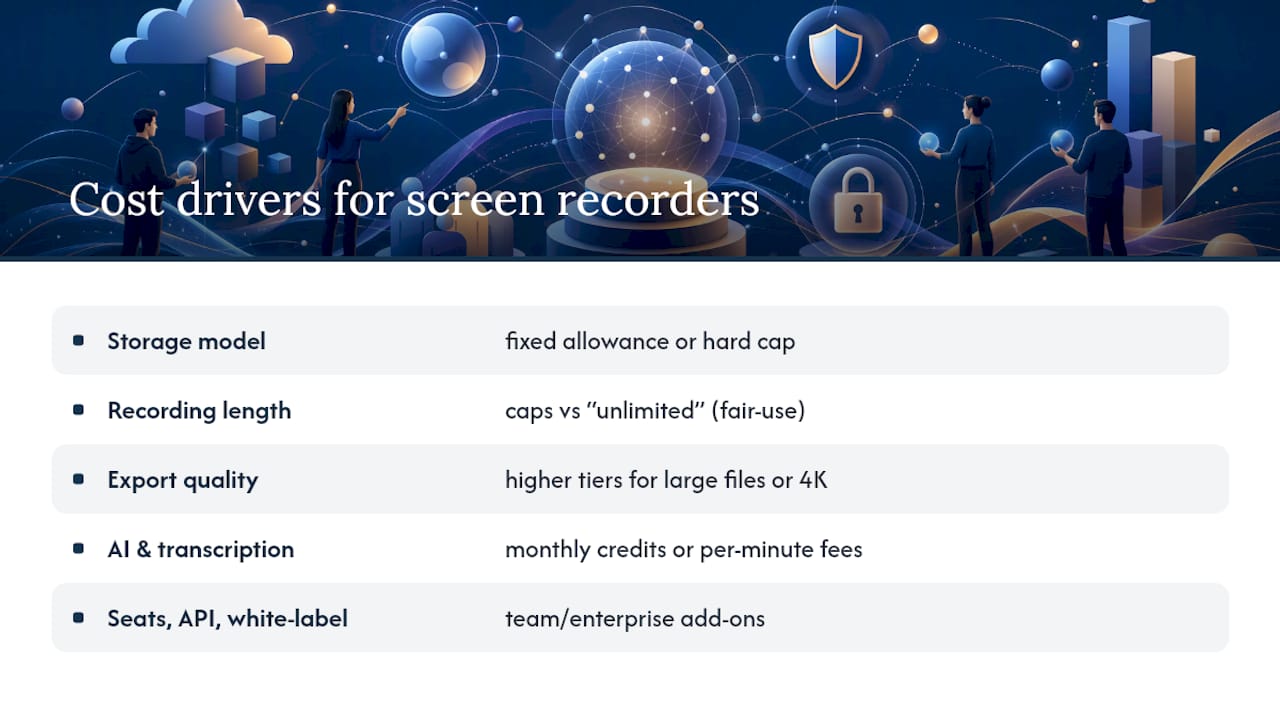
The headline price on a pricing page rarely matches what you end up paying. Five variables do most of the work in pushing your bill above the advertised rate, and none of them are obvious from a glance at the pricing table.
Storage models vary more than most buyers expect. Some vendors include a fixed cloud storage allowance and charge overage fees once you exceed it; others cap you hard and force an upgrade instead of billing per gigabyte. CANVID’s pricing structure illustrates the alternative model well: its Desktop license stores recordings locally with no cloud costs at all, while its Pro subscription adds unlimited cloud storage as the main reason to pay recurring fees.
Recording length is the second lever. Free and entry tiers almost universally cap individual recordings, while paid tiers advertise “unlimited” recording. That word deserves scrutiny. Marketplace listings and vendor terms don’t always agree on what “unlimited” actually means, once fair-use policies kick in, so check the billing FAQ before you assume a paid plan removes every cap.
Export quality and file size constraints often justify a tier jump on their own. If your workflow needs 4K exports or large file sizes for detailed screen capture, you may need a higher tier even if your recording length and storage needs are modest.
AI and transcription add-ons are the fastest-growing cost driver in this category. Some vendors bundle a fixed number of AI credits per month; others charge per transcription minute once you exceed a free allotment. Heavy users of automated captions or meeting summaries can watch this line item balloon well past the base subscription price.
Seats, API access, and white-labeling round out the list, almost exclusively at the team and enterprise level.
Pro Tip: Before comparing sticker prices, calculate your actual monthly recording volume and transcription minutes first. A cheaper base plan with expensive AI overage can cost more than a pricier plan with generous included credits.
How Do You Compare Screen Recorder Pricing Plans?
A repeatable checklist beats scrolling between ten open pricing tabs. Here’s the process Techvideoblog uses when shortlisting vendors for a client budget.
- List your non-negotiables first. Recording length, storage volume, and whether you need transcription are usually the three that matter most.
- Assign rough weights. A simple split works: cost (30%), storage and recording limits (25%), AI/transcription needs (20%), admin and security features (15%), support quality (10%).
- Score each vendor against your weights, not against each other’s marketing copy.
- Cross-check the free trial to confirm the paid tier actually delivers what the pricing page implies.
- Ask sales three questions before you commit, even on a self-serve signup.
Those three questions matter more than most buyers realize:
- What’s the billing cadence, and does annual pricing lock in the current rate or is it subject to increase at renewal?
- Can seats be reassigned or paused mid-cycle if a team member leaves?
- What happens to recordings and storage retention if you cancel or downgrade?
This whole exercise takes about 10 minutes once you’ve built the weighting template once. Run it against three vendors, and you’ll have a shortlist grounded in your actual usage pattern rather than whichever pricing page had the most persuasive homepage copy.
Where Can You Find Screen Recorder Deals and Discounts?
Annual billing is the most reliable discount lever in this category, typically saving 15% to 40% off the monthly rate depending on the vendor. Annual makes sense once you’re confident you’ll use the tool for at least eight to ten months; below that, the savings rarely outweigh the flexibility of monthly billing.
A one-time license, where available, can beat a subscription outright for the right use case. CANVID’s buy-once desktop option and ScreenKite’s pay-once Pro tier (listed around $79.99 one-time) suit creators who record locally, don’t need cloud collaboration, and want to avoid recurring fees entirely. If you’re recording tutorials for internal use and exporting straight to a local drive, a buy-once license often pays for itself within four to six months compared to a subscription.
A few operational habits also trim your bill without changing plans:
- Archive old recordings locally instead of leaving them in paid cloud storage indefinitely.
- Limit auto-transcription to recordings that genuinely need captions rather than running it on everything by default.
- Audit team seats quarterly. Unused licenses on a per-seat plan are the most common source of overspend Techvideoblog sees in team accounts.
- For teams over 15 seats, ask about multi-year contract discounts. Vendors will often negotiate here even without a published enterprise tier.
How Techvideoblog Verifies Screen Recorder Pricing
Techvideoblog checks vendor pricing by signing up directly, not by copying numbers off a pricing page. That means creating accounts across free and paid tiers, reviewing the actual billing screen at checkout, and testing where feature limits kick in during real recording sessions.
The checks specifically cover storage behavior under load, what happens to an export workflow once you hit a plan’s resolution cap, how quickly AI transcription credits deplete during typical use, and whether team admin controls work as advertised on the pricing page.
This article, authored by H for Techvideoblog, reflects pricing verified as of early 2026. Vendors change pricing without much notice, and tier features shift faster than most comparison sites update. If you spot a price that’s moved since this was checked, Techvideoblog welcomes reports to keep the comparison accurate.
What Happens When You Cancel a Screen Recorder Subscription?
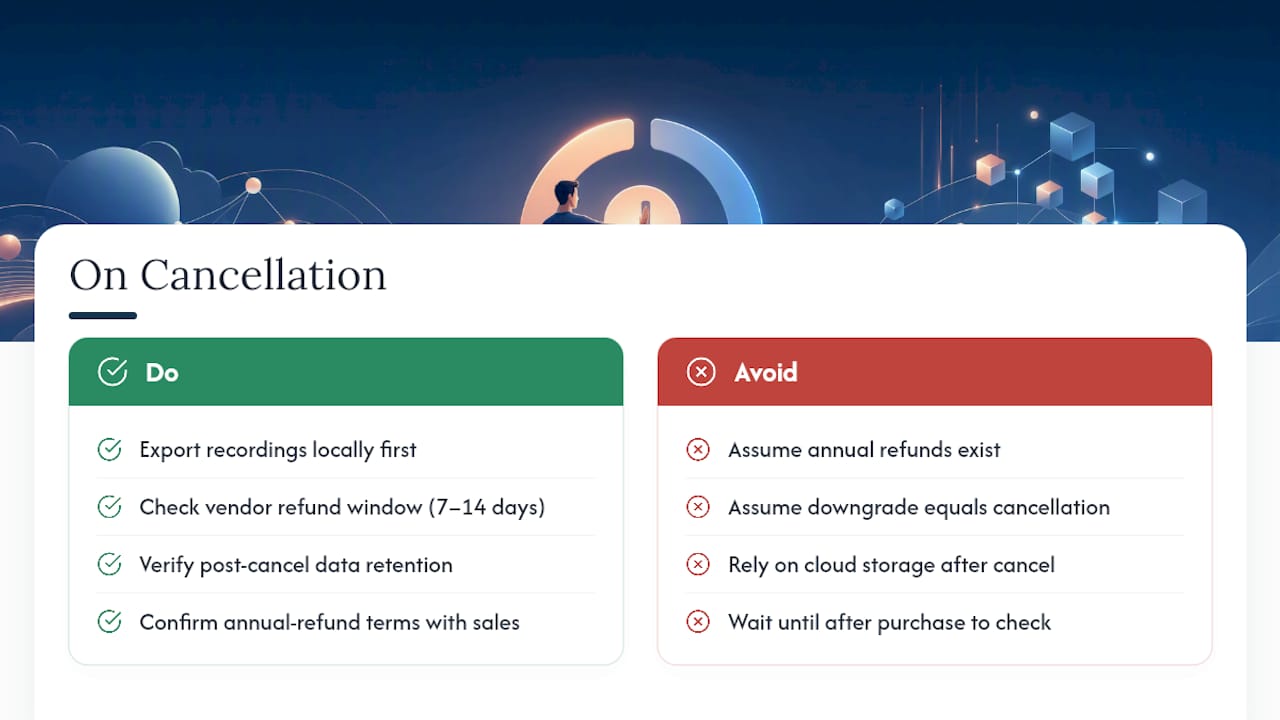
Cancellation terms vary by vendor, but a few patterns hold across most of the category. Monthly plans typically let you cancel anytime and stop billing at the next cycle, while annual plans rarely refund the unused portion of a prepaid year unless the vendor explicitly advertises a money-back guarantee.
Data retention after cancellation is the part buyers overlook. Most vendors give you a grace window, often 30 days, before deleting cloud recordings tied to a canceled account. Some downgrade you to the free tier’s storage cap immediately, which can silently put you over the limit and trigger deletion warnings on recordings you assumed were safe.
Before canceling anything, export what you need locally first. Don’t assume “downgrade” and “cancel” behave the same way. Downgrading to a lower paid tier or the free tier sometimes keeps existing recordings accessible read-only, while full cancellation can start the deletion clock immediately.
If refunds matter to your decision, check the specific vendor’s terms rather than assuming standard software refund norms apply. Some vendors offer a short refund window (7 to 14 days) on new annual purchases; others treat all subscription payments as final once the billing cycle starts. This is exactly the kind of detail worth confirming with sales before you commit to annual billing, not after.
What Is the Real Total Cost of Screen Recording Software?
The number on a pricing page is a starting point, not your actual bill.
Storage overage is the most common hidden fee. If your plan includes a fixed cloud allowance and you regularly exceed it, you’re either paying per-gigabyte overage or getting forced into the next tier up, whichever the vendor’s terms specify. AI transcription credits work the same way: a plan that looks affordable on paper can double in effective cost for a team that transcribes every meeting.
Upgrade costs sneak in through team growth. A per-seat plan that fits five people comfortably can strain a budget once headcount hits fifteen, especially if nobody audits unused licenses. Watch for tier boundaries tied to features you’ll eventually need. Some vendors gate 4K export, API access, or SSO behind a jump that costs significantly more than the tier just below it, not a gradual price increase.
The most reliable way to estimate real cost is to project twelve months of usage, including expected team growth and transcription volume, against each tier’s limits before committing. A plan that looks like the cheapest option in month one can become the most expensive by month six if your usage outgrows its caps.
Do You Pay More for Multiple Devices or Platforms?
Cross-platform and multi-device costs depend heavily on how a vendor licenses its software. Cloud-first tools like Loom and ScreenApp generally tie your subscription to your account, not your device, so recording from a laptop, a second desktop, or a mobile browser doesn’t trigger extra charges.
Desktop-installed tools behave differently. A buy-once license, like the kind CANVID offers, is often tied to a set number of device activations rather than an account. Installing on a second computer can require an additional license purchase or a documented transfer process, so check the license terms before assuming one purchase covers every machine you own.
Team plans introduce a separate wrinkle: seat licensing usually covers a person, not a device, meaning one team member can typically use the tool across their laptop and desktop under a single seat. But some enterprise contracts restrict simultaneous sessions, which matters if your team shares devices or works across multiple locations.
If your workflow spans Windows, macOS, and a browser-based option, confirm platform support directly on the vendor’s pricing or feature page rather than assuming parity. Feature sets, especially around webcam overlay and system audio capture, sometimes differ by platform even within the same paid tier.
Primary Sources for Screen Recorder Pricing
The price ranges and tier breakdowns above come directly from vendor pricing pages: Loom, ScreenApp, CANVID, ScreenKite, and ScreenRec. Each confirms current plan structure, billing cadence, and feature gates as published by the vendor itself.
For independent validation beyond vendor marketing, Software Advice’s screen recorder profile offers a marketplace view of starting prices across the category, useful for spotting where a single vendor’s pricing sits relative to the broader market.
The Real Lesson in Screen Recorder Pricing
The conventional advice, “compare the monthly price,” misses where the actual money gets spent. Storage overages and AI transcription credits routinely add more to a bill over a year than the difference between two vendors’ base subscription prices. If you’re only comparing sticker prices, you’re comparing the wrong number.
What the research here actually supports is this: your recording volume and transcription habits should drive the tier decision, not team size or brand recognition. A five-person team that records occasionally and skips AI summaries can run comfortably on a cheap individual plan shared loosely. A solo creator who transcribes every video can burn through AI credits faster than a mid-size team on a higher tier.
Prioritize projecting your actual twelve-month usage before you look at a single pricing page. Everything else, the checklist, the vendor comparison, the annual discount math, only works once you know what you’re actually going to use.
— H
Find the Right AI Video Tool Without Guessing on Pricing
Screen recorder pricing is only one piece of a much bigger tool stack, and most creators end up juggling a recorder, an editor, a captioning tool, and a transcription service, each with its own subscription. Techvideoblog is built as the directory that keeps you from repeating this comparison exercise for every category. Instead of researching pricing tiers from scratch every time you add a tool, you get hands-on reviews and verified pricing across editors, caption generators, and repurposing tools in one place.

If AI transcription costs are part of what’s driving your screen recorder bill up, Techvideoblog’s transcription tool reviews can help you decide whether a bundled vendor credit or a dedicated transcription service actually costs less for your volume. And if you’re weighing a subscription recorder against a buy-once editor for your workflow, the Camtasia review walks through that exact tradeoff in more detail. Browse the best screen recorder comparisons to see verified pricing and feature tests before you commit to a plan.
FAQ
Which Screen Recorder Is Totally Free?
ScreenRec’s Free Forever plan and ScreenKite’s free tier both offer no-cost recording with no expiration date, though each caps storage or recording length. Loom’s free tier is also genuinely free indefinitely, with limits on video length and library size rather than a trial period.
Can I Screen Record for a Full Hour on a Free Plan?
Most free tiers cap individual recordings well below an hour, often between 5 and 15 minutes per clip. To record continuously for an hour without interruption, you’ll typically need a paid individual or team plan that removes the length cap.
How Do I Record My Screen for Free?
Sign up for a free tier from a vendor like Loom, ScreenRec, or ScreenKite, all of which let you record and export without payment, subject to their length and storage limits. Open-source options like OBS Studio are also fully free with no recording caps, though they require more setup than a browser-based recorder.
Is There a Free Online Screen Recorder Available?
Yes. Browser-based free tiers from Loom, ScreenRec, and ScreenApp all let you record directly from a web browser without installing desktop software, though AI features and unlimited recording length are typically reserved for paid tiers.