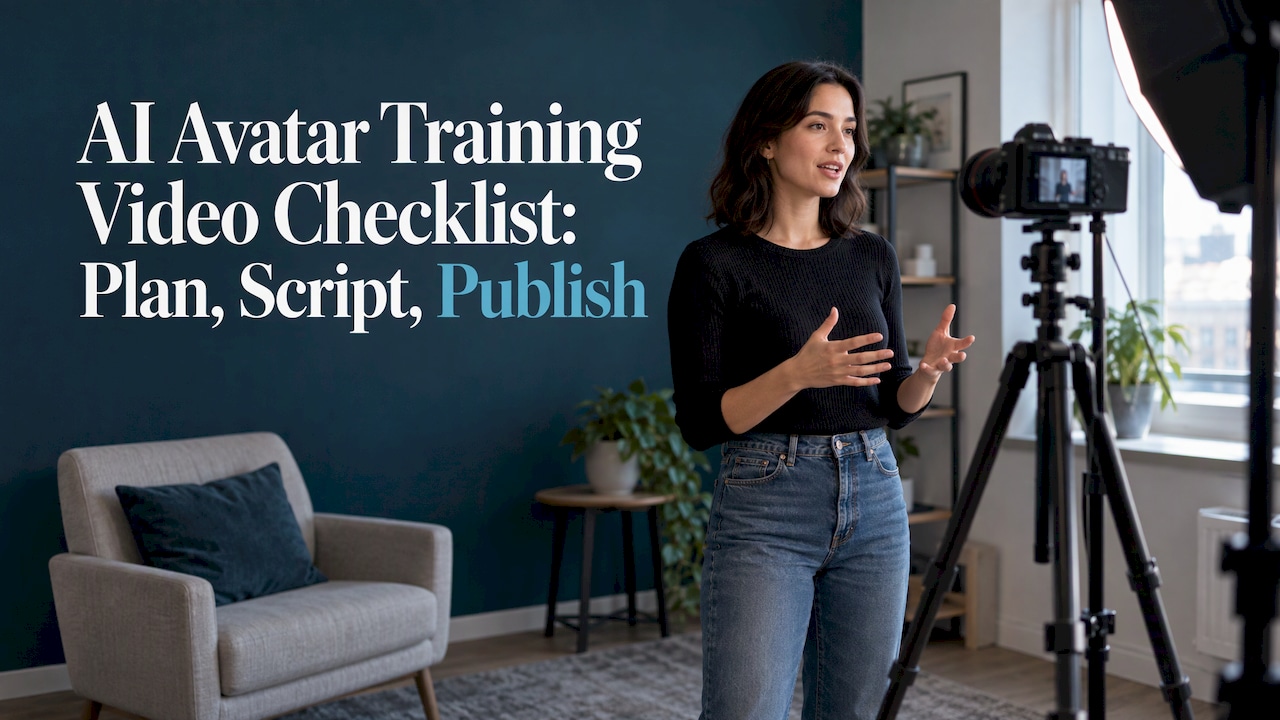
An AI avatar training video goes wrong in four places: the plan, the script, the source footage and the final review. This checklist covers all four in the order you work through them. It also covers the two things teams skip most often, captions and disclosure. Every item is something you can tick off before you spend a single generation credit.
I built this from our own tool testing at TechVideoBlog and from the official documentation of the platforms and accessibility bodies cited below. Use it for onboarding videos, software walkthroughs, compliance refreshers and internal how-tos.
TL;DR
- Decide first whether the process needs a video and a presenter at all. Then write one learning objective and lock the narration before you generate anything.
- Write for the ear: short sentences, one idea each, and about 2 to 3 spoken words per second.
- If you train a custom avatar, record one continuous, well-lit, quiet take with clear sound. Platforms reject or degrade footage that ignores this.
- Captions, plain-language disclosure and a named approval owner are part of the video, not extras.
- Finish with a fixed review pass: muted, sped up, on a phone speaker, with captions read as text.
Table of Contents
- Before you generate: planning checklist
- Scripting checklist: write for the ear
- Recording checklist: source footage for a custom avatar
- Pre-render approval: separate facts from visuals
- Captions and accessibility checklist
- Disclosure and trust checklist
- Final quality control before publishing
- Our perspective
- Find a tool that fits your checklist
- FAQ
- Sources
Before you generate: planning checklist
Most wasted renders come from skipping this stage. Work through these in order.
- Run a substitution test. Ask whether the process needs a video, a presenter, or neither. A five-step settings change may be better as a screen recording with a voiceover. A policy explanation where trust and tone matter may justify a presenter. A free course on AI training videos from Emeri makes this decision the first step, before any scripting.
- Write one learning objective. One sentence that starts with what the viewer will be able to do. If you cannot write it in one sentence, you have two videos.
- Write three to five scenario questions. These are the questions a viewer should be able to answer after watching. They keep you from padding the script and give you something to test against.
- Draft narration from the real process document. Use the actual procedure, not a summary of a summary. Cut anything that does not serve the objective, then lock the text before generation. Edits after rendering cost credits and often shift lip sync.
- Storyboard each segment. Decide what is on screen for every line, so on-screen words match the narration instead of competing with it.
- Name an approval owner. Governance guidance recommends settling role, consent, disclosure, voice and face consistency, supportable claims and usage boundaries before you produce at volume, with one named person who signs off. The Gateway Creative governance checklist frames the riskiest moment as the point when production scales, not the first video.
- Pick the tool last. Requirements such as SCORM export, languages, custom avatars and seat counts should come from the plan above. Our AI training video generator tests compare drafting time and SCORM support, and the course video AI guide covers lesson-based builds.
Scripting checklist: write for the ear
A script that reads well on a page often sounds stiff in an avatar’s even delivery. Fix it before you generate.
Structure and length
A simple spoken order works for short business videos: context, value, evidence or demonstration, then the next action. One script guide recommends a hook in the first 3 seconds, a body with one main idea plus proof, and a closing call to action with one clear step (Tagshop script tips). For training, the “hook” is usually the problem the viewer is about to solve, such as “Here is how to reset a customer password in under a minute.”

The same guide says avatars speak at roughly 2 to 3 words per second. Its length targets are 35 to 45 words for about 15 seconds and 70 to 80 words for about 30 seconds. For a three-minute module, that is roughly 360 to 540 words of narration. If your draft is 900 words, you have a course, not a video.
Script checklist
- Every sentence is short enough to say in one breath.
- One idea per sentence. One main point per segment.
- Numbers, product names and menu labels are written the way they should be spoken. Spell out anything the voice might mispronounce, and keep a pronunciation list for names and acronyms.
- No lines that rely on sarcasm, stress or emotion to land. An even generated voice flattens them.
- You have read the whole script aloud and rewritten every line where you stumbled.
- Each segment ends with a clear transition or action, so the viewer knows what happens next.
If a draft from a language model sounds generic, edit it by hand against these rules. A guide on how to humanize AI text with instructions can help when you turn a learning objective into narration you want to sound natural rather than templated.
A quick worked example
Suppose the objective is “Submit an expense report from your phone.” A 30-second segment could run roughly 70 to 80 words: one sentence naming the task and the time it takes, three short sentences for the steps, one sentence for the most common mistake, and one for where to get help. Anything beyond that belongs in a second segment.
Recording checklist: source footage for a custom avatar
If you use a stock avatar, skip to the next section. If you train a digital twin of a real presenter, the source recording decides the quality of every future video. Requirements differ by platform, so read your tool’s page before filming. Three platform documents show the pattern.
| Requirement | Example from platform documentation |
|---|---|
| Resolution | At least 1080p at 30 fps for one avatar platform’s video avatar guide; at least 2K for another platform’s replica training |
| Length | About 1.5 to 2 minutes in the replica training guide |
| Takes | One continuous recording, no cuts or splices |
| Audio | Quiet room, no background voices, and the presenter’s own speech recorded even if another voice is used later, because it matters for lip sync |
| Consent | A consent statement at the start of the recording in the replica guide |
A video-platform support guide on training an avatar adds practical staging advice:
- Record in a bright, quiet room, ideally in daylight in front of a window, against an uncluttered neutral background.
- Stand about 2 to 3 feet from the camera with your face centered.
- Wear solid colors, because patterns can cause moiré effects.
- Remove anything that blocks the face and avoid filters that alter facial features.
The replica guide also recommends using the best microphone you have, keeping your eyes level with the camera, avoiding crossing your hands in front of your face, and closing your lips during pauses.
Two habits we would add from experience. First, record a short test, upload it, and check the result before you commit to a full shoot. Second, keep the lighting setup and the clothing you used, so you can retrain the avatar later and get a consistent look. Our best AI avatar tools roundup notes which platforms ask for what, so you do not film to the wrong spec.
Pre-render approval: separate facts from visuals
Before you render, do one approval pass that has nothing to do with how the video looks. Confirm:
- Product names, procedure steps, prices, dates and offers are correct.
- Any claim has support, and any required qualification is in the script.
- Names are spelled and pronounced correctly.
- The presenter has given permission for their likeness and voice to be used, in writing.
- Music, images and screen captures are cleared for use.
Separating this review from the visual review has a practical benefit. You avoid polishing a video whose underlying facts or rights are wrong, and you leave a clear record of what was approved before the avatar spoke for you. The AvatarCraft workflow guide describes the same two-stage approach.
Captions and accessibility checklist
Captions are part of a training video, not an add-on. Many employees watch with the sound off, and some need captions to watch at all. The most specific US guidance comes from the federal government’s accessibility site, Section508.gov:
- Captions are synchronized with the audio.
- They include all dialogue and important sounds.
- Spelling, grammar and punctuation are correct.
- They stay on screen long enough to read. Speech faster than 180 words per minute may be too fast for captions, which is well above the 2 to 3 words per second (120 to 180 words per minute) avatar pace suggested above, so a normal script clears it.
- Default styling: a sans-serif font at 18-point, white text on a translucent black background, no more than two lines, no more than 45 characters per line.
- On-screen text stays in the top two-thirds of the screen.
Auto-generated captions need a human pass. Fix capitalization, punctuation, names, places, technical terms, missing sounds and awkward line breaks. The University of Maryland checklist asks that auto captions are reviewed and corrected, that timing matches speech and does not lag or cut off, and that lines are segmented into one or two lines rather than paragraphs. It also asks for plain language and acronyms spelled out on first use.
For quality standards you can hold a vendor or colleague to, CU Boulder’s captioning guidelines define good captions as accurate, equal, consistent, complete and readable. The W3C Web Accessibility Initiative adds that speakers should talk clearly and as slowly as is appropriate, with pauses between topics so people have time to process. Build those pauses into the script as paragraph breaks.
If you are choosing a caption tool, see our auto-caption editor comparison.
Disclosure and trust checklist

Viewers care about knowing when a presenter is synthetic. In a Deloitte survey of people familiar with or using generative AI, 68% were concerned that synthetic content could be used to deceive or scam them, 59% found it hard to tell human-made from AI-made media, and 84% agreed that AI content should always be clearly labeled.
For training videos, a practical disclosure plan looks like this:
- Label early. Put a clearly visible label at the start, in plain words, such as “This video uses an AI presenter.” Do not bury it in a description.
- Cover all the synthetic parts. An AI presenter, a cloned or synthetic voice, translated narration and generated lesson text can all count.
- Record the decision. Standards guidance for AI-voiced and AI-avatar training describes four decision areas across the life of the video: consent, labeling, accuracy verification and documented approval, as laid out by eLearning Industry.
- Match the rule to the use. If the video is marketing rather than internal training, the bar is higher. Under US advertising guidance, disclosures need to be clear and conspicuous, and an avatar should not deliver a testimonial as if a real person had tried the product. For the marketing side, see our guide to AI UGC videos and disclosure rules. For legal questions about your specific use, talk to your company’s counsel.
Also confirm the voice and likeness rights for your presenter. If your avatar is a real employee, get their written consent and decide what happens to the avatar when they leave the company.
Final quality control before publishing
Run these passes on the finished export, not the preview. Each one catches a different kind of failure.
- Watch at double speed to check pacing and spot dead air.
- Watch muted to see whether the visuals and captions carry the meaning alone.
- Listen on a phone speaker. Most viewers will not use studio headphones.
- Scan the avatar’s face in each segment for lip-sync drift, eye contact dropping out during pauses and repeated gesture loops. Regenerating shorter chunks often fixes these.
- Read the captions as text for typos, punctuation and line breaks.
- Check the first 3 seconds and the last 5. The opening should state the point and the label. The ending should state the next step.
- Preview on a phone to confirm captions sit clear of platform interface elements and that contrast holds up.
- Match the final to the approved script. If anything changed after approval, get it approved again.
Our perspective
Tool overload is the real reason avatar training videos disappoint. Teams pick a platform from a feature list, generate a draft, and then discover the script is too long, the source footage was wrong or the captions need rebuilding. We test the other way around: we start from the workflow and ask which tool carries it with the least rework.
That is why this checklist is front-loaded. In our hands-on testing, the decisions that matter most (objective, script length, recording spec, approval) happen before you open a generator. Tool choice matters, and it matters most once you know your requirements: SCORM, languages, custom avatars, pricing after retries.
We verify pricing and score tools on real workflow fit, not paid placement. If you are comparing avatar platforms, we would rather you read how we test than take our word for it, and then pick the one that fits your checklist.
H
Find a tool that fits your checklist
Once your plan, script and recording needs are written down, choosing a platform becomes a short comparison instead of a guess. We maintain a directory of AI video tools with hands-on reviews, verified pricing and workflow tests.
Start with our tested AI avatar tools, compare education-focused options in AI video tools for education, or browse the full TechVideoBlog directory. If you want to see how we score, read how we test AI tools.
FAQ
How long should an AI avatar training video be?
Keep each video to one learning objective. At 2 to 3 spoken words per second, a three-minute video carries roughly 360 to 540 words. If your script runs much longer, split it into modules so viewers can find the step they need.
How do I write an AI avatar video script that does not sound robotic?
Write short sentences with one idea each, then read the script aloud and rewrite every line you stumble over. Avoid sarcasm and lines that depend on stress or feeling. Open with the problem, give one proof, and end with one next step.
Do I need to disclose that the presenter is an AI avatar?
Yes, as a practice, and the clearer the better. Put a plain-language label at the start of the video, and cover AI voices and generated text too. Consent from the real person behind a custom avatar is also part of the plan. For legal specifics, check with your company’s counsel.
What should I record to train a custom avatar?
Follow your platform’s current spec. Typical requirements are 1080p or higher, a quiet room, even lighting, a plain background and one continuous take with clear audio of you speaking. Some platforms also ask for a short consent statement at the start.
Do AI avatar training videos need captions?
Yes. Captions help viewers who are deaf or hard of hearing, and those watching without sound. Review auto-generated captions by hand, keep lines to two or fewer, and check that they match the audio and stay on screen long enough to read.
Sources
- Training videos with AI: a free course on scripts, voices and more (Emeri)
- AI Brand Avatar Governance Checklist (Gateway Creative)
- AI Avatar Video Script Writing Tips (Tagshop)
- Create your first Digital Twin with Avatar IV (HeyGen Help)
- Train Your Replica (Tavus docs)
- How to create a training video for your AI Avatar (Vidyard)
- AI Avatar Video Workflow: From Script to Publishable Video (AvatarCraft)
- Captions and Transcripts (Section508.gov)
- Social Media Accessibility Checklist (University of Maryland)
- Captioning Quality Guidelines (CU Boulder)
- Audio Content and Video Content (W3C WAI)
- Gen AI trust standards (Deloitte Insights)
- Disclosure Standards For AI-Voiced And AI-Avatar Training Videos (eLearning Industry)