Read the Sora shutdown update and adapt five-part video prompts for other generators. Includes camera, action and lighting examples. Write a short shot brief, then vary one instruction at a time. Save the model, settings, prompt and cost for each attempt. Count usable outputs rather than treating generation speed as finished production time.
Sora availability, checked September 20, 2026: The Sora web and app experiences closed on April 26, 2026. OpenAI says its API closes September 24, 2026. Treat the examples below as historical reference and adapt the shot-planning approach to another generator. OpenAI shutdown and export guidance.
Research guide. Vendor information and third-party reports are distinct from our own test results. See how we evaluate tools. We may earn a commission from qualifying purchases through affiliate links. Affiliate disclosure.
TL;DR:
- Clear, specific nouns and concrete sensory details are essential in prompts to produce accurate and visually coherent results.
- Maintain only one main subject and action per prompt to ensure clean rendering and avoid confusion.
- Use one camera move or type per shot, with shot type and lens choice being critical for establishing the scene or focus.
- Lighting and palette should be described with precise terms and anchored early in the prompt to ensure consistency across multiple clips.
- API parameters like duration and resolution must be set separately in the call, as prompt prose cannot override these settings.
Table of Contents
- How to Prompt Sora Using the Five-Part Formula
- Sora Prompt Templates and Example Prompts You Can Copy
- Getting the Camera, Lighting, and Palette Right
- Writing Sora Prompts in Beats, Dialogue, and Timing
- Historical API Settings: Do Not Build a New Workflow Around Them
- How to Fix a Sora Prompt That Isn’t Working
- Common Sora Prompting Mistakes to Avoid
- A Practical Testing Workflow for Sora Prompts
- How to Evaluate This Workflow
- Adapt These Shot Briefs to Another Generator
- Where to Read More About Sora Prompting
- Sources
- FAQ
How to Prompt Sora Using the Five-Part Formula
The structure that reliably works comes straight from OpenAI’s own Sora 2 Prompting Guide, which frames every prompt as a compact cinematography brief: subject, action, setting, camera, and lighting or style. Sora reads left to right and weighs earlier information more heavily than what comes later, so the order you choose determines which details survive into the final render.
Start with the subject. Name it specifically. “A woman” is weak. “A woman in a weathered leather jacket, late 30s, close-cropped gray hair” gives Sora visible material to render. The guide’s own testing found that the model responds strongest to concrete material nouns, things like metal, denim, fog, or wet asphalt, rather than mood words. Swap “a nice car” for “a matte black 1970s muscle car with chrome bumpers” and the output stops looking generic.
Action comes next, and it should be a single, clear verb phrase. Sora struggles when a prompt asks for three things happening at once. “She turns, laughs, and walks toward the camera while wind blows her hair” is really three separate beats jammed into one clause. Pick the primary motion. Everything else becomes a secondary detail, not a competing instruction.
Setting anchors the world. Skip vague labels like “outside” or “a room” and give Sora sensory cues it can actually paint: “a rain-slicked alley behind a noodle shop, neon signage reflected in puddles” tells the model far more than “a city street at night.” Setting details also carry your color story before you even reach the lighting block, which saves words later.
Camera is where most creators either underwrite or overwrite. A camera line needs a shot type and, ideally, a lens reference (covered in more depth in the next section), plus at most one movement. “Medium shot, slow dolly in” is enough. Stacking a zoom, a pan, and a rack focus into one line usually produces muddy, indecisive motion.
Lighting and style close the brief. This is where you set mood and grading: “golden hour backlight, warm rim light, soft haze” reads very differently from “harsh fluorescent overhead, cool blue cast.” One detail from the guide is worth building your habits around: keep your style anchor early enough in the prompt that it colors everything after it, rather than tacking “in a cinematic style” onto the end as an afterthought.
On length, the best-practice checklist from OpenAI’s Sora skills documentation draws a clear line: shorter prompts leave room for the model’s own creative interpretation, while longer, highly specific prompts buy you consistency at the cost of spontaneity. Neither is “correct.” The choice depends on whether you’re exploring ideas or locking down a specific shot for a client deliverable.
A few working rules of thumb:
- Keep total prompt length under roughly 120 words for most single-clip generations.
- Commit to one main subject and one main action per clip. Split anything more ambitious into multiple clips.
- Front-load style and subject; let camera and lighting details trail toward the end.
- Use short, labeled lines (“Subject:”, “Action:”, “Camera:”) when you want maximum control, and drop the labels for freeform, exploratory runs.
- Replace adjectives that describe a feeling (“mysterious,” “epic”) with nouns and verbs that describe what’s visible on screen.
That last point is the one creators skip most often, and it’s the single highest-leverage fix available. “Mysterious lighting” means nothing to a model. “A single shaft of light cutting through fog, everything else in near-total darkness” means everything.
Sora Prompt Templates and Example Prompts You Can Copy
Three template shapes cover almost every use case: a short freeform template for exploration, a structured five-part template for control, and an ultra-detailed cinematography brief for client-ready or continuity-sensitive work.
Template 1, freeform (best for early exploration):
“[Subject] [action] in [setting], [one style word].”
Example: “An elderly fisherman mending a net on a weathered dock at dawn, muted colors.”
Template 2, structured five-part (best for repeatable control):
“Subject: [who/what, with specific visual detail]. Action: [one primary verb phrase]. Setting: [specific location with sensory detail]. Camera: [shot type + lens + one movement]. Lighting/Style: [light quality + 3 to 5 color anchors].”
Template 3, ultra-detailed cinematography brief (best for continuity across a series):
Labeled sections for Subject, Wardrobe/Material, Action, Setting, Camera, Lighting, Palette, and Mood, each on its own line. This is the version worth reusing when you’re generating a multi-clip sequence and need the second and third shots to feel like they belong to the first.
Here are six worked examples across common creator genres, with notes on which template and parameter combo fits each:
- Product close-up: “Subject: a matte ceramic coffee mug on a linen tablecloth. Action: steam rises slowly from the surface. Setting: soft morning light through a nearby window. Camera: close-up, 100mm macro, static. Lighting/Style: warm natural light, palette of cream, terracotta, sage.” Use Template 2 with
sora-2-profor fidelity. - Talking-head style intro: “Subject: a young podcaster in a plain gray hoodie. Action: leans forward, gestures while speaking. Setting: minimal studio with acoustic panels. Camera: medium shot, 50mm, static. Lighting/Style: soft key light, cool gray palette.” Pairs well with
sora-2at short durations for quick iteration. - Nature b-roll: “Subject: a red fox. Action: pauses mid-stride, ears perked. Setting: snow-dusted pine forest at dusk. Camera: wide shot, 24mm, slow push in. Lighting/Style: blue hour light, palette of navy, white, charcoal.”
- Urban night drive: “Subject: a rain-streaked windshield. Action: wipers move once across frame. Setting: a neon-lit downtown intersection. Camera: interior POV, 35mm, static. Lighting/Style: high-contrast neon, palette of magenta, cyan, black.”
- Product unboxing with hands: “Subject: hands opening a matte cardboard box. Action: lid lifts, revealing packaging inside. Setting: clean wood desk surface. Camera: overhead shot, 35mm, static. Lighting/Style: soft diffused daylight, palette of white, kraft brown, sage.”
- Cinematic character walk: “Subject: a woman in a tailored wool coat. Action: walks steadily toward camera. Setting: an empty subway platform. Camera: medium shot, 85mm, slow dolly back. Lighting/Style: cold fluorescent overhead, palette of steel gray, white, faded yellow.”
Pro Tip: Save your best structured prompt as a base file and change only one block at a time (camera, then lighting, then setting) across a batch of runs. You’ll learn faster which single variable moved the output than if you rewrite everything each time.
Getting the Camera, Lighting, and Palette Right
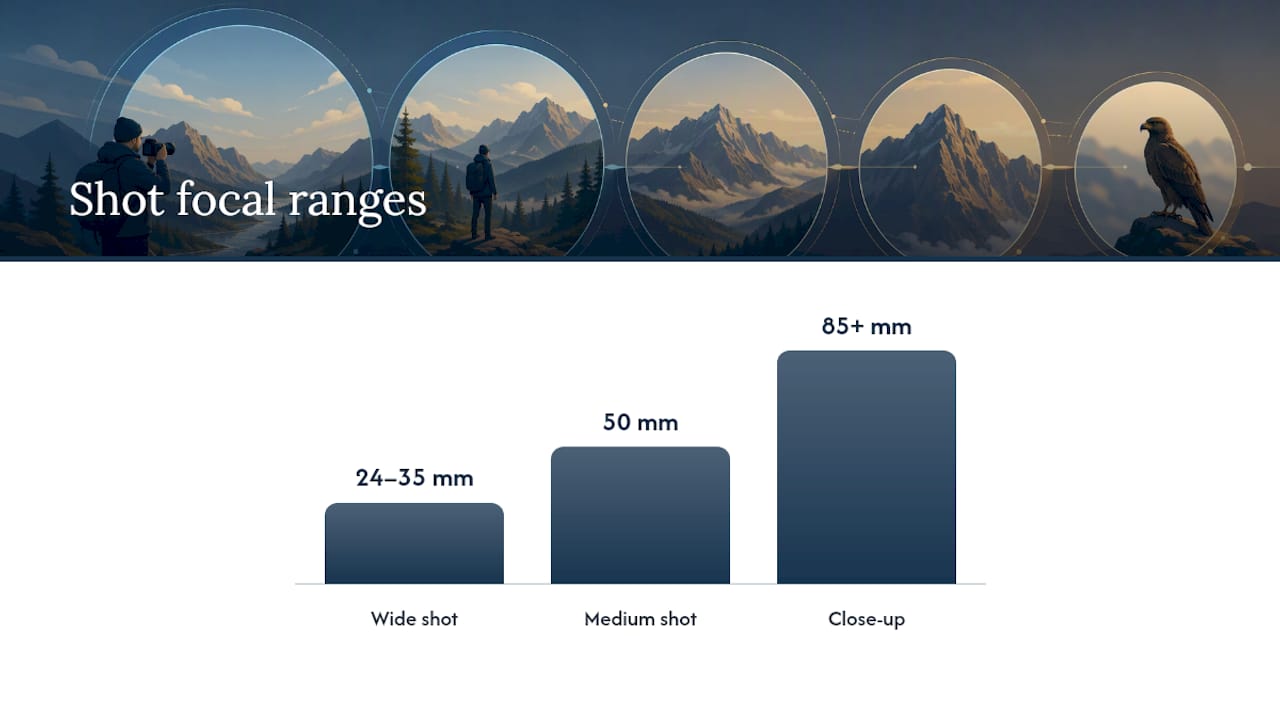
Shot type and lens choice do more work than almost any other line in the prompt, and the cookbook’s cinematography examples give a reliable starting range: 24 to 35mm for wide establishing shots, and 85mm or longer for close-ups and portraits. The wider lenses read as environmental and observational; the longer ones compress background and flatter a subject, which is why so many product shots default to 85mm or 100mm.
Motion deserves restraint. One camera move per shot is the rule Sora rewards most consistently. A slow dolly in, a gentle pan, a static frame with subject motion inside it. Each of these tends to render cleanly. Stack a zoom with a pan with a tilt and you’ll usually get a shot that looks indecisive rather than dynamic, because the model is trying to satisfy three competing spatial instructions in the same few seconds of footage.
A short reference for shot types and what they’re good for:
- Wide shot, 24 to 35mm: establishing a location, showing scale, landscape or crowd scenes.
- Medium shot, 50mm: dialogue-style framing, product context shots, most talking-head content.
- Close-up, 85mm or longer: emotional beats, texture and material detail, product hero shots.
- Static camera: best for anything with internal motion (steam, hair, fabric) where you want the background locked.
- Slow dolly or push in: builds tension or intimacy without introducing multiple competing movements.
Lighting language works the same way subject nouns do: specific beats vague every time. “Golden hour rim light,” “harsh overhead fluorescent,” and “diffused overcast daylight” each produce a distinct, repeatable look. Pair the lighting line with a palette anchor of three to five named colors, and you get a grading effect that holds steady across multiple generations, which matters enormously if you’re stitching several Sora clips into one sequence. Keep the palette consistent across every prompt in a series and lighting logic consistent too. That combination is what prevents the “different video every time” drift that shows up when creators change wording carelessly between shots.
Writing Sora Prompts in Beats, Dialogue, and Timing
Sora clips are short, so every second of prose has to earn its place. Think in beats rather than paragraphs: a 0 to 2 second beat, then a 2 to 4 second beat, and so on, following the timing structure OpenAI’s own examples use when describing motion.
For a 4-second clip, one primary action is plenty. “0 to 2s: she looks up from her book. 2 to 4s: a small smile crosses her face.” That’s a complete, satisfying beat structure, and it respects the model’s tendency to render cleanly when it isn’t juggling competing instructions.
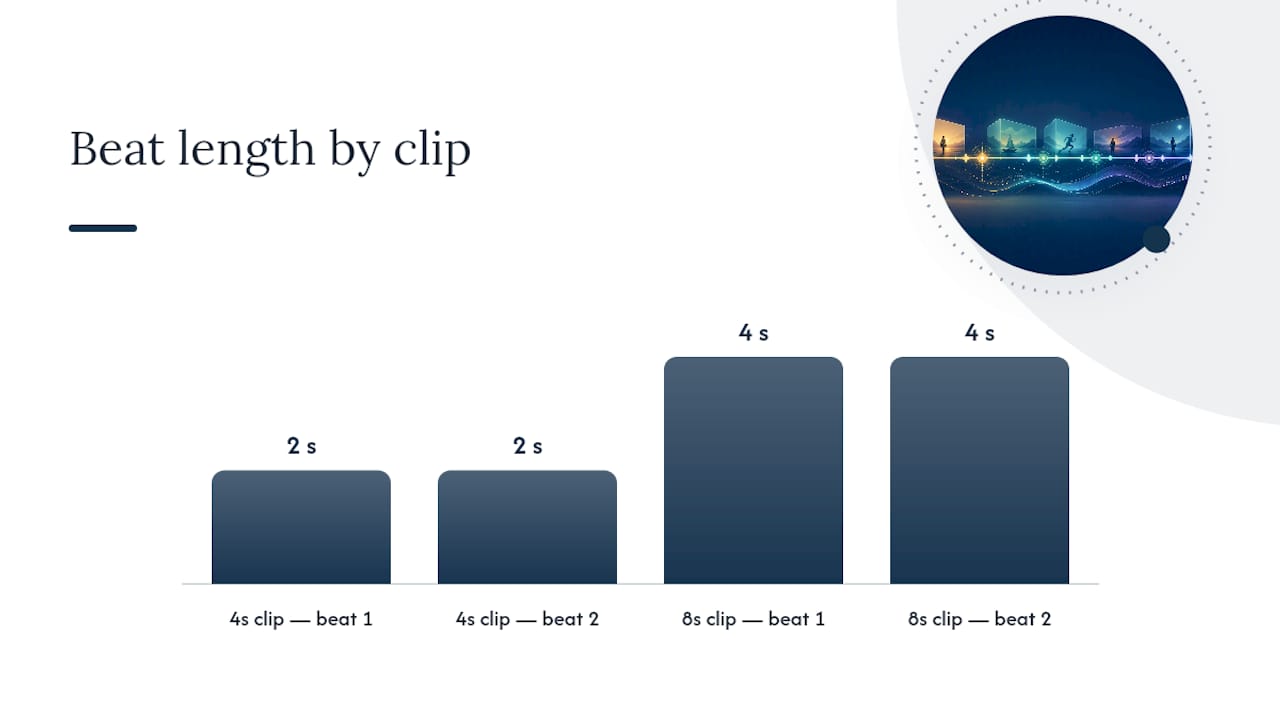
For an 8-second clip, you get room for two connected beats, but they should build on each other rather than introduce a new subject or setting halfway through. “0 to 4s: the door opens, light spills in. 4 to 8s: she steps through, pausing at the threshold” keeps a single throughline.
Dialogue and audio cues belong in their own short block, separate from the visual description. Keep lines brief:
- Write dialogue as a labeled line:
Dialogue: "We should go now."rather than folding it into the action sentence. - Limit spoken lines to one or two short sentences per 4-second clip; longer dialogue outruns the clip and gets cut off or mismatched to mouth movement.
- Note audio texture separately when it matters:
Audio: distant traffic, soft windgives the model a cue without competing with the visual instructions. - For longer clips built from multiple beats, keep dialogue anchored to a single beat rather than spreading one line across the whole duration.
Historical API Settings: Do Not Build a New Workflow Around Them
The earlier API separated prompt wording from model, resolution and duration settings. Those examples are historical, not a recommendation to integrate Sora now. Choose a supported provider and follow its own parameter documentation.
How to Fix a Sora Prompt That Isn’t Working
Treat every generation as a test, not a final answer. PCMag’s breakdown of Sora 2 techniques makes a point worth internalizing: identical prompts can produce different outputs on different runs, because the model is stochastic by design. That’s not a bug you’re fighting. It’s a feature you should plan around.
- Generate three to five variants of the same prompt before judging it. One bad output doesn’t mean the prompt is broken; it might mean you got an unlucky draw.
- Pick the closest variant and write down exactly what’s different between it and what you wanted. Is it the camera angle, the lighting temperature, the pacing of the action?
- Make one targeted edit and rerun. Change a single variable, never several at once, so you know which change caused which result.
Examples of clean, single-variable edits: “same shot, switch to 85mm,” “same lighting, new palette: teal, sand, rust,” or “same setting, change action to a slow turn instead of a walk.” Each of these isolates one variable while holding everything else steady, which is exactly how the guide’s own testing methodology works.
When something specific misfires, a short troubleshooting list saves you a lot of wasted runs:
- Text or logos looking garbled: simplify or remove on-screen text entirely; Sora still struggles with crisp typography in motion.
- Background mismatched to the described setting: add one more concrete sensory detail to the setting line rather than adding a second setting description.
- Motion looks blurry or indecisive: drop to one camera movement, or freeze the camera entirely and let the subject carry the motion.
Pro Tip: When a shot is close but not quite right, resist the urge to rewrite the whole prompt. Freeze everything except the one element that’s failing, exactly the “single camera move” discipline that OpenAI’s own best-practice notes recommend when a shot misfires.
Common Sora Prompting Mistakes to Avoid
Most failed generations trace back to a small, repeatable set of errors, and running through this checklist before you submit a job saves both time and generation credits.
- Too many simultaneous actions. A 4-second clip cannot carry three verbs. Pick one.
- Stacked camera moves. A pan plus a zoom plus a tilt in one line usually produces mushy, unreadable motion rather than dynamic energy.
- Vague adjectives instead of visible nouns. “Beautiful,” “epic,” and “amazing” describe nothing Sora can render. Name the material, the color, the light source instead.
- Trying to set duration or resolution through prose. “Make this last 10 seconds” in the prompt text does nothing; that’s an API parameter, not a writing problem.
- Skipping the pre-run checklist. Before submitting, confirm: one subject, one action, one camera move, a labeled lighting/palette line, and the correct
secondsandsizevalues set in the API call itself.
Catching these before you hit generate is cheaper than diagnosing them after three failed runs.
A Practical Testing Workflow for Sora Prompts
A simple, repeatable loop works better than chasing a perfect prompt on the first try. Run a quick test at low cost, generate a small batch of variants once the core idea is working, then pin the closest reference image or character ID once you’re near the final look.
The metrics worth tracking across a batch aren’t complicated: visual fidelity against the brief, motion continuity from frame to frame, audio sync when dialogue is involved, how easily the clip edits into a larger sequence, and simply how many reruns it took to land a usable clip. That last number is the most honest signal of whether a template is actually efficient or just looks good in isolation.
How to Evaluate This Workflow
Write a short shot brief, then vary one instruction at a time. Save the model, settings, prompt and cost for each attempt. Count usable outputs rather than treating generation speed as finished production time.
This is a suggested evaluation process, not a report of a completed TechVideoBlog benchmark.
Adapt These Shot Briefs to Another Generator
Keep the subject, action, setting, camera and lighting brief. Check your replacement model’s supported controls and rewrite API parameters for that provider. Do not assume Sora model names or settings transfer to another service.

Where to Read More About Sora Prompting
- Sora 2 Prompting Guide, OpenAI’s official cinematography-brief framework and API parameter reference.
- Prompting best practices, a concise checklist for structuring prompts.
- Six tricks for better Sora 2 videos, PCMag’s iteration-focused explainer.
- Community prompt collections are often shared under CC BY-SA 4.0; check the license before adapting one for your own work.
Sources
An input reference image anchors the first frame of your clip, locking in composition and character appearance before Sora generates any motion at all. The image input guidance in OpenAI’s cookbook recommends matching your input image’s dimensions to your target output size; mismatched aspect ratios force the model to make cropping or padding decisions you didn’t intend.
This matters most when continuity across multiple clips is the goal. If you’re building a short narrative or a product series where the same character or object needs to show up in shot after shot, generate or upload one clean reference image first, then reference that character by ID in every subsequent prompt rather than re-describing their appearance from scratch each time. Re-describing invites drift. Referencing an ID doesn’t.
A few practical notes on when to use each approach:
- Sora 2 Prompting Guide
- Prompting best practices (Sora)
- Want to Create Shockingly Good Sora 2 Videos? These 6 Tricks Will Get You There | PCMag
- Creative Commons Attribution-ShareAlike 4.0 International
FAQ
Why Is Sora AI Shutting Down?
Sora is being discontinued. See the dated availability notice above rather than relying on older access or pricing instructions. The prompt examples remain useful as shot-planning exercises for other generators.
How Do I Use Sora With ChatGPT?
Sora is being discontinued. See the dated availability notice above rather than relying on older access or pricing instructions. The prompt examples remain useful as shot-planning exercises for other generators.
Can I Use Sora AI for Free?
Sora is being discontinued. See the dated availability notice above rather than relying on older access or pricing instructions. The prompt examples remain useful as shot-planning exercises for other generators.
What’s the Ideal Prompt Length for Sora?
Aim under roughly 120 words for most single-clip generations, with one main subject and one main action; shorter prompts leave room for creative variation, while longer, highly specific ones produce more consistent, controlled results.