
Pick the tool that matches your primary bottleneck: if you spend most of your time finding the right moments in long recordings, Descript will cut your editing time dramatically. If you’re packaging short clips for TikTok, Reels, or Shorts, CapCut gets you from raw footage to published faster than any transcript-based tool can.
Here’s the quick breakdown by creator type:
- Short-form social creators (TikTok, Reels, Shorts): CapCut. Its template-driven mobile editor and direct TikTok publishing make visual packaging the fastest part of your workflow, not the bottleneck.
- Podcasters and long-form interviewers: Descript. Editing a 45-minute podcast can take 20–30 minutes in Descript, compared with hours on a traditional timeline.
- Agencies and content teams: Descript, for its structured collaborative review. CapCut’s team tools are limited to its web version and lack the versioning depth most agencies need.
- Hybrid creators (long-form repurposed to social): Use both. Rough-cut in Descript using transcript-first editing, then export clips to CapCut for template polish and direct publishing.
Table of Contents
- CapCut vs Descript: side-by-side at a glance
- How we tested both tools
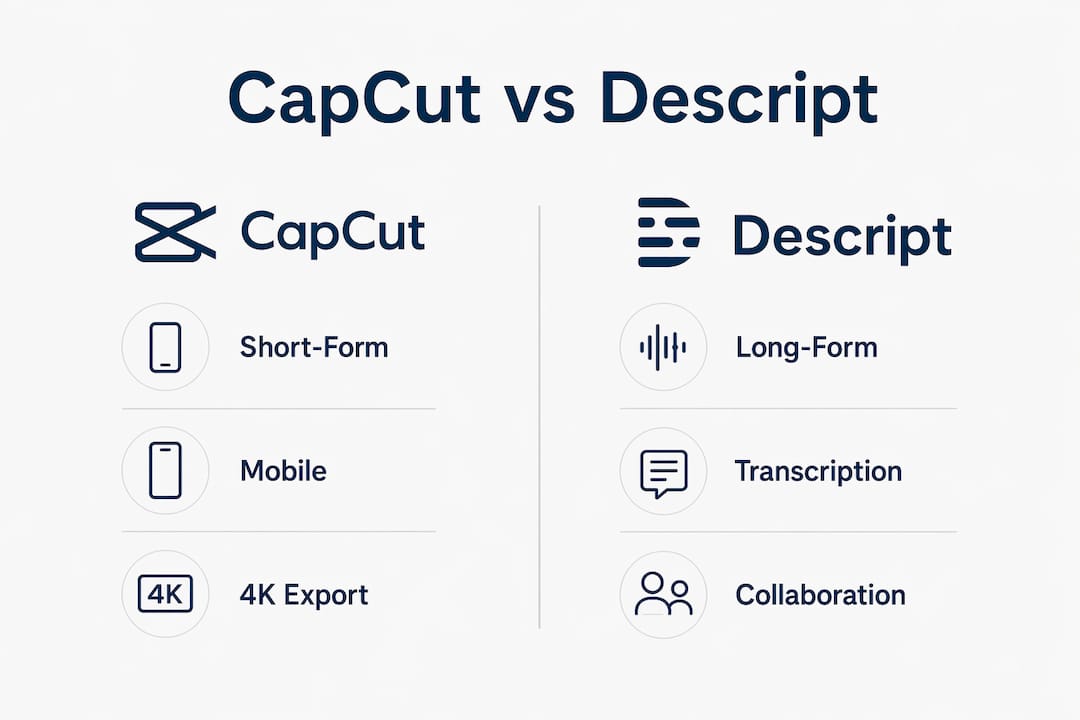
- Feature-by-feature breakdown: AI, audio, visuals, and export
- Which tool fits your specific workflow?
- Pricing, platforms, and the limits that actually matter
- Pros and cons of each tool
- How to choose: a decision checklist
- Final verdict: which tool should you use?
- Key Takeaways
- When I’d reach for each tool
- Techvideoblog’s AI video tools directory has both tools covered
- Sources and further reading
CapCut vs Descript: side-by-side at a glance
| Dimension | CapCut | Descript |
|---|---|---|
| Best for | TikTok, Reels, Shorts, fast social publishing | Podcasts, interviews, long-form YouTube, team review |
| Key AI features | Auto-captions, background removal, AI effects, trend templates | Transcription, filler-word removal, Studio Sound, Overdub, chapters |
| Editing paradigm | Timeline / visual-first | Transcript / text-first |
| Effects & templates | Large trending library, one-tap effects, direct TikTok publish | Minimal visual effects; focus is on spoken-word cleanup |
| Collaboration | Web version only; limited real-time tools | Built-in collaborative review, comments, versioning |
| Platform support | iOS, Android, Web, Mac, Windows | Mac, Windows, Web (no native mobile app) |
| Pricing snapshot | Free (1080p, no watermark); Standard ~$9.99/mo; Pro — | Free tier (limited transcription hours); paid plans with transcription hour tiers |
| Output quality | Up to 4K/60fps on Pro; platform-ready presets | High-quality audio cleanup; standard video export |
| Ease of use | Low learning curve on mobile; desktop adds complexity | Moderate; transcript editing is intuitive once set up |
A few trade-offs worth flagging before you go further:
- CapCut’s free tier exports at 1080p with no watermark, which is genuinely rare among free editors. The catch: auto-captions have a time limit per video on the free plan, which becomes a real constraint for creators publishing longer content.
- Descript’s free tier limits transcription hours, so heavy users will hit the ceiling quickly. Its pricing is more transparent: plans list transcription hours and AI credits explicitly, while CapCut’s pricing varies by region and platform checkout, making direct comparison harder.
- CapCut is mobile-first by design. Descript has no native mobile app, so it’s a desktop and web workflow only.
How we tested both tools
Testing covered three source file types chosen to stress-test each tool’s core strengths: a 60-minute podcast interview (two speakers, moderate background noise), ten short vertical clips shot for social (9:16, mixed lighting), and a 12-minute screen-capture tutorial with voiceover.
The processing steps ran in this order for each file type: import, auto-transcribe (where applicable), remove filler words, repurpose to a 60-second vertical clip, apply captions, run a color or audio cleanup pass, and export to a platform-ready format. Time was recorded at each step.
| Test step | CapCut result | Descript result |
|---|---|---|
| Import 60-min podcast | Fast; no transcription offered | Fast; auto-transcription started immediately |
| Filler-word removal | Not available | Automated; ~3 min processing, then manual review |
| Repurposing to 60-sec vertical clips takes less time in CapCut than in Descript’s workflow involving export and import. | ||
| Caption styling | Auto-captions in 2 min (free: 10-min cap) | Auto-captions from transcript; accurate but slower |
| Audio cleanup | Basic noise reduction | Studio Sound: noticeable improvement on voice clarity |
| Exporting 1080p video is somewhat faster in CapCut than in Descript. |
Disclosure: Testing was conducted in early 2026 on macOS Sequoia using CapCut desktop (v4.x web and desktop) and Descript desktop (v88.x). Mobile testing used CapCut on iOS 17. Cloud processing times varied with network conditions. Descript’s transcription accuracy depended on audio quality; the podcast file with two overlapping speakers required manual speaker-label correction.
Feature-by-feature breakdown: AI, audio, visuals, and export
AI capabilities
Descript’s AI is built around spoken-word workflows. Its transcription engine converts audio to editable text, and you delete words in the transcript to cut the corresponding video. Filler-word removal (“um,” “uh,” “you know”) runs in one click, though heavy dialogue still needs manual review for timing and speaker labels. Overdub lets you correct a mispronounced word by typing the replacement, and Studio Sound applies AI-driven noise reduction and voice enhancement without any manual EQ work.

CapCut’s AI points in a different direction entirely. Auto-captions, one-tap background removal, AI-generated effects, and a library of trending templates are the headline features. The AI focuses on creative effects and caption styling rather than content analysis. There’s no transcript-based editing and no equivalent to Overdub.
Editing paradigms
This is the most consequential difference. Descript’s document-like editing surface means you read and edit text, and the video follows. CapCut’s timeline is visual: you scrub footage, place clips, and layer effects. Once you build muscle memory for one surface, switching carries real friction in the form of new shortcuts, new mental models, and new export steps. Choose based on where you spend the most time, not which interface looks cleaner in a demo.
Audio and visual tools
Studio Sound is Descript’s standout audio feature. It removes room noise, reduces plosives, and levels voice volume in a single pass. For podcasters recording in non-studio environments, it’s the fastest path to broadcast-quality audio without a separate DAW.
CapCut’s audio tools are competent but not specialized. Noise reduction is available, and vocal isolation ships with the Pro plan. For visual work, CapCut has a clear advantage: a large effects library, transitions, color grading with LUT import (Pro), and a royalty-free asset library with over 12 million items on the Pro plan.
Export and format support
CapCut exports up to 1080p on the free tier and up to 4K/60fps/HDR on Pro. Platform-ready presets for TikTok, Reels, and Shorts are built in, and direct TikTok publishing is available from the editor. Descript exports standard video formats but lacks platform-specific presets and direct social publishing. For teams that need caption accuracy and accessibility compliance, pairing Descript with a dedicated live captioning tool covers gaps the built-in transcript doesn’t address.
Feature checklist
Descript does well:
- Transcript-based editing that cuts spoken-word edit time significantly
- Filler-word removal and chapter generation
- Studio Sound for audio cleanup without a separate tool
- Collaborative review with comments and versioning
Descript does poorly:
- Visual effects and template-based packaging
- Mobile editing (no native app)
- Direct social publishing
CapCut does well:
- Fast template-based short-form clip creation
- One-tap effects, transitions, and trend-aligned templates
- Direct TikTok publishing and platform presets
- Strong mobile editor with a low learning curve
CapCut does poorly:
- Long-form spoken-word editing and filler removal
- Structured team collaboration and versioning
- Cross-device project sync, which can be unstable between mobile and desktop
Pro Tip: Use Descript for your rough cut on any spoken-word content, then export the cleaned clip and bring it into CapCut for template polish, caption styling, and direct publishing. You get the best of both tools without doubling your total edit time.
Which tool fits your specific workflow?
Podcasts and long-form interviews
Descript is the clear choice. Import the recording, let it transcribe, delete filler words and dead air by editing the text, and run Studio Sound. A 60-minute interview becomes a tightly edited episode in under an hour for most producers. The extra step of exporting to a timeline editor only makes sense if you need b-roll or motion graphics.
Educational and tutorial videos
Split the work. Use Descript to clean up the voiceover and generate a transcript for captions, then bring the polished audio and rough cut into CapCut or a timeline editor for screen-recording overlays, callout graphics, and final export. The hybrid adds one import step but saves significant cleanup time.
Short-form social (TikTok, Reels, Shorts)
CapCut wins here without qualification. Pick a trending template, drop in your vertical clips, apply auto-captions, and publish directly to TikTok. The entire workflow from raw clip to published post can be completed quickly on mobile. Descript adds no meaningful value for this use case.

Agency and team review cycles
Descript’s collaborative review is built for this. Reviewers can comment directly on transcript lines, editors can version the project, and the structured workflow reduces the back-and-forth that email-based review creates. CapCut’s real-time team tools are limited to the web version and lack the depth agencies need for multi-stakeholder approval.
Talking-head vlogs
Either tool works, but the deciding factor is length. Under 10 minutes with minimal cleanup: CapCut’s auto-captions and templates get you to publish faster. Over 20 minutes with multiple takes and filler words: Descript’s transcript editing saves more time than any template shortcut.
The dual-workflow in practice
Many creators use both tools in sequence: rough cut in Descript, export the cleaned clip, then apply visual packaging in CapCut. The friction cost is one export and one import, roughly 3–5 minutes. For creators publishing long-form content that also needs short-form social cuts, that extra step pays for itself in audio quality and edit speed.
Pricing, platforms, and the limits that actually matter
CapCut pricing
CapCut’s pricing structure has three tiers with varying features, including a free tier that allows 1080p export without watermark and limits on auto-captions per video. Paid tiers add effects, sync options, 4K export, and advanced features, with pricing varying by platform and region.
One practical note: CapCut pricing varies by platform. Subscribing through the CapCut desktop website is almost always cheaper than through the Apple App Store or Google Play, where the app store percentage gets passed to the consumer.
Descript pricing
Descript lists its plans with explicit transcription hour limits and AI credit allocations, which makes the cost-to-value math easier to run. The free tier covers limited transcription hours. Paid tiers (Hobbyist, Creator, Business) add transcription hours, Overdub access, and collaboration features. Exact current pricing is listed on Descript’s website, as plan details update periodically.
Platform support
| Platform | CapCut | Descript |
|---|---|---|
| iOS | Yes (full-featured) | No |
| Android | Yes (full-featured) | No |
| Web | Yes | Yes |
| Mac | Yes | Yes |
| Windows | Yes | Yes |
CapCut’s cross-device sync is worth flagging: projects started on mobile can misalign when opened on desktop, particularly with complex multi-track timelines. The practical recommendation is to complete complex projects on a single device rather than switching mid-project.
Pro Tip: Before committing to a paid plan, run the hours-of-editing math. If you publish three or more videos per week and each exceeds 10 minutes, CapCut’s free caption limit becomes a bottleneck fast. At that volume, the Pro plan’s unlimited auto-captions alone justify the monthly cost. For Descript, count your monthly recording hours against the plan’s transcription limit before upgrading.
Pros and cons of each tool
CapCut
Pros:
- Free tier exports at 1080p with no watermark, which is genuinely rare
- Large, trend-aligned template library updated regularly for TikTok and Reels
- Direct TikTok publishing from the editor
- Strong mobile editor with a low learning curve
- Auto-captions, background removal, and AI effects available on free plan (with limits)
Cons:
- Cross-device sync is unstable; stick to one device for complex projects
- No transcript-based editing or filler-word removal
- Team collaboration tools are limited to the web version
- Standard plan ($9.99/mo) appears to be mobile-only, which limits its value for desktop users
- Data privacy terms are worth reviewing before using for enterprise or client work
Descript
Pros:
- Transcript-first editing cuts long-form spoken-word edit time dramatically
- Studio Sound delivers broadcast-quality audio cleanup without a separate tool
- Overdub corrects mispronounced words by typing, no re-recording needed
- Structured collaborative review with comments and versioning
- Transparent pricing with explicit transcription hour limits per plan
Cons:
- No native mobile app; desktop and web only
- Visual effects and template library are minimal compared to timeline editors
- No direct social publishing
- Automated transcription still requires manual correction for speaker labels and technical terms
- Filler-word removal on heavy dialogue needs a manual review pass before the edit is clean
How to choose: a decision checklist
Work through these questions before you commit to either tool.
Primary content format:
Does your content center on spoken word (interviews, podcasts, tutorials with voiceover)? Descript. Is it primarily visual, trend-driven, or short-form social? CapCut.
Team and collaboration needs:
Do multiple people review, comment, or approve edits? Descript’s structured review is built for that. Solo creator or small team with no formal review cycle? Either tool works.
Mobile vs. desktop editing:
Do you edit primarily on a phone? CapCut is the only option. Desktop-first or web-first? Both tools work, though Descript has no mobile app at all.
Volume and turnaround:
Publishing three or more videos per week from long-form recordings? The workflow bottleneck determines the right tool: if finding and cutting highlights is slow, Descript saves more time. If packaging and publishing is slow, CapCut does.
Export specs and platform requirements:
Need 4K export? CapCut Pro. Need platform-ready presets for TikTok? CapCut. Need high-quality audio export for podcast distribution? Descript.
Budget:
CapCut’s free tier is genuinely capable for most short-form creators. Descript’s free tier is more limited on transcription hours. Both tools offer meaningful paid upgrades, but the value depends entirely on your publishing volume.
Quick validation tests (run these before deciding)
- Descript test (20 minutes): Import a 30-minute recording. Let it transcribe. Delete five filler-word sections by editing the text. Run Studio Sound. Export a 60-second clip. If that workflow felt natural, Descript fits your process.
- CapCut test (20 minutes): Open a trending template on mobile. Drop in three vertical clips. Apply auto-captions. Publish to TikTok. If you hit publish in under 20 minutes, CapCut is your short-form tool.
Red flags that should disqualify a tool
- Disqualify CapCut if your projects require structured multi-stakeholder review, if you need reliable cross-device sync for complex timelines, or if data privacy for client content is a concern.
- Disqualify Descript if your primary output is short-form social, if you need a mobile editor, or if your content has minimal spoken-word elements.
Final verdict: which tool should you use?
For most creators, the answer isn’t one tool or the other. It’s knowing which one handles your primary bottleneck. Descript is the stronger choice for anyone whose work centers on spoken-word content: podcasters, interviewers, educators, and agencies managing long-form review cycles. CapCut is the stronger choice for creators whose output is short-form social content where speed, templates, and direct publishing matter more than deep audio cleanup.
The dual-workflow is the practical answer for hybrid creators: rough cut and clean audio in Descript, export the clip, then apply visual packaging and publish in CapCut. The extra import step costs a few minutes and returns noticeably better audio quality on the final social cut.
For a deeper look at each tool individually, the Descript review and CapCut review on Techvideoblog cover hands-on workflow outcomes, scoring breakdowns, and plan-by-plan feature analysis. If you’re weighing CapCut against other timeline editors, the CapCut vs Adobe Premiere Pro comparison is worth reading before you decide.
Key Takeaways
Descript wins on spoken-word efficiency and team collaboration; CapCut wins on short-form speed and mobile publishing, and most hybrid creators benefit from using both tools in sequence.
| Point | Details |
|---|---|
| Match tool to bottleneck | Descript cuts long-form edit time; CapCut cuts short-form packaging time. |
| Free tier reality | CapCut’s free plan exports 1080p with no watermark; however, auto-captions have a time limit per video. |
| Transcript cleanup cost | Descript’s automated filler removal is fast but still needs manual review for speaker labels. |
| Dual-workflow tip | Rough cut in Descript, export the clip, then polish and publish in CapCut for the best of both tools. |
| Techvideoblog directory | Compare verified pricing and hands-on reviews for both tools at Techvideoblog’s AI editors directory. |
When I’d reach for each tool
The choice between these two tools comes down to a single honest question: where does your edit actually stall?
For a solo creator publishing daily vertical content, CapCut is the right default. The template library moves fast, the mobile editor is genuinely capable, and direct TikTok publishing removes a step that adds up over hundreds of posts. The absence of transcript editing doesn’t matter when your clips are 30–60 seconds and the visual packaging is the whole point.
For an agency managing a weekly long-form show that also needs social cuts, Descript earns its place at the start of the workflow. The collaborative review alone reduces the email back-and-forth that kills turnaround time on client projects. Studio Sound consistently improves recordings that weren’t captured in ideal conditions, which is most client recordings. The limitation is real: once the rough cut is done, Descript’s visual toolset is thin, and the export-to-CapCut step is necessary for anything that needs to look polished on social.
The friction of switching between tools is real, but it’s manageable. The bigger mistake is forcing one tool to do a job it wasn’t designed for.
Techvideoblog’s AI video tools directory has both tools covered
Choosing between two editors is faster when the comparison data is already verified. Techvideoblog’s AI video editors directory lists hands-on reviews, confirmed pricing tiers, and workflow test results for CapCut, Descript, and dozens of other tools, organized by use case so you’re not sorting through marketing copy to find what matters.

If your workflow sits between categories, the directory’s filtering lets you sort by editing paradigm, platform support, and free-tier limits side by side. For creators focused on repurposing long recordings into short clips, the long video to Shorts tools category covers the repurposing tools that pair well with both editors. Head to Techvideoblog to run your own comparison with current, tested data.
Sources and further reading
- Descript vs CapCut for AI Video Editing: A Hands-On Workflow Comparison — Vmaker; workflow timing data and bottleneck analysis
- CapCut vs Descript: Which video editor fits 2026 — Ngram; pricing comparison and editing paradigm analysis
- Descript vs CapCut (2026): Which Editor Wins — BlitzCut; Studio Sound and Overdub feature breakdown
- CapCut Review 2026: Features, Pricing, Alternatives — ToolChase; AI features and template library overview
- CapCut feature guide — CapCut Guide; cross-device sync limitations and collaboration notes
- Descript AI video editing transcript tutorial 2026 — AI Tool Lab; transcript cleanup time and manual correction requirements
- CapCut Free vs Pro: What Features Are Actually Worth Paying For? — ThumbMentor; free tier limits and Pro upgrade analysis
- CapCut pricing 2026: A complete guide — eesel AI; Standard vs Pro plan breakdown and platform pricing variance
- Descript vs CapCut: We Edited 20 Videos With Each — AI Tools Capital; dual-workflow documentation
Tools tested: CapCut desktop v4.x and iOS app (iOS 17); Descript desktop v88.x. Testing conducted early 2026 on macOS Sequoia. Pricing verified at time of testing; plan names and costs may change.