
Explore ways to view two subtitle languages on YouTube or in a local player. Understand browser add-ons, subtitle tracks and burned-in text. Use a clip with names, punctuation and a change of speaker. Correct the transcript, watch the timing, and check readability on a phone. Export the subtitle format you actually need before paying for a plan.
Subtitle tracks are not simultaneous subtitles. Adding two tracks to a file gives the player two selectable languages. Showing both at once needs a player or extension that supports dual subtitles, or a render with both languages burned into the image. A normal mux alone does not create a bilingual on-screen layout.
Research guide. Vendor information and third-party reports are distinct from our own test results. See how we evaluate tools. We may earn a commission from qualifying purchases through affiliate links. Affiliate disclosure.
TL;DR:
- Browser extensions like YouTube™ Dual Subtitles quickly add a second subtitle layer, ideal for real-time language study, but styling conflicts can occur on smaller screens.
- The multi-subs-yt open-source tool allows control over multiple tracks and keeps subtitles local, with no reliance on browser overlays, making it suitable for archiving or detailed study.
- Muxing subtitles with ffmpeg embeds multiple streams into a video file, enabling permanent bilingual versions, but only one can be active during playback unless the player supports toggling streams.
- YouTube’s single active caption track limitation stems from its built-in player design, which only displays one track at a time despite creators uploading multiple caption files.
- When choosing tools, consider quick setup for extensions, more subtitle tracks and data privacy for multi-subs-yt, or permanent offline files via ffmpeg, depending on your needs.
Table of Contents
- Quick Shortlist: The Fastest Ways to Get Multiple Subtitles on YouTube
- Comparing the Top Tools for Multiple Subtitles on YouTube
- Why YouTube Only Shows One Subtitle Track at a Time
- How to Set Up Multiple Subtitles: Extensions and ffmpeg
- What to Watch for in Extension Permissions and Accuracy
- Use the directory to compare workflow options, then confirm current features and terms with the provider.
- When to Use Overlays vs. When to Mux Your Files
- Use the directory to compare workflow options, then confirm current features and terms with the provider.
- FAQ
Quick Shortlist: The Fastest Ways to Get Multiple Subtitles on YouTube
If you just want to see two languages on screen right now, you have three realistic paths, and they serve different jobs.
- Browser extension (Chrome, Edge, or Firefox): Install one, pick your two languages, and you’re watching bilingual subtitles in under two minutes. Best for casual, on-the-fly comprehension while you’re studying a language.
- Open-source GitHub addon (multi-subs-yt): Built for people who want more control, more simultaneous tracks, and a codebase they can actually inspect. Best for privacy-conscious viewers who don’t want translation text routed through an unknown server.
- Offline muxing with ffmpeg: Bake multiple soft subtitle tracks into a video file for local playback in VLC or MPC-HC. Best for archiving lessons or creating a permanent multi-language copy you control.
None of these are exclusive. A lot of language learners run a browser extension for daily viewing and keep ffmpeg in their back pocket for the handful of videos they want to save permanently. The multi-subs-yt project on GitHub explicitly advertises displaying as many subtitles as you want, not just two, which is worth knowing if you’re studying a language pair that needs a third reference track.
Comparing the Top Tools for Multiple Subtitles on YouTube
Here’s how the main options stack up on the things that actually matter: which browsers they run in, how many tracks they can stack, and whether your data stays local.
The YouTube™ Dual Subtitles listing on the Chrome Web Store shows user ratings right on the page, which is the fastest sanity check before you install anything. A high rating with a recent update date tells you the developer is still patching it against YouTube’s frequent layout changes.
For picking between them, three questions cut through most of the noise:
- Want the simplest setup? Go with a Chrome or Firefox extension built specifically for dual subtitles rather than a general-purpose multi-track tool.
- Want more than two languages, or want your data staying local? The multi-subs-yt route is built for that.
- Want a file you can keep forever, offline, without a browser dependency? Mux it with ffmpeg once and you’re done.
Why YouTube Only Shows One Subtitle Track at a Time
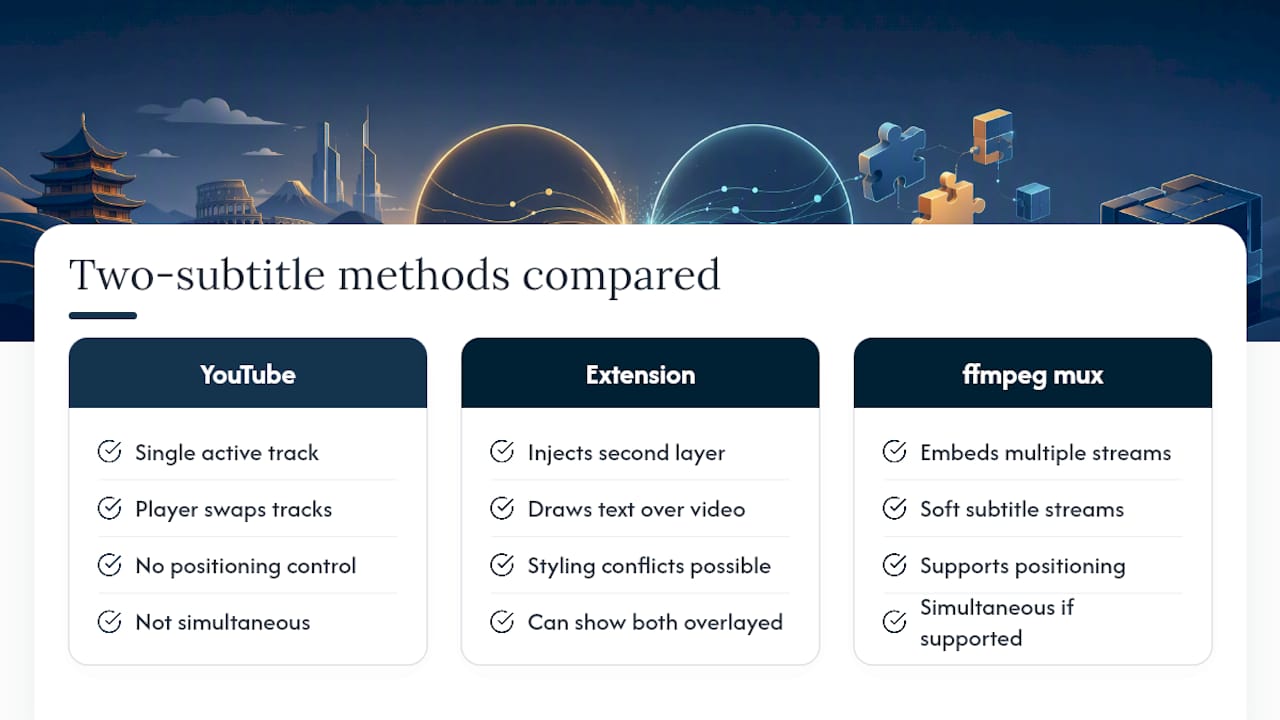
YouTube’s web player was built around a single active caption track, and that design choice is why every workaround here exists in the first place. According to YouTube’s own support documentation, creators can upload as many caption files as they want, but viewers only ever see one track active in the player at once. Auto-translate works the same way: it swaps the single active track’s text, it doesn’t add a second one alongside it.
Browser extensions solve this by injecting a second subtitle layer directly onto the video element, essentially drawing extra text on top of what YouTube renders. That approach works well but means styling conflicts are possible. Two overlapping caption boxes with different fonts sometimes crowd each other, especially on smaller screens.
Muxing with ffmpeg solves the same problem differently: instead of overlaying text in a browser, it embeds multiple soft subtitle streams directly into the video file. A local player like VLC lets you toggle between them, but simultaneous display depends on player support. The catch is format. .srt files are simple text with timestamps, while .ass files support advanced positioning, letting you park one language at the top of the frame and another at the bottom to avoid the overlap browser overlays sometimes struggle with.
How to Set Up Multiple Subtitles: Extensions and ffmpeg
Getting a browser extension running takes about as long as it takes to read this section.
- Open the Chrome Web Store, Firefox Add-ons site, or Microsoft Edge Add-ons page and search for your chosen tool by name.
- Click install and grant the requested permissions (more on what to check for in the next section).
- Open a YouTube video, click the extension icon, and select your primary and secondary subtitle languages.
- Choose whether each track pulls from YouTube’s auto-generated captions or an uploaded VTT file, if the tool gives you that option.
If your subtitle file is an .srt and the tool needs .vtt, most free converters handle that in seconds, or ffmpeg does it in one line: ffmpeg -i input.srt output.vtt.
For an offline, permanent version, a basic ffmpeg command for adding multiple subtitle streams looks like this:
ffmpeg -i video.mp4 -i english.srt -i spanish.srt -map 0 -map 1 -map 2 -c copy -c:s mov_text output.mp4
That embeds both subtitle streams into the output file, but remember the trade-off: if you later upload that file to YouTube, the web player still shows only one active track, no matter how many you muxed in.
Pro Tip: Keep subtitle lines short, under about 40 characters per line, when running two tracks at once. Long lines from both languages stacking on top of each other is the single most common cause of the overlap that ruins bilingual overlays.
What to Watch for in Extension Permissions and Accuracy
Before installing anything, open the extension’s permissions list in your browser’s extension manager and look for access that doesn’t match the job. A subtitle overlay tool needs access to YouTube’s page content; it does not need access to your browsing history on every site or your clipboard.
The “no third-party server” claim that projects like multi-subs-yt advertise matters more than it sounds. If a tool translates in your browser instead of sending text to an external API, your viewing habits and the video content itself never leave your machine.
- Check the extension’s last update date; YouTube changes its player layout often enough to break overlays.
- Read the permissions screen before clicking install, not after.
- Treat machine-translated subtitles as a comprehension aid, not a precise reference. Firefox add-on documentation explicitly warns that translated text can contain mistakes.
- Expect most mobile YouTube apps and iOS Safari to block these overlays entirely; this is a desktop-browser workflow.
How to Evaluate This Workflow
Use a clip with names, punctuation and a change of speaker. Correct the transcript, watch the timing, and check readability on a phone. Export the subtitle format you actually need before paying for a plan.
This is a suggested evaluation process, not a report of a completed TechVideoBlog benchmark.
When to Use Overlays vs. When to Mux Your Files
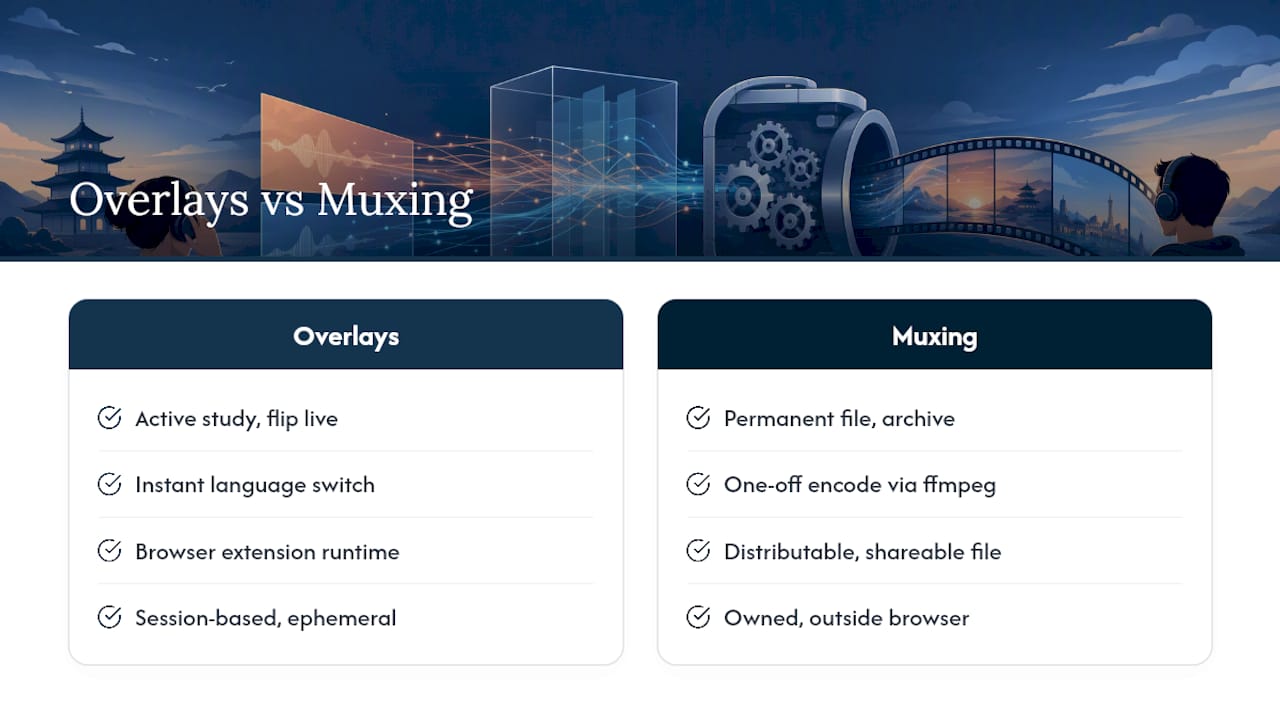
Browser overlays are the right call when you’re actively studying and want to flip between languages on the fly. Keep an extension running while you watch, and switch tracks the moment a sentence loses you. That flexibility is the whole point.
Muxing wins the moment you want a permanent, distributable file, an archived lesson, or a version you control outside a browser. If you’re building a personal library of bilingual videos for repeat study, ffmpeg gets you there once and you’re done. Pick based on whether you’re consuming in the moment or building something to keep.
Explore related tools and workflow guides

FAQ
Can You Have Two Subtitles on YouTube at Once?
Not natively. YouTube’s player displays one active caption track, so getting two on screen simultaneously requires a browser extension like YouTube™ Dual Subtitles or an offline muxed file played in a local media player.
Why Does YouTube Keep Adding Subtitle Options?
YouTube expands caption features because more creators upload multiple language tracks and more viewers want auto-generated captions, but the player itself still only activates one track at a time regardless of how many are uploaded.
How Do I Get All Subtitles Showing on YouTube?
You can’t show every uploaded track at once inside YouTube itself. A browser extension such as multi-subs-yt lets you display several tracks simultaneously by overlaying them on top of the native player.
How Do I Change Subtitle Settings on YouTube?
Click the gear icon in the player, select Subtitles/CC, and choose your language or auto-translate option. To layer a second language on top of it, you’ll need an extension since that setting only controls the single native track.
Is Machine-Translated Subtitle Text Accurate?
Not reliably. Auto-generated and machine-translated captions are useful for general comprehension but frequently contain errors, so treat them as a study aid rather than a precise reference for language learning.