An AI video prompt generator turns a rough idea into a structured, model-aware prompt you can paste straight into a text-to-video tool. The payoff is speed and consistency: instead of hand-writing camera directions and lighting notes for every clip, you get a formatted prompt in seconds, often as plain text or as JSON for pipelines that need to run at scale.
TL;DR:
- Using an AI video prompt generator can drastically reduce production time by automatically expanding simple ideas into detailed, model-specific prompts.
- Essential prompt components include subject, action, camera details, lighting style, timing, audio cues, and exclusions to ensure accurate rendering and ease of control.
- Switching between simple and advanced modes allows for quick testing or detailed multi-shot sequences, with structured exports better suited for automation pipelines.
- Model-specific prompt details, such as duration caps and dialogue cues, are critical to prevent errors and ensure compatibility across different text-to-video systems.
- Well-designed prompts and templates can improve first-try success rates, but human refinement remains necessary for brand consistency and complex sequences.
Table of Contents
- What Is an AI Video Prompt Generator, and When Do You Need One?
- Core Elements a Generator Should Add to Your Prompt
- How Do You Use a Generator’s Modes and Export Formats?
- Why Model-Specific Prompt Details Matter
- Ready-to-Use Prompt Examples and a Multi-Shot Template
- Workflow Best Practices From Techvideoblog’s Testing
- Common Prompt Failures and How to Fix Them
- An Editor’s View on Where Generators Help and Where They Don’t
- Find a Tested AI Video Prompt Generator Faster
- Sources
- FAQ
What Is an AI Video Prompt Generator, and When Do You Need One?
An AI video prompt generator takes a plain description (“a barista pouring latte art in slow motion”) and expands it into the shot-by-shot language text-to-video models respond to best: subject, action, camera behavior, lighting, and pacing. You feed it an idea; it hands back a prompt built for models like Google’s VEO3, Runway, or Pika.
The tool earns its place in a workflow the moment you’re producing more than one or two clips a week. Common use cases include:
- Social shorts and vertical ads that need punchy, well-paced single-shot prompts
- Multi-shot narrative sequences for product demos or brand stories
- Editing reference prompts that keep a series visually consistent across episodes
- Bulk prompt generation for teams testing dozens of concepts before a shoot
Most tools offer a few input modes, including idea-to-prompt (type a concept, get a prompt), video-to-prompt (upload a reference clip, reverse-engineer its structure), and saved prompt libraries you can remix instead of starting from scratch each time.
Core Elements a Generator Should Add to Your Prompt
A one-line idea rarely survives contact with a text-to-video model. Specialist coverage on prompt structure recommends splitting a prompt into a structural scaffold and a stylistic layer, and that separation is exactly what a good generator automates for you.
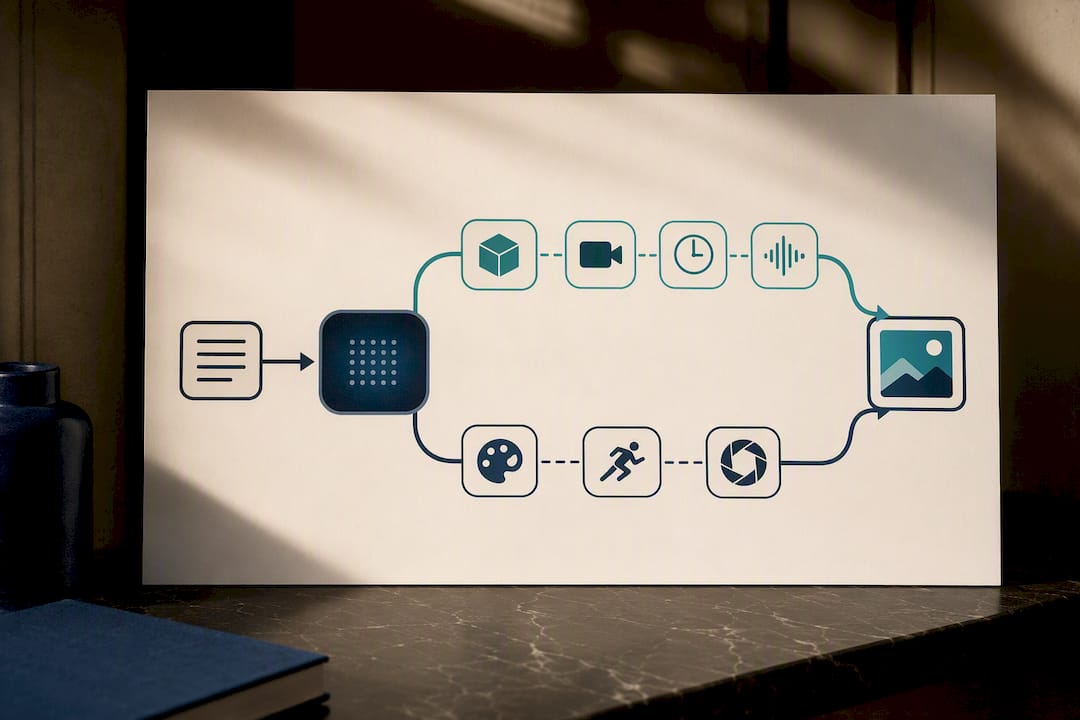
Pro Tip: If your output looks generic, check whether the generator filled in every layer below, or just restated your idea in fancier words. A real scaffold has all six.
A prompt worth using should include:
- Subject and action — who or what is doing what, stated concretely
- Camera framing and motion — wide shot, close-up, dolly-in, handheld shake
- Timing and beats — duration and, for multi-shot sequences, what happens in each segment
- Lighting, atmosphere, and style — golden hour, neon, documentary grain, anime shading
- Audio cues and technical specs — ambient sound, dialogue timing, lip-sync notes, aspect ratio
- Negative prompts or exclusions — what to keep out of frame, like text overlays or extra limbs
Skip any one of these and you’ll spend more time regenerating clips than you saved by using the tool at all. The models that separate structure from style tend to produce output that’s far easier to control and adjust one layer at a time.
How Do You Use a Generator’s Modes and Export Formats?
Most tools split their interface into a Simple mode and an Advanced mode, and picking the right one matters more than people expect.
- Use Simple mode for quick single-shot ideas. You type a sentence, the generator returns a finished prompt with camera and lighting details filled in automatically. This is fine for testing concepts fast.
- Switch to Advanced mode for anything with multiple shots or brand requirements. Advanced controls let you lock camera angle, duration, and style separately, which matters once continuity across shots becomes a priority.
- Choose your export format based on where the prompt is going. Plain text works for one-off copy-paste jobs into a model’s interface. JSON or CSV output is built for pipelines, and several generators support structured exports specifically so prompts can feed automated batch systems.
- Run the quick test loop: idea, generate, test render, refine. Generate a base prompt, run one short test clip, note what’s off, and adjust a single element rather than rewriting the whole thing.
Product pages for tools like Promtist document this same pattern: mode selection up front, format choice at export, refinement after the first render.
Why Model-Specific Prompt Details Matter
Not every text-to-video model reads a prompt the same way, and treating them as interchangeable is where most first attempts go wrong. Google’s own guidance on structuring prompts for multimodal video generators stresses clear scene scaffolds and explicit audio or lip-sync cues, because models differ in how they handle duration limits, dialogue timing, and shot continuity.
Some generators, including OmniPrompt and LzyPrompt, document these platform-specific grammar rules directly and return several phrasing variations per idea so you can test which version a given model handles best.
Before trusting a prompt across models, check for:
- Whether the generator offers a universal mode versus a model-targeted mode
- Explicit lip-sync or dialogue timing cues if your clip includes speech
- Stated duration caps matching your target model’s limits
- Continuity language if you’re chaining multiple shots into one sequence
Ready-to-Use Prompt Examples and a Multi-Shot Template
Generic advice about “writing good prompts” only gets you so far. Seeing the actual structure matters more, and this is where published examples from tools like PrompTessor and community libraries like YouMind’s video prompt collection are genuinely useful references.
| Format | Example prompt | Best for |
|---|---|---|
| Single-shot, social vertical | “Close-up, handheld, a skateboarder landing a trick at golden hour, slow-motion impact, dust kicking up, warm cinematic grade, no text overlay” | Instagram Reels, TikTok |
| Single-shot, product ad | “Static wide shot, minimalist studio, a ceramic mug rotating slowly on a turntable, soft top-light, clean white background, subtle ambient hum” | Product ads, YouTube Shorts |
| Multi-shot narrative | Shot 1: wide establishing shot of a kitchen at dawn. Shot 2: close-up of hands kneading dough, natural window light. Shot 3: medium shot, baker smiling at camera, ambient kitchen sounds, soft dialogue: “Fresh every morning.” | Brand stories, mid-form content |
The single-shot examples work as-is. The multi-shot template needs one tweak per brand: swap the lighting and color language to match your existing footage so the new clip doesn’t look like it came from a different production.
Workflow Best Practices From Techvideoblog’s Testing
Some reviewers run generators through checkpoints including time to a usable prompt, first-run success rate on the target model, and how much manual editing the output needs before it’s shoot-ready. Those three numbers tell you more about a tool than any feature list.
Track the same metrics in your own workflow:
- Minutes from idea to a prompt you’d actually use unedited
- Percentage of test renders that match your intent on the first try
- Number of manual edits needed before the clip is publishable
Pro Tip: *Log your first-run success rate for two weeks.
The recommended sequence: generate a base prompt, apply your brand’s continuity rules (consistent color grade, consistent camera language), then test with short low-cost renders before committing to a full clip. Save structured JSON exports for anything feeding an automated batch pipeline rather than a one-off manual job.
Common Prompt Failures and How to Fix Them
Most bad outputs trace back to one of a handful of repeatable mistakes, and each has a quick fix.
- Muddy subject and action — the model can’t tell what’s happening; add one clear verb phrase describing the main action.
- Style and structure fighting each other — separate them into two distinct clauses instead of blending “moody cyberpunk fast action” into one phrase.
- Ignoring duration limits — check your target model’s cap before writing multi-beat sequences that run too long.
- No negative prompts — unwanted text, watermarks, or extra limbs often disappear once you explicitly exclude them.
Run small A/B tests, changing one variable at a time, and log which version worked. Hand-edit only after the generator’s base prompt is close. Rewriting from scratch every time defeats the purpose of using a generator at all.
An Editor’s View on Where Generators Help and Where They Don’t
Generators are excellent at speeding iteration. They are not a substitute for creative direction, and the best workflows still involve a human refining the base prompt for brand continuity and edge cases the model can’t anticipate on its own. Techvideoblog tests these tools against real production tasks, not marketing claims, because a prompt that looks polished on a landing page and one that survives ten test renders are often different things. Try the templates above against a model you already use and see where the gap actually is.
— H
Find a Tested AI Video Prompt Generator Faster
Some sites offer hands-on reviews that check pricing, output quality, and export formats against real workflows, helping you avoid hours of trial-and-error tool switching.

The AI video generators directory covers where to actually run the prompts once they’re generated, and the best AI video generators list breaks down which platforms handle multi-shot continuity versus single-shot social clips best. If your prompts start as scripts rather than loose ideas, the AI script generators category covers that earlier pipeline stage, and partners like AmmarAI’s text-to-video tool offer a simple path from prompt to rendered clip. Head to Techvideoblog and browse the tool category pages to compare export formats and model support before you commit to one generator for your production pipeline.
Sources
- Vertex AI video prompt guide — Google Cloud
- Prompt attention: How to get the best results with generative AI prompts for video — RedShark News
- Free Video Prompt Generator | Promtist
- Free AI Video Prompt Generator for Any Model | PrompTessor
FAQ
Is There an AI Prompt Generator for Video?
Yes. Tools like PrompTessor, Promtist, Prompastic, OmniPrompt, LzyPrompt, and YouMind’s prompt library all generate or supply model-aware video prompts, and most support both plain text and structured export formats.
Which AI Is Best for Prompt-to-Video Generation?
There’s no single universal answer since models like VEO3 handle continuity and duration differently than other platforms. Match the generator’s mode (universal versus model-targeted) to the specific text-to-video tool you plan to use, and test the same prompt on your target model before committing to a full production run.
Which AI Video Generator Is Best for Generating Adult Content?
Techvideoblog’s directory and testing focus on mainstream creator and marketing workflows, such as social shorts, ads, and brand content, and does not evaluate or recommend tools for adult content generation.
What Are the Best Gemini AI Video Prompts?
Gemini-connected tools like VEO3 respond best to prompts with explicit scene scaffolds, camera motion, and audio or lip-sync cues, following the structured pattern Google’s own prompt guidance recommends. Start with the multi-shot template format covered above and adjust lighting and camera language to match your footage.