For most creators, a browser-based upscaler using Real-ESRGAN ×4 handles social clips and quick exports well. For filmmakers and archivists, a dedicated desktop tool with granular model controls is the only choice that holds up at full-screen playback.
| Category | Best Pick | One-Line Verdict |
|---|---|---|
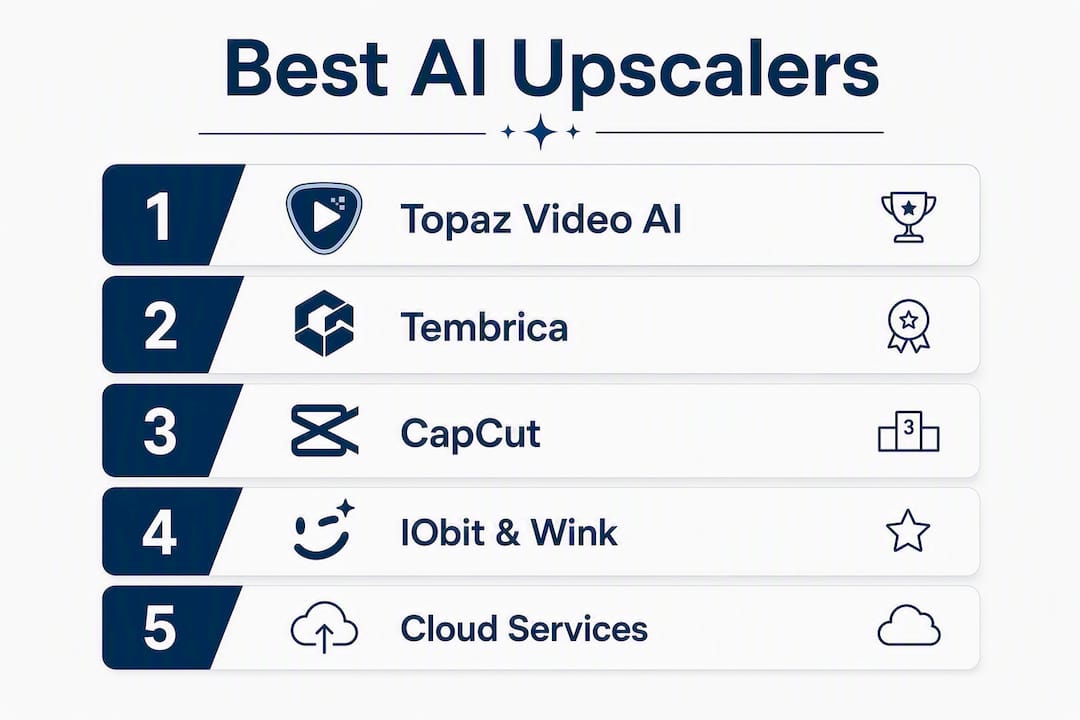
| Studio desktop | Topaz Video AI | Best artifact control and model selection for film-grade work |
| Fast browser | Tembrica / CapCut | WebGPU-accelerated or one-click 4K for social clips |
| Freemium utility | IObit / Wink | Zero-install, one-click denoise and upscale for casual use |
The split matters because AI upscaling cannot invent faithful detail that was never there. Studio desktop tools give you the controls to manage that limitation; browser tools trade control for speed.
Table of Contents
- Which AI video upscaler is right for your footage?
- How Techvideoblog tested these tools
- Key Takeaways
- The trade-off most creators miss
- Useful sources and further reading
- Techvideoblog cuts through the tool overload
Which AI video upscaler is right for your footage?
The table below covers all 21 tools Techvideoblog evaluated. Profiles follow for the picks that warrant more than a line.
| Tool | Best For | Output Quality | Max Resolution | Speed / GPU | Price Model | Platform | Batch | Extra Features |
|---|---|---|---|---|---|---|---|---|
| Topaz Video AI | Studio restoration, filmmakers | Excellent, low artifact | 8K | Slow, GPU-heavy | Subscription / one-time | Desktop | Yes | Frame interpolation, denoise, stabilization |
| CapCut | Social clips, fast exports | Good | 4K | Fast | Freemium | Desktop / Web | Limited | Deblur, presets, integrated editor |
| Tembrica | Browser upscaling, no installs | Very good (Real-ESRGAN ×4) | 4K | WebGPU-dependent | Freemium | Web | No | Manual fine-tuning controls |
| IObit AI Video Enhancer | Non-technical users, home videos | Good | 4K | Fast (cloud) | Freemium | Web | No | Auto color restore, denoise |
| Wink | Quick repairs, varied scenes | Good | 4K (UHD) | Fast (cloud) | Free | Web | No | Scenario presets (portrait, landscape) |
| Adobe Firefly | Adobe ecosystem creators | Good | 4K | Moderate | Subscription (CC) | Desktop / Web | Limited | Creative Cloud integration |
| UniFab Video Upscaler AI | Budget users, free tier | Good | 4K | Moderate | Freemium | Desktop | Yes | Denoise |
| AVCLabs Video Enhancer AI | Desktop batch jobs | Good | 4K | Moderate, GPU | Subscription | Desktop | Yes | Denoise, presets |
| VideoProc Converter AI | Format conversion + upscaling | Decent | 4K | Moderate | One-time | Desktop | Yes | Converter, editor |
| Winxvideo AI | Legacy disc / archive footage | Decent | 4K | Moderate | One-time | Desktop | Yes | DVD workflow |
| TensorPix | Developer / model customization | Very good | 4K | Cloud | Subscription | Web | Limited | Model selection |
| CutOut.Pro | Multipurpose online toolkit | Decent | 4K | Fast (cloud) | Credits / sub | Web | No | Background removal, image tools |
| Vmake AI | Browser-based early adopters | Decent | 4K | Fast (cloud) | Freemium | Web | No | New feature set |
| Neural.Love | Archival / restoration | Very good | 4K | Cloud | Credits / sub | Web | Limited | Image + video restoration |
| Video2X | Open-source power users | Excellent | 8K | Local GPU | Free | Desktop | Yes | Full model customization |
| QualityScaler | Quality-focused tuning | Very good | 4K | Local GPU | Free | Desktop | No | Quality-tuned presets |
| Krea | Creative platform + upscaling | Decent | 4K | Cloud | Subscription | Web | No | Generative creative tools |
| Runway | Integrated editing + upscaling | Good | 4K | Cloud | Subscription | Web | No | Full creative suite, 4K export |
| PowerDirector | NLE users | Good | 4K | Moderate | Subscription | Desktop | Yes | Stabilization, NLE timeline |
| HitPaw Video Enhancer | Easy batch presets | Good | 4K | Moderate, GPU | Subscription | Desktop | Yes | Preset-driven batch |
| DVDFab Video Enhancer AI | DVD/legacy media conversion | Decent | 4K | Moderate | Subscription | Desktop | Yes | DVD ripping integration |
Topaz Video AI
Topaz Video AI is the standard for studio-grade upscaling. Its Proteus model lets you dial in sharpness, noise reduction, and detail recovery independently, which is exactly what you need when working with archival or film-scanned footage. Processing is slow on anything below a modern discrete GPU, and the cost is higher than every freemium option here. Don’t buy it for social clips.
Tembrica
Tembrica runs Real-ESRGAN ×4 directly in your browser via WebGPU, meaning no download and no cloud upload. Output quality is noticeably better than most one-click web tools because it reconstructs edges and textures rather than just resizing pixels. Performance depends on your local GPU: RTX 30-series or Apple M1 and up handles it well; older integrated graphics will stall.

CapCut
CapCut is the fastest path from raw footage to a 4K social export. The upscaler is built into an editor you’re probably already using for captions and b-roll cuts, so there’s no context-switching. Quality is solid for YouTube Shorts and Reels; it won’t satisfy a filmmaker checking output at 200% zoom.

IObit AI Video Enhancer and Wink
Both IObit and Wink target users who want results without a learning curve. IObit’s auto color restoration is genuinely useful for faded home video footage. Wink’s scenario presets (portrait, landscape, AI restoration) add a layer of intelligence that a flat one-click tool misses. Neither handles heavy motion blur well.
The rest of the field
AVCLabs Video Enhancer AI and HitPaw Video Enhancer both offer preset-driven batch processing on desktop, making them practical for creators with large clip libraries. VideoProc Converter AI and Winxvideo AI suit users who need format conversion alongside upscaling, particularly for legacy disc archives. DVDFab Video Enhancer AI fits the same DVD-to-digital workflow.
Neural.Love and TensorPix are cloud services worth considering for archival restoration projects where you want model-level control without running local hardware. Video2X and QualityScaler are the open-source picks for technically proficient users who want full model customization and can tolerate a command-line setup.
Runway, Krea, Adobe Firefly, PowerDirector, CutOut.Pro, Vmake AI, and UniFab Video Upscaler AI each bundle upscaling inside a broader creative platform. Runway’s direct 4K download workflow is the most polished of these for creators who want editing and upscaling in one web workspace.
Pro Tip: Tools that expose manual fine-tuning controls for brightness, contrast, and denoise consistently produce more professional results than single-click automatics. If your tool has a settings panel, use it.
Pricing note: Freemium tiers on web tools typically cap resolution or add watermarks. Verify current plan limits on each vendor’s site before committing to a batch workflow.
How Techvideoblog tested these tools
Techvideoblog’s evaluation used three input types: a VHS-transferred archive clip (heavy grain, color fade), a 1080p smartphone recording (moderate noise, natural motion), and a short AI-generated clip (clean frames, synthetic textures). Each tool ran on its default preset first, then on its highest-quality setting where available.
| Input Type | Preset Used | Target Output | Key Metric |
|---|---|---|---|
| VHS archive | Auto / default | 1080p or 4K | Color fidelity, grain handling |
| Smartphone 1080p | High quality | 4K | Edge sharpness, halo artifacts |
| AI-generated frames | Default | 4K | Texture realism, over-sharpening |
Hardware baseline: a Windows workstation with an RTX 3080 and a MacBook Pro M2 for browser tools. Per-frame inference is compute-intensive: a short 1080p clip takes several minutes to upscale on a modern laptop GPU; mobile devices are significantly slower, which makes long-form batch work impractical on phones.
Sample results worth noting: Topaz Video AI on the VHS clip preserved grain structure without halos. CapCut on the same clip produced visible edge ringing at 200% zoom but looked clean at standard playback size. Tembrica’s Real-ESRGAN ×4 on the smartphone clip recovered fine hair detail that the one-click tools smoothed over.
Pro Tip: Always inspect your render at 8× zoom before committing to a full batch. Halos around high-contrast edges (text, hair, foliage) are the clearest sign of over-processing. If you see them, lower the sharpness setting or switch models.
Key Takeaways
The best AI video upscaler depends entirely on your footage type and delivery target: studio desktop tools for film-grade control, browser tools for fast social exports, and open-source utilities for technically proficient users who need full model access.
| Point | Details |
|---|---|
| Match tool to use case | Filmmakers need desktop tools like Topaz Video AI; social creators get faster results from CapCut or Tembrica. |
| Input quality sets the ceiling | Heavily compressed or motion-blurred footage forces models to hallucinate detail, producing worse results regardless of tool. |
| Browser tools have GPU limits | WebGPU upscalers like Tembrica perform best on RTX 30-series or Apple M1 hardware; older integrated graphics stall. |
| Inspect before batch rendering | Check renders at 8× zoom for halos before running a full batch; short 1080p clips take several minutes on a modern laptop GPU. |
| Techvideoblog for tool discovery | Techvideoblog’s directory covers all 21 tools above with verified pricing, workflow tests, and use-case filters to cut research time. |
The trade-off most creators miss
The marketing around AI upscaling oversells what the models can actually do. Every tool in this list is applying statistical reconstruction, not recovering footage that was never captured. That distinction shapes every buying decision.
Creators chasing the highest-quality output often land on Topaz Video AI because it wins benchmark comparisons. What those comparisons underweight is the time cost: slow renders on anything below a high-end GPU, a steeper learning curve than any browser tool, and a price point that only makes sense if you’re processing footage regularly. For a filmmaker cutting a short film or restoring archival material, that investment is justified. For a podcaster repurposing a weekly recording into short clips, it’s overkill.
The more useful question isn’t “which tool scores highest?” It’s “which tool fits the footage I actually have and the deadline I’m actually working to?” Browser tools have closed the quality gap significantly, especially for clean 1080p source material. The gap that remains is at the edges: heavy grain, severe compression, and motion blur still favor desktop tools with manual controls. For everything else, a well-configured browser upscaler gets you 90% of the result in a fraction of the time.
Useful sources and further reading
- Tembrica AI Video Upscaler: Developer documentation on Real-ESRGAN ×4 and WebGPU performance; useful for reproducing browser-based tests and checking system requirements
- CapCut AI Video Upscaler: Official feature page with current plan tiers and 4K export specs
- IObit AI Video Enhancer: Vendor page covering one-click workflow and denoise/color-restore feature set
- Wink AI Video Enhancer: Scenario preset documentation and resolution caps
- Techvideoblog — Best AI Video Tools: Full directory of AI video utilities with use-case filters and verified pricing.
- Techvideoblog — Best AI Video Editors: Category page for tools that combine editing and upscaling in one workflow.
Techvideoblog cuts through the tool overload
Sorting through 21 upscalers, verifying pricing tiers, and running test renders takes hours. Techvideoblog does that work for you: every tool in this comparison has a dedicated profile with verified pricing, platform notes, and workflow test results so you can filter by use case and get to a short trial list in minutes.

The directory covers upscalers alongside AI video editors, caption generators, and repurposing tools, so you can build a complete creator stack without bouncing between review sites. No sponsored rankings, no generic marketing copy. Start with the full AI video tools directory and filter to the category that fits your next project.