The strongest free AI video editors right now are CapCut (mobile-first social clips), Descript (podcast and interview repurposing), DaVinci Resolve 21 (pro-grade desktop editing), Kapwing (browser multi-feature AI tasks), PixLab (privacy-first local processing), Canva (template-driven marketing clips), and Fliki (voiceover-heavy projects). Each has a genuinely usable free tier, though watermarks, credit limits, or export caps can constrain use. Some editors like DaVinci Resolve 21, PixLab, and CapCut (standard exports) are watermark-free on the free plan, while others (e.g., Vmaker, InVideo, Canva, Fliki) apply watermarks to free exports. The AI video editing market bifurcated in 2026 into conversational text-driven editors for long-form work and template-wizard tools for rapid short-form social content. Pick by workflow type first, then check the free-plan ceiling. Watch for three immediate constraints: watermarks on export, monthly credit pools that drain fast, and resolution caps that can lock you out of HD.
- CapCut — best for short-form social clips on mobile; generous free tier, no watermark on standard exports
- Descript — best for podcast/interview repurposing; transcript-based editing removes words from audio and video simultaneously
- DaVinci Resolve 21 — best for multi-track timelines and color grading; fully free desktop install with no watermark
- Kapwing — best for rapid browser editing across multiple AI tasks; credit-based model means heavy AI use depletes the free pool quickly
- PixLab — best for privacy-sensitive footage; local browser processing via WebAssembly means your footage never leaves your machine, and exports are watermark-free
- Canva — best for template-driven marketing and social content; AI video features sit inside the broader design workspace
- Fliki — best for voiceover-heavy projects; free-forever plan includes AI transcription, captions, and text-to-speech with monthly credits
- InVideo (Invideo AI) — best for text-to-video workflows using template-guided scene assembly
Table of Contents
- What do free AI video editors actually offer side by side?
- How do you pick the right free AI editor for your workflow?
- What do free AI editors actually do in practice?
- When should you use a browser AI wizard vs. installed pro software?
- Which free AI editor fits your specific creator use case?
- Key takeaways
- How Techvideoblog tests these tools
- Techvideoblog’s directory cuts through the tool overload
- Useful sources for verification
- The case for picking the right tool over the most popular one
What do free AI video editors actually offer side by side?
The table below covers the core tools Techvideoblog tested. Products 15–21 in the featured list (Canva, InVideo, Choppity, Kapwing, Clipchamp, Invideo AI, Microsoft Clipchamp) are canonical aliases or overlapping entries for tools already covered; they appear in the comparison under their primary names.

| Tool | Best for | Key AI features | Free-plan limits |
|—|—|
| CapCut | Auto-captions, background removal, auto-trim | No watermark on standard exports; some HD features gated |
| Descript | Transcript editing, AI voice, filler-word removal | 1 hour transcription/month on free plan |
| DaVinci Resolve 21 | AI noise reduction, speed warp, magic mask | No watermark; no export cap; full resolution |
| Kapwing | Text-to-video, auto-captions, background removal, AI trim | Watermark on exports; credit pool limits AI features |
| PixLab | AI trim, captions, filters | Watermark-free; local processing |
| Canva | Text-to-video, AI image generation, templates | Watermark on some AI outputs; storage limits |
| Fliki | AI voiceover, transcription, captions | Monthly credits; watermark on free exports |
| InVideo (Invideo AI) | Script-to-video, scene editing, AI voiceover | Watermark on free exports; limited weekly exports |
| Runway | Gen-2 video generation, background removal, motion brush | 125 credits on free plan; watermark on some outputs |
| Veed.io | Auto-captions, subtitles, screen recording | Watermark on free exports |
| Clipchamp / Microsoft Clipchamp | Auto-captions, templates, basic AI features | Watermark on 1080p exports on free plan |
| Vmaker | AI trim, captions, background removal | Watermark on free exports |
| Free.ai 5-Step Wizard | Trim, text overlay, basic AI edits | Token pool limits usage; daily quota |
| Choppity | Auto-clip detection, captions | Limited clips/month on free plan |
| Movavi Video Editor | Basic AI noise removal, stabilization | Watermark on free exports | Platform | Upgrade starts at | Privacy / processing |
|—|—|—|—|—|—|—|
| CapCut | Short-form social clips | Auto-captions, background removal, auto-trim | No watermark on standard exports; some HD features gated | Web, iOS, Android | Free tier is generous; paid unlocks more assets | Cloud |
| Descript | Podcast / interview editing | Transcript editing, AI voice, filler-word removal | 1 hour transcription/month on free plan | Web, Mac, Windows | — | Cloud |
| DaVinci Resolve 21 | Multi-track, color grading | AI noise reduction, speed warp, magic mask | No watermark; no export cap; full resolution | Mac, Windows, Linux | Free version is fully featured; Studio — | Local |
| Kapwing | Browser multi-feature AI tasks | Text-to-video, auto-captions, background removal, AI trim | Watermark on exports; credit pool limits AI features | Web | — | Cloud |
| PixLab | Privacy / local processing | AI trim, captions, filters | Watermark-free; local processing | Web (WebAssembly) | — | Local (browser) |
| Canva | Template-driven marketing clips | Text-to-video, AI image generation, templates | Watermark on some AI outputs; storage limits | Web, iOS, Android | ~$15/month | Cloud |
| Fliki | Voiceover / TTS projects | AI voiceover, transcription, captions | Monthly credits; watermark on free exports | Web | — | Cloud |
| InVideo (Invideo AI) | Text-to-video, template workflows | Script-to-video, scene editing, AI voiceover | Watermark on free exports; limited weekly exports | Web | — | Cloud |
| Runway | Advanced AI generation / effects | Gen-2 video generation, background removal, motion brush | 125 credits on free plan; watermark on some outputs | Web | ~$15/month | Cloud |
| Veed.io | Auto-captions, social formatting | Auto-captions, subtitles, screen recording | Watermark on free exports | Web | — | Cloud |
| Clipchamp / Microsoft Clipchamp | Windows-integrated simple editing | Auto-captions, templates, basic AI features | Watermark on 1080p exports on free plan | Web, Windows | — | Cloud |
| Vmaker | Feature-rich browser editing | AI trim, captions, background removal | Watermark on free exports | Web | Paid plan removes watermark | Cloud |
| Free.ai 5-Step Wizard | Zero-install social clip workflow | Trim, text overlay, basic AI edits | Token pool limits usage; daily quota | Web | Token top-ups available | Cloud |
| Choppity | Long-form to short-form repurposing | Auto-clip detection, captions | Limited clips/month on free plan | Web | Paid unlocks more clips | Cloud |
| Movavi Video Editor | Casual desktop editing | Basic AI noise removal, stabilization | Watermark on free exports | Mac, Windows | — | Local |
Key differentiators to know before you commit:
- Watermark-free on free tier: DaVinci Resolve 21, PixLab, and CapCut (standard exports) are the clearest options here.
- Credit and token systems: Kapwing, Free.ai, Runway, and Fliki all gate their most useful AI features behind credits or tokens. Heavy use of background removal, AI b-roll, or HD exports depletes free pools fast.
- Local vs. cloud processing: PixLab and DaVinci Resolve 21 process footage locally. Every other tool in this list sends footage to cloud servers, which matters for unreleased or client-owned content.
- Export resolution caps: Clipchamp watermarks 1080p on the free plan. Veed.io and InVideo cap resolution or add watermarks unless you upgrade.
How do you pick the right free AI editor for your workflow?
The single best selection rule: match the AI workflow type to your actual editing pattern. A text-driven editor like Descript is the wrong tool for a creator who shoots b-roll-heavy travel content. A wizard-style tool like Free.ai is the wrong choice for a podcaster who needs multi-track audio control.
Selection criteria that actually matter:
- Workflow type — Are you editing conversational recordings (podcasts, interviews, talking-head videos)? Go text-driven (Descript, Kapwing). Are you assembling short social clips from templates or scripts? Go wizard/template-driven (InVideo, Canva, Free.ai).
- Privacy needs — If you’re editing unreleased client footage or sensitive material, local processing (PixLab, DaVinci Resolve 21) is the only safe choice. Cloud tools upload your footage to external servers.
- Export quality and format — Check whether the free plan exports at the resolution you need. A 720p watermarked export is useless for client deliverables.
- Credit or quota model — Test how fast credits drain on a representative clip before committing to a workflow. Some tools burn through free credits in a single session of AI b-roll generation.
- Platform support — Mobile-first creators should prioritize CapCut. Windows users get Clipchamp bundled. Desktop power users need DaVinci Resolve 21.
- Asset libraries — Canva and InVideo include stock footage and music on their free tiers; most dedicated AI editors do not.
Red flags to watch for when testing a free plan:
- Watermark appears on export but was not disclosed on the pricing page
- Export resolution locked below 1080p with no clear upgrade path shown
- Credit pool depletes after one or two AI operations
- Forced account creation before you can test any feature
- Privacy policy does not specify whether uploaded footage is used for model training
What do free AI editors actually do in practice?
Most free AI editors automate the repetitive, time-consuming parts of editing: trimming silence, generating captions, and detecting highlight moments. They rarely replace the creative judgment calls, like pacing, b-roll selection, or color tone decisions.
The typical workflow you will run:
- Upload your raw clip or paste a script/URL.
- AI analysis — the tool transcribes audio, detects scenes, or generates a video from your text input.
- Suggested edits — auto-trim removes silences, highlights are flagged, captions are drafted.
- Review and tweak — you approve, reject, or adjust the AI suggestions. This step is non-negotiable; AI outputs need human review.
- Export — choose format, resolution, and check for watermarks before downloading.
Common automations and their credit cost in practice:
- Auto-trim / silence removal — low credit cost; available on most free plans
- Auto-captions / subtitle generation — moderate cost; Descript and CapCut handle this well on free tiers
- AI voiceover / text-to-speech — moderate to high cost; Fliki’s free plan includes this with monthly credit limits
- Background removal — high credit cost on most tools; often a paid-only feature in practice
- Text-to-video generation — highest credit cost; Runway’s 125 free credits disappear quickly on generation tasks
When should you use a browser AI wizard vs. installed pro software?
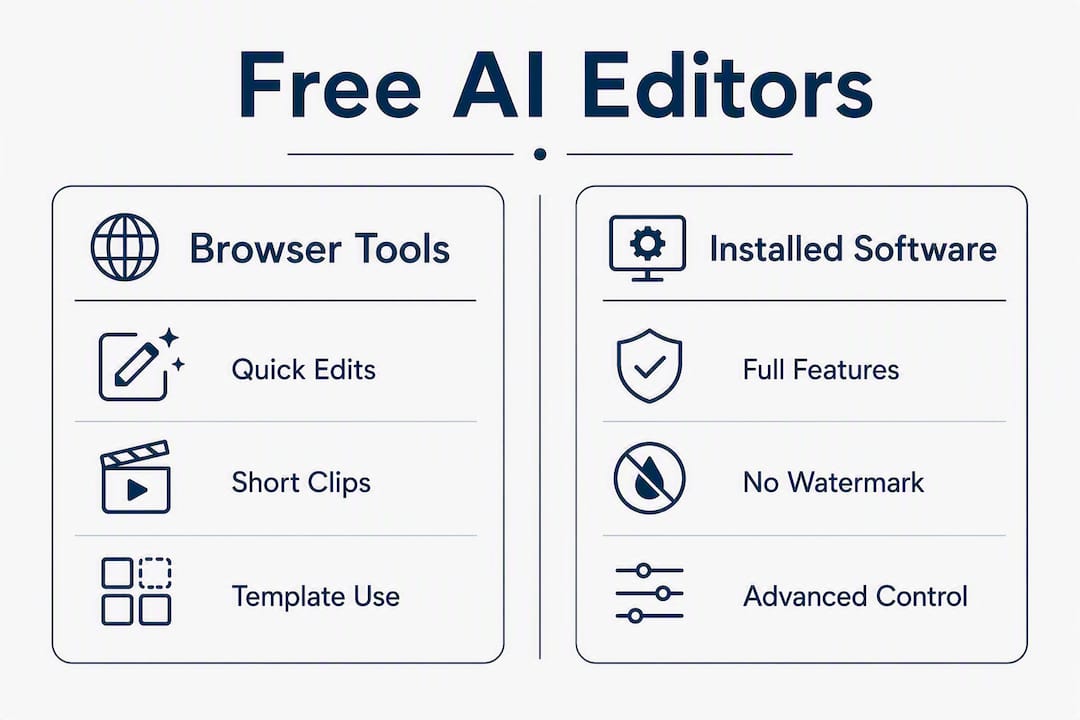
Use browser-based AI editors for fast, frequent short-form work. Switch to installed non-linear editors (NLEs) when you need multi-track timelines, precise keyframe control, advanced color grading, or when you are working with sensitive footage you cannot upload to a cloud server.

The 2026 market split is clear: browser AI tools excel at first-pass automation, while installed NLEs like DaVinci Resolve 21 handle finishing work that requires frame-level precision. Professionals increasingly use both, running AI tools for transcript editing or caption generation, then importing the rough cut into an NLE for color and audio finishing.
Credit systems are the hidden ceiling on browser tools. Many free AI editors gate their most expensive operations (AI b-roll, HD export, background removal) behind credit pools that drain in a single heavy session. Always run a representative test clip before building a workflow around a free plan.
Pro Tip: If you are editing unreleased footage, client content, or anything under NDA, use PixLab or DaVinci Resolve 21. Both process video locally. Every cloud-based tool in this list uploads your footage to external servers, and most privacy policies do not explicitly prohibit using uploaded content for model improvement.
Workflow integration that works: Use a browser AI editor (Kapwing, Descript, or CapCut) for first-pass transcript editing, silence removal, and caption generation. Export the rough cut, then bring it into DaVinci Resolve 21 for color grading, audio mastering, and final delivery. This two-stage approach gets you AI speed without sacrificing finishing quality.
Which free AI editor fits your specific creator use case?
| Use case | Recommended tool | Why it works on the free plan |
|---|---|---|
| Short-form social clips (Reels, Shorts, TikTok) | CapCut | Generous free tier, auto-captions, background removal, no watermark on standard exports |
| Podcast clip repurposing | Descript | Transcript editing lets you cut by deleting words; 1 hour/month free transcription |
| Quick captions for interviews | Veed.io or CapCut | Both generate accurate auto-captions fast; test watermark behavior on your target resolution |
| Faceless narration / TTS videos | Fliki | AI voiceover and TTS on free plan with monthly credits; full browser timeline |
| High-resolution client deliverables | DaVinci Resolve 21 | No watermark, no export cap, full 4K support on the free desktop install |
| Privacy-sensitive or unreleased footage | PixLab | Local WebAssembly processing; watermark-free exports on the free plan; footage never uploaded |
| Template-driven marketing clips | Canva | Design-first templates, text-to-video, stock assets on free tier |
| Advanced AI generation / visual effects | Runway | Gen-2 model-driven generation; 125 free credits to test before committing |
Testing step to run before committing to any tool: Export a 30-second clip at your target resolution and check for watermarks, actual output resolution, and how many credits the operation consumed. That single test tells you more than any pricing page.
Key takeaways
The most reliable free AI video editors right now are DaVinci Resolve 21 (no watermark, no cap, local processing), CapCut (mobile-first, generous free tier, no watermark on standard exports), and PixLab (privacy-first, watermark-free local exports).
| Point | Details |
|---|---|
| Match workflow type first | Text-driven editors suit podcasts and interviews; template wizards suit short-form social clips. |
| Watermark-free options are limited | DaVinci Resolve 21, PixLab, and CapCut (standard exports) offer watermark-free exports on the free plan. Most other free AI editors add watermarks to exports unless upgraded. |
| Credit pools drain fast | Test a representative clip before building a workflow; AI b-roll and background removal deplete free credits in one session. |
| Local processing matters for sensitive footage | PixLab and DaVinci Resolve 21 process locally; all other tools in this list upload footage to cloud servers. |
| Techvideoblog directory | Techvideoblog’s tested AI video editors directory lets you filter by platform, use case, and verified free-plan limits. |
How Techvideoblog tests these tools
Every tool in this article went through Techvideoblog’s standard hands-on verification process. That means a trial export on a real clip (not a demo asset), a watermark check at the target resolution, a credit usage test to measure how fast the free pool depletes on common operations, and a privacy policy review to confirm whether footage is processed locally or uploaded to cloud servers. Pricing is verified directly on each tool’s pricing page, not pulled from third-party aggregators. For workflow tests, Techvideoblog runs each tool against two representative tasks: a 60-second YouTube Shorts edit and a podcast clip repurposing task. Tools that pass both without unexpected paywalls or watermarks get recommended without qualification. Tools that hit a wall mid-workflow get flagged with the specific constraint. The testing methodology is documented on the site for readers who want to reproduce the checks themselves.
Techvideoblog’s directory cuts through the tool overload
Sorting through 20-plus free AI video editors to find the one that fits your workflow is the part that actually costs time. Techvideoblog’s AI video tools directory is hands-on tested and updated regularly, so you are not reading stale pricing or outdated watermark rules.

Two things the directory gives you that a single article cannot:
- Verified pricing and workflow tests for each tool, including credit usage benchmarks and confirmed watermark behavior at 1080p and 4K.
- Platform-specific lists for Android and iPhone so mobile-first creators skip the desktop-only tools entirely.
Browse the directory by use case or platform, and you will have a shortlist of tools worth testing in under five minutes.
Useful sources for verification
These are the primary sources used to verify features, pricing, watermark behavior, and privacy claims in this article.
- Kapwing AI Video Editor — credit system details and AI feature list
- PixLab AI Video Editor — local processing and watermark-free export confirmation
- Free.ai 5-Step Wizard — token pool structure and daily quota details
- Fliki video editor features — free-forever plan credits and AI voiceover availability
- Vmaker AI Video Editor — watermark disclosure on free plan
- ChatCut blog: Best AI video editor 2026 — market bifurcation analysis
“AI editing tools are best treated as efficiency boosters that automate repetitive tasks like trimming, captions, and silence removal. They rarely replace final creative judgment.” — Adobe Firefly AI video editor documentation
The case for picking the right tool over the most popular one
The most common mistake creators make with free AI video editors is choosing the tool with the most social buzz rather than the one that fits the actual editing task. CapCut dominates short-form social content for a reason, but a podcaster who adopts it because it is trending will spend more time fighting its mobile-first interface than editing. Descript’s transcript-based editing is genuinely faster for conversational content, but it is the wrong tool for a creator who shoots b-roll-heavy travel videos with no dialogue to cut from.
The credit and token systems deserve more scrutiny than they typically get. Most reviews focus on what a tool can do, not how quickly the free plan runs out when you actually use it. Background removal, AI b-roll generation, and HD exports are the three operations that drain credits fastest across every tool in this list. If those features are central to your workflow, the effective free limit is much lower than the pricing page implies.
DaVinci Resolve 21 remains the most underrated option for creators who want zero constraints on the free tier. No watermark, no export cap, full 4K support, and local processing. The learning curve is steeper than any browser tool, but for creators who plan to edit seriously, the investment pays off faster than cycling through browser tools that hit paywalls mid-project.