Explore Camtasia for screen recording, tutorials and editing. Compare workflow strengths, limitations and alternatives before choosing. Record a short sample with the microphone, speakers and screen layout you normally use. Check the original tracks, transcript and edited export. Include setup, upload and correction time in your comparison.
Research guide. Vendor information and third-party reports are distinct from our own test results. See how we evaluate tools. We may earn a commission from qualifying purchases through affiliate links. Affiliate disclosure.
Camtasia is the most purpose-built screen recording and video editing tool available for instructional video creators. If you produce tutorials, online courses, or corporate training content, it delivers a complete workflow in one desktop application: record your screen, webcam, and audio simultaneously, edit on a multi-track timeline, add interactive quizzes, and export SCORM packages directly to your LMS. The 2026 version adds AI-powered captioning, filler word removal, noise suppression, and voice generation that genuinely cut production time. The catch is a mandatory annual subscription starting at $179.88/year, and a free trial that watermarks every export.
Quick verdict at a glance:
- Best for: Online course creators, corporate trainers, educators, and software tutorial producers
- Not for: Casual creators on a budget, cloud-first editors, or anyone needing cinematic multi-cam workflows
- Standout strengths: Integrated recording and editing, SCORM export, text-based editing, AI audio cleanup
- Key limitations: Annual subscription only, performance drag on long or high-resolution projects, AI tools lack broadcast-level fine control
- Free trial: Available with a TechSmith watermark on all exports until purchase
What does the Camtasia review consensus say about pros and cons?
User feedback across review platforms consistently lands in the same place: Camtasia wins on workflow convenience and loses on price and performance at scale.
What users praise most:
- The integrated recording and editing workflow eliminates context switching between separate apps, which educators and trainers cite as the single biggest time saver
- Cursor effects, callouts, and annotation tools are mature and polished, with no comparable equivalent in lighter tools
- SCORM export and built-in quizzing set Camtasia apart for anyone publishing to Moodle, LearnDash, TalentLMS, or Kajabi
- Text-based editing lets you cut mistakes by editing a transcript rather than scrubbing a timeline, a genuine workflow shift for talking-head tutorials
- AI noise removal and auto-captioning handle standard tutorial audio well enough for most creators
Where users push back:
- The shift to annual subscriptions in 2025 stings users who relied on the perpetual license model, and non-renewal can restrict access to cloud assets
- Performance slows noticeably on longer projects or complex multi-track edits, especially on machines with less than 16GB of RAM
- AI tools speed up standard workflows but fall short for broadcast-quality audio editing, lacking the fine-grained controls you get in dedicated audio software
- macOS and Windows feature parity occasionally lags, with some releases landing on one platform before the other
- No web-based version exists; Camtasia is a desktop installation, which limits flexibility for creators who work across multiple machines
The overall picture is a tool that excels at its specific job and frustrates users who push it beyond that scope.
How does Camtasia pricing work, and what does the free trial actually give you?
Camtasia is not free, and the trial has a meaningful limitation: every video you export during the trial period carries a TechSmith watermark. That watermark disappears only after purchasing a paid plan. The trial gives you access to most features, so you can run a real project through the full workflow before committing.
| Plan | Annual Price | Key Features |
|---|---|---|
| Starter | available at a low annual price | Basic recording, limited editing, watermarked exports |
| Essentials | offered at an annual subscription fee | Unlimited recording, basic editing, limited assets |
| Create | $179.88/year | AI features, text-based editing, script writing, audio cleanup, 200+ AI voice styles |
| Pro | priced as the top subscription tier annually | All AI tools, collaboration, premium ElevenLabs voices, full asset library |
| Business | offered as volume licensing for teams | Volume licensing for teams |
The Create plan is where most solo course creators land. It unlocks AI captioning, filler word removal, noise suppression, and script generation, which are the features that actually change how fast you can finish a video. The Pro plan adds collaboration tools and premium voice generation via ElevenLabs, making it the right tier for L&D teams producing branded content at scale.
One thing to plan for: if you let your subscription lapse, access to cloud-hosted assets and certain export functions from older project files may be restricted. That is a real operational consideration for anyone treating Camtasia as a long-term production tool.
What are Camtasia’s core features for recording, editing, and AI?
Camtasia’s feature set is built around one idea: give a non-video-specialist everything they need to produce a polished instructional video without touching a second app.
Recording capabilities:
- Simultaneous multi-input recording captures screen, webcam, microphone, and system audio on separate, independently editable tracks
- Supports up to 4K at 60fps on compatible hardware
- Full-screen or custom region capture, with multiple monitor support
- Pause and resume mid-recording without creating separate clips
Editing tools:
- Drag-and-drop timeline editor with transitions, animations, and cursor effects
- Text-based editing via transcript: edit the spoken words in a document view and the video updates automatically
- Zoom and pan effects for highlighting specific screen areas
- Built-in callouts, annotations, click highlights, and lower thirds
- Over 150 transition effects and a royalty-free media library with templates, music, and motion graphics
AI-powered features:
- AI noise removal for cleaner audio on standard tutorial recordings
- Auto-captions with multi-language support, relevant for creators targeting global audiences (see TechVideoBlog’s roundup of AI caption generators for how Camtasia compares to standalone tools)
- Filler word and silence removal with one click
- AI voice generation with 200+ styles on Create and above, plus premium ElevenLabs voices on Pro
- Smart background removal for webcam footage
- Script generation via Camtasia Rev
LMS and interactivity:
- Interactive quizzes embedded directly into video timelines
- SCORM export packages content for upload to Moodle, LearnDash, TalentLMS, Kajabi, Cornerstone, and Canvas, with quiz result reporting back to the LMS
- Hotspot links and table of contents for long training videos
- Direct publishing to YouTube, Vimeo, and Screencast
Pro Tip: Use text-based editing for your first rough cut. Editing the transcript to remove mistakes and filler takes a fraction of the time compared to scrubbing the timeline, and you can always fine-tune in the timeline afterward.

How steep is the Camtasia learning curve?
Camtasia is genuinely beginner-friendly, and that is not marketing language. The drag-and-drop timeline is significantly simpler than professional non-linear editors like Adobe Premiere Pro or DaVinci Resolve. Most creators produce a finished, exported video within their first session.
What makes it accessible:
- The interface separates recording and editing into clear, distinct phases with no ambiguity about where to start
- Text-based editing removes the most intimidating part of video editing for non-editors: finding and cutting mistakes on a timeline
- Built-in tutorial content and guided onboarding help new users get oriented quickly
- Preset themes, branded templates, and a media library reduce the number of decisions a new creator has to make
Where friction appears:
- Long projects with multiple tracks, animations, and high-resolution footage can produce timeline lag, which disrupts the editing flow
- Proxy editing is available for heavy projects but adds a setup step that beginners may not expect
- The AI tools accelerate standard workflows but are not substitutes for manual editing when precision matters; users who rely heavily on AI features sometimes hit the ceiling faster than expected
Platform parity is close but not perfect. Specific feature releases occasionally land on Windows before macOS, which matters if you switch between machines or work in a mixed-platform team.
How does Camtasia compare to other screen recording and editing tools?
The right tool depends entirely on what you are trying to produce. Camtasia sits in a specific middle ground: more capable than quick async sharing tools, less capable than professional cinematic editors, and uniquely strong for instructional content with LMS requirements.

| Tool | Feature focus | Ease of use | Price | Best workflow |
|---|---|---|---|---|
| Camtasia | Tutorial creation, SCORM, LMS integration | Beginner-friendly | $179.88/year | Instructional video, course creation |
| Loom | Async screen sharing, quick clips | Very easy | Free tier available | Fast async communication |
| Adobe Premiere Pro | Cinematic editing, advanced post-production | Steep learning curve | , | Film, broadcast, complex productions |
| DaVinci Resolve | Color grading, professional NLE | Moderate to steep | , | Cinematic editing, color work |
Loom excels at fast async screen sharing but has no timeline editor, no SCORM export, and no interactive quizzing. It is a communication tool, not a course production tool. Adobe Premiere Pro handles cinematic editing at a professional level but has no screen recording, no LMS integration, and a learning curve that takes months to climb. DaVinci Resolve offers a free tier with genuinely powerful color and editing tools, but like Premiere Pro, it is built for post-production on camera footage, not screen-first instructional content.
Camtasia’s integrated workflow is its actual competitive advantage. No other tool in this category combines screen recording, timeline editing, AI audio cleanup, interactive quizzes, and SCORM export in a single desktop application.
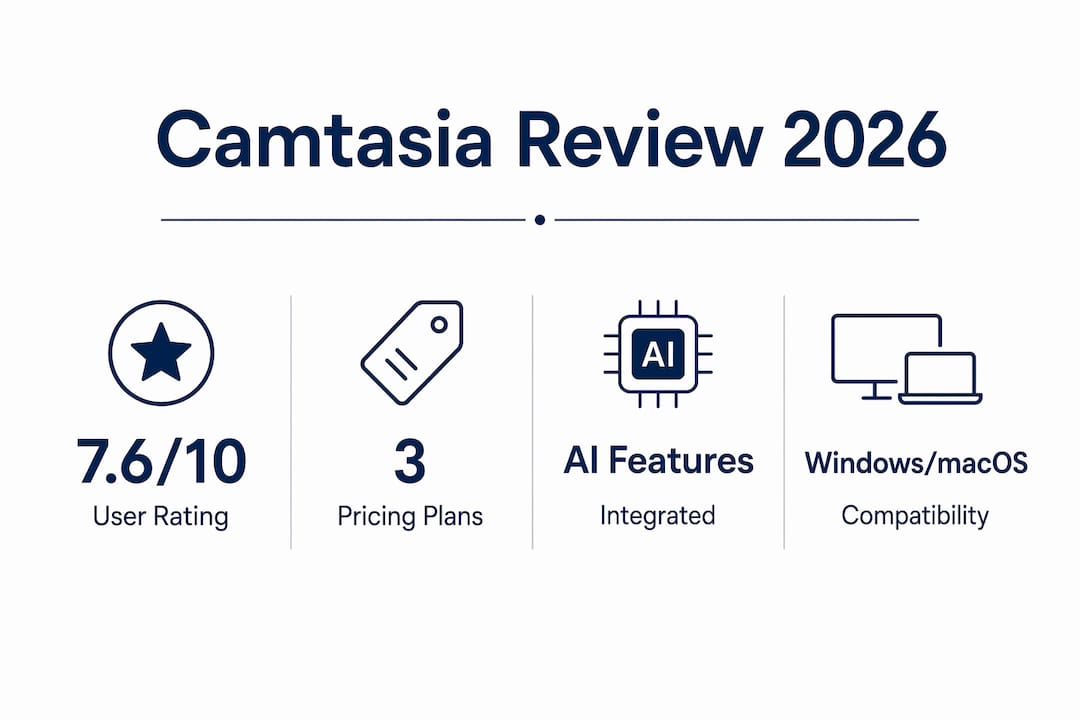
Across review platforms, Camtasia scores in the mid-to-upper range for its category. ITQlick rates it 7.6 out of 10, placing it as a strong but not dominant option among video editing tools, ranking 11 out of 18 in that broader category. The rating reflects a tool that excels at its specific use case while falling short for users who need advanced editing or prefer cloud-based workflows.
The pattern in user reviews is consistent. Positive reviews emphasize how quickly creators can go from recording to a finished, exported video. Critical reviews focus on two things: the subscription pricing model and performance on older or lower-spec hardware. Users on Reddit and software review communities frequently note that the subscription shift in 2025 changed the value calculation for solo creators who previously bought a perpetual license and used it for years.
For L&D teams and course creators who produce video regularly, the consensus is that the time savings justify the annual cost. For casual or occasional creators, the math is harder to make work.
Camtasia runs on both Windows and macOS, with feature parity that is close but not always identical across platforms. Specific AI features and interface updates sometimes arrive on one OS before the other.
For smooth performance, particularly on longer projects or when using AI features, the practical minimum is a modern CPU, an SSD, and at least 16GB of RAM. On machines below that threshold, timeline lag and slow rendering become real productivity problems, not occasional annoyances. Editing complex multi-track projects or 4K footage on mid-range or older laptops produces noticeable sluggishness.
Camtasia also offers a browser-based screen recorder through Camtasia Online, though the full editing suite remains a desktop install. Export formats include MP4, GIF, WMV, and MOV, with customizable resolution and bitrate. Direct publishing connects to YouTube, Vimeo, Google Drive, and Screencast.
What support and learning resources does TechSmith provide?
TechSmith’s support infrastructure for Camtasia is one of the stronger aspects of the product. The knowledge base covers common issues, proxy video workflows, subscription management, and platform-specific troubleshooting in detail. For new users, built-in tutorial content and guided onboarding walk through core features without requiring a separate course.
The TechSmith community forum gives creators access to peer advice and workarounds for edge cases. Video tutorials on TechSmith’s YouTube channel cover both beginner workflows and specific feature deep-dives. For teams on Pro or Business plans, priority support options are available, though response times for standard support tickets vary.
The asset library, accessible through the app, provides royalty-free music, templates, and motion graphics that reduce the time spent sourcing external materials. For creators exploring AI video tools more broadly, TechVideoBlog’s directory covers how Camtasia’s AI feature set compares to standalone tools in each category.
TechSmith has moved to a continuous update model under the annual subscription structure, which means paid subscribers receive new features as they ship rather than waiting for a major version release. The 2025 and 2026 updates focused heavily on AI: text-based editing, AI voice generation via ElevenLabs integration, smart background removal, and Camtasia Rev for script generation all arrived within this cycle.
The direction is clear: TechSmith is positioning Camtasia as an AI-assisted production tool, not just a screen recorder with a timeline editor. Each update has added more automation to the parts of the workflow that slow creators down most, specifically audio cleanup, captioning, and scripting. The trade-off is that the most capable AI features are gated behind the Create and Pro plans, which means the Essentials tier is increasingly a limited entry point rather than a full-featured option.
TechSmith has not published a detailed public roadmap, but the pattern of releases suggests continued investment in AI voice, avatar tools, and collaboration features for team workflows.
Who should actually use Camtasia?
Camtasia fits a specific creator profile well and fits others poorly. Getting that match right before purchasing saves both money and frustration.
Use Camtasia if you:
- Produce tutorials, software walkthroughs, or online course videos regularly
- Need SCORM export and interactive quizzing for LMS platforms like Moodle, Canvas, or TalentLMS
- Want a single tool for recording, editing, captioning, and publishing without managing multiple apps
- Work on a modern machine with at least 16GB of RAM and an SSD
- Are an L&D professional, corporate trainer, educator, or solopreneur building a course business
Skip Camtasia if you:
- Need a free or very low-cost tool for occasional screen recording
- Prefer a cloud-based or browser-first workflow
- Edit multi-camera footage or need advanced motion graphics and VFX
- Work primarily on older or low-spec hardware where performance will be a constant issue
- Want broadcast-quality audio editing with fine-grained control over every parameter
For creators who want to see how Camtasia’s AI tools stack up against purpose-built alternatives, TechVideoBlog’s guide to AI video editors covers the full landscape with verified pricing and workflow comparisons. If coaching or instructional video is your primary format, the best AI tools for coaching videos roundup is worth reading alongside this review.
Key Takeaways
Camtasia remains the strongest all-in-one option for instructional video creators who need integrated recording, editing, AI audio cleanup, and LMS export in a single desktop workflow.
| Point | Details |
|---|---|
| Best use case | Tutorials, online courses, and corporate training with SCORM and LMS export requirements |
| Pricing commitment | Annual subscription from $179.88/year; free trial watermarks all exports until purchase |
| AI feature access | Text-based editing, noise removal, and captioning require the Create plan at $179.88/year or above |
| Performance threshold | Smooth editing requires a modern machine with at least 16GB of RAM; older hardware produces timeline lag |
| Subscription risk | Non-renewal after the 2025 model shift may restrict access to cloud assets and certain export functions |
Recommended
- Zencastr Review | TechVideoBlog
- Canva Video Review | TechVideoBlog
- Descript Review
- InVideo Review | TechVideoBlog