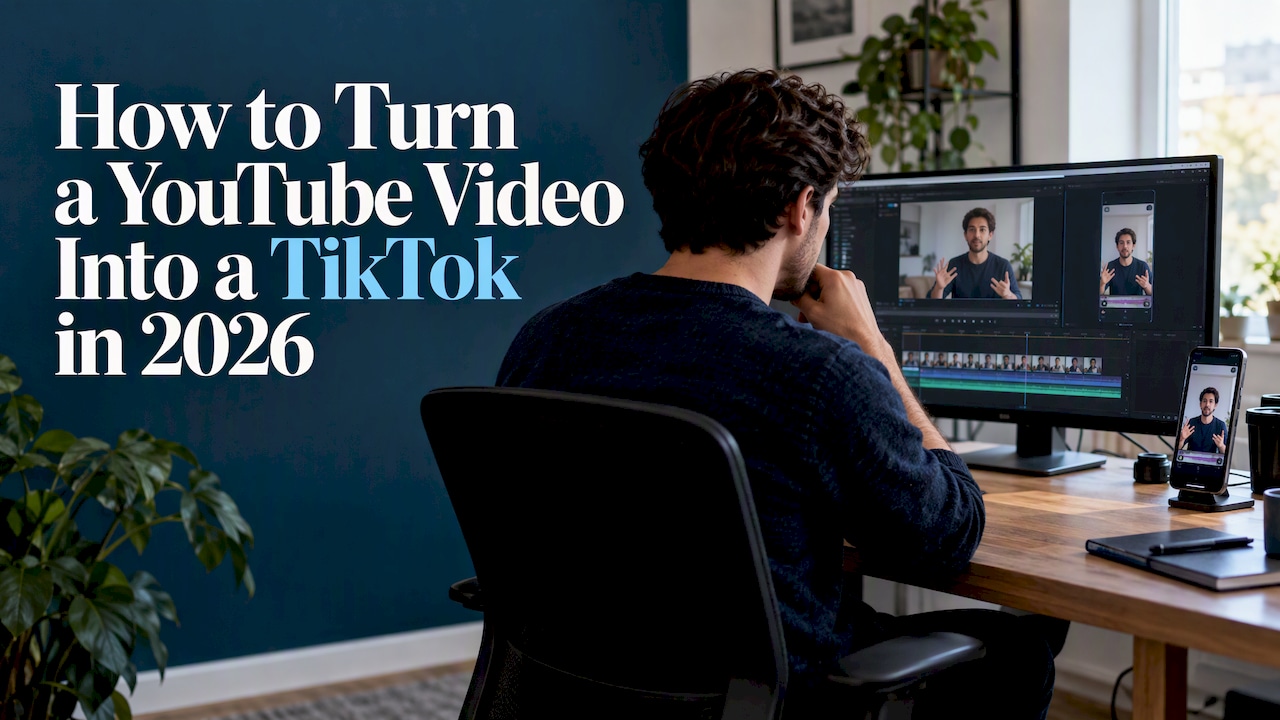
You turn a YouTube video into a TikTok by cutting one self-contained moment from your own source file, reframing it to vertical 9:16, burning in corrected captions, exporting an MP4 at 1080×1920, and checking a private draft before you post. There is no “convert” button that does this well. A YouTube video is a 16:9 horizontal piece built for a viewer who chose to sit through it, and a TikTok has to earn attention in the first seconds. The work is editing, not file conversion.
This guide walks through the full workflow for long videos and for YouTube Shorts, plus the rights question most guides skip.
TL;DR
- Start from your own original export or your YouTube Studio download, never a file ripped from someone else’s channel.
- Pick one complete thought that makes sense without the rest of the video, and open on its strongest line.
- Reframe to 9:16, keep the subject and captions inside the safe area, and export an MP4 at 1080×1920.
- Fix the auto-captions by hand, then preview the clip as a private draft before publishing.
- Upload the file separately to each app. A Short saved from another app carries that app’s watermark.
Table of Contents
- What “converting” a YouTube video actually means
- Step 1: Pick the right segment
- Step 2: Reframe from 16:9 to 9:16
- Step 3: Add captions and check them
- Step 4: Add native touches
- Step 5: Export for TikTok
- Turning a YouTube Short into a TikTok
- Check rights before you reuse anything
- Our perspective: judge a workflow by the clips it ships
- Find a tool that fits this workflow
- A simple routine you can repeat
- FAQ
- Sources
What “converting” a YouTube video actually means
People search for a YouTube to TikTok converter expecting to paste a link and get a finished video. What you really need to do is four things: choose, reframe, caption, export. Tools can automate parts of each step, but the decisions are yours, and they are the reason one clip gets watched and another gets swiped.

The source also matters. The cleanest and safest workflow starts from a file you own. If you uploaded the video, YouTube Help says you can download an MP4 of your own uploads from YouTube Studio, in 720p or 360p depending on the video, and that you cannot download other people’s videos through YouTube’s download function. If you still have the project file or original export from your editor, use that instead: it will be sharper than the Studio download, and sharpness matters when TikTok recompresses it.
Step 1: Pick the right segment
The most common mistake is cutting the first 30 seconds of a long video because it is the first 30 seconds. An intro is built to set up the video. A TikTok has no setup.
What makes a segment work on its own
Look for moments that carry a complete thought from beginning to end. In our testing and reviewing, the segments that hold up are usually one of these:
- A claim or a number the viewer did not expect
- A story turn or a reaction
- A disagreement with a clear resolution
- A how-to step that can be followed without prior context
- A question followed directly by its answer
- A quotable line or a strong visual moment, such as a demo
Two checks save a lot of wasted editing. First, play the opening three seconds on their own: does the line name a problem, a tension or a specific result? If not, trim forward until it does. Second, listen for phrases that depend on earlier material, such as “as I said earlier” or “like we covered.” Those clips need the full video to make sense, so either cut around the reference or pick a different moment. Cut the greeting too, and start on the strongest line.
Use transcripts, but watch the footage
A transcript is the fastest way to find candidates. YouTube’s own tool helps here: the Clips and Shorts feature in YouTube Studio lets eligible creators select a segment from the transcript or timeline, or use AI suggestions where available, and the transcript can supply auto-generated captions. Use it to shortlist, then scrub the actual footage. A transcript cannot show you a speaker’s delivery, a pause that lands a joke, or a screen demonstration that carries the point.
Define a purpose before you search. “Find something surprising” produces random clips. “Find the 30 seconds that would help a first-time founder” produces useful ones. If you want a deeper look at transcript-assisted selection and video SEO basics once the clip is cut, this guide on video SEO optimization covers how titles and descriptions support discoverability.
How long should the clip be?
There is no official ideal length, and the sources that give one are opinions from tool makers. A workable range from our workflow: aim for roughly 15 to 45 seconds for most clips, and let a strong self-contained idea run longer when it earns it. Cut anything that does not move the thought forward. Length should come out of the idea, not the other way round.
Step 2: Reframe from 16:9 to 9:16
You are turning a wide frame into a tall one, so most of the picture has to go. You have three standard options.
| Layout | How it works | Best for |
|---|---|---|
| Full crop | Scale the video up to fill the vertical frame and crop the sides | Single speaker, centered, close shots |
| Fit with space | Keep the full 16:9 frame in the middle with bars above and below, used for headlines or captions | Screen recordings, wide demos, charts |
| Split screen | Stack two sources, such as two speakers or a speaker over a screen share | Interviews, podcasts, reaction content |
If the speaker moves, a static crop will slice them out of frame. Use keyframes on the crop position so it follows them, or use an auto-reframing tool and review every cut. Our page on which auto reframing video tool fits your workflow compares the approaches, and the failure modes are consistent: AI reframing handles a single talking head well and struggles with two people on opposite sides of the frame, fast camera moves and on-screen text near the edges.
Screen-heavy content needs extra care. A cropped screen recording often makes the interface unreadable on a phone. For tutorials, use the fit-with-space layout or zoom into the one area that matters. The same logic applies when you start from a meeting or webinar file, as in our Zoom recording to Shorts workflow.
Keep the important content away from the edges. TikTok places its interface over the bottom and right side of the frame, so a subject’s chin, a caption line or a product shot parked there will be covered. Our 1080×1920 aspect ratio checklist for TikTok lists the safe-area checks we run before every export.
Step 3: Add captions and check them
Most people scroll with the sound low or off, so captions are part of the clip, not decoration. Captions also support viewers who are deaf or hard of hearing.
You have two routes. TikTok can generate captions after upload, which you then edit. Or you can burn styled captions into the video before export, which gives you control over font, position and timing, and keeps the look consistent if you post the same clip elsewhere. We prefer burned-in captions for anything we plan to reuse, and auto-captions inside the app for quick one-offs.
Whichever route you take, never trust the first pass:
- Read every line against the audio. Check names, numbers, product names and jargon first, because those are what the automatic transcription gets wrong.
- Keep lines short, two or three words to a short phrase, in high-contrast text.
- Place captions in the middle-lower area, above TikTok’s own interface, not at the very bottom.
- Watch the whole clip once with the sound off. If you still follow it, the captions are doing their job.
If you want a faster path, our roundup of the best video editor auto captions shows which editors produce usable captions with the least cleanup, and our guide to animated caption styles covers the styles creators ship most often.
Step 4: Add native touches
A clip that looks like a cropped YouTube video reads as a repost. Small native touches help it feel made for the platform:
- Remove YouTube-specific calls to action: “subscribe,” “click the card above,” “link in the description.”
- Add a text callout that states the point in a few words in the first seconds.
- Consider trending audio at low volume under dialogue, but check that you are allowed to use it. Commercial accounts in particular often have a restricted music library.
- Tighten the pacing. Cut pauses and filler words that were fine on a long video.
This is also where AI tools earn their keep. Manual clipping and polish can take a long time per clip, which is why many creators lean on tools for the repetitive parts like reframing and captioning. We keep a tested list of the best AI tools for TikTok videos and a wider page on video repurposing tools if you plan to do this weekly.
Step 5: Export for TikTok
A safe default is a vertical 9:16 MP4 at 1080×1920 using H.264, at your video’s native frame rate. TikTok recompresses everything you upload, so start with a clean, high-quality file instead of one that has already been squeezed. That means avoiding a chain of exports where a Studio download becomes a screen recording that becomes an upload.
Bitrate is where creators lose quality without noticing. Heavy compression before upload plus TikTok’s own compression produces smeared text and blocky backgrounds. Our bitrate presets for TikTok and the broader compression presets that survive re-encoding give the export settings we use, with the reasoning behind them.
Before you publish, check the current in-app duration limit and file requirements, since TikTok changes them. Then upload as a private post or save a draft and preview it on your phone. Check that nothing is hidden behind the interface, that the captions are readable and that audio levels are even.
Turning a YouTube Short into a TikTok
A Short is already vertical, so the job is easier, but it is not a straight copy.
- Use the original file, not a download from the Shorts player. Upload the same clean file separately to each app so no other app’s watermark ends up on it. A watermarked repost is easy to spot, and it tends to look lazy.
- Check the safe area again. Shorts and TikTok overlay interface elements in different places, so text that sat comfortably on one may be covered on the other.
- Rewrite the on-screen text and the description. Cut “subscribe” prompts and any reference to the Shorts feed.
- Rethink the first second. If the Short used a title card, consider opening on the first spoken line instead.
Because the platforms rank content differently, the wording around the clip matters too. Our piece on YouTube Shorts SEO signals explains what we measure on the YouTube side, and the TikTok description should be written fresh rather than pasted over.
Check rights before you reuse anything
This section matters most if the footage is not entirely yours.
If you made the video, you control the footage, but not necessarily every element inside it. Licensed music, stock clips and guest appearances can carry their own terms. A track cleared for YouTube is not automatically cleared for TikTok.
If the video belongs to someone else, the safe answer is to get written permission. Under US law, fair use can allow copyrighted material without permission for purposes such as commentary, criticism or news reporting, but courts decide it case by case, weighing the purpose, the nature of the work, the amount used and the effect on the market. It is not a checkbox, and uploading without permission can lead to a copyright claim. If your use is a real gray area, ask an attorney who handles media or copyright, not a comment section.
One narrower route exists: videos that the original creator has marked with a Creative Commons CC BY license can be reused and edited by the YouTube community. Even then, credit the creator, and confirm the license on the video’s own page before you use it.
A good habit either way: name or link the original full-length YouTube video in your TikTok description. It helps viewers who want the rest and keeps the connection between your channels clear.

Our perspective: judge a workflow by the clips it ships
We review these tools for a living, and the pattern is consistent. The tool is rarely what separates a clip that performs from one that does not. Selection is. A mediocre editor with a well-chosen 30-second moment beats the best auto-clipper pointed at a flat stretch of conversation.
Our testing focuses on real workflow metrics: how long it takes to go from a long upload to a postable clip, how much caption cleanup is needed, how often the reframing cuts off a speaker, and whether the price on the page matches what you actually pay. When AI clipping saves time, it is on the repetitive steps. When it fails, it is usually on judgment: it picks a moment that sounds energetic but depends on context from five minutes earlier.
So our advice is to let software propose clips and a human decide. Do not buy a tool that promises finished, viral clips from a link. Do buy one that gets you a clean 9:16 draft with accurate captions in minutes, because then your time goes to the part that matters: picking the moment and writing the opening line. You can see how we score tools on how we test AI tools.
— H
Find a tool that fits this workflow
If you post clips every week, a repeatable setup saves hours. TechVideoBlog compares AI video tools on ease of use, output quality and pricing clarity, with verified prices and workflow tests instead of vendor copy. Start with our best AI tools for content repurposing, or browse the full tools directory to filter by what you need, whether that is captions, reframing or editing.

If you want a full editor rather than a single-purpose clipper, compare options in our best AI video editors ranking.
A simple routine you can repeat
Once you have done this a few times, the process compresses into a routine. Here is the one we would hand to a small team:
- After each long video publishes, scan the transcript and shortlist three to five moments.
- Watch each in the footage and keep the ones that pass the three-second test and stand alone.
- Reframe with the layout that fits the content, and check every cut.
- Correct the captions, and remove YouTube-only calls to action.
- Export at 1080×1920, upload privately and preview on a phone.
- Post with a fresh description that names or links the full video.
The same routine works for podcasts, webinars, stream highlights and coaching sessions. Only the selection criteria change: a podcast clip needs a quotable exchange, a stream highlight needs a reaction, a how-to needs a finished step.
FAQ
Can I download any YouTube video and post it on TikTok?
No. YouTube lets you download your own uploads, and its terms do not allow downloading or reusing other people’s videos without permission. Reuse of someone else’s footage can lead to a copyright claim, and fair use is decided case by case. Use your own files, content you have written permission for, or videos under a Creative Commons license.
What size should a TikTok made from a YouTube video be?
Export a vertical 9:16 MP4 at 1080×1920, using H.264, at your source frame rate. Keep the subject and captions away from the bottom and right edges, where the app interface sits on top of the video. Check TikTok’s current duration limit before you upload.
Can I post the same Short on YouTube and TikTok?
Yes, if you own the content and any music in it is licensed for both. Upload the original file separately to each app so you avoid another app’s watermark. Rewrite the description and remove any prompts that refer to the other platform.
Do I need an AI tool to convert YouTube to TikTok?
No, any editor that can crop to 9:16 and add captions will do the job. AI tools help most with the repetitive work: finding candidate moments, reframing and captioning. You still need to choose the clip and proofread the captions.
Sources
- Download YouTube videos that you’ve uploaded, YouTube Help
- Video Clips & Shorts in YouTube Studio, YouTube Help
- Fair use on YouTube, YouTube Help
- Creative Commons, YouTube Help
- How to Optimize Videos for SEO