The fastest path to consistent short-form output is an AI repurposing platform paired with a single human curation pass. For solo creators, OpusClip or Vidyo AI gets you from raw footage to platform-ready clips in under 30 minutes. Podcasters get the most value from HeyLisa or Descript. Agencies and teams running bulk workflows should evaluate Repurpose.io or Vizard AI. Enterprise webinar producers belong on Goldcast.
Three things to do in the next 30 minutes: (1) pick one tool from the shortlist that matches your use case below, (2) upload a recent video and run the auto-highlight pass, (3) review the AI’s top five clips against your own judgment before exporting.
Key Takeaways
The most reliable AI video repurposing workflow combines automated highlight extraction with a single human editorial pass to catch what the algorithm misses.
| Point | Details |
|---|---|
| Start with a smoke test | Upload the same video to two tools and compare their top five clips before paying for either. |
| Match tool to use case | Podcasters get the most from HeyLisa or Descript; solo creators from OpusClip or Vidyo AI; agencies from Repurpose.io or Vizard AI. |
| Check plan limits before scaling | Confirm max video length, monthly clip caps, and watermark rules before your volume exceeds the free tier. |
| Caption accuracy is the key differentiator | Test word error rate on a 60-second clear-audio sample; tools vary significantly on technical terms and proper nouns. |
| Techvideoblog’s directory | Hands-on reviews with verified pricing and workflow test results are available for every tool in this guide. |
Table of Contents
- Which AI video repurposing tools actually compare well side by side?
- How do you choose the right AI repurposing tool for your workflow?
- What do the core AI features actually do for short-form success?
- How to run a repeatable AI repurposing workflow
- What do AI repurposing tools actually cost, and what limits matter?
- What does success look like for each repurposing use case?
- How Techvideoblog tested and evaluated these tools
- What are the final recommendations by use case?
- How often do these tools ship new features?
- An editor’s perspective on what actually matters
- Techvideoblog’s curated directory cuts through the tool noise
- Sources
- FAQ
Which AI video repurposing tools actually compare well side by side?
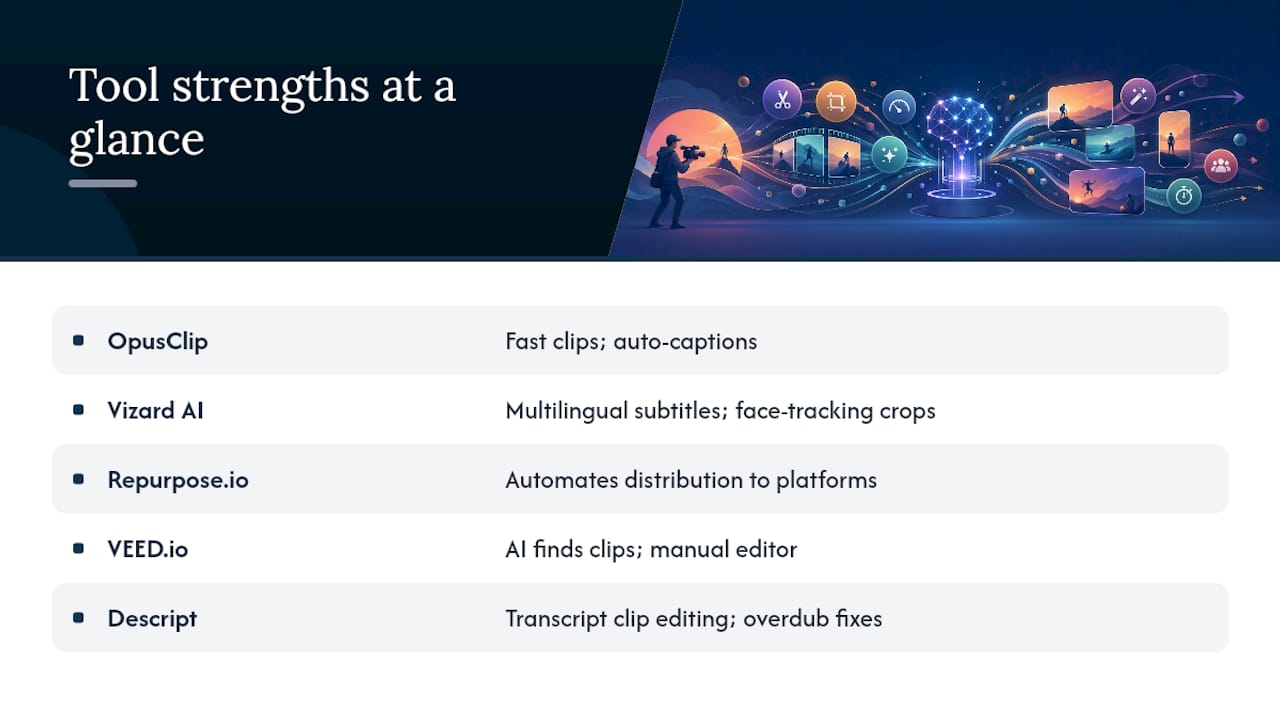
The table above gives you the at-a-glance shortlist. Here is the deeper breakdown on what each tool actually does and where it earns its place.
OpusClip is purpose-built for speed. Upload a long video, and its AI scores each potential clip for virality potential, then auto-generates captions and reframes for vertical formats. The free tier lets you test the highlight quality before committing. It is the default starting point for solo YouTube creators who want to turn YouTube videos into shorts without touching a timeline editor.
Vizard AI goes further on the multilingual side. Its Video Repurposing Tool auto-detects high-impact moments, exports to 9:16, 1:1, and 16:9 simultaneously, applies smart vertical cropping with face tracking, and generates auto-subtitles in multiple languages with broad translation support. For teams publishing across regions, that subtitle depth is a real differentiator. Vizard is also listed on Capterra, which gives you a third-party review base to cross-check.
Repurpose.io is less about clip quality and more about distribution automation. It connects your podcast, YouTube channel, or Zoom recordings to social platforms and fires off posts on a schedule. If your bottleneck is getting content out rather than finding the best clip, this is where to start.
VEED.io sits at the intersection of automation and manual control. Its YouTube Shorts maker lets the AI pick engaging segments, then drops you into an editor to adjust captions, add effects, and fine-tune timing before export. Creators who distrust full automation will find this workflow comfortable.
Descript takes a different approach entirely. It transcribes your video, then lets you select clips by highlighting text in the transcript, the same way you’d edit a document. The overdub feature lets you fix spoken errors without re-recording. It is the strongest option for interview-heavy content and collaborative teams.
Goldcast is built for event producers. Its repurposing features extract highlight clips directly from webinar recordings, tie clips to key timestamps, and push them to distribution channels. If you run regular webinars, the Goldcast repurposing workflow saves meaningful post-event editing time.
HeyLisa focuses on podcasters specifically, pulling show notes and social clips from audio-first content.
Flowjin emphasizes pre-built templates for social managers who need consistent visual output fast. Spikes Studio leans into storytelling, curating highlights that hold narrative arc rather than just peak-energy moments. CapCut is the mobile-first option, with AI trimming and a template library that works well on both phone and desktop. Exemplary AI targets brands that need every clip to match a visual identity, with branded template controls. Vidyo AI prioritizes export speed and caption automation, making it a solid pick when volume matters more than deep customization.
Pro Tip: Run a two-video smoke test before committing to any paid plan. Upload one talking-head video and one event recording. Check whether the AI’s top clips match the moments you would have chosen manually. Caption accuracy and framing quality vary significantly between tools on the same source material.
How do you choose the right AI repurposing tool for your workflow?
Start with your primary bottleneck. If you are producing more raw footage than you can edit, you need highlight detection quality. If you are already clipping but struggling to distribute consistently, you need automation and scheduling. If your audience spans multiple languages, caption translation depth matters more than anything else.
Decision criteria to score during a free trial:
- Highlight relevance: do the AI’s top clips match what you would have picked?
- Caption accuracy: run a word error rate check by comparing the transcript to the audio on a 60-second sample
- Platform integrations: does it connect to YouTube, TikTok, Instagram, LinkedIn, and your podcast host?
- Max video length per job: some tools cap at 60 minutes, others handle 2+ hours
- Batch processing: can you queue multiple videos simultaneously?
- Branding controls: logo placement, font, color, lower-third templates
- Export formats: 9:16 for TikTok/Reels/Shorts, 1:1 for Instagram feed, 16:9 for LinkedIn
- Pricing model: per-minute credits vs. monthly seat vs. output caps
- Data privacy: where is your video stored, for how long, and who can access it?
Vendor questions to ask during trial:
- How does the algorithm score highlights? Is it semantic (topic relevance) or engagement-signal-based (energy, pacing, hook phrases)?
- What is the maximum video length per processing job?
- How many languages does auto-captioning support, and does translation cost extra?
- How is the brand kit applied — globally per account or per project?
- Where is uploaded video data stored, and what is the retention policy after export?
Pro Tip: *To test caption accuracy fast, paste the AI-generated transcript into a text diff tool alongside a manual transcript of the same 60-second clip.
What do the core AI features actually do for short-form success?
Understanding what each feature does in practice helps you avoid paying for capabilities you will not use.
Auto-highlights come in two types. Semantic detection identifies moments where the speaker makes a complete, standalone point. Hook detection looks for high-energy phrases, questions, or surprising statements that tend to drive watch-through on short-form feeds. The best tools, including OpusClip and Spikes Studio, combine both signals. Semantic-only tools tend to produce clips that are coherent but not compelling.
Auto-captioning and translation matter because a large share of social video is watched without sound. Vizard AI’s support for 35+ transcription languages and 150+ translation languages is the widest in this comparison. VEED.io lets you edit captions directly in the timeline after generation, which is useful when the AI mishears technical terms or proper nouns.
Smart reframing and face tracking automatically keep the speaker centered in a vertical crop. This works well for single-speaker content. Multi-speaker panels are where most tools still struggle, occasionally cutting between faces mid-sentence.
Silence removal and pacing trim dead air and filler words. Descript’s filler-word removal is text-driven, meaning you can see exactly what gets cut before committing. Other tools apply silence removal as a background process with less visibility.
Auto-CTAs, title suggestions, and hashtag generation are useful as inspiration, not copy. The AI’s suggested titles are often generic; treat them as a starting point and rewrite for your specific audience.
| Feature | Primary Benefit | Common Failure Mode |
|---|---|---|
| Semantic highlight detection | Coherent, complete clips | Misses high-energy moments |
| Hook detection | High watch-through rate | Over-indexes on volume/energy |
| Auto-captioning | Accessibility, silent viewing | Errors on accents, technical terms |
| Smart reframing | Vertical-ready without manual crop | Cuts speakers during multi-person panels |
| Silence removal | Tighter pacing | Clips natural pauses in storytelling |
| Brand kit automation | Visual consistency at scale | Overrides intentional style variation |
Pro Tip: Treat AI highlights as a first draft. The best results come from running the AI extraction, then doing a single human pass to swap out one or two clips that missed the point. Full automation without review tends to produce clips that are technically correct but editorially flat.
How to run a repeatable AI repurposing workflow
This workflow covers a single long-form video. Batch it across multiple uploads once you have the steps dialed in.
- Upload or paste URL (0–3 min). Most tools accept a direct YouTube URL or a file upload. CrabCut’s workflow, for example, accepts a pasted YouTube link, transcribes the video, and begins highlight detection automatically. Note that YouTube’s own Shorts remix feature caps clips at 60 seconds and requires the source video to be public.
- Automated transcription and highlight detection (10–20 min). The AI processes the audio, generates a transcript, and scores potential clips. Longer videos take more time; most tools handle a 60-minute video in 10–15 minutes.
- Review the AI’s shortlist (5–10 min). Check the top five to ten clips. Swap out any that lack a clear hook or cut off mid-thought. This is the single most important human step in the workflow.
- Apply captions, branding, and aspect ratio (3–5 min). Select your output formats: 9:16 for TikTok, Instagram Reels, and YouTube Shorts; 1:1 for Instagram feed; 16:9 for LinkedIn. Apply your brand kit if available.
- Export and schedule (2–5 min). Export all formats in one batch. Connect to your scheduler (Buffer, Later, or the tool’s native scheduler) and queue posts.
Platform aspect ratio quick reference:
- TikTok, Instagram Reels, YouTube Shorts: 9:16
- Instagram feed: 1:1 or 4:5
- LinkedIn: 16:9 or 1:1
- Twitter/X: 16:9 or 1:1
Troubleshooting checklist:
- Bad captions: check audio quality at source; re-upload with noise reduction applied
- Off-frame speakers: use manual reframe controls or switch to a tool with stronger face tracking
- Long silences in clips: enable silence removal or trim manually in the editor
Pro Tip: Batch five or more videos in a single session and schedule them across two weeks. The time-per-clip cost drops significantly when the AI is processing a queue rather than a single file.
What do AI repurposing tools actually cost, and what limits matter?
Pricing models vary more than most creators expect. The main structures are: per-minute credits, monthly seat with output caps, pay-as-you-go, and enterprise contracts. Ssemble’s pricing page illustrates the credit-based model, with plans starting from $7.50/month for entry-level access.
Plan limits that affect scaling:
- Max video length per job (commonly 60–120 minutes; some tools cap at 30)
- Concurrent processing slots (free plans often allow one at a time)
- Number of connected social accounts
- Export resolution (free plans frequently watermark or cap at 720p)
- Monthly clip or minute allowances
Cost estimation example: If you publish two long-form videos per week and want five clips per video, that is roughly 40 clips per month. A tool charging per clip at $0.50 each costs $20/month. A flat-seat plan at $29/month with unlimited clips is the better value at that volume. Run this math before committing.
Red flags in pricing transparency:
- No published pricing page (requires a sales call to get numbers)
- Watermarks on all free-plan exports with no trial of full quality
- Per-minute billing with no cap, which makes costs unpredictable at scale
- Auto-renewing annual contracts with no monthly option during trial
- Export quality limits that only appear after you have already processed the video
What does success look like for each repurposing use case?
Podcast episode: Extract three to five clips of 45–90 seconds each, plus an audiogram for platforms that favor audio-visual content. HeyLisa and Descript both handle audio-first source material well. Key metric: clip watch-through rate on the first three seconds.
Webinar: Pull a highlight reel of two to three minutes, plus five to eight standalone clips tied to key timestamps. Goldcast is built for this workflow; for webinar repurposing at scale, it reduces post-event editing time substantially. Metric: viewer-to-registration conversion on clips used as promotional content.
Long YouTube video: Aim for five to ten Shorts per video. OpusClip and Vidyo AI both handle this volume efficiently. Metric: Shorts-driven subscriber uplift on the parent channel.
Product demo: Extract 30–60 second feature clips focused on a single capability. Avoid over-editing; losing the context of how a feature works is the most common pitfall here. For product demo repurposing, the key metric is click-through from the clip to the demo sign-up page.
The most useful early-signal KPI across all use cases is three-second view retention on the first clip you publish from a new video.
How Techvideoblog tested and evaluated these tools
Testing used three asset types: a 45-minute podcast interview, a 60-minute webinar recording, and a 25-minute YouTube tutorial. Each asset type surfaces different failure modes: podcasts test audio-only transcription accuracy, webinars test multi-speaker reframing, and tutorials test whether the AI can identify instructional highlights rather than just high-energy moments.
Metrics tracked per tool:
- Highlight precision: percentage of AI-recommended clips the editor kept without modification
- Caption word error rate: checked against a manual transcript on a 60-second sample per asset
- Time-to-first-clip: measured from upload completion to the first exportable clip appearing
- Export fidelity: visual quality and framing accuracy across 9:16, 1:1, and 16:9 outputs
- Multi-aspect ratio accuracy: whether face tracking held correctly across all three formats
Testing process (replicable during your own trial):
- Upload the same source video to each tool under evaluation
- Note the time from upload to first clip suggestion
- Export the top three AI-suggested clips without editing
- Compare clip selection against your own manual picks from the same video
- Run a caption accuracy check on a 60-second segment with clear speech
Tools that consistently surfaced clips matching the manual picks, produced captions with low error rates on clear audio, and exported correctly framed verticals across all three aspect ratios scored highest. Caption accuracy on technical vocabulary and proper nouns was the most common differentiator between tools at similar price points.
| Test Asset | Primary Metric | Key Finding |
|---|---|---|
| Podcast interview (45 min) | Caption WER on clear audio | Significant variance between tools on proper nouns |
| Webinar recording (60 min) | Multi-speaker reframe accuracy | Most tools struggled with two-speaker panels |
| YouTube tutorial (25 min) | Highlight precision vs. manual picks | Semantic tools outperformed hook-only detection |
What are the final recommendations by use case?
Solo creator, fastest path: Start with OpusClip or Vidyo AI. Both have free tiers, process a 30-minute video in under 15 minutes, and produce export-ready clips with captions. Run the two-video smoke test described above before upgrading.
Podcaster: HeyLisa for show notes and clip extraction; Descript if you also want transcript-led editing and the ability to fix spoken errors. Both handle audio-first source material better than tools built primarily for video.
Agency or bulk workflow: Repurpose.io for distribution automation; Vizard AI for multilingual caption needs and multi-platform exports. For agency-scale AI video workflows, pairing an AI repurposing tool with clear client review checkpoints delivers the most consistent output quality.
Enterprise webinar producer: Goldcast, with its event-native tooling and timestamp-linked clip extraction.
Next steps:
- Pick the tool that matches your primary use case from the shortlist above.
- Upload one recent video and run the auto-highlight pass without editing the AI’s output.
- Compare the AI’s top five clips to your own manual picks from the same video.
- Check caption accuracy on a 60-second segment.
- Confirm the pricing model fits your monthly clip volume before starting a paid plan.
When to upgrade from free to paid: When you are producing more than eight clips per week, when watermarks appear on exports you need to publish, or when you need more than one connected social account.
How often do these tools ship new features?
OpusClip, Vizard AI, and VEED.io ship updates frequently, typically every two to four weeks, with changelog posts on their websites or product blogs. Descript has a public roadmap and releases major features on a quarterly cadence. CapCut updates its template library and AI features regularly, often tied to platform trends on TikTok. Repurpose.io focuses on integration stability and adds new platform connectors as social networks update their APIs.
Goldcast and Exemplary AI tend toward less frequent but more substantial releases, reflecting their enterprise and brand-team audiences. HeyLisa and Flowjin are earlier-stage products; their release cadence is faster but less predictable. Spikes Studio and Vidyo AI both maintain active product blogs where you can track what shipped recently.
The practical implication: check each vendor’s changelog or product blog before signing an annual contract. A tool that shipped its last major update six months ago may be in maintenance mode.
An editor’s perspective on what actually matters
The gap between what AI repurposing tools promise and what they reliably deliver comes down to one thing: highlight quality on your specific content type. Every tool in this comparison handles a well-lit, single-speaker talking-head video reasonably well. The real test is your actual content, whether that is a panel discussion with three speakers, a technical tutorial with screen recordings, or a podcast with heavy crosstalk.
The two-step workflow, AI extraction followed by a single human pass, consistently produces better results than full automation. Not because the AI is bad, but because it does not know your audience. It cannot tell that your viewers care about the specific insight at minute 34 more than the high-energy moment at minute 12. That judgment belongs to you.
On privacy: before uploading client content or proprietary recordings, check the vendor’s data retention policy. Most tools store uploaded video on their servers for 30–90 days after export. Some enterprise plans offer shorter retention or on-premise options. This matters more for webinar producers and agencies handling client footage than for solo creators, but it is worth confirming before your first upload.
The role of AI in content strategy is to handle the mechanical extraction work so you can focus on the editorial judgment that actually differentiates your content. Use the title and hashtag suggestions these tools generate as a starting point, then rewrite them for your specific audience. The AI’s suggestions are trained on broad engagement signals, not your niche.
Techvideoblog’s curated directory cuts through the tool noise
Every tool in this guide has a dedicated hands-on review page on Techvideoblog, with verified pricing, workflow screenshots, and real output samples tested against the same three asset types described in the methodology above.

The directory covers the full AI video repurposing tools category, including:
- Verified current pricing and plan limits (updated when vendors change tiers)
- Workflow notes showing time-to-first-clip and highlight precision scores
- Platform screenshots from actual test runs, not vendor marketing assets
- Side-by-side comparisons filtered by use case, budget, and platform
For a broader view across all video production categories, the best AI video tools directory covers editors, caption generators, thumbnail makers, and more. Start with the content repurposing category to find the hands-on review for whichever tool you are trialing.
Sources
- Video Repurposing Tool — Vizard
- Video Repurposing Tool — AI Content Repurposing | Ssemble
- YouTube Video to Shorts AI Converter | CrabCut
- YouTube Shorts Maker – Create Shorts from Videos – VEED
- Create Shorts from your long-form videos – YouTube Help
Techvideoblog’s hands-on review pages for each tool listed above are accessible from the video repurposing tools category, where you can filter by use case and budget.
FAQ
What is the fastest way to repurpose a YouTube video into Shorts?
Paste the YouTube URL into a tool like OpusClip or Vidyo AI, let the AI generate highlight clips, review the top five, and export in 9:16. YouTube’s own Shorts remix feature also works natively but caps clips at 60 seconds and requires the source video to be public.
Which AI repurposing tool is best for podcasters?
HeyLisa is purpose-built for podcast clip extraction and show notes. Descript is the stronger choice if you also want transcript-led editing and the ability to correct spoken errors without re-recording.
How do I check caption accuracy before committing to a tool?
Export a 60-second clip with captions from the AI tool, then compare the generated transcript against a manual transcription of the same segment.
Do AI repurposing tools store my uploaded videos?
Most tools retain uploaded video on their servers for 30–90 days after export. Check the vendor’s data retention policy before uploading client content or proprietary recordings, particularly for webinar producers and agencies.
What should I test during a free trial?
Upload one talking-head video and one multi-speaker recording. Compare the AI’s top clip selections to your own manual picks, check caption accuracy on a 60-second sample, and confirm that face tracking holds correctly across 9:16, 1:1, and 16:9 exports.