AI video presentation makers turn scripts, slide decks, or written prompts into finished videos with a presenter avatar or narrated slides in minutes rather than days. They’re the right call for training modules, marketing recaps, and onboarding content where speed matters more than cinematic polish. Expect a solid first draft, not a finished product. Most output still needs a manual pass on pacing, phrasing, and timing before it’s ready to publish.
TL;DR:
- Most AI video presentation tools generate drafts quickly but still require manual editing for pacing, voice emphasis, and caption accuracy before final publishing.
- Supporting features to evaluate include direct document support, avatar versus slide focus, voice quality, branding controls, and editable exports, with testing before committing to paid plans.
- Cost models vary from free credits for testing to monthly subscriptions and per-minute charges, with enterprise plans offering additional team and branding options.
- AI-generated videos excel in speed and repeatability for internal training or quick marketing, but human videos remain superior for high-stakes, personalized, or complex demonstrations.
- Initial tests should measure turnaround speed, output quality, and export reliability, with a pilot project helping to estimate real production timelines and costs.
Table of Contents
- What Is an AI Video Presentation Maker, Exactly?
- What Features Actually Matter When You’re Evaluating Tools?
- How Do You Make an AI Video Presentation Step by Step?
- How Much Does an AI Video Presentation Maker Cost?
- Where AI Video Presentations Still Fall Short
- How Do You Pick the Right Tool for Your Use Case?
- What Does Hands-On Testing Actually Show?
- When Should You Choose AI Video Over a Human-Recorded Presentation?
- Where to Compare Tools Before You Buy
- Sources
- FAQ
What Is an AI Video Presentation Maker, Exactly?
An AI video presentation maker converts written or structured content into a video, usually by pairing generated or cloned narration with an avatar, a slide deck, or both. You feed it text, a script, a PowerPoint file, a Word doc, or sometimes a URL, and it hands back a video file, a shareable link, or an editable export.
Typical inputs: a rough script, an outline, an uploaded PPTX or DOCX, or a short text prompt describing what you want. Typical outputs: an MP4 you can drop into a learning management system, an embeddable link for a landing page, or a re-exportable PPTX for further editing. A sales team might turn a one-page pitch outline into a 90-second narrated video; an HR department might turn a 12-slide onboarding deck into a self-paced training video with a presenter avatar walking through each point.
What Features Actually Matter When You’re Evaluating Tools?
Most vendor pages list the same buzzwords. Here’s what to actually check before you commit:
- Text-to-video and doc-to-video support. Can it ingest a PPTX or DOCX directly, or does everything need to be retyped into its own editor?
- Avatar presenters vs. narrated slides. Some tools generate a talking-head avatar; others keep the focus on slide visuals with voiceover layered on top. Powtoon leans toward avatar-driven business videos, while tools built around slide decks tend to prioritize layout.
- Text-to-speech quality and language coverage. Listen for robotic cadence on multisyllabic words, and check whether voice cloning is offered if you need a consistent brand voice across videos.
- Template and branding controls. Logo placement, color locks, and font consistency across scenes save real editing time later.
- Post-generation editing. Can you swap a sentence without regenerating the whole video? Beautiful builds around Smart Slides that auto-align content as you edit, which is meant to cut down on that rework.
- Export and integration options. MP4 for general use, PPTX for teams that need to keep editing in familiar software, caption files for accessibility, and LMS-compatible formats for training content.
Pro Tip: Before you commit to a paid plan, export one test video and check whether captions come out as a separate, editable file. A lot of tools bury caption editing behind a paywall you won’t discover until you’re mid-project.
How Do You Make an AI Video Presentation Step by Step?
The workflow is more predictable than most people expect, and skipping steps is where quality drops.
- Break your content into modular scenes. Long single documents tend to confuse generation engines and produce clumsy pacing. Chapter your script into short, self-contained sections before uploading.
- Choose your format based on where the video will live. An avatar presenter suits onboarding and internal comms; narrated slides suit marketing recaps and webinar-style content. A hybrid works for product walkthroughs that need both a human face and visual detail.
- Generate a draft and review it critically. Check emphasis, pacing, and whether the AI narrator stumbles over technical terms or acronyms.
- Refine, brand, and export. Add your logo, adjust scene timing, layer in captions, then export and play the final file on the actual device your audience will use, not just your desktop preview.
Skipping step one is the most common mistake. A 20-page script dropped in as one file is far more likely to trigger processing errors or produce a video that rushes through the middle third.
How Much Does an AI Video Presentation Maker Cost?
Pricing follows three common shapes: a free tier, a flat monthly subscription, and a credit or per-minute model that charges based on how much video you actually generate.
- Free tiers are useful for testing quality before you pay, but they typically cap you on export resolution, total minutes, or add a watermark you can’t remove. Prezi AI offers free AI credits specifically so you can trial the prompt-to-presentation workflow before subscribing.
- Subscription plans usually unlock HD or 4K export, more voice options, and removed watermarks, priced per seat per month.
- Credit or per-minute models charge based on rendered output, which matters if your team produces a lot of short-form video versus one long training module.
For budgeting purposes, a single 3 to 5 minute training video usually fits inside a mid-tier monthly plan’s minute allowance. A weekly cadence of 60 to 90 second marketing clips adds up faster and may justify a higher seat count or a credit top-up. Enterprise plans typically bundle in team seats, brand kit locking, and priority rendering, and pricing there depends heavily on volume rather than a flat published rate.
Where AI Video Presentations Still Fall Short
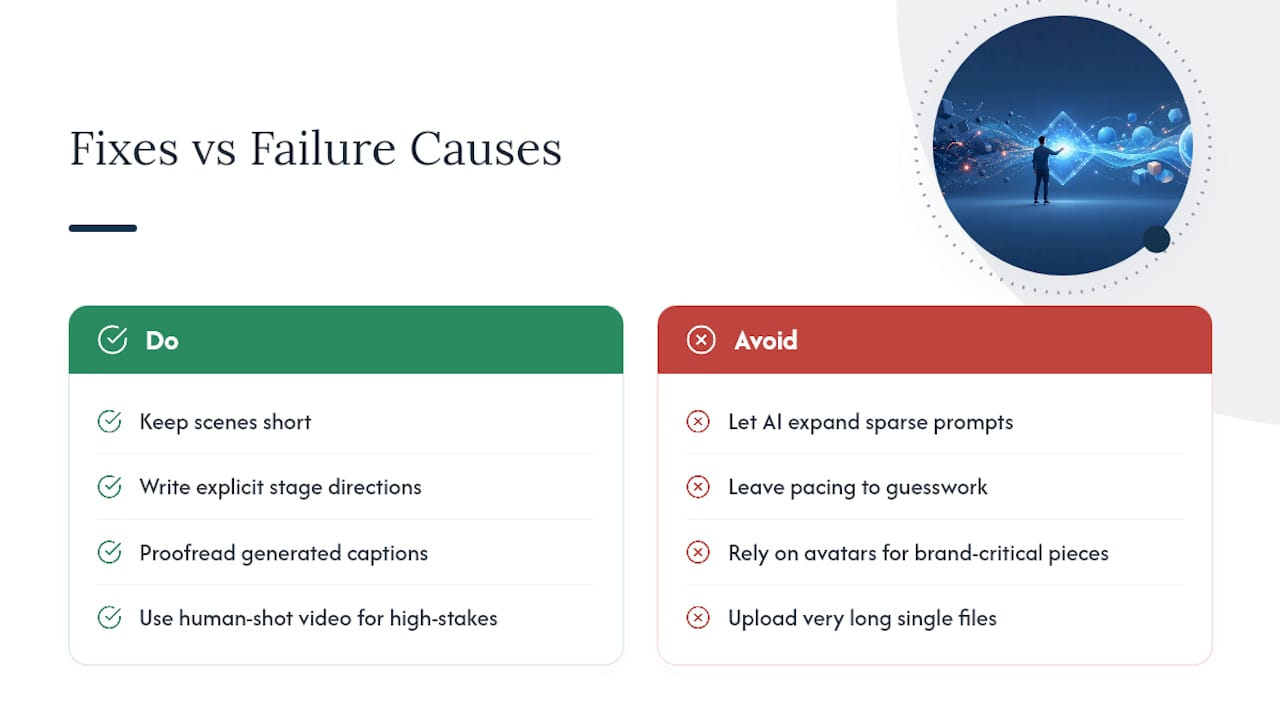
AI-generated video is fast, not flawless. Common failure points include hallucinated facts if you let the AI expand on a sparse prompt, awkward emphasis on the wrong word in a sentence, imperfect lip-sync on avatar presenters, and outright rejection of very long single-file uploads.
The fix for most of these is procedural. Keep scenes short, write explicit stage directions into your script rather than leaving pacing to guesswork, and always proofread the generated caption file, since caption errors are often more noticeable to viewers than narration errors. For high-stakes pitches, complex product demos, or anything where brand authenticity carries the message, human-recorded video or live filming still outperforms an avatar, at least for now.
How Do You Pick the Right Tool for Your Use Case?
Start by mapping your actual output need to feature priorities, not the other way around. Training content bound for an LMS needs SCORM or embed compatibility and clean captioning. Marketing clips need faster turnaround and strong template variety. Internal onboarding videos benefit most from voice cloning and brand consistency across a whole series.
Before you commit to a subscription, run through this checklist:
- Does the export format match where the video needs to live (MP4, PPTX, embed code)?
- Can you edit the export afterward, or are you locked into the platform forever? An editable PPTX export is a real advantage for teams that need to keep tweaking after the AI’s first pass.
- Have you tested a short pilot project instead of jumping straight into an annual plan?
- Are pricing tiers clearly published, or do you need a sales call just to see numbers?
Pro Tip: Treat the first video you generate as a pilot, not a deliverable. Time how long the full cycle takes, from upload to a polished export, and use that number to estimate real turnaround before you scale up production.
Red flags worth walking away from: opaque or sales-gated pricing, no editable export option, and caption support that’s an afterthought rather than a built-in feature.
What Does Hands-On Testing Actually Show?
Our workflow testing prioritizes four things every time: how fast a tool gets you from blank page to usable draft, how polished that draft looks without extra editing, how transparent the pricing actually is, and whether the export holds up once it leaves the platform.
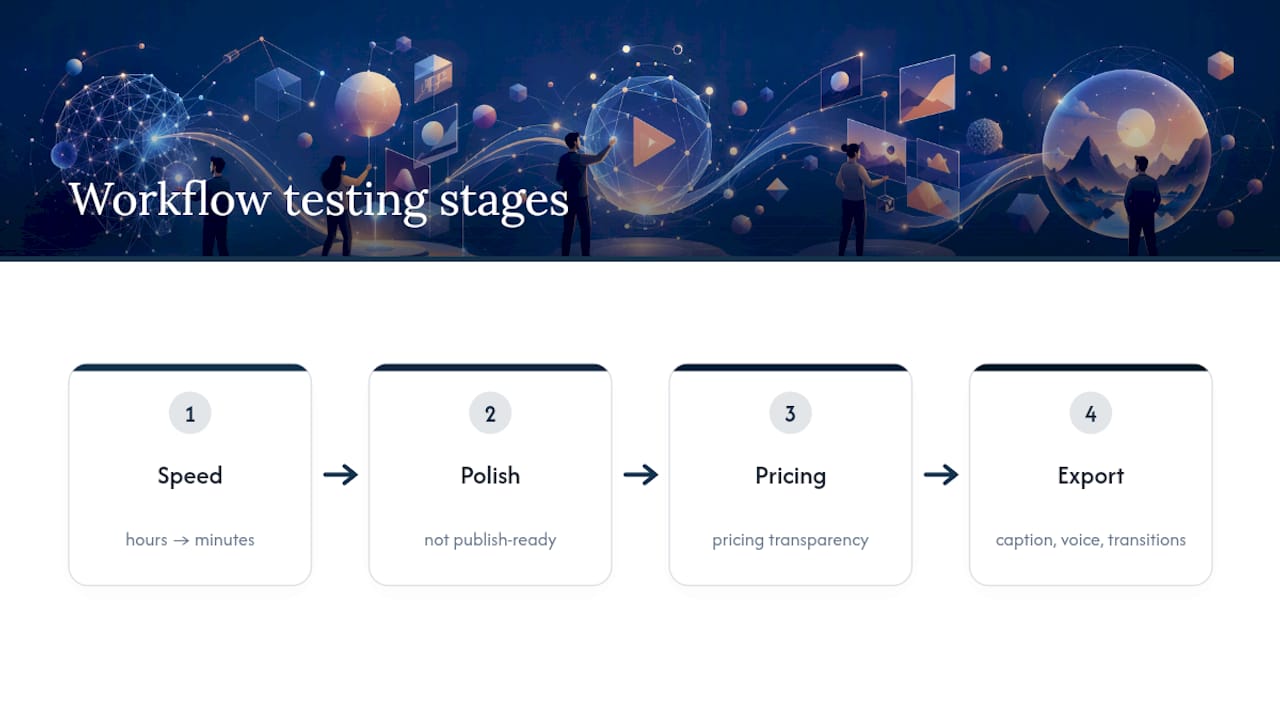
The consistent pattern across tools: AI genuinely speeds up the first draft, often cutting hours down to minutes, but almost none of them produce a publish-ready video on the first generation. You still need a manual pass for pacing and accuracy. Vendor pages will tell you their tool is instant and flawless. Real workflow testing tells you where the seams are, usually in caption accuracy, voice emphasis, or scene transitions that need a second look before you hit export.
When Should You Choose AI Video Over a Human-Recorded Presentation?
AI video wins on speed and repeatability. Weekly training refreshers, multilingual narrated slides for global teams, and quick marketing recaps are all better suited to an AI-first workflow than a camera crew.
Human-recorded video still wins when brand authenticity is the point, when a demo is too complex for scripted narration to track cleanly, or when the stakes are high enough that a slightly imperfect video costs you credibility. My rule of thumb: if the content will be watched once and needs to feel personal, record it yourself. If it’ll be watched repeatedly and needs to scale, let AI carry the first draft.
— H
Where to Compare Tools Before You Buy
Techvideoblog exists because picking between a dozen AI video tools shouldn’t require testing each one yourself with a credit card on file. Every review runs through the same workflow checks covered here: turnaround speed, output polish, and whether the pricing page actually matches what you get charged.

If you’re weighing an avatar-driven tool like Powtoon against a slide-first workflow, Techvideoblog’s AI video tools directory breaks down verified pricing and real export quality side by side, so you’re not relying on marketing pages alone. For teams building product walkthroughs specifically, the product demo video comparisons cover which tools handle screen capture and narration cleanly. Run your own short pilot first, then check available tool information before you commit to an annual plan.
Sources
For readers who want to dig into specific vendor workflows, Zapier’s tested roundup of AI presentation makers covers speed and editing tradeoffs across several tools. Beautiful details its outline-first, Smart Slides approach. Prezi AI explains its free-credit prompt-to-presentation model, and Powtoon outlines its enterprise-focused doc-to-video and avatar features. For a broader productivity lens on AI adoption, this ROI-focused breakdown is worth a look.
- The 8 best AI presentation makers in 2026
- AI Presentation Software for Teams
- Prezi AI: Top AI Presentation Maker
- Powtoon | The Unified AI Video Platform
FAQ
What AI Tool Can Create a Video Presentation?
Several tools handle this, including Prezi AI, Beautiful.ai, and Powtoon, each converting text, outlines, or uploaded documents into narrated or avatar-led video. The right pick depends on whether you need slide-style visuals or a presenter avatar.
Can ChatGPT Create a Video?
ChatGPT itself doesn’t generate video directly. It can write scripts, outlines, or narration text that you then feed into a dedicated AI video presentation maker to produce the actual video file.
Is There a Free AI Presentation Maker?
Yes. Several platforms, including Prezi AI, offer free credits or a limited free tier to test the prompt-to-presentation workflow before you pay, though free plans typically cap resolution, minutes, or add a watermark.
Is VideoGPT Free?
VideoGPT-style tools generally offer a limited free tier with capped output, similar to other AI video platforms, but full-resolution, watermark-free exports usually require a paid plan. Check the specific tool’s pricing page directly, since terms shift often.