
Compare AI vocal removers for stem separation, remixes and creator audio. Check artifacts and music permissions before using the output. Use the same passage or recording in each candidate tool. Include proper names, pauses and difficult words. Compare the result at matched listening levels, note corrections, and check the permissions that apply to the output.
Research guide. Vendor information and third-party reports are distinct from our own test results. See how we evaluate tools. We may earn a commission from qualifying purchases through affiliate links. Affiliate disclosure.
- Moises.ai , Best for mobile workflows and creator-friendly DAW exports
- Lalal.ai , Best for fast single-file web processing; free Starter plan available
- iZotope RX (Music Rebalance) , Best for audio professionals needing fine-grained desktop control
- Demucs (v4) , Best separation quality; state-of-the-art SDR via open-source model
- Spleeter , Best for instant previews and karaoke tracks; fastest processing
- PhonicMind , Best for straightforward web splits with simple pricing
- VocalRemover.org , Best free option; no sign-up, instant two-track download
Table of Contents
- Which AI vocal remover wins on the specs creators care about?
- How do you remove vocals from a video and re-sync the audio?
- Use the directory to compare workflow options, then confirm current features and terms with the provider.
- Key Takeaways
Which AI vocal remover wins on the specs creators care about?
Freemium pricing dominates the U.S. market, with pay-as-you-go credits typically costing a low per-minute rate, making understanding different AI pricing and ownership models important as explained by GreenCube. Privacy policies vary significantly, so always check file retention terms before uploading client audio.
| Tool | Best For | Stem Support | Speed | Output Formats | Pricing Model | Batch/API | Privacy | Ease of Use |
|---|---|---|---|---|---|---|---|---|
| Moises.ai | Mobile workflows, creator remixing | Multi-stem | 20-60s | WAV, MP3 | Freemium + subscription | Yes (API) | Cloud; check policy | Mobile app + web |
| Lalal.ai | Fast web processing, minimal setup | Multi-stem | 20-60s | WAV, MP3 | Free Starter; , | Limited | Cloud; check policy | Web UI |
| iZotope RX | DAW/desktop pro editing | Multi-stem | Varies | WAV, FLAC | One-time / subscription | DAW plugin | Local processing | Desktop/DAW |
| Demucs | Highest quality separation | Multi-stem (4+) | 1-3 min | WAV | Free (open-source) | Self-hosted | Self-hosted | CLI / cloud wrappers |
| Spleeter | Speed, karaoke, quick previews | 2-stem or 5-stem | Seconds | WAV, MP3 | Free (open-source) | Self-hosted | Self-hosted | CLI |
| PhonicMind | Simple web splits | 2-stem or 4-stem | 20-60s | WAV, MP3 | Credits / subscription | Limited | Cloud; check policy | Web UI |
| VocalRemover.org | Free casual use, karaoke | 2-stem | 20-60s | MP3, WAV | Free | , | Cloud; check policy | Web UI |
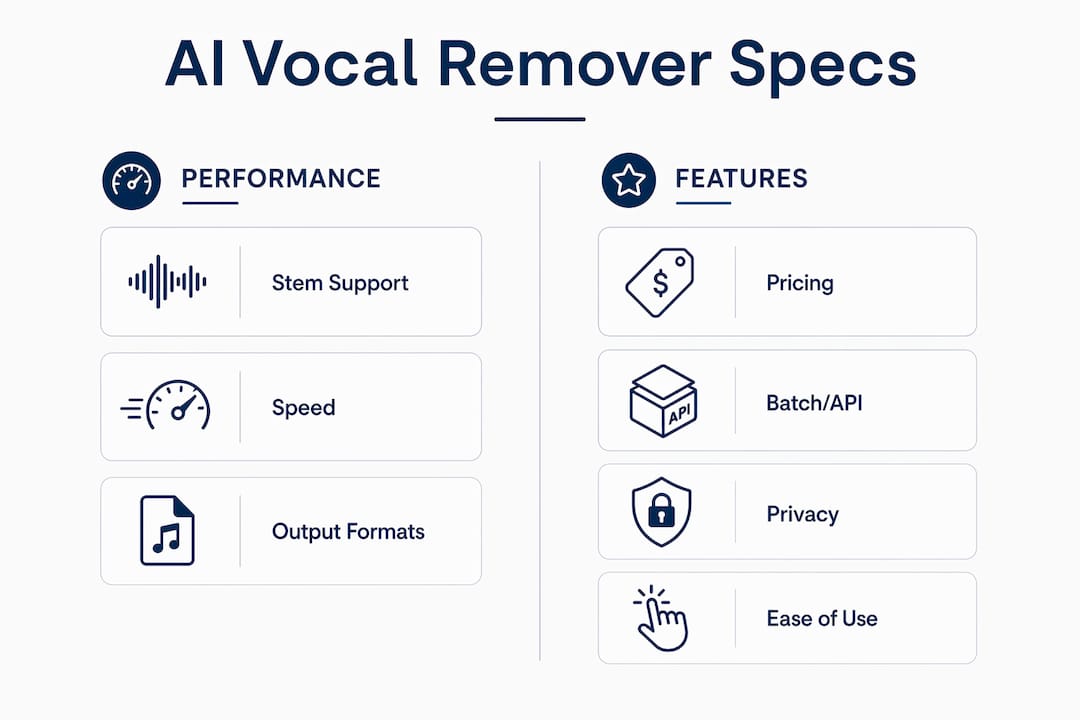
Pro Tip: Multi-stem tools like Demucs separate drums, bass, guitar, and piano individually, giving you cleaner instrumental beds than a simple 2-stem split. If your video needs a specific instrument removed or isolated, multi-stem is worth the extra processing time.
How do you remove vocals from a video and re-sync the audio?
Export your video’s audio as a lossless WAV, run it through your chosen separator, then re-import the clean instrumental stem back into your timeline. Here’s the full sequence:
- Export audio from your video editor as WAV or FLAC at 44.1 kHz or 48 kHz. Avoid re-exporting a low-bitrate MP3 , compressed files increase vocal bleed artifacts.
- Choose your model and quality setting. Use Spleeter for speed; use Demucs “best” mode for the cleanest result, budgeting up to a few minutes for longer files.
- Upload and process. Most platforms accept files up to 40-100 MB. Standard songs finish in 20-60 seconds; complex or long files or runs on Demucs “best” mode may take several minutes.
- Preview and compare stems. Listen for reverb tails and bleed-through before committing. Run a waveform check in your DAW alongside the A/B listening test.
- Re-import the instrumental stem into your video editor, align it to the original video track, and adjust levels to match your mix.
- Apply noise reduction if needed. Aggressive cleaning can strip vocal warmth, so A/B test presets rather than defaulting to the most aggressive setting.
For creators working on podcast clips or content repurposing, batch processing via API (Moises.ai) saves significant time at scale.
| Format | Input/Output | Best Use in Video Workflow |
|---|---|---|
| WAV | Both | Preferred for lossless processing and re-import |
| FLAC | Input | Lossless source; smaller than WAV |
| MP3 | Both | Acceptable output; avoid as source input |
| M4A | Input | Mobile exports; usable but lossy |
| OGG | Input | Web audio; check tool compatibility first |
Explore related tools and workflow guides


Every tool listed above has been checked against real processing times, output format specs, and privacy policy language. You get before/after audio context, not marketing copy. Visit the TechVideoBlog directory to compare vocal separation tools and find the right fit for your production pipeline.
Key Takeaways
The most reliable AI vocal removers for video creators pair fast cloud processing (20-60 seconds for standard tracks) with clear pricing and verifiable privacy policies.
| Point | Details |
|---|---|
| Processing speed | Most tools complete standard songs in 20-60 seconds; complex files or Demucs “best” mode may take several minutes. |
| Model choice matters | Demucs v4 delivers the highest separation quality; Spleeter is faster but less precise for dense mixes. |
| Input quality is critical | Upload WAV or FLAC source files; low-bitrate MP3 and heavy reverb increase bleed-through artifacts. |
| Pricing structure | Freemium plans typically include limited free minutes; pay-as-you-go credits run around $0.10 per minute. |
| TechVideoBlog directory | Use the directory to compare workflow options, then confirm current features and terms with the provider. |