Using AI, you can convert one webinar recording into dozens of publishable assets. The shortest route is transcribe, extract highlights, generate drafts, apply human polish, then publish. Expect a mix of clips, articles, social posts, and emails, not a magic one-click transformation. The workflow takes a few focused hours, not weeks, once you know which outputs to build first.
TL;DR:
- Prioritize creating a few high-impact assets like one long article, several short clips, and a recap email to maximize quality and efficiency.
- Use AI tools to accurately transcribe, identify highlights, and generate drafts, then review and polish each asset before publishing.
- Assign clear roles for each part of the process, including the host, editor, SEO writer, social producer, and designer, for faster workflow.
- Focus on essential AI features such as high transcription accuracy, speaker diarization, and timestamped highlight detection to reduce editing time.
- Treat webinars as ongoing content sources with a repeatable workflow, rather than one-time events, to generate value over several months.
Table of Contents
- How Do You Turn a Webinar Into Multiple Marketing Assets?
- The Step-by-Step Workflow From Recording to Published Asset
- Which AI Features Actually Reduce Your Editing Time?
- What Does a Realistic Asset Map Look Like?
- What Should You Fix Before Publishing an AI Draft?
- Who Should Own Each Part of the Repurposing Process?
- What We Learned Testing AI Webinar Repurposing Tools
- Stop Treating Your Webinar as a One-Time Event
- Compare Webinar Repurposing Tools Before You Commit
- Sources
- FAQ
How Do You Turn a Webinar Into Multiple Marketing Assets?
The output list matters more than the tool list. Before you touch any AI platform, decide which channels actually move your numbers, then build toward those first.
Here’s the realistic shortlist, organized by the goal each asset serves:
- Short clips (60 to 90 seconds): built for social feed engagement and driving profile visits.
- Long-form clips (3 to 8 minutes): useful for YouTube and LinkedIn native video, where watch time counts.
- SEO blog articles: repurposed transcripts turned into structured posts that target search intent and support topical authority in AI search results.
- Social captions and carousels: quote cards, key-stat graphics, and takeaway lists pulled straight from the Q&A section.
- Email nurture sequences: condensed recaps for people who registered but didn’t attend live.
- FAQ or structured Q&A pages: built from the live audience questions, which double as long-tail SEO content.
One 60-minute webinar can theoretically produce up to 33 distinct assets once you count every clip, post, and email variant. Treat that number as a ceiling, not a quota. A team chasing all 33 on their first attempt usually ends up with 33 mediocre pieces instead of ten strong ones.
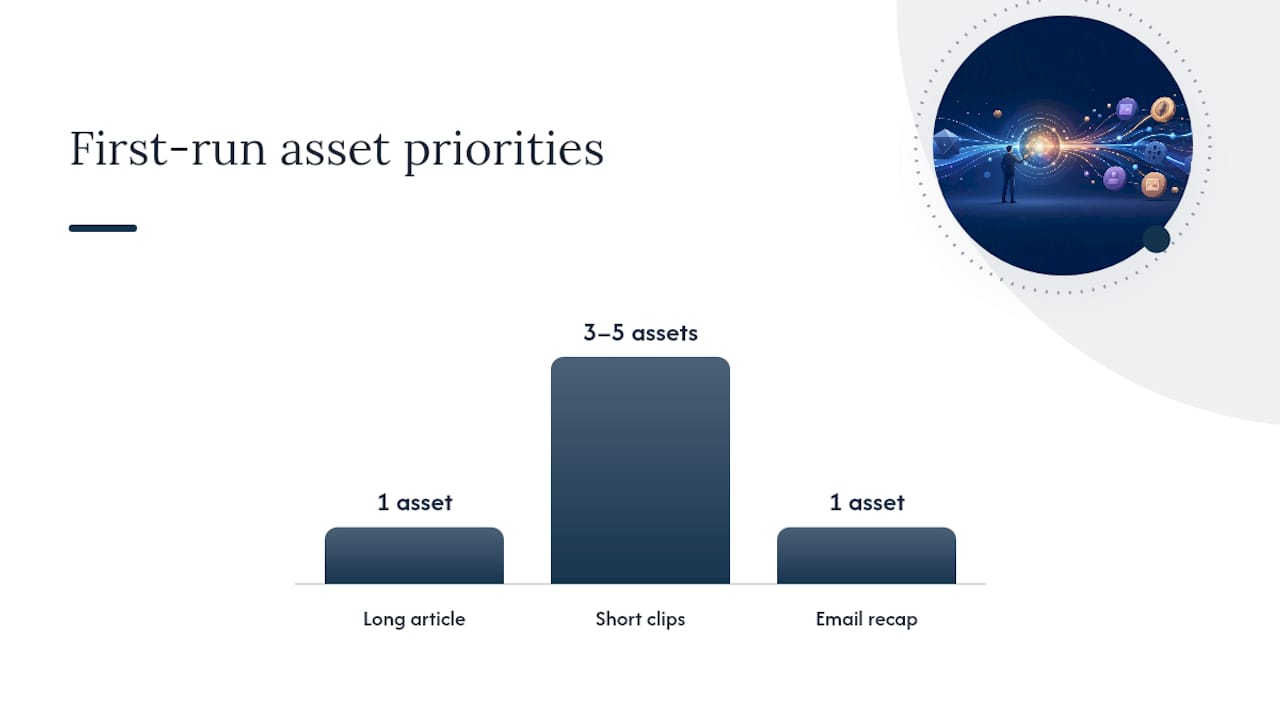
For a first run, prioritize one long article, three to five short clips, and a single email recap. That’s a manageable batch that proves the workflow before you scale it.
The Step-by-Step Workflow From Recording to Published Asset
Repurposing a webinar with AI breaks into a clean five-stage pipeline. Skip a stage and you’ll spend more time fixing outputs than you saved generating them.
- Prep before you hit record. Export your slides as images, write down your key teaching points as timestamps, and confirm your microphone and screen-share quality. Clean audio saves transcription headaches later.
- Capture the raw recording and transcript. Most webinar platforms auto-generate a transcript immediately after the session ends. Check speaker labels here. Diarization errors compound through every later step.
- Run highlight and chapter extraction. AI tools scan the transcript for high-energy moments, direct quotes, and topic shifts, then timestamp them as candidate clips or article sections.
- Generate drafts for each asset class. Feed the transcript and highlights into your generation tool, one pass per output type: article draft, clip captions, email copy, social posts.
- Apply human polish and schedule. Fix factual errors, tighten hooks, match brand voice, then load everything into your publishing calendar.
Live automation (auto-clipping during the event) works for high-volume webinar series but adds risk of catching awkward pauses or tech glitches on camera. Post-event automation gives you a chance to review before anything goes public, which is the safer default for most teams.
Before an asset moves to publishing, run it against a short acceptance check: does it stand alone without webinar context, does it match your brand voice, and does the caption or headline actually make someone want to click? If any answer is no, it goes back for another editing pass, not out the door.
Which AI Features Actually Reduce Your Editing Time?
Buy for the feature, not the logo. Every AI webinar tool bundles some combination of the following, and the combination determines how much manual work lands on your desk afterward.
- Transcription: the foundation. Look for accuracy above 95% on clean audio and correct punctuation, since messy transcripts poison every downstream draft.
- Speaker diarization: separates who said what. Critical for panel webinars and Q&A segments; weak diarization means you’ll manually relabel quotes.
- Highlight and chapter detection: flags emotionally strong or information-dense moments with timestamps, which is what makes clip selection fast instead of manual scrubbing.
- Clip generation and templating: auto-crops to vertical or square formats, applies branded lower-thirds, and adds captions in one pass.
- Summarization and draft generation: turns the transcript into article or email copy using your prompts or saved brand settings.
- Captioning and text-to-speech: burns in accurate subtitles and, on some platforms, generates voiceover for slide-based recaps.
Integrated platforms handle all of this in one dashboard, which cuts export and import friction between tools. Best-of-breed setups, where you pick a separate transcription tool and a separate editing tool, often produce sharper individual outputs but cost more setup time per session.
Pro Tip: Configure your brand voice, target keywords, and tone settings inside the tool before you generate a single draft. Teams that do this see a meaningful drop in post-generation editing time compared to editing generic AI output after the fact.
What Does a Realistic Asset Map Look Like?
The 33-asset ceiling from a 60-minute session breaks down loosely into clips, articles, social posts, and email variants. Scaling that down into a workable first batch means picking a handful from each category rather than attempting the full spread.
| Asset type | Suggested count | Primary goal |
|---|---|---|
| Long clips (3 to 8 min) | 3 | YouTube and LinkedIn watch time |
| Short clips (60 to 90 sec) | 8 to 10 | Social reach and profile growth |
| SEO article | 1 | Organic search and topical authority |
| Social posts (text and carousels) | 5 | Engagement and link clicks |
| Email nurture items | 2 to 3 | Re-engaging registrants |
That’s roughly 20 assets, comfortably inside the up-to-33 benchmark, and realistic for a two-person team to produce and polish within a week.
To choose your first five to seven assets, pick the moments where the audience reaction was strongest: a surprising stat, a clear demo, or a direct answer to a common objection. Those clips consistently outperform generic recap content, and an engagement scoring tool can help rank candidate clips before you commit editing time to them.
What Should You Fix Before Publishing an AI Draft?
AI drafts are a starting point, not a finished product. The most common failures are predictable, which makes them fast to catch if you know where to look.
Speaker misattribution shows up often in panel or interview webinars, so double-check quotes against the video before publishing anything with a name attached. Transcription tools also mishear numbers, product names, and acronyms, so scan for factual errors specifically, not just typos. Auto-generated clips sometimes cut mid-sentence, so trim the boundary a beat earlier or later for a clean start and stop.
Run every asset through this short checklist before it ships:
- Does the tone match your brand voice, not a generic AI register?
- Is there a clear call to action?
- Does the article or caption include your target keyword naturally?
- Are captions timed correctly and free of transcription errors?
- Is the thumbnail or cover frame the strongest visual moment, not just the first frame?
When the transcript and SEO brief are prepared in advance, expect roughly 15 to 45 minutes of human editing per long-form article draft, and considerably less per clip or social post.
Pro Tip: Batch your quality checks by asset type instead of asset by asset. Reviewing all your short clips back to back, then all your captions, catches repeated errors faster than jumping between formats.
Who Should Own Each Part of the Repurposing Process?
Repurposing works best as a shared pipeline, not one person’s side project. Splitting roles clearly cuts the back-and-forth that slows most teams down.
- Host or subject-matter expert: flags the strongest moments right after the session, while context is fresh.
- Editor: handles clip trimming, caption timing, and visual polish, typically 2 to 3 hours per session.
- SEO writer: turns the transcript into a structured article, roughly 1 to 2 hours with a prepared brief.
- Social producer: schedules and captions posts across platforms, about 1 hour per batch.
- Designer: builds quote cards and thumbnails, usually 30 to 45 minutes.
For recurring webinar series, run this pipeline within 48 hours of each session so clips stay timely, then revisit older recordings monthly for evergreen article opportunities.
What We Learned Testing AI Webinar Repurposing Tools
Testing feature combinations across webinar repurposing platforms turned up a consistent pattern: the tools that save the most editing time aren’t the ones with the flashiest AI branding. They’re the ones that nail three unglamorous basics.
- Speaker diarization accuracy matters more than transcription speed, since relabeling quotes after the fact eats far more time than waiting an extra minute for processing.
- Timestamp-accurate highlight detection turns clip selection from a scrubbing exercise into a shortlist review.
- Export templates with saved brand settings (fonts, lower-thirds, caption style) remove repetitive formatting work on every single clip.
The biggest time sink isn’t generating content. It’s re-formatting content that was generated without your brand settings applied from the start.
Stop Treating Your Webinar as a One-Time Event
The most common mistake isn’t a bad AI tool. It’s treating a webinar as a finished event instead of raw material. Editorial teams routinely let webinar insights disappear once the live session ends, filing the recording away and moving on to the next campaign.
That’s a systems failure, not a content failure. A webinar with clear teaching beats, spaced roughly every 10 to 15 minutes, gives AI tools clean boundaries to extract from, which means the repurposing quality is often decided before you ever open an editing tool. Build the workflow once, run it after every session, and each webinar starts paying for itself for months instead of one afternoon.
— H
Compare Webinar Repurposing Tools Before You Commit
Every platform in this article, from integrated event tools to standalone AI editors, prices and performs differently once you’re inside a real workflow. There are services that close that gap through hands-on tool tests, pricing verification, and workflow comparisons built from actually running transcripts and clips through each platform, not marketing copy pulled from a features page.

If you’re deciding which tool fits your team’s repurposing pipeline, the best AI tools for webinar repurposing breakdown walks through feature-by-feature testing so you can match capabilities like diarization accuracy or template quality to your actual output needs, rather than guessing from a demo video. Start there, shortlist two or three candidates, and run one real webinar transcript through each before you commit to a subscription.
Sources
FAQ
How Can I Repurpose My Webinar Content?
Run the transcript through an AI tool to extract highlights and chapters, then generate drafts for clips, an article, social posts, and email copy from those highlights. Apply human polish for tone, accuracy, and brand voice before publishing, prioritizing the strongest five to seven assets rather than attempting every possible format at once.
Are Webinars Still Effective in 2026?
Yes, especially when the recording gets repurposed into multiple formats instead of living and dying as a single event. Industry reporting continues to show long-form expert content converted into multi-channel assets supports both SEO performance and lead generation.
What Is an AI Webinar?
An AI webinar typically refers to a live or recorded session where AI tools handle tasks like transcription, chaptering, clip generation, and captioning, either automatically during the event or immediately afterward. Most modern webinar and event platforms now bundle at least some of these repurposing features directly into their software.
What Are Common Webinar Mistakes to Avoid?
The biggest mistake is treating the webinar as a one-time event instead of source material for weeks of follow-up content. A close second is skipping the transcript and SEO brief prep, which forces far more manual editing per asset than a properly configured AI generation pass requires.