
Explore a URL to video workflow, from extracting page content to checking scripts, visuals, captions and export quality. Write a short shot brief, then vary one instruction at a time. Save the model, settings, prompt and cost for each attempt. Count usable outputs rather than treating generation speed as finished production time.
Research guide. Vendor information and third-party reports are distinct from our own test results. See how we evaluate tools. We may earn a commission from qualifying purchases through affiliate links. Affiliate disclosure.
TL;DR:
- URL to video tools perform best with text-rich pages like product listings or articles, while pages behind logins or with dynamic content often fail extraction.
- Testing should include real product URLs, rendering a 9:16 draft, and verifying export quality with no watermark before committing funds.
- Generated videos benefit from manual edits to improve hooks, calls to action, and aspect ratios, especially for high-stakes or branding-sensitive content.
- Fast generation times under five minutes are common, but actual quality depends heavily on the structure of the input page and editing flexibility.
- Comparing multiple tools side-by-side with trial tasks helps identify the best fit for specific content types and workflow needs.
Table of Contents
- How Do URL To Video AI Tools Compare on Features That Matter?
- How Does a URL Turn Into a Finished Video?
- Which URLs Actually Produce Good Video Results?
- What Should You Check Before Committing to a Tool?
- How to Evaluate This Workflow
- When Should You Trust the AI Draft and When Should You Call a Human Editor?
- Where to Test These Tools Side by Side
- Where to Verify Output Quality and Pricing
- Sources
- FAQ
How Do URL To Video AI Tools Compare on Features That Matter?
Every tool in this category claims it can “turn any link into a video.” The differences show up in the details, and those details decide whether you get a usable ad or a slideshow you have to rebuild from scratch.
Vendor pages commonly promise a 1 to 5 minute generation window once you paste a product link from a platform like Shopify, Amazon, or Etsy. That speed claim is usually accurate for straightforward pages. What varies more is what happens after the draft lands: how much you can touch before exporting, and whether the export actually matches what your channel needs.
| Feature category | What to look for | Why it matters |
|---|---|---|
| Supported input types | Product pages, blog posts, landing pages | Determines which of your URLs will actually work |
| Output ratios | 9:16, 1:1, 16:9 | Decides if you re-render for each channel or export once |
| Editing flexibility | Script rewrite, voice/avatar swap, brand kit | Separates a usable ad from a rough draft |
| Export options | MP4, share link, embed, translated captions | Affects how fast you can publish across markets |
| Pricing and trial | Free tier, watermark rules, credit systems | Sets your real cost per finished video |
| Speed | Draft time, render time per aspect ratio | Matters most when testing several ad variants |
| Production style | Slideshow, UGC-style, presenter/avatar | Changes how “made” or “native” the video feels |
Some tools go further than a basic slideshow. They organize the page into distinct scenes, then let you edit script lines and swap the voice or avatar before you re-render for a different aspect ratio. That scene-based structure is worth testing for yourself, because a tool that just dumps text onto slides reads very differently from one that builds a narrative arc.
Here’s a quick way to sort tool categories by what you actually need:
- Ecommerce ads: prioritize fast product-page extraction and multiple aspect ratio exports over avatar realism.
- Blog repurposing: prioritize script editing and voice quality, since long-form content needs tighter narrative structuring.
- Training and help-center videos: prioritize avatar or presenter options and multilingual export over speed.
Before you commit to any single tool, run these three trial tasks with the free tier: paste one of your own product URLs and check extraction accuracy, generate a 9:16 draft and time how long rendering actually takes, and confirm you can export a clean MP4 without a forced watermark. User reviews on platforms like G2 consistently flag speed, output quality, and pricing clarity as the three things that make or break a tool once the novelty wears off.
How Does a URL Turn Into a Finished Video?
The workflow behind every URL to video AI tool follows roughly the same sequence, even though the polish varies wildly between vendors.
- Fetch the page. The tool pulls the raw HTML and any visible text, images, and metadata from the URL you paste.
- Extract structure. It separates headlines, product descriptions, pricing, and images from navigation clutter and ads.
- Draft a script. The extracted content gets rewritten into a short narration or caption script, usually broken into scenes.
- Select visuals. The tool matches product photos, stock footage, or generated visuals to each script line.
- Render. Voice, visuals, and captions get compiled into a video file at your chosen aspect ratio.
- Post-edit. You review the draft and adjust before publishing.
Extraction is where most tools stumble. Pages loaded through heavy JavaScript, content sitting behind a login, or single-page apps that render text client-side often confuse the scraper entirely. Vendor documentation tends to recommend sticking to text-rich, well-structured pages like standard blog posts or product listings, and warns that dynamic or gated pages may need manual text input as a workaround.
Even a clean extraction rarely produces a finished video on the first pass. Expect to rewrite the opening hook, swap in your own call to action, adjust background music, and retime a few scene transitions before the video feels ready to post.
Pro Tip: Copy your product description into a plain text field first if a page fails to extract cleanly. Most tools accept manual text input as a fallback, and it takes less time than troubleshooting a scraper.
Which URLs Actually Produce Good Video Results?
Not every link is worth feeding into a URL to video AI tool. Matching the right URL type to the right output format saves you a rebuild later.
- Ecommerce product pages convert best into short 9:16 UGC-style ads or quick demo clips, since the pricing, images, and benefit copy are already structured for a sales pitch.
- Blog posts and articles work well as short explainers or social snippets, especially when the original piece already has a clear headline and subheads to script around.
- Help docs and FAQ pages translate naturally into avatar-led training clips, since the step-by-step structure maps directly onto a scene sequence. This use case shows up often in documentation-to-video conversions aimed at internal training and onboarding.
- Landing pages tend to produce either a hero explainer video or a longer-form social piece, depending on how much copy sits above the fold.
- Pages to avoid: anything behind a login wall, interactive dashboards, or pages built around large image galleries with little supporting text. These typically return thin, disjointed drafts or fail extraction outright.
If your content lives on one of the URL types to avoid, pre-process it. Copy the key text into a plain document first, or screenshot the essential visuals, and feed those into the tool manually instead of relying on the scraper.
What Should You Check Before Committing to a Tool?
A URL to video AI tool is easy to trial and just as easy to get wrong if you skip the checklist. Confirm the tool handles your actual input type, not just the demo URL on its landing page. Check that it exports the aspect ratios you need without a second paid step, and that editing covers script, voice, and brand kit, not just color swaps. Batch export matters if you’re producing more than a handful of ads a week.
Run these three trial tasks before paying for anything:
- Paste a real product URL from your own store and check whether extraction pulls the correct price, images, and description.
- Render a 9:16 ad from that draft and note how long the full process takes, start to finish.
- Export the finished file as an MP4 and confirm there’s no forced watermark or a paywall blocking the download.
Walk away if any of these show up during testing: no preview before you spend a credit, unclear language around who owns the exported file, or a watermark that only disappears on a plan tier the pricing page doesn’t clearly disclose. Capterra listings are a useful gut check here, since user feedback on export types and feature gaps tends to surface problems that vendor marketing glosses over.
Pro Tip: Test the free tier with a URL you already know well, like your own bestselling product page. You’ll spot extraction errors immediately instead of guessing whether an unfamiliar output is accurate.
How to Evaluate This Workflow
Write a short shot brief, then vary one instruction at a time. Save the model, settings, prompt and cost for each attempt. Count usable outputs rather than treating generation speed as finished production time.
This is a suggested evaluation process, not a report of a completed TechVideoBlog benchmark.
When Should You Trust the AI Draft and When Should You Call a Human Editor?
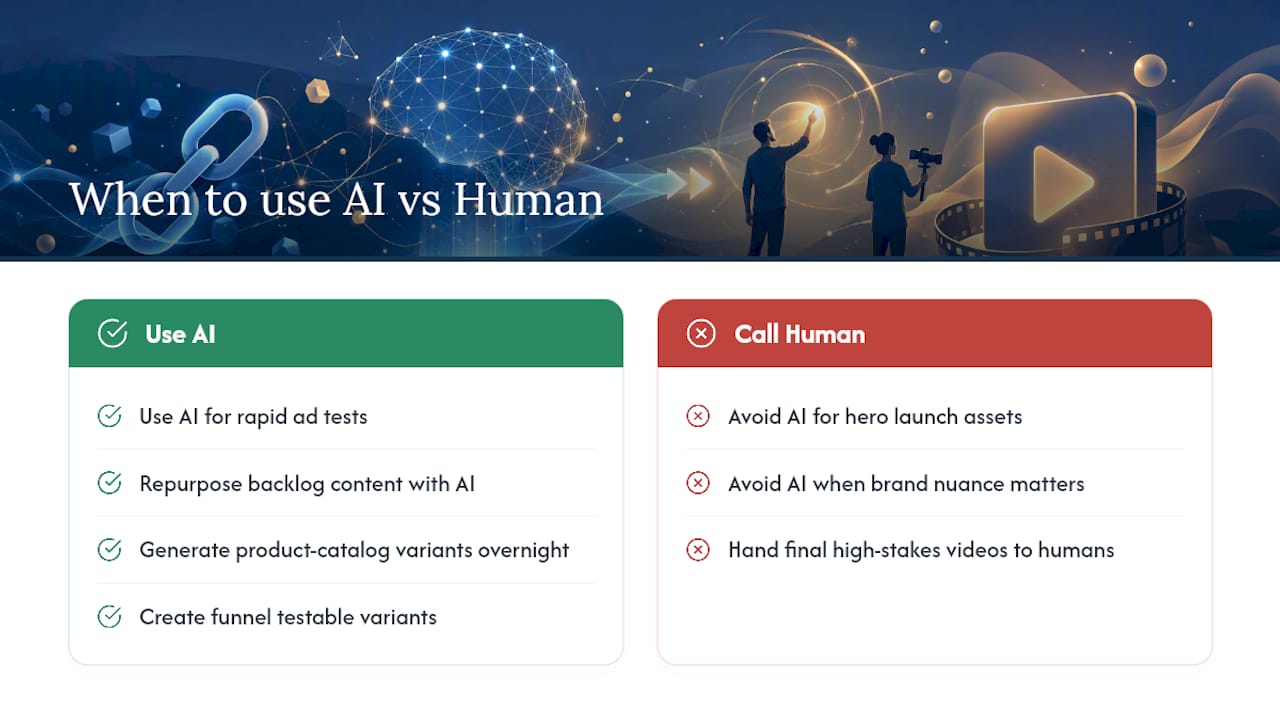
URL to video AI tools earn their keep on volume: rapid ad testing, repurposing a backlog of blog posts, or turning a product catalog into dozens of variants overnight. That’s where the time savings actually show up.
Save human production for your hero launch asset or anything carrying real brand nuance the AI won’t catch. A practical split: let AI generate testable variants for your funnel, and hand the final, highest-stakes video to a person who can polish tone, pacing, and brand voice by hand.
Where to Test These Tools Side by Side
Several resources exist so you don’t have to run these trial tasks blind across a dozen browser tabs. Instead of guessing which vendor’s “5 minute video” claim actually holds up, you can find hands-on notes, verified pricing, and workflow tests already run by reviewers.

Start with the Best AI Video Tools for Ecommerce comparison if product-page ads are your priority, or check the AI video repurposing workflow guide if you’re converting a backlog of articles into short clips. For a broader look at editors, caption tools, and voice options that pair well with a URL-to-video draft, the full tool directory is a faster starting point than searching vendor by vendor. Pull three or four candidates, run the trial tasks from this article on each one, and drop the outputs into a single folder so you’re comparing them side by side instead of from memory. If you want a broader read on how AI content tools stack up outside of video specifically, the comparison at Best AI Content Tools is a useful companion check.
Where to Verify Output Quality and Pricing
- G2 reviews for user ratings on speed and pricing clarity.
- Capterra listings for feature and export verification.
- Vendor feature docs for aspect ratio and subtitle claims.
Sources
- Creatify AI reviews | G2
- InVideo on Capterra
- URL to Video AI , Turn Any Link Into a Polished Video | Pexo
FAQ
What Is a URL to Video AI Tool?
It’s software that reads a webpage, pulls out the text and images, and turns them into a scripted, rendered video, usually finished in under five minutes.
Which URLs Convert Best Into Video?
Text-rich product pages and well-structured blog posts convert most reliably; login-gated pages and JavaScript-heavy single-page apps often fail extraction entirely.
Can I Edit the Video After It Generates?
Most tools let you rewrite script lines, swap the voice or avatar, and re-render in a different aspect ratio before you export the final file.
Do These Tools Offer a Free Trial?
Many offer a free tier or trial credits so you can preview a draft before paying, though exports often carry a watermark until you upgrade.