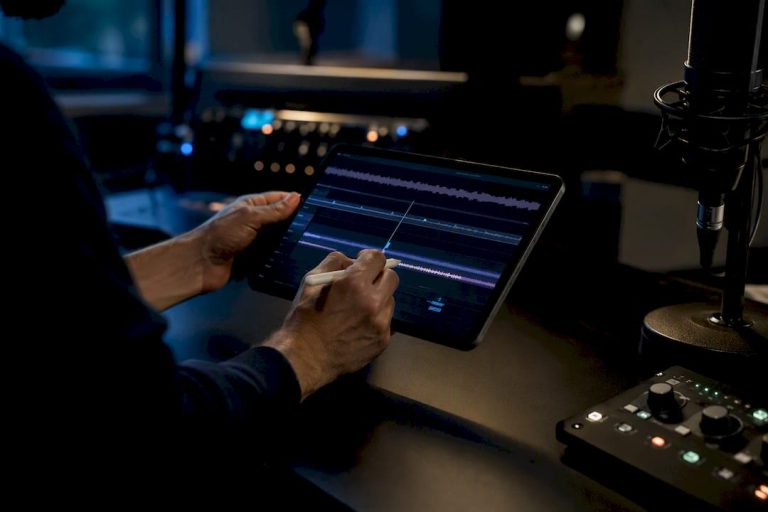
Use an AI training-video generator that converts your existing slides, SOPs, or scripts into a chaptered video with narration, captions, and export-ready files. Start with a document-to-video tool if your material already lives in PDFs or decks, an avatar platform if you need a consistent on-screen presenter across modules, or a screenshot-to-video tool for software walkthroughs. Compare a few against the shortlist below before you commit budget to one.
TL;DR:
- Most tools can generate a first draft within 10 to 45 minutes after uploading a real document, but time varies depending on content complexity.
- SCORM export and editable caption files are essential features for tracking and accessibility, and should be tested in your LMS before purchase.
- Batch pricing models include per-minute credits, per-seat subscriptions, and enterprise deals, so estimate your module count and runtime to choose the right plan.
- AI-generated videos are most effective for repetitive tasks like onboarding and localization, but less suitable for detailed physical demonstrations.
- Testing two tools with the same document reveals differences in draft quality and export compatibility, making hands-on comparison crucial before commitments.
Table of Contents
- How Do You Choose an AI Training Video Generator?
- How Does an AI Training Video Generator Actually Work?
- What Should You Look For Before You Buy?
- How Much Does an AI Training Video Generator Cost?
- How Do Exports Fit Into Your LMS Workflow?
- How We Test AI Training Video Generators
- When AI Video Beats Filming, and When It Doesn’t
- Try a Two-Tool Pilot Before You Commit
- Where These Claims Come From
- Sources
- FAQ
How Do You Choose an AI Training Video Generator?
Nine tools dominate this category right now, and each one solves a slightly different problem. Some turn a PDF into a narrated video in minutes. Others build a talking avatar that can speak 30 languages without you ever standing in front of a camera.
HeyGen leans hardest into the avatar workflow. It builds a document-to-video pipeline that pairs lip-synced dubbing with multilingual avatar creation, which matters if your training program serves offices in different countries. Synthesia targets the same avatar-led approach but pitches harder at enterprise buyers who need team seats, brand controls, and fast update cycles across dozens of modules. Pictory skips the avatar entirely for most use cases and focuses on speed, pulling from URLs, PowerPoint files, or scripts to spit out a branded draft. Scholarly takes the opposite bet from flashy avatars: it grounds every script strictly in the documents you upload, which cuts down on invented content in compliance material.
Canva’s AI Video Generator works best for design teams who already live inside Canva and want text-to-video without leaving their template library. Adobe Firefly fits shops already paying for Creative Cloud who want tighter integration with existing brand assets. TechSmith’s AI tutorial generator is built for a narrower job: turning screenshots into narrated software walkthroughs, then exporting an editable project file for further polish in Camtasia. KPainter specializes in SOP and handbook conversion with storyboard templates built for structured process training. Leadde aims squarely at classrooms and universities, offering AI teacher avatars designed around lesson plans and textbook content.
Several vendors advertise initial drafts in under 10 minutes once a document is uploaded, a benchmark worth holding every tool to during a trial.
If you run a solo course or small L&D team, start with Pictory or Scholarly for speed and document fidelity. If you manage a distributed workforce needing dubbing, test HeyGen or Synthesia first. If your content is mostly software UI, TechSmith’s screenshot workflow will save the most time.
How Does an AI Training Video Generator Actually Work?
Every tool in this category automates the same rough sequence, though the details differ by vendor.
- Upload your source material. PDFs, slide decks, SOPs, URLs, or plain scripts all work as starting input depending on the tool.
- The tool drafts a script. Document-centered platforms like Scholarly write the narration script directly from your file’s text to limit invented content.
- Choose a presenter style. Pick an avatar, or skip it for a faceless, slide-based format with narration and captions layered over visuals.
- Generate the voiceover using practical guidance on how to humanize AI text for natural narration quality. Most platforms offer dozens of AI voices, plus dubbing into other languages with lip-sync matching on avatar tools.
- Review, edit, export. Adjust pacing, swap slides, then export to MP4, SRT, or SCORM depending on your LMS needs.
The real risk in step two is hallucination: an AI model inventing a fact or process step that isn’t in your source material. Anchoring the script generation to your uploaded document, rather than letting the model freewheel from a short prompt, is the single best mitigation.
Pro Tip: Always paste your source document directly into the tool rather than describing it in a prompt. Tools that read the actual file text produce far more accurate scripts than ones working from a vague summary you typed.
What Should You Look For Before You Buy?
Some features are non-negotiable. Others are worth paying extra for only if your program has specific needs.
Must-haves:
- SCORM export alongside standard MP4, since most corporate LMS platforms still expect SCORM packages for tracking completion.
- SRT caption files bundled with every export, not just burned-in captions you can’t edit.
- Support for direct PPT, PDF, or URL upload so you’re not retyping content into a prompt box.
- Admin controls and version history, especially for compliance material that needs an audit trail.
Nice-to-haves:
- A large language count with genuine lip-synced dubbing rather than robotic voiceover layered over static lips.
- API access if you plan to generate dozens of modules on a recurring schedule.
- Realistic avatar options if your brand wants a consistent on-screen presenter.
Ask any vendor directly: does SCORM export exist on every tier, or only enterprise? How many seats come standard? Can you lock a script’s source document to prevent drift after edits? A vendor that dodges the SCORM question outright is a red flag worth walking away from.
Pro Tip: Ask for a sample SCORM export before signing anything, then test the import in your actual LMS. A demo video looking good on the vendor’s site tells you nothing about whether it will track completion correctly in your system.
How Much Does an AI Training Video Generator Cost?
Pricing splits into a few common shapes: per-minute credits, per-seat monthly plans, and custom enterprise contracts that bundle API access with dedicated support.
- Credit or per-minute models charge based on video length generated, which suits teams producing a handful of modules per month.
- Per-seat plans fit teams where multiple people need to log in and create content independently.
- Enterprise custom pricing usually kicks in once you need SSO, dedicated onboarding, or guaranteed SCORM support across every module.
Free tiers almost always cap video length, add a watermark, or restrict export formats to MP4 only, holding SCORM behind a paid plan. To estimate a pilot budget, count your planned modules, multiply by average runtime, then check whether that volume fits inside a starter tier or forces an upgrade. Many vendors report first drafts ready in 10 to 45 minutes, so factor revision time into your estimate too, not just generation time.
How Do Exports Fit Into Your LMS Workflow?
Three export formats cover almost every deployment scenario. MP4 is the raw video file for direct hosting or download. SRT carries caption text with timestamps, editable independently of the video itself. SCORM packages the video with tracking data your LMS reads to mark completion.
- Test every SCORM export inside your actual LMS before rolling out to a full cohort, since compatibility varies more than vendors admit.
- Keep the original source document as your canonical record for compliance audits, with the exported video treated as a supplementary, easily-updated deliverable.
- Version each export with a timestamp so you can prove which video was live during a given training period.
| Format | Purpose | Best Used When |
|---|---|---|
| MP4 | Raw video file | Hosting on an internal site or intranet |
| SRT | Editable caption file | Accessibility requirements or translation |
| SCORM | Tracked LMS package | Completion tracking is required |
Localization adds real time even with automated dubbing. Budget extra review time per language, since a fast dubbing pass still needs a native speaker to catch phrasing errors.
How We Test AI Training Video Generators
The testing process runs the same five checks against every tool: upload a real internal document, generate an avatar sample if one’s offered, export in every format the vendor lists, import that export into a test LMS, and time the whole process from upload to first draft.
Time-to-first-draft varies more than most vendor marketing suggests, often landing anywhere from under 10 minutes to nearly an hour depending on document length and avatar complexity. SCORM availability is inconsistent too, sometimes locked behind an enterprise tier even when the vendor’s homepage implies it’s standard.
- Upload one real document, not a demo file.
- Time the first draft from upload to preview.
- Export in every format offered.
- Import the SCORM package into a live LMS.
- Check caption accuracy against the original script.
Pro Tip: Run this checklist on two competing tools with the same document. The time and quality gap between them tells you more than any feature list.
When AI Video Beats Filming, and When It Doesn’t
AI-generated video wins for jobs that repeat: onboarding refreshers, compliance updates, and localizing the same module into a dozen languages. It falls short for detailed physical demonstrations, like showing someone how to operate machinery, where a camera and a real hand still communicate more than an avatar can. The smart move for most L&D teams is mixing both: film the physical steps once, then use an AI tool like Scholarly to generate the surrounding context, policy explanation, and localized voiceovers around that footage.
— H
Try a Two-Tool Pilot Before You Commit
Reading feature lists only gets you so far. The real difference between tools shows up when you upload your own document and watch what comes out the other side, which is why Hands-on tests are run instead of repeating vendor marketing copy.

Pick two tools from this list that fit your use case, run the same SOP or slide deck through both, and compare time-to-draft and export quality side by side. Techvideoblog’s tested AI video generator comparisons break down exactly this kind of pilot across dozens of tools, with verified pricing and real workflow tests instead of paid rankings. If your program leans toward course creation specifically, the course creator tool guide narrows the list further by module structure and pacing needs. Start your pilot this week: pick your two tools, run one real document through each, and compare the exports before you sign anything.
Where These Claims Come From
- HeyGen: document-to-video workflow, avatar creation, SCORM export.
- Pictory: URL/PPTX input, fast draft times.
- Scholarly: document-grounded script generation.
- OpenAI Sora and Google DeepMind Veo: research-grade model capabilities.
Sources
- Sora: Creating video from text | OpenAI
- Veo 3.1 — Google DeepMind
- AI Training Video Maker: Create Videos From Text for Teams
- AI Training Video Maker — Create Training Videos in Minutes | Pictory
- AI Training Video Generator — Documents to Training Videos
FAQ
What is the best AI for creating training videos?
There’s no single best tool. Scholarly and Pictory suit document-grounded, fast-turnaround training, while HeyGen and Synthesia suit teams needing avatar-led, localized modules at scale.
Is there a free AI training video generator available?
Most tools listed here offer a free tier, though expect limits on video length, watermarks, and restricted export formats until you upgrade to a paid plan.
How do I create a training video using AI?
Upload a source document like a PDF or slide deck, let the tool draft a script from that content, choose an avatar or faceless format, generate the voiceover, then export to MP4, SRT, or SCORM depending on your LMS.
What is the best AI educational video generator?
Leadde is built specifically for educators, offering AI teacher avatars and templates designed around lesson plans and textbook material, while Scholarly works well for any educator prioritizing document accuracy over avatar polish.