An auto chapter generator reads your video’s transcript, finds where the topic shifts, and writes short, timestamped titles for each segment. The fastest path from raw footage to a chaptered upload: run your captions through a generator, review the output for two minutes, then paste the list into your YouTube description or enable automatic chapters in YouTube Studio. One catch worth knowing before you start: videos without captions, or with captions disabled, usually can’t be processed at all.
TL;DR:
- Auto chapter generators depend heavily on accurate transcripts; poor transcription quality leads to misleading or irrelevant chapter titles.
- Boundary detection relies on semantic shifts, pauses, speaker changes, and sometimes fixed intervals, which can struggle with multi-language or complex content.
- YouTube requires the first timestamp to be 0:00, at least three timestamps, and each chapter to be longer than 10 seconds for automatic chapters to display properly.
- Manual chapters override YouTube’s automatic suggestions if a correctly formatted timestamp list is pasted into the description; automatic generation is optional.
- Automated chaptering significantly speeds up publishing and enhances viewer navigation but often needs manual editing for accuracy, especially on complex or unscripted videos.
Table of Contents
- How Does an Auto Chapter Generator Actually Work?
- How Do You Generate Chapters and Add Them to YouTube?
- What Are YouTube’s Rules for Automatic Chapters?
- Do Auto-Generated Chapters Actually Help Viewers and SEO?
- Which Tool Category Fits Your Workflow?
- How Does Techvideoblog Test Chapter Tools?
- A Practical Workflow: When to Automate and When to Handcraft
- Find a Chapter Tool That Actually Fits Your Workflow
- Sources
- FAQ
How Does an Auto Chapter Generator Actually Work?
Every chapter generator starts with the same raw material: a transcript. Whether that comes from YouTube’s auto-captions, an uploaded SRT file, or a dedicated transcription pass, the quality of that text sets the ceiling for everything downstream. A muddled transcript full of misheard words produces muddled chapter titles, no matter how good the underlying AI model is.
Once the tool has clean text, it moves to boundary detection, the step where it decides where one chapter ends and the next begins. Most tools lean on a mix of signals:
- Semantic shifts — sudden changes in vocabulary or topic that suggest a new subject has started.
- Pauses and silence gaps — longer breaks in speech often mark a natural transition.
- Speaker turns — useful for interviews and panel formats, where a new speaker frequently means a new segment.
- Timestamp heuristics — some tools simply space chapters at regular intervals as a fallback when semantic signals are weak.
After the boundaries are set, the tool runs a summarization pass over each segment to generate a short title. This is where SEO comes into play. Some chapter generators let you tune the output toward keyword-rich phrasing rather than a flat description, which matters if you want those chapter titles to double as searchable subheadings inside your video’s metadata.
Look for a few customization options before committing to a tool: language selection (critical if you publish in more than one language), control over the target number of chapters, a minimum chapter length setting, and batch processing for creators managing a backlog. Purpose-built chapter tools often bundle these settings together, which saves you from manually trimming output that technically works but reads clumsy.
Pro Tip: Run the same video through a tool twice with different chapter-count settings. A “fewer, broader chapters” pass often reads better for tutorials, while “more, granular chapters” tends to serve long interviews and panel discussions better.
How Do You Generate Chapters and Add Them to YouTube?
There are two practical routes here: a quick browser workflow for single uploads, and a pro workflow for creators who chapter dozens of videos a month.
The quick path:
- Paste your video URL or upload a transcript file into a browser-based generator.
- Let the tool generate a full chapter list with timestamps and titles.
- Review the output. Fix any title that misreads the segment or feels generic.
- Copy the finished list and paste it directly into your YouTube description, above the fold if possible.
The pro path, better suited to editors working in Premiere Pro or DaVinci Resolve:
- Export your transcript from your captioning or editing tool.
- Run it through a batch chapter tool or an NLE plugin built for chapter markers.
- Import the generated markers directly into your timeline metadata.
- Export the final file with chapter data intact, so it travels with the video rather than living only in a text file.
Before you publish either way, run through a short checklist:
- Confirm a transcript actually exists and is reasonably accurate.
- Set the correct language in the tool’s settings.
- Choose a chapter count that fits your video’s length and pacing.
- Verify the first timestamp reads
0:00, you have at least three chapters, and each one runs 10 seconds or longer.
If you’re chaptering client footage or anything under an NDA, check whether the tool processes transcripts locally or uploads them to a cloud server. Batch tools that run locally are worth the extra setup time when privacy matters more than convenience.
What Are YouTube’s Rules for Automatic Chapters?
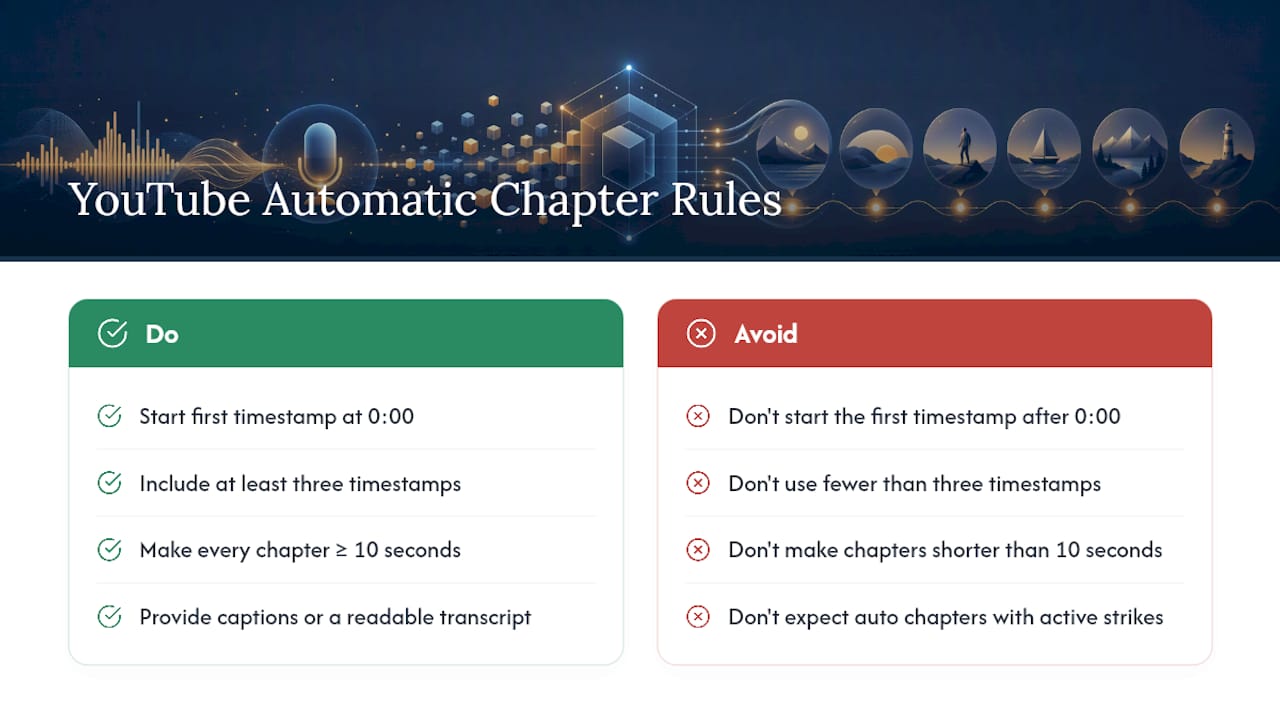
YouTube enforces three non-negotiable formatting rules, and breaking any one of them means the platform won’t render chapter markers at all, even if your list looks fine in the description box. The first timestamp must read 0:00, you need at least three timestamps total, and every chapter has to run 10 seconds or longer.
A one-second violation, such as a first chapter that starts at
0:01instead of0:00, is enough to stop chapters from appearing on the player at all.
Eligibility adds another layer. Your video generally needs captions or a readable transcript for YouTube’s automatic system to work, and channels with active strikes or content flagged as inappropriate may find automatic chapters disabled entirely.
You control this feature directly. In YouTube Studio, go to Content > [select your video] > Show more, and look for the automatic chapters toggle. You can allow YouTube to generate chapters automatically or opt out entirely, and that setting can also be applied as an upload default so you’re not adjusting it video by video.
One detail creators overlook: manual chapters you add yourself always override YouTube’s automatic suggestions. If you paste your own timestamped list into the description and it’s correctly formatted, YouTube uses that instead of generating its own.
Do Auto-Generated Chapters Actually Help Viewers and SEO?
The time savings are real and well documented. Creators who’ve switched from manual to AI-assisted chaptering report cutting the process from minutes per video down to seconds, which matters most for anyone publishing on a daily or near-daily cadence.
Beyond speed, chapters change how viewers navigate your video. A viewer looking for one specific segment of a 40-minute tutorial can jump straight there instead of scrubbing the timeline, and that reduced friction tends to support watch time on longer uploads. On the search side, timestamped segments can surface directly in search result snippets, giving your video multiple entry points into a single query instead of one.
That said, automation isn’t flawless:
- Poor transcripts produce poor titles. Garbled speech-to-text output leads directly to chapter names that misdescribe the segment.
- Multi-language videos or heavy code-switching confuse boundary detection more often than single-language content.
- Music-only tracks or very short videos frequently have nothing for the tool to segment, since there’s no speech to analyze.
Pro Tip: Automate the first draft on every video, but spend two extra minutes hand-editing chapter titles on your highest-traffic uploads. The time cost is small; the payoff on a video that’s already ranking is worth the polish.
Which Tool Category Fits Your Workflow?
Not every chapter generator solves the same problem, and picking the wrong category wastes more time than it saves. Four broad types cover most creator needs.
Quick browser or URL generators work best for single videos where speed matters more than deep customization. Paste a link or upload a transcript, get a list back in under a minute.
All-in-one editors with built-in chapter features suit creators who already edit inside a platform that handles captions, cuts, and export in one place. You skip the transcript hand-off entirely.
NLE plugins and extensions matter most for editors working in Premiere Pro or DaVinci Resolve who want chapter markers to live inside the timeline itself, not just as text pasted into a description box.
API and CLI batch workflows serve creators or teams sitting on a large video archive. Open-source projects and community-built automation agents can glue together transcript export, chapter detection, and description updates without anyone touching a keyboard for each file.
Run any candidate tool through this checklist before you commit:
- Where does the transcript come from, and how accurate is it out of the box?
- What export formats does it support, plain text list versus structured chapter markers?
- Does it support batch processing, or only one video at a time?
- What’s the data privacy policy, especially if transcripts upload to a third-party server?
- What does the pricing tier actually unlock versus what’s gated behind a paywall?
A solo creator publishing weekly probably wants a fast browser tool and nothing more. A daily short-form publisher benefits from batch support. Podcast channels with hour-long episodes should prioritize transcript accuracy above almost everything else, since a single mis-transcribed word can throw off an entire segment’s title. Production teams juggling dozens of videos a month are the ones who actually need API or CLI-level automation. For a broader look at the best video-to-text tools that feed clean transcripts into any of these categories, start with the transcription layer before worrying about the chapter tool itself.
How Does Techvideoblog Test Chapter Tools?
Testing a chapter generator honestly means running it against video types that actually stress different parts of the pipeline, not just a clean five-minute demo clip. Techvideoblog evaluates tools against a fixed set of metrics:
- Ease of use, from first upload to finished chapter list.
- Transcript accuracy, since that’s the input every downstream step depends on.
- Timestamp fidelity, checking whether generated timestamps actually align with real topic shifts.
- Export reliability across formats, plain text versus structured markers.
- Speed, measured as time from upload to usable output.
- Pricing clarity, including what’s free, what’s gated, and what the real cost looks like at scale.
The test protocol runs each tool against a small sample set covering distinct formats: a structured tutorial, a two-person interview, and a long-form solo talk. Each run gets logged for errors, mis-titled chapters, and total time to output.
A tool that performs well on a scripted tutorial can fall apart on an unscripted interview with overlapping speakers, so testing across formats matters more than testing one format twice.
Where a listing includes sponsored placement or an affiliate relationship, Techvideoblog discloses it plainly rather than folding it into an unmarked recommendation.
A Practical Workflow: When to Automate and When to Handcraft
My default is automation first, always. Run the transcript through a generator, get a full draft in under a minute, then decide if it’s good enough to publish as-is. For tutorials and structured how-to content, it usually is.
Where I break from automation is narrative-driven video: personal essays, story-based vlogs, anything where pacing carries meaning a transcript can’t capture. Those get handcrafted chapter titles, because a summarization model reads for topic, not tone.
The rule I’d hand any creator starting out: automate for speed, handcraft for story. Then always double-check the 0:00 start before you publish, because that one detail breaks the entire chapter list if you miss it.
— H
Find a Chapter Tool That Actually Fits Your Workflow
Picking the wrong chapter generator usually costs you more time than doing chapters manually, especially once you factor in cleanup work on bad transcripts or mismatched titles. We provide hands-on tests, verified pricing, and side-by-side comparisons instead of marketing copy dressed up as a review.

Our directory listings reflect workflow runs rather than features pages rewritten in different words. If you’re deciding between a browser generator, an NLE plugin, or a batch API workflow, start with the tested tool directory to see how each category performs against real footage before you commit a subscription to one. Pair that with a transcript-focused comparison if your chapter output has been coming out garbled, since the fix is almost always upstream in the transcript, not the chapter tool itself.
Sources
- Video chapters – YouTube Help
- YouTube Chapter Generator — Free AI Chapter Maker
- TubeBuddy blog: video chapters
FAQ
What Is an Auto Chapter Generator?
It’s a tool that reads a video’s transcript, detects where topics shift, and outputs a timestamped list of short chapter titles ready to paste into a YouTube description or import into an editor.
Does My Video Need Captions to Generate Chapters?
Yes, most generators require captions or a readable transcript, and videos with no speech or with captions disabled usually can’t be processed.
What Are YouTube’s Formatting Rules for Chapters?
The first timestamp must be 0:00, you need at least three timestamps, and each chapter must run at least 10 seconds, or YouTube won’t display the markers at all.
Can I Turn Off YouTube’s Automatic Chapters?
Yes, you can allow or opt out of automatic chapters in YouTube Studio under Content > > Show more, and manual chapters you add yourself always override the automatic ones.
Are AI-Generated Chapter Titles Always Accurate?
Not always. Titles are only as good as the transcript behind them, so poor audio quality or heavy accents can produce mis-titled chapters that need a quick manual fix.