To make your video hit the music, use an auto beat-sync tool: a mobile template app for speed, a web or AI generator for a quick music video, or an NLE plugin or standalone app for frame-accurate professional control. Each path solves a different problem, so pick based on what you’re actually publishing.
- Social short (Reels, TikTok, Shorts): mobile template app. Fastest route, ready to post in minutes.
- Quick music video or artist promo: web/AI generator. Upload a track and clips, get a rendered edit back.
- Client work or a polished channel video: NLE plugin or standalone app. Slower, but you get frame-accurate cuts and full export control.
Expect a mobile edit to go from raw clips to published quickly. Web generators usually take longer because of cloud rendering, and most cap free exports at low resolution or add a watermark until you pay.
Key Takeaways
Beat sync software succeeds when the tool’s category matches the project’s actual need: speed for social shorts, cloud rendering for single-song videos, and frame-accurate export for professional finishing.
| Point | Details |
|---|---|
| Match tool to output | Mobile apps for speed, web/AI generators for single-song videos, NLE plugins for pro control. |
| Check export limits early | Free tiers often cap resolution or watermark exports; confirm before you build a full edit. |
| Don’t cut on every beat | Reserve downbeats for major visual changes and use secondary beats sparingly to avoid a frantic feel. |
| Verify sync manually | Zoom into the timeline, slow playback, and nudge frame by frame if a cut misses the waveform peak. |
| Prioritize project export for pro work | Tools that output OTIO or FCPXML let you finish grading and mixing without rebuilding the sync. |
Table of Contents
- What Does Beat Sync Video Editing Actually Do?
- Which Beat Sync Tool Should You Use?
- How Do You Sync a Video to Music in Under 15 Minutes?
- What Beat Sync Mistakes Ruin the Edit?
- What Did Techvideoblog’s Hands-On Testing Find?
- Where Else Does Beat Sync Show Up Beyond Social Clips?
- Will Your Beat Sync Tool Work With Your Existing Editor?
- What Creators Get Wrong About Beat Sync Tools
- Sources
- FAQ
What Does Beat Sync Video Editing Actually Do?
Beat sync software listens to a song, finds its rhythmic structure, and hands you markers you can cut, transition, or animate on. Instead of scrubbing a waveform by eye and guessing where the kick drum lands, the tool does that detection for you and drops a marker on the timeline.
Two terms matter here. Onset detection finds the exact moment a sound event starts, the transient of a kick, snare, or clap. BPM (beats per minute) is the song’s overall tempo, which the tool uses to predict where the next beat should fall even between detected onsets. Good beat-sync engines combine both: onset detection for accuracy, BPM for prediction when the audio gets busy or quiet.
Once markers exist, the software maps them to actions: a cut, a transition, a text pop, a zoom. Better tools also do energy mapping, reading which sections of a song are verse versus chorus and adjusting cut density accordingly. A quiet verse gets long holds; a chorus gets faster cuts because that’s where the emotional peak sits. This is the difference between technically-correct sync and an edit that actually feels good.
- Onset detection finds individual hits; BPM predicts the beat grid between them.
- Downbeats (the “one” in a measure) usually deserve your biggest visual moment; subdivisions are for secondary motion or B-roll.
- Songs with tempo changes or rubato (expressive, non-metronomic timing) break simple BPM-based mapping and need manual correction.
Beat sync software works by reading audio transients, not by “understanding” music, so a snare-heavy hip-hop track syncs more cleanly than a rubato piano piece. That gap is exactly why one-click tools speed up the mapping but still need a human to make the final call on which beats actually deserve a cut. Even a fully automated pass benefits from someone humanizing key moments rather than syncing on autopilot.
Which Beat Sync Tool Should You Use?
Beat-sync tools fall into three categories, and picking the wrong one wastes more time than any manual edit would.
- Mobile template apps. Apps like the mobile BeatSync variants and CapCut’s built-in auto-sync feature detect a track’s rhythm and snap clips to a preset template. These are built for speed: shoot, drop clips in, sync, post. The tradeoff is customization. Most mobile BeatSync apps limit free music libraries and cap export resolution or length until you upgrade.
- Web and AI generators. Tools like BeatViz analyze BPM, rhythm, and even the emotional arc of a track, then auto-generate synced visuals and transitions in the cloud. You upload a song and footage (or let the AI generate visuals), and get a rendered video back. This suits single-song promos, lyric videos, or artist content where you don’t need a live timeline to fine-tune, since BeatViz and similar generators handle the whole assembly for you.
- NLE plugins and standalone apps. Tools like Pulse Edit and Beat2Cut integrate with (or export to) professional editors. These give frame accuracy, pattern presets, and humanize controls that soften mechanical-feeling cuts.
Before committing to any tool, check three feature signals: export codec and maximum resolution, whether it exports a project file (OTIO or FCPXML) or only a flattened video, and whether it has a sensitivity or humanize slider to avoid over-cutting.
How Do You Sync a Video to Music in Under 15 Minutes?
This workflow gets a short, beat-synced clip from raw footage to export-ready in one sitting.
- Choose your path and prep the audio. Trim your music to the section you’re using before you touch video, and place that audio track first on the timeline. Everything else lines up against it.
- Run beat detection and pick a pattern. Most tools offer a sensitivity setting (how many beats get flagged) and a cut pattern (every beat, every downbeat, or energy-based). Start conservative. You can always add cuts; removing them after the fact is more work.
- Auto-sync, then review the critical moments by hand. Check the hook and the drop first, since a miscue there ruins the whole clip. If a cut lands a frame or two off, nudge it manually rather than rerunning detection.
- Add motion and text on downbeats, then set export. Match your platform’s native resolution and frame rate; mismatched frame rates are the single most common cause of playback stutter after export.
Pro Tip: Export a burned-in caption version even if your platform auto-captions. Auto-captions often drift on fast beat-synced cuts, and a pre-timed caption track keeps text readable exactly on the beat.
Export checklist: match resolution to the platform (1080×1920 for vertical), confirm frame rate matches your source footage, choose H.264 or H.265 depending on file size limits, and add captions before you upload.
What Beat Sync Mistakes Ruin the Edit?
Cutting on every single beat is the most common beginner move, and it almost always backfires. A clip that cuts every quarter note for 30 seconds straight feels frantic rather than energetic, because the viewer’s eye never gets a moment to actually process a shot.
- Pick which beats earn a cut. Downbeats get the big visual changes; use secondary beats sparingly, for smaller motion or B-roll accents.
- Watch for tempo changes and rubato sections. A track that speeds up, slows down, or has a freely-timed intro will throw off pure BPM-based sync, so treat those sections manually.
- Verify frame accuracy by zooming into the timeline near a cut, dropping playback speed, and confirming the waveform peak actually lines up with the cut point, then nudge frame by frame if it’s off.
- Check the platform’s audio and copyright rules before publishing. Licensed commercial tracks can trigger claims or mutes even on original video content, so favor a platform’s audio library or a cleared track when in doubt.
What Did Techvideoblog’s Hands-On Testing Find?
Techvideoblog evaluates beat-sync tools on four criteria: ease of use, output quality, pricing clarity, and integration with other software. Across categories, mobile apps consistently won on raw speed, going from clips to posted video the fastest, while NLE-integrated tools like Pulse Edit won on control, letting editors fine-tune cut patterns and humanize timing before finishing in DaVinci Resolve. Producers who need to hand a project off for color grading or sound mixing generally prefer tools that export via OTIO or FCPXML instead of a flattened video file, since re-editing a finished export from scratch defeats the point of automating the first pass.
Run this five-minute check before adopting any beat-sync tool:
- Does the free tier let you test with your actual footage, or only preset demo clips?
- What’s the maximum export resolution before a paywall appears?
- Can you export a project file, or only a rendered video?
- Is there a sensitivity or humanize control, or is cut density fixed?
- Are pricing tiers listed plainly, or do you need to sign up to see them?
Where Else Does Beat Sync Show Up Beyond Social Clips?
Beat-synced editing started as a music-video technique long before Reels and TikTok existed, and it’s still doing heavier lifting outside short-form social content than most creators realize.
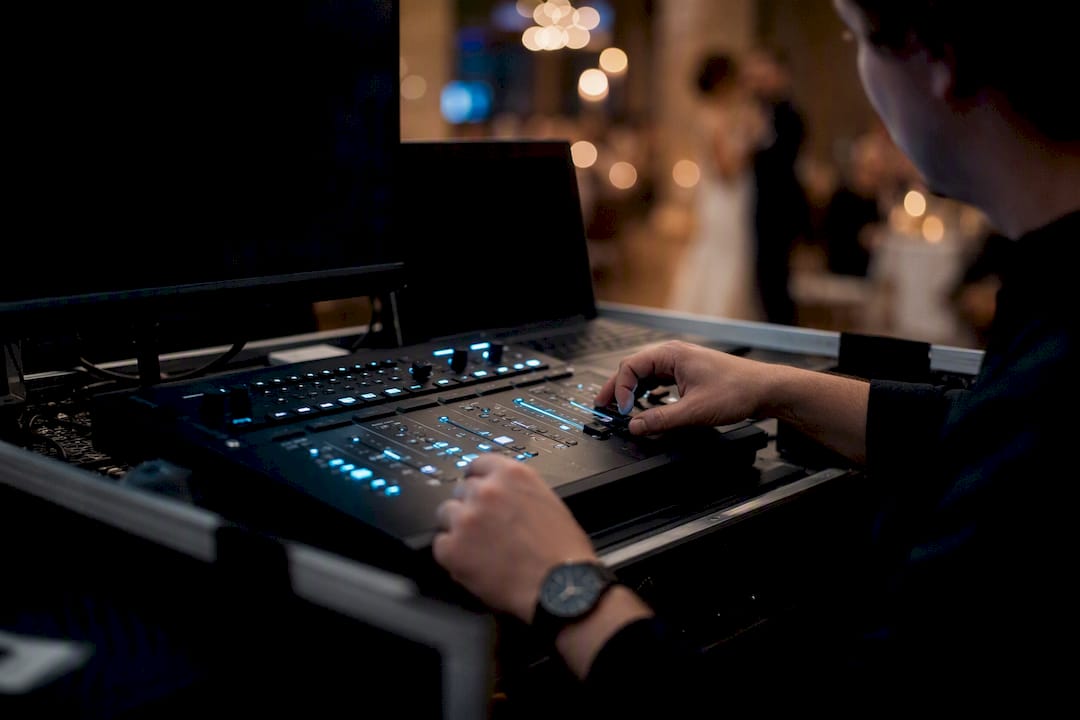
Wedding videographers use beat mapping to time a highlight reel’s cuts to a couple’s chosen song, syncing the vow exchange or first dance to a musical swell rather than a hard cut. The technique for placing beat markers and verifying frame-accurate cuts translates directly from social editing, just with longer holds and gentler pacing suited to a ceremony.
Product and brand teasers lean on beat sync to time a reveal, a logo animation, or a tagline pop to a track’s drop, turning a 15 second ad into something that feels produced rather than assembled. Fitness and dance content creators use it constantly, syncing rep counts or choreography beats to a track so the movement itself reads as musical.
Podcasters and educators increasingly use light beat-sync techniques for intro sequences and recap montages, timing quick clips of upcoming topics to an intro theme’s rhythm instead of a generic fade. Even documentary editors borrow the concept for montage sequences, syncing B-roll cuts to a score’s emotional beats without making the whole film feel like a music video. The underlying skill, matching visual rhythm to a song’s structure, applies anywhere a creator wants footage to feel intentional rather than arbitrary.
Will Your Beat Sync Tool Work With Your Existing Editor?
Compatibility is where a lot of beat-sync workflows quietly fall apart. A mobile app that syncs beautifully on your phone often can’t export anything besides a flattened MP4, which means if you need to add a logo, fix color, or swap a clip later, you’re re-editing from zero.
Web and AI generators like BeatViz have the same limitation by design; they’re built for upload-and-render, not ongoing project files, so treat their output as final rather than a draft you’ll refine elsewhere. That’s fine for a single-use promo, less fine if you need revisions from a client.
NLE-integrated tools solve this by exporting an OTIO (OpenTimelineIO) or FCPXML file instead of a rendered video. Pulse Edit, for example, hands its beat-synced timeline straight to DaVinci Resolve, preserving every cut point so you can grade, mix, and adjust without rebuilding the sync from scratch. Standalone engines like BeatSync Engine take a similar approach, generating a frame-locked timeline meant for further editing rather than a finished file.
Before you commit footage to any tool, check whether your NLE (Premiere, Resolve, Final Cut) actually reads that export format. FCPXML support varies between editor versions, and a project that opens fine in one Resolve release can throw errors in another. If cross-platform handoff matters to your workflow, browsing AI video editors built for that interoperability before you shoot saves a rebuild later.
What Creators Get Wrong About Beat Sync Tools
The conventional advice treats beat sync as a solved problem: pick a tool, let it detect beats, publish. That undersells how much the actual quality gap between tools comes down to control you only notice after the auto-cut is already done, not before you pick the app.
Most creators judge a tool by how fast it produces a first pass. Techvideoblog’s testing suggests that’s the wrong first question. The better one is: what happens when the auto-sync gets something wrong? A tool with a humanize slider and pattern presets, the kind you find in Pulse Edit, lets you fix a bad cut in seconds. A mobile template app with no adjustable sensitivity often forces you to redo the whole sequence.
Prioritize export flexibility before you fall in love with a template. A gorgeous mobile edit that only exports as a flattened, watermarked MP4 is a dead end the moment a client asks for a revision. Speed matters for a same-day post; control matters for anything you’ll touch again.
Sources
- BeatViz | AI music video generator
FAQ
Is Beat Sync Free?
Basic beat detection and syncing is free in most mobile apps and several web tools, but advanced features like unlimited exports, higher resolution, or full music libraries typically require a paid tier, following a common freemium model across the category.
Is CapCut’s Beat Sync Feature Free?
CapCut’s core auto-sync feature, which places cuts and transitions on detected beats, is free to use; export limits and some premium effects or templates sit behind CapCut’s paid subscription.
How Do You Perfectly Sync Audio and Video?
Place your audio on the timeline first, use automated beat markers or a visible beat grid, cut on major downbeats, and reserve secondary beats for smaller motion or B-roll, then verify sync manually by checking that waveform peaks line up with your cuts.
What’s the Best App for Syncing Video and Audio?
The best choice depends on your output: mobile template apps suit quick social posts, web/AI generators like BeatViz suit single-song music videos, and NLE-integrated tools like Pulse Edit suit projects needing frame-accurate, professional finishing.