There is no single best screen recorder for every workflow; the top editorial roundups like Zapier recommend different tools depending on your specific recording use-case (streaming, async sharing, tutorial editing, transcription). Zapier’s category-first testing confirms what most creators figure out the hard way: the right tool depends entirely on what you are capturing and where it goes next. Here is the shortlist by core need:
- Live streaming and high-performance capture: OBS Studio — free, open-source, and built around H.264 encoding and RTMP streaming. Nothing else at this price point comes close for compositing and scene control.
- Quick async sharing and team feedback: Loom — record, upload, and share a link in under 60 seconds. No editing required.
- Polished tutorials and course content: Camtasia — an all-in-one recorder and multi-track editor that handles the full production cycle on one timeline.
- Transcript-first editing and repurposing: Descript — edit video by editing text. Ideal for podcasters and creators who repurpose long-form content into clips.
- Browser-based, no-install capture: Veed and Kommodo — capture and share directly from a browser tab, no download needed.
Techvideoblog’s shortlist below is built from hands-on workflow tests across these categories, not from vendor marketing copy.
Key Takeaways
The best screen recorder is always the one matched to your specific output: streaming, async sharing, tutorial editing, transcript-based repurposing, or quick browser capture.
| Match tool to output first | Streaming needs OBS; async sharing needs Loom; tutorial editing needs Camtasia; repurposing needs Descript. There is no universal best screen recorder; each tool is a category leader depending on what you need to capture and how you plan to share it.
| Free tiers have real limits | Loom caps free recordings at 5 minutes; ScreenPal at 15 minutes; only OBS is fully free with no watermark or time limit. |
| Browser tools have a 20-minute ceiling | VEED.io and Kommodo are reliable for short captures but become unstable for sessions over 20–30 minutes. |
| Test with real content | Run a trial with actual content, verify system audio capture, and confirm the export format before committing to a paid plan. |
| Techvideoblog’s directory | Techvideoblog provides verified pricing, workflow test results, and side-by-side comparisons across all major screen recorder categories. |
Table of Contents
- Which screen recorder wins for your use case?
- Why OBS Studio is the go-to for streamers and power users
- Why Loom wins for async team feedback
- When Camtasia is worth the investment
- How Descript changes the editing workflow for repurposers
- ScreenPal and Movavi: the budget-friendly tier
- VEED.io and Kommodo: capture without installing anything
- How to choose the best screen recorder for your needs
- How Techvideoblog tested and ranked these recorders
- Recording limits and session length restrictions
- The tool you pick matters less than the workflow you build around it
- Techvideoblog’s directory cuts through the tool overload
- Sources
- FAQ
Which screen recorder wins for your use case?
Three quick trade-offs to keep in mind:
- Power vs. simplicity: OBS gives you full encoding control and scene compositing, but you will spend real time on setup. Loom and ScreenPal get you recording in under two minutes.
- Cloud share vs. local control: Browser tools like VEED.io and Kommodo push files to the cloud by default. If your content is sensitive, a local-first tool like OBS or Camtasia keeps footage on your machine.
- Free vs. watermark: Several free tiers stamp a watermark on exports (ScreenPal, VEED.io, Movavi). OBS is the only fully featured free option with no watermark and no time limit.
Why OBS Studio is the go-to for streamers and power users
OBS Studio is free, open-source software built for high-performance capture and live streaming. It handles H.264 and HEVC encoding at the driver level, supports RTMP output to Twitch, YouTube, and any custom endpoint, and lets you build multi-source scenes with webcam overlays, browser sources, and capture cards. The OBS GitHub repository documents a scripting and plugin API that goes well beyond what any lightweight recorder offers — you can automate scene switches based on external events, add custom overlays, and chain filters without touching the core app.
The honest trade-off: OBS is not a beginner tool. Community discussions on the Microsoft Tech Community consistently flag the learning curve and setup time as the main barriers for users who just want a quick async clip.
Pros:
- Completely free, no watermark, no recording time limit
- Scene compositing with multiple simultaneous sources (game capture, webcam, browser, media)
- Plugin and script API for advanced automation
- Low-level encoding controls: bitrate, keyframe interval, encoder selection (x264, NVENC, AMF)
- Runs on Windows, macOS, and Linux
Cons:
- No built-in video editor; you export and edit elsewhere
- CPU and GPU load is significant during high-resolution captures
- Initial configuration (audio routing, scene setup) takes time
- Not designed for async sharing; no built-in cloud link or upload
Minimum hardware: OBS recommends a modern multi-core CPU and, for GPU encoding, a dedicated graphics card. Recording at 1080p/60fps on integrated graphics is possible but leaves little headroom for demanding applications running simultaneously. For gaming highlights and streaming, check Techvideoblog’s guide to AI tools for gaming captures for encoder pairing recommendations.
Why Loom wins for async team feedback
Loom is built around one idea: reduce the friction between “I need to show you something” and “here is the link.” You hit record, capture your screen and webcam simultaneously, and get a shareable URL the moment the recording stops. No export queue, no manual upload.
The free tier limits videos to a short duration per recording, which covers most async standups, bug reports, and quick product demos. Paid plans start at a moderate monthly fee and remove the time cap while adding viewer engagement analytics and custom branding. Storage is cloud-only, so if your content is confidential, factor that into your decision.
Pro Tip: Use Loom’s timestamp comment feature to replace back-and-forth email threads. Viewers can leave comments at specific moments in the video, which cuts review cycles significantly for design feedback and product walkthroughs.
Where Loom falls short is editing. You get basic trim controls and the ability to cut silences, but there is no multi-track timeline, no caption editor, and no b-roll layer. If the recording needs polish before it goes out, you will need a separate editor. For teams that need quick internal demos without production overhead, that trade-off is usually worth it. For creators building product demo videos, Techvideoblog’s product demo video tool guide covers how to pair Loom-style capture with a dedicated editor.
When Camtasia is worth the investment
Camtasia is the right choice when your recording is only the first step and the editing is the real job. It captures screen, webcam, and system audio on separate tracks simultaneously, so you can adjust mic levels independently from system audio, swap out a webcam angle, or cut a section without touching the rest of the timeline. That multi-track structure is what separates it from simpler recorders.
Pros:
- Full multi-track editor built in — no need for a separate NLE
- Separate audio tracks for mic, system audio, and webcam
- Library of callouts, annotations, and quiz interactions for e-learning
- Exports to MP4, GIF, and several LMS-compatible formats
Cons:
- Paid license requires an annual subscription fee; the free trial adds a watermark to exports
- Heavier install footprint than browser tools
- Requires a reasonably modern machine for smooth 4K editing and export
- Less suited to live streaming; no RTMP output
System requirements: TechSmith recommends at least 8 GB RAM for comfortable editing, with 16 GB preferred for 4K projects. Windows 10 or later and macOS 12 or later are the supported OS versions. Export times on older hardware can be slow for long-form tutorial content. If you are evaluating Camtasia against other editors, the Techvideoblog software archive has side-by-side feature comparisons across the category.
How Descript changes the editing workflow for repurposers
Descript flips the editing model. Instead of scrubbing a timeline to find a filler word or a dead pause, you read the auto-generated transcript and delete the text. The video cut follows automatically. For creators who produce long-form content and then repurpose it into shorter clips, that workflow is materially faster than traditional timeline editing.
Pros:
- Word-level editing via transcript: delete text, delete video
- Automatic transcription included on all plans
- Overdub feature for correcting spoken mistakes without re-recording
- Solid for podcast repurposing and creating searchable clip libraries
Cons:
- Transcription accuracy drops with heavy accents, technical jargon, or poor audio quality
- Large project files; cloud upload is required for collaboration
- Free plan limits transcription to one hour total
- Not designed for live streaming or high-performance capture
Privacy note: Descript processes transcription in the cloud by default. If your recordings contain sensitive business information, review Descript’s data handling policy before uploading. For meeting recordings specifically, dedicated AI meeting recorders like Shiken and Krisp offer on-device or bot-free capture with built-in transcription and noise cancellation, which may be a better fit for confidential calls.
The best-fit list for Descript: repurposing podcast episodes into clips, creating searchable video archives from training sessions, and rapid revision of tutorial narration. For tools that take long recordings and convert them to short-form content, Techvideoblog’s long video to Shorts tools guide pairs well with this workflow.
ScreenPal and Movavi: the budget-friendly tier
Both ScreenPal (formerly Screencast-O-Matic) and Movavi occupy the same market position: affordable recorders with just enough editing to get a clean export without opening a separate app.
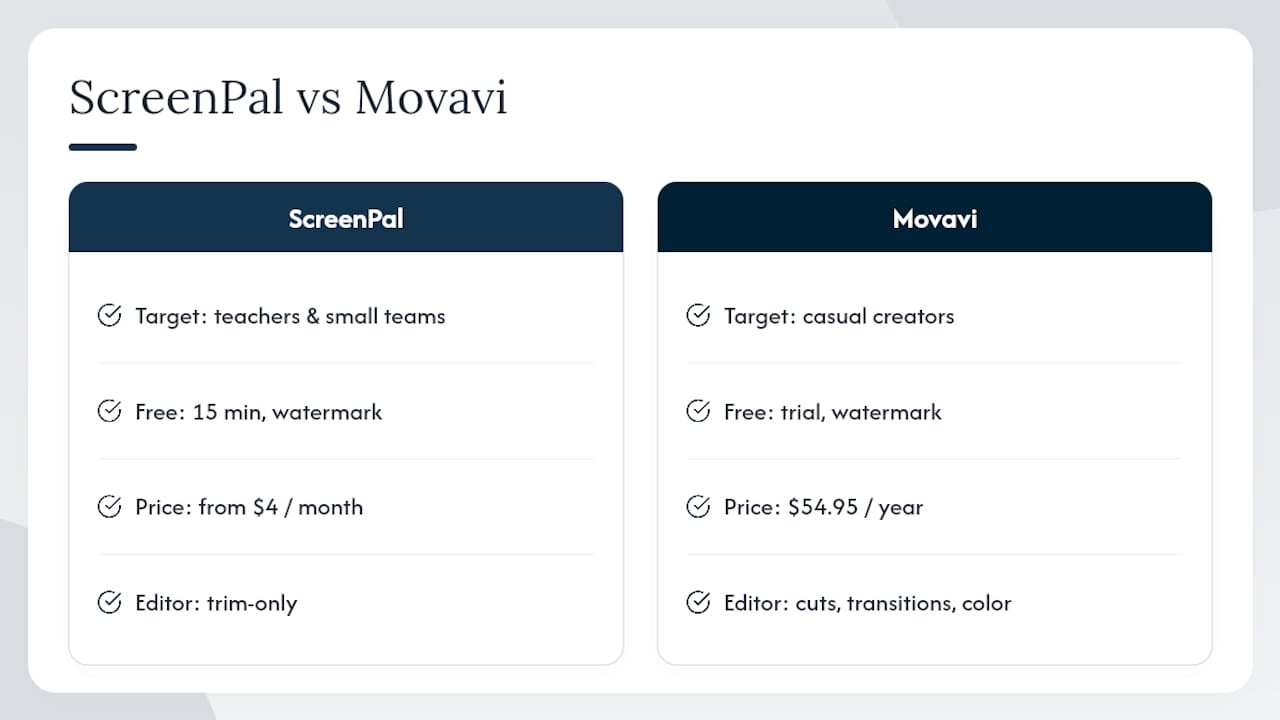
ScreenPal is the stronger pick for teachers and small teams. The free tier records up to 15 minutes and adds a watermark; paid plans start at $4 per month and remove both restrictions. The interface is intentionally simple — region selection, webcam toggle, mic input, and a basic trim editor. It runs in a browser or as a lightweight desktop app on Windows and macOS, and it connects directly to YouTube and Google Drive for quick distribution. System audio capture is available on Windows; macOS users may need a virtual audio driver.
Movavi leans slightly more toward casual creators who want a few more editing options. The built-in editor handles cuts, transitions, and basic color correction, and export presets cover common social formats. The free trial watermarks exports; the paid license runs $54.95 per year. Performance impact is low on modern hardware, making it a reasonable choice for older laptops where OBS would cause frame drops.
Neither tool is the right call for live streaming, multi-track audio, or transcript-based editing. But for a teacher recording a 10-minute lesson or a solo creator who needs a clean export fast, both deliver without a steep learning curve.
VEED.io and Kommodo: capture without installing anything
Browser-based recorders solve a specific problem: you need to capture something right now, on a machine where you cannot or do not want to install software. VEED.io and Kommodo both handle that scenario well, with meaningfully different strengths.
VEED.io is the fuller-featured option. After recording, you stay in the browser to trim, add captions, apply text overlays, and export. The in-browser editor is capable enough for short social clips and quick demos. The free tier adds a watermark; paid plans start at $18 per month. For a direct comparison of VEED.io against another browser editor, Techvideoblog’s VEED vs. InVideo comparison breaks down the differences in editing depth and export quality.
Kommodo is lighter and more focused on capture itself. It is designed for users on locked-down corporate or school devices where browser extensions are the only option. Editing features are minimal, but the capture quality is solid for 1080p recordings, and sharing is handled through a cloud link.
Pros (both tools):
- No download or installation required
- Cross-platform by default (any OS with a modern browser)
- Instant cloud sharing via link
- Low barrier for one-off demos and quick screen captures
Cons:
- System audio capture is browser-limited; capturing application audio alongside mic audio requires browser permission grants and varies by OS
- Cloud-first storage means your recordings leave your machine immediately
- Not suitable for long sessions, high-frame-rate gaming capture, or multi-source compositing
Privacy consideration: Both tools upload recordings to their cloud infrastructure. For content involving client data, internal product roadmaps, or any regulated information, a local-first recorder is the safer choice. Browser microphone and display capture permissions are handled at the OS level, so review what your browser is granting before recording sensitive sessions. For transcription-focused alternatives in this no-install category, Live Caption AI’s roundup of Otter alternatives covers several tools worth evaluating.
How to choose the best screen recorder for your needs
The decision comes down to four questions. Answer them in order and the right category becomes obvious.
- What is the primary output? A live stream goes to OBS. An async team clip goes to Loom. A polished tutorial goes to Camtasia. A repurposed podcast clip goes to Descript. A quick one-off capture goes to a browser tool.
- Do you need editing built in? If yes, Camtasia or Descript. If no, OBS or Loom. If basic trim is enough, ScreenPal or Movavi.
- What are your audio requirements? Multi-track separation (mic isolated from system audio) requires Camtasia or OBS. Simple mic-only capture works in every tool on this list. System audio on macOS often requires a virtual audio driver in tools other than OBS and Camtasia.
- Where does the file need to go? Cloud link for team sharing points to Loom or VEED.io. LMS export points to Panopto Express or Camtasia. Local MP4 for further editing points to OBS or Movavi.
Red flags to watch for before committing:
- No system audio capture on a desktop app (a significant gap for tutorial creators)
- Forced cloud-only export with no local download option
- Watermark on the free tier with no clear path to a trial of the paid version
- Opaque pricing that requires a sales call to get a number
- Recording time limits under 15 minutes on a paid plan
Trial checklist: Record a real piece of content, not a test clip. Export it in the format your distribution platform requires. Check the file size per minute at your target resolution. Verify that system audio and mic are captured on separate tracks if you need that. Share it through the tool’s native sharing method and confirm the recipient experience matches your expectation.
How Techvideoblog tested and ranked these recorders
Every tool on this list was evaluated across four capture scenarios: single-window capture, full-screen capture, webcam picture-in-picture with system audio, and a long-session recording (30 minutes or more). Tests ran on Windows 11 (Intel Core i7, 16 GB RAM, NVIDIA RTX 3060) and macOS Ventura (Apple M2, 16 GB RAM) to surface platform-specific behavior.
Metrics tracked:
- CPU and GPU load during active recording at 1080p/60fps and 4K/30fps
- File size per minute at default and optimized settings
- Maximum supported resolution and frame rate
- Export time for a 10-minute clip
- Transcription accuracy (words correct per 100 words) for tools with built-in transcription
- Audio sync drift over a 30-minute session
Cloud-based tools introduced network variability in upload and processing times, so those were measured across three separate sessions and averaged.
Scoring weights: Usability 30%, features 25%, performance 20%, price 15%, support and documentation 10%. Tools with strong documentation and active community forums scored higher on the support dimension. OBS’s open-source community and plugin ecosystem gave it a notable edge there. Full methodology details and per-tool score breakdowns are available in the Techvideoblog reviews archive.
Recording limits and session length restrictions
Time limits are one of the most common friction points when choosing screen recording software, and they vary more than most comparison articles acknowledge.
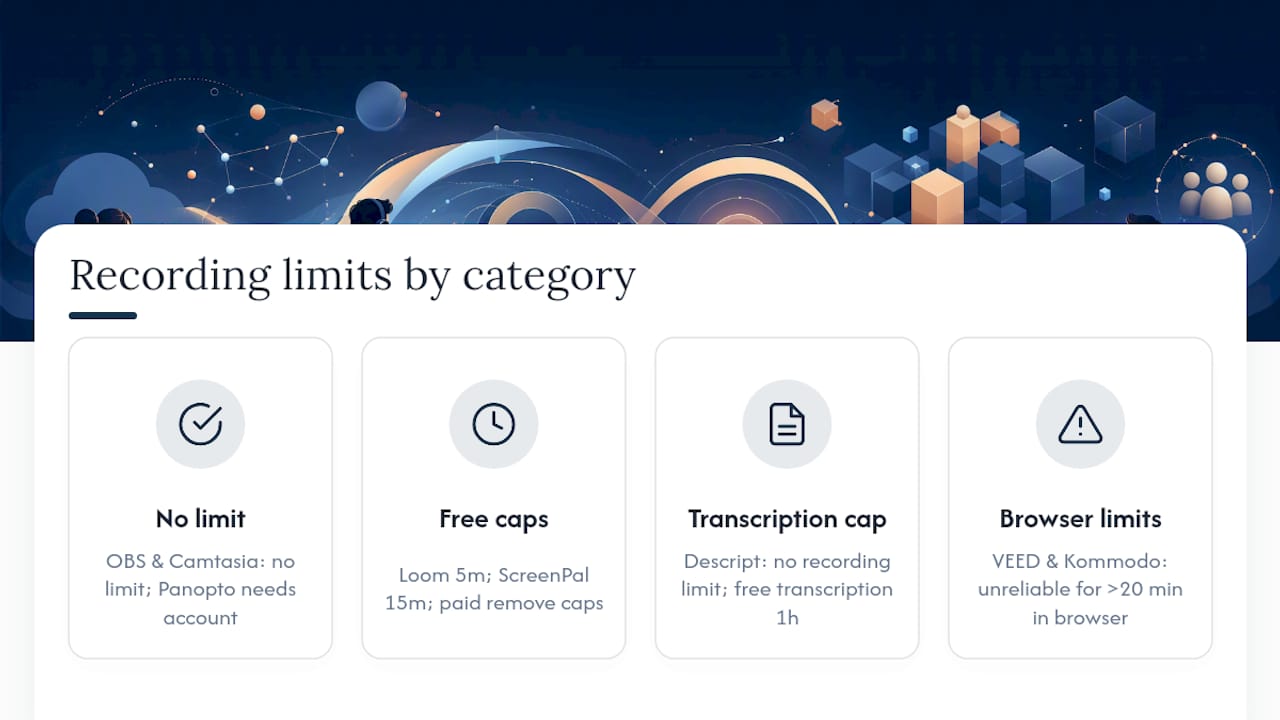
OBS Studio has no recording time limit. Sessions are bounded only by available disk space and system stability. For long-form captures like webinars, conference sessions, or full-day workshops, OBS is the only free option with no ceiling.
Loom’s free tier caps individual recordings at five minutes. That is enough for a quick async update but not for a full product walkthrough or training session. Paid plans remove the cap entirely.
ScreenPal’s free tier allows up to 15 minutes per recording, which covers most classroom lessons and short tutorials. The paid tier removes the limit.
Descript does not impose a session length limit on recording, but the free plan caps total transcription at one hour. Once that quota is used, you need a paid plan to transcribe additional content.
VEED.io and Kommodo both impose practical limits tied to browser tab stability and upload size. Very long recordings (over 30 minutes) can be unreliable in a browser environment due to memory constraints. For anything over 20 minutes, a desktop app is the safer choice.
Panopto Express is designed for lecture capture and handles long sessions well within an institutional Panopto account, but standalone use without an account has upload size restrictions.
Camtasia has no recording time limit, though very long recordings generate large project files that can slow the editor on machines with less than 16 GB RAM.
The practical rule: if your session regularly exceeds 30 minutes, use a desktop app. Browser tools are reliable for short captures; they become unpredictable at scale.
The tool you pick matters less than the workflow you build around it
Most creators spend too much time picking the “best” recorder and not enough time building a repeatable workflow around whatever they choose. OBS is technically superior for streaming, but a creator who never configures scenes properly will get worse results than someone running Loom with a consistent framing and lighting setup. The tool is the starting point, not the finish line.
What actually separates good screen recordings from mediocre ones is audio quality, not video resolution. A 1080p recording with clean, isolated mic audio will outperform a 4K recording with room echo and system audio bleed every time. Most of the tools on this list support separate mic and system audio tracks, but very few creators actually use that separation in post. If you take one thing from this comparison, let it be this: route your mic to a separate track, record system audio independently, and mix them in the editor. That single habit improves output quality more than any resolution upgrade.
The other underrated factor is export format discipline. Creators who export to MP4 at a consistent bitrate and resolution, matched to their distribution platform, spend less time re-encoding and uploading. Check Techvideoblog’s HD quality comparison guide for platform-specific export settings that hold up across YouTube, Vimeo, and LMS platforms.
Techvideoblog’s directory cuts through the tool overload
Picking a screen recorder from a list is one thing. Knowing whether the pricing is current, whether the free tier actually works the way the vendor claims, and whether the tool holds up in a real creator workflow is another. Techvideoblog’s directory covers all of that: verified pricing, hands-on workflow test results, and side-by-side feature matrices across screen recorders, editors, caption generators, and repurposing tools.

If you are still weighing options after this comparison, the Techvideoblog software directory is the fastest way to filter by use case, platform, and budget without wading through vendor marketing pages. Each tool page includes a workflow test summary, a pricing verification date, and a clear verdict on who it actually suits. Head there now to find the right recorder for your specific setup.
Sources
- The best screen recording software in 2026
- Open Broadcaster Software | OBS
- OBS Studio – Free and open source software for live streaming and screen recording
- Camtasia – Free Screen Recorder & Video Editor
- AI Meeting Recorder & Coach | Shiken | Shiken
- Krisp AI Meeting Recorder | Record audio on any app
- Posts tagged “apps like otter” · Live Caption AI
FAQ
What is the best screen recorder to use?
There is no single best option for every creator. OBS Studio leads for live streaming and high-performance capture; Loom is the fastest choice for async team sharing; Camtasia is the strongest all-in-one for tutorial production.
Is OBS the best screen recorder?
OBS is the best free screen recorder for power users and streamers, but it is overkill for simple async clips or quick team demos. For those use cases, Loom or ScreenPal are faster and easier to use.
What do most YouTubers use to screen record?
Most YouTubers use OBS Studio for gaming and live content, Camtasia for tutorial-style videos, or Loom for quick reaction and commentary clips. The choice depends on whether the recording needs heavy editing before publishing.
What is the highest quality screen recording?
OBS Studio supports up to 4K/60fps with low-level encoding controls, making it the highest-quality option at no cost. Camtasia also supports 4K capture with the advantage of a built-in multi-track editor for post-production.
Do browser-based recorders work for long sessions?
Browser tools like VEED.io and Kommodo are reliable for captures under 20 minutes. For sessions over 30 minutes, a desktop app like OBS or Camtasia is more stable and avoids the memory constraints that can cause browser-based recordings to fail.