Use an AI-powered online editor or mobile app to blur your video background in one click, no green screen required. The fastest options support MP4, MOV, and WEBM exports, and Techvideoblog’s AI video tools directory has hands-on reviews with verified pricing for each one.
Top picks at a glance:
- Kapwing — best for quick browser-based edits and social clips
- BGBlur — best for privacy-sensitive workflows with in-session file deletion
- CapCut — best for stylized blur effects and mobile/cloud editing
- Blur Video (AI Blur Maker) — best for fast on-device mobile clips and censoring
- Techvideoblog directory — best for side-by-side reviews, export tests, and verified pricing
Key Takeaways
AI-powered online editors and mobile apps are the fastest way to blur a video background without a green screen, with Kapwing, BGBlur, and CapCut covering most web workflows and Blur Video AI Blur Maker handling quick mobile clips.
| Point | Details |
|---|---|
| Best all-around web tool | Kapwing offers one-click AI detection, a blur slider, and free MP4/MOV/WebM exports. |
| Best for privacy-sensitive footage | BGBlur states in-session file deletion; always verify the privacy policy before uploading. |
| Mobile vs. web rule | Use a mobile app for short vertical clips; use a web editor for 1080p+ exports and longer timelines. |
| Key quality tip | Feathering at 10–20 pixels and front lighting improve AI mask accuracy on most tools. |
| Where to compare tools | Techvideoblog’s directory provides hands-on export tests and verified pricing across all listed tools. |
Table of Contents
- Which tools blur a video background best?
- How to blur a video background in 5 steps
- Web editors vs. mobile apps: which should you use?
- Settings and pro tips to improve AI blur results
- Supported formats, size limits, and pricing
- How professionals achieve background blur
- How Techvideoblog tests these tools
- Techvideoblog’s directory saves you the comparison work — try the AI Search Visibility Test to check how well your content ranks across AI models for better discoverability.
- Sources
- FAQ
Which tools blur a video background best?
| Tool | Best for | Platform | Pricing | Ease of use | AI detection | Export formats | Privacy |
|---|---|---|---|---|---|---|---|
| Techvideoblog | Side-by-side reviews, workflow tests, verified pricing | Web (directory) | Free to browse | Curated shortlists | Tested and rated | Varies by tool | Editorial, no uploads |
| Kapwing | Quick online edits, social clips | Web | Free tier (export limits); Pro paid | One-click AI + slider | Automatic subject detection | MP4, MOV, WebM | Check policy |
| BGBlur | Privacy-sensitive and batch browser work | Web | Free (limits apply) | One-click AI | Motion-tracked | MP4, MOV, MKV, AVI | In-session deletion stated |
| CapCut | Stylized blur, mobile and cloud editing | Web, iOS, Android | Free; Pro subscription | One-click + style picker | Automatic | MP4; multiple ratios | Check policy |
| Blur Video (AI Blur Maker) | On-the-go clips, face/plate censoring | iOS | Free; in-app purchases | One-tap on-device | On-device AI | MP4 | On-device processing |
Kapwing uses automatic subject detection and a blur-intensity slider, with free-tier exports in MP4, MOV, and WebM. BGBlur runs entirely in-browser with no install, supports MP4, MOV, M4V, AVI, and MKV, and states that files are deleted after processing. CapCut adds stylized modes like Halo, Pixel, and Motion blur alongside a standard background blur, making it the strongest pick for creators who want visual variety. The Blur Video AI Blur Maker app handles face, license plate, and background censoring directly on your iPhone, with no upload required.
For quick social clips, Kapwing or CapCut cover most needs. For privacy-critical footage, BGBlur’s in-session deletion policy is worth checking first. For high-res exports or complex workflows, start with Techvideoblog’s directory to compare tested results before committing to a tool.
How to blur a video background in 5 steps
Most AI editors follow the same core workflow: upload, detect, refine, adjust, export.
- Prepare your file. Export or trim your clip to a manageable length before uploading. Most web tools handle MP4 or MOV best. Keep clips under 500 MB for faster processing.
- Choose background-blur mode. Open your chosen tool and select the background blur or “AI blur” option. Tools like Kapwing and BGBlur apply automatic subject detection immediately on upload.
- Preview and refine the mask. Scrub through the first 10–20 seconds to check that the subject stays sharp. If the mask clips hair edges or misses an arm, use the manual brush or eraser to correct it.
- Adjust intensity and feathering. Drag the blur slider to your preferred strength. A feathering value of 10–20 pixels softens the subject edge and avoids a hard cutout look.
- Export and verify. Download in MP4 for broadest compatibility. Play back the exported file at full resolution to confirm no frame-level glitches near moving edges.
Pro Tip: Before final export, scrub a 10–20 second section that includes fast movement — a hand gesture, a head turn — and pause on individual frames. That is where AI tracking breaks down first, and catching it here costs seconds, not a full re-render.
Web editors vs. mobile apps: which should you use?
The right platform depends on file size, how much control you need, and where your footage lives.
Web editors (Kapwing, BGBlur, CapCut web):
- Handle larger files and higher resolutions more reliably than most phones
- Export at 1080p or above without compressing to a mobile-friendly size
- Offer more precise mask controls and multi-track timelines
- Require an upload, which means your footage leaves your device
Mobile apps (CapCut mobile, Blur Video AI Blur Maker):
- Process footage on-device, so no upload is needed for basic clips
- Faster for short vertical videos destined for TikTok, Reels, or Shorts
- The Blur Video app includes dedicated censoring modes for faces and license plates, which web tools rarely match for speed
- File size and resolution caps are tighter; 4K exports are uncommon in free mobile tiers
For faceless YouTube content or coaching videos where you want a clean, professional background, a web editor gives you more export control. For a 60-second Instagram Reel shot on your phone, a mobile app gets you done in under two minutes. Android users can find platform-specific picks in Techvideoblog’s Android video editor guide.
Settings and pro tips to improve AI blur results
Lighting and camera position affect AI detection more than most creators expect.
Camera and lighting:
- Place a light source in front of you, not behind. Backlit subjects create halos, which confuse subject-detection models.
- Wear clothing that contrasts with your background. A white shirt against a white wall is the hardest case for any AI mask.
- Keep at least three feet between yourself and the background. Physical depth helps even AI-based blur look more like natural bokeh.
Editor settings to tweak:
- Blur intensity: 30–50% reads as natural depth; above 70% starts to look artificial on most tools.
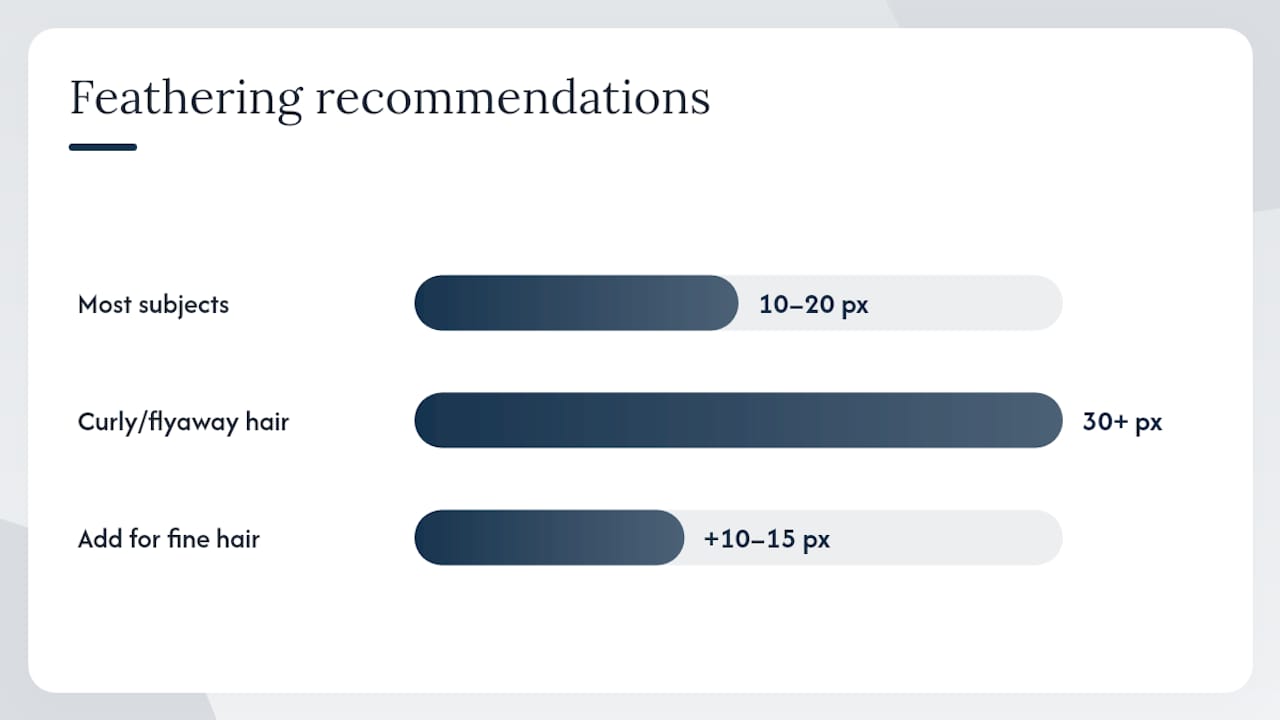
- Feathering: 10–20 pixels for most subjects; increase to 30+ for curly or flyaway hair.
- Mask size: if the tool allows manual adjustment, expand the mask slightly beyond the subject outline to avoid edge artifacts.
- Re-tracking: for clips longer than 30 seconds, check whether the tool re-runs tracking automatically or requires a manual refresh.
Pro Tip: *Problem scenes — transparent glasses, reflective surfaces, pets with fine fur — almost always need a manual touch-up pass.
Quick checklist for difficult shots:
- Transparent objects (glasses, bottles): add a manual mask correction
- Reflective surfaces: reduce blur intensity near the reflection zone
- Fast lateral movement: verify tracking holds at the motion peak frame
- Fine hair or fur: increase feathering by 10–15 pixels
Supported formats, size limits, and pricing
Most AI blur tools accept MP4, MOV, and WEBM as input and export in MP4. BGBlur also accepts M4V, AVI, and MKV. Processing time for an HD clip of moderate length typically takes a few minutes on browser-based tools, with longer clips and higher resolutions requiring more time.
Typical pricing patterns:
- Free tiers: Available on Kapwing, BGBlur, and CapCut web. Expect watermarks or resolution caps on free exports.
- Watermarks: Kapwing’s free tier adds a watermark; removing it requires a Pro plan.
- Pay-per-export / credits: Some tools charge per clip or per minute of processed video.
- Subscriptions: CapCut Pro and Kapwing Pro unlock higher resolution, longer clips, and no watermarks.
- Mobile in-app purchases: Blur Video AI Blur Maker offers free basic blur with paid unlocks for advanced censoring modes.
On privacy: BGBlur states that files are not stored after processing. Other tools vary. Before uploading footage that contains identifiable people or sensitive locations, read each tool’s privacy policy directly. Do not rely on marketing copy alone.
How professionals achieve background blur
There are two distinct approaches: optical depth-of-field captured in-camera, and post-production AI masking applied after the shoot.
In-camera (optical bokeh):
- Achieved with a wide-aperture lens (f/1.4–f/2.8) and a larger sensor (full-frame or APS-C)
- Background blur is baked into the footage; no masking or tracking needed in post
- Preferred for cinematic interviews, narrative film, and high-end product demos where the blur must look organic
- Cannot be adjusted or removed after recording
Post-production AI blur:
- Applied in tools like Kapwing, CapCut, or BGBlur after the shoot
- Useful for privacy retouching, fixing a cluttered background discovered in review, or adding a production-value polish to footage shot on a phone
- Intensity and style can be changed without a reshoot
- Quality depends on subject-detection accuracy and motion-tracking fidelity
When pros use post-production cleanup:
- Rotoscoping: frame-by-frame mask drawing for complex scenes where AI fails
- Keyframe animation: manually animating a mask position across a clip in an NLE like DaVinci Resolve or Adobe Premiere Pro
- Selective blur: blurring only a face or license plate rather than the full background
For product demo videos, post-production blur is often the practical choice because the shooting environment is rarely controlled enough for reliable optical bokeh.
How Techvideoblog tests these tools
Every tool in this guide was evaluated against a consistent set of criteria: file format compatibility, subject-detection accuracy on moving subjects, mask quality at hair and edge boundaries, export resolution, and pricing transparency. Testing includes uploading real MP4 and MOV clips at 1080p, running the AI blur, scrubbing the output for tracking errors, and verifying the exported file plays back cleanly at full resolution.
Pricing is verified directly from each tool’s pricing page at the time of review, not from third-party aggregators. Privacy claims are checked against each tool’s stated policy, and any tool that makes vague or unverifiable claims is flagged in the review notes. The goal is a shortlist you can trust without running your own 30-minute comparison every time a new tool launches.
Techvideoblog’s directory saves you the comparison work — try the AI Search Visibility Test to check how well your content ranks across AI models for better discoverability.
Sorting through a dozen blur tools, checking free-tier limits, and running test exports takes time most creators do not have. Techvideoblog’s AI video tools directory does that work for you: verified pricing, hands-on workflow notes, and export tests are already there, organized by use case.

The directory covers background blur tools alongside editors, caption generators, and b-roll tools, so you can build a full workflow without bouncing between review sites. Check the AI video tools directory to find the right blur tool for your platform and clip type, then get back to creating.
Sources
- Blur Video Background Online – AI Tool
- Blur Video Background with AI | BGBlur
- Blur Video Background Online to Enhance Visual Experience
- Blur Video Background — Blur Background In Video Free
- Blur Video Backgrounds
- Blur Video – AI Blur Maker App – App Store – Apple
FAQ
How do I blur out a background on a video?
Upload your clip to an AI-powered tool like Kapwing or BGBlur, select the background blur mode, and the tool’s subject detection handles the masking automatically. Adjust the blur slider and feathering, then export in MP4.
How do I blur the background of a video on my iPhone?
The Blur Video AI Blur Maker app processes footage directly on-device, so no upload is needed. Open the app, import your clip, select background blur or a censoring mode, and export.
Can CapCut blur a video background?
Yes. CapCut offers multiple blur styles including standard background blur, Halo, Pixel, and Motion, with an adjustable intensity slider available on both its web editor and mobile app.
How do professionals blur video backgrounds?
Professionals either shoot with a wide-aperture lens (f/1.4–f/2.8) for natural optical bokeh, or apply post-production AI masking in tools like CapCut or DaVinci Resolve for footage that needs retouching after the shoot.