Yes, you can record your screen and webcam in one file, and you have three practical routes: a browser recorder, a native OS tool, or an advanced desktop app like OBS. The minimal path is the same everywhere: open the recorder, select your screen or window, enable your webcam, allow mic and camera permissions, hit record, then stop and export.
- Quick demo or feedback video? Use a browser recorder. No install, no admin rights needed.
- Short local capture, no extra software? Use your OS’s built-in tool.
- Long tutorial or branded series? Set up OBS once and reuse it.
Key Takeaways
Recording screen and webcam together works best when you match the tool to the job and confirm audio and camera settings with a short test clip before the full recording.
| Point | Details |
|---|---|
| Match tool to task | Use browser recorders for quick demos, OS tools for short local clips, OBS for regular tutorials. |
| Fix permissions first | Grant camera and mic access, and close apps like Zoom that can lock the webcam. |
| Set mic levels correctly | Keep audio peaks within a moderate range and monitor with headphones. |
| Test before the full take | Record a short test clip to confirm sync, framing, and performance. |
| Export for compatibility | Use MP4 with H.264 codec for the widest playback support across platforms. |
Table of Contents
- Which Tool Should You Use to Record Screen and Webcam?
- How Do You Record Screen and Webcam in a Browser?
- Can You Record Screen and Webcam Without Extra Software?
- How Do You Set Up OBS to Record Screen and Webcam Together?
- What Settings Make Your Recording Look and Sound Better?
- How Do You Edit and Export a Screen-and-Webcam Recording?
- Why Isn’t My Webcam or Audio Showing Up?
- Does Adding a Facecam Actually Improve Your Video?
- Where Can You Learn More About Recording Screen and Webcam?
- What Actually Matters When You Record Screen and Webcam?
- Sources
- FAQ
Which Tool Should You Use to Record Screen and Webcam?
Your pick depends on how often you record and how much control you need. Browser recorders like Clipchamp, Canva, and Screencastify work straight from a tab. There’s nothing to install, which matters if you’re on a locked-down work laptop or just need one quick clip. They’re built for speed: pick your screen, flip on the webcam, record, download.
Native OS tools (the Windows recorder built into Xbox Game Bar, or macOS’s screen recording controls) get you a fast local file with almost no setup. The tradeoff is overlay control. You typically can’t resize or reposition the webcam bubble the way you can elsewhere.
Advanced desktop apps like OBS Studio sit at the other end. You get full control over layout, no watermarks, and no time caps, which makes them the better fit for anyone producing tutorials on a regular basis.
| Best for | Platform | Ease of use | Webcam overlay | Editing included | Free limits |
|---|---|---|---|---|---|
| Quick feedback/demo | Browser | Very easy | Basic, fixed position | Light trimming | Time or watermark limits |
| Short local capture | Windows/Mac | Easy | Minimal or none | None | No limits, but no overlay |
| High-production tutorials | Windows/Mac (desktop) | Moderate learning curve | Full resize/position control | Depends on export tool | Free, unlimited length |
Pro Tip: If you make more than one or two tutorials a month, set up OBS once. The ten minutes of configuration pays for itself the third time you record.
How Do You Record Screen and Webcam in a Browser?
You can start a browser-based screen-and-webcam recording in under a minute. Here’s the sequence:
- Open your recorder of choice (Clipchamp, Canva’s recorder, or Screencastify).
- Choose your capture source: full screen, a specific window, or a single browser tab.
- When prompted, allow camera and microphone access. Your browser will ask separately for each.
- Position the webcam overlay, usually a corner bubble you can drag.
- Press record.
- Stop when finished, then download or export.
Before you press record, run through this checklist:
- Confirm the browser actually granted camera and mic permission (look for the camera icon in the address bar).
- Pick “tab” instead of “window” if you only need what’s inside the browser. It’s cleaner and avoids accidentally capturing your desktop.
- Close video calling apps first. Zoom, Teams, and similar apps often grab exclusive camera access and block your recorder from seeing it.
Clipchamp’s browser recorder lets you choose screen, tab, or window and saves output for free, with some limitations on length. YoRecord works similarly, exporting a single MP4, though its free tier caps recording time and may add a watermark. Capso goes further, adding a picture-in-picture webcam overlay plus a built-in teleprompter, useful if you’re reading from a script. Browser tools like these are often the first choice for one-off demos or feedback clips, since they skip installation entirely, a point Daemen College’s webcam troubleshooting guide also flags as a reason people default to them.
Export as MP4 when you can. It’s the most widely compatible format for uploading to YouTube, Slack, or a learning platform.
Can You Record Screen and Webcam Without Extra Software?
Native tools record fast, but the webcam overlay is limited, so treat them as the right call for short captures and single-window jobs, not full tutorials.
On Windows, the Xbox Game Bar (Windows key + G) handles quick captures. It’s built in, so there’s no download. It records the active window well, but layering a live webcam bubble on top isn’t part of its design.
On Mac, QuickTime Player handles screen recording. To bring in the webcam simultaneously, most people pair it with a second capture pass or a lightweight companion app, since QuickTime alone doesn’t composite both feeds into one frame.
- Use native tools when you just need a single window captured fast.
- Use native tools when you don’t have admin rights to install anything new.
- Skip native tools if a visible facecam overlay is the point of the video.
How Do You Set Up OBS to Record Screen and Webcam Together?
OBS and similar desktop apps let you composite screen and webcam into one output with precise control over sizing, cropping, and audio routing. The setup takes a few minutes the first time.
- Create a new scene.
- Add a Display Capture source for your screen or window.
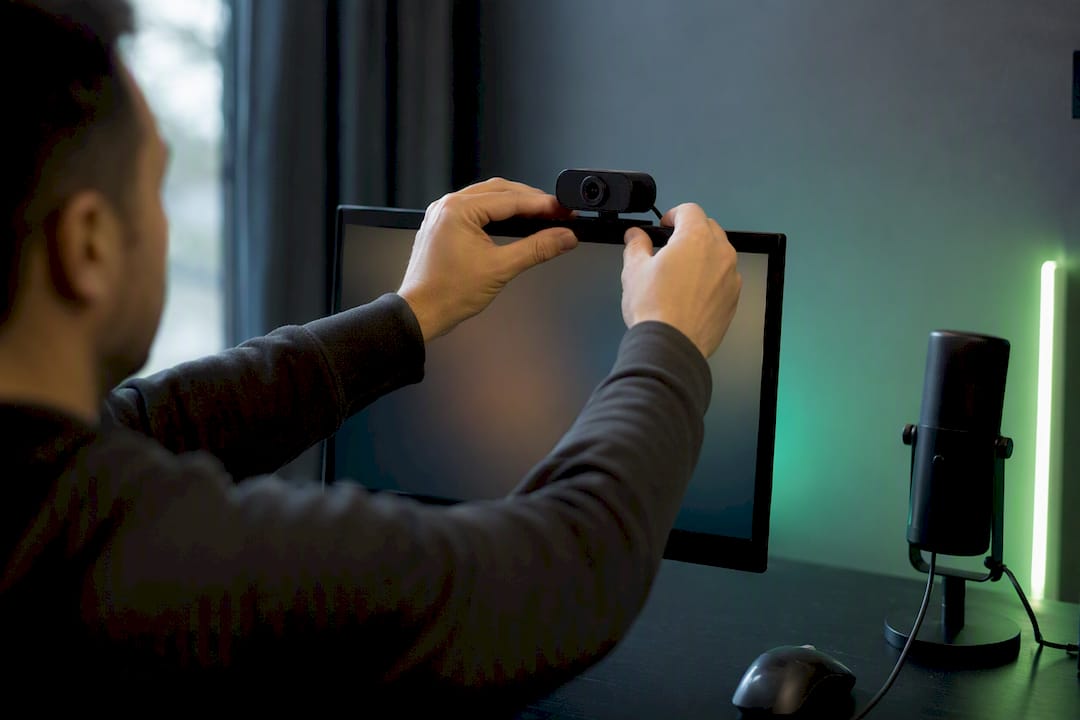
- Add a Video Capture Device source for your webcam.
- Add an Audio Input Capture source for your microphone.
- Drag and resize the webcam source into a corner over the screen capture.
- Set your output format and file path in settings.
- Start recording, then stop when done.
Guides covering this exact workflow, including Ceedo’s walkthrough, point to OBS as the standard free option for this kind of layered, high-control recording.
Before your first real take, check these settings:
- Resolution: 1080p if your machine can handle it, 720p if you notice lag or dropped frames.
- Format: MP4 for easy sharing, or MKV if you want extra crash protection during long recordings.
- Encoder: the default software encoder (x264) works for most laptops; a hardware encoder helps if your CPU struggles.
Pro Tip: Plug your webcam into a rear USB port on desktops. Front ports often share bandwidth with other peripherals and cause stuttering video.
What Settings Make Your Recording Look and Sound Better?
Small adjustments to framing, lighting, and audio levels make a bigger difference than any software feature.
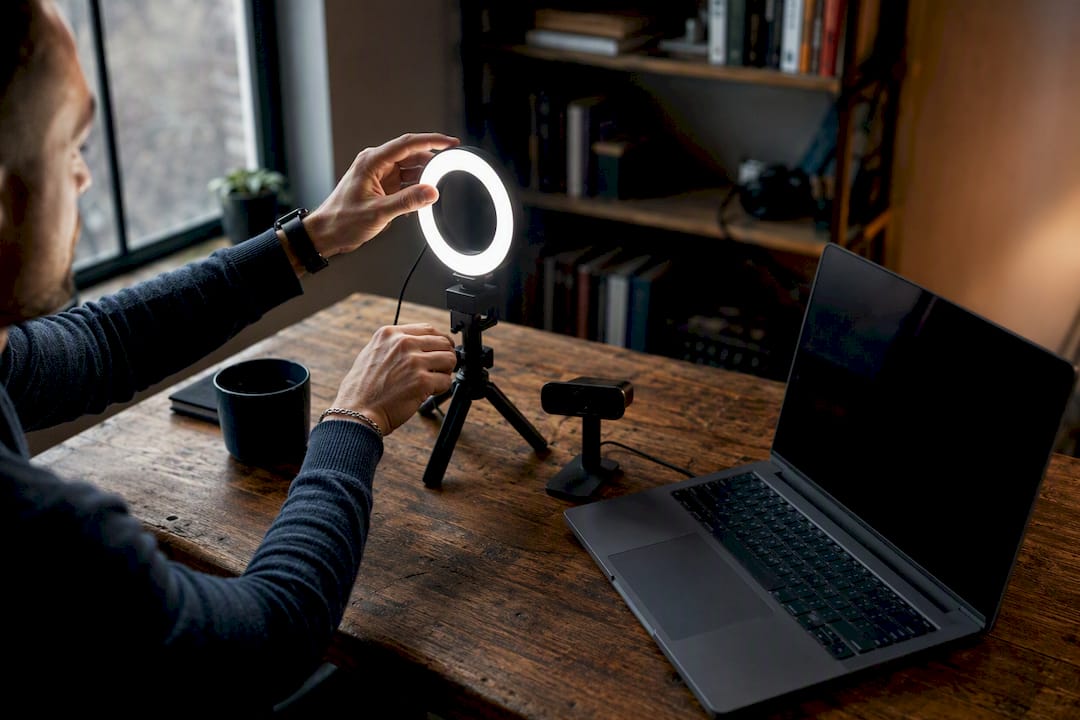
Set your webcam at eye level, not tilted up from a laptop keyboard angle. Light your face from the front, ideally a window or a simple desk lamp, and avoid sitting with a bright window behind you, which throws your face into shadow.
For audio, watch your mic levels while you talk. Peaks should sit around −12 dB to −6 dB. If your desktop makes notification sounds you don’t want in the recording, mute system audio before you start. Monitor through headphones so you catch problems as they happen, not after.
- Camera at eye level, front-lit, no strong backlight.
- Mic peaks between −12 dB and −6 dB.
- 1080p if your CPU allows it; drop to 720p on older hardware.
- Mute unneeded desktop sounds before recording.
Pro Tip: Record a short test clip first. Play it back before committing to a full take. It catches sync issues and framing mistakes before they cost you twenty minutes of retakes.
How Do You Edit and Export a Screen-and-Webcam Recording?
Trim the mistakes, adjust the webcam overlay if it’s not sitting right, and export to a common format before sharing.
Most recorders and basic editors let you trim dead air and cut flubs directly on a timeline. If the webcam bubble is too big, too small, or blocking something important on screen, resize or drag it now, before export locks it in.
- Container: MP4.
- Codec: H.264, for the widest playback compatibility.
- Bitrate: aim higher for 1080p exports, lower for 720p, to keep file size reasonable without visible quality loss.
- Check your target platform’s file size limit before uploading. Most learning platforms and video hosts prefer H.264 MP4 files.
Why Isn’t My Webcam or Audio Showing Up?
If your webcam or mic isn’t appearing, run through a few quick checks before assuming something’s broken.
- Confirm your browser or OS actually granted camera and microphone permission.
- Close Zoom, Teams, or any other app that might be holding exclusive control of the camera. This is the single most common cause of a webcam simply not showing up.
- On Windows, check Device Manager for driver issues if the camera doesn’t appear anywhere.
- If performance is choppy, drop to 720p and close background apps eating CPU.
- Switch USB ports if the webcam feed stutters. It’s often a bandwidth conflict, not a broken camera.
- For persistent camera failures on Windows, Microsoft’s troubleshooting guide walks through driver and privacy setting fixes.
Does Adding a Facecam Actually Improve Your Video?
Yes, at least for tutorials and demos. Showing your face alongside your screen recording helps build trust with viewers and tends to increase engagement, a point Microsoft’s own camera support documentation touches on when discussing why camera reliability matters for creators.
- Keep the facecam small but consistently placed, same corner every time, so returning viewers know where to look.
- Test your framing in a short clip first. A crooked or poorly lit facecam undercuts the trust it’s supposed to build.
If you’re weighing whether a facecam is worth the setup at all, Techvideoblog’s guide to faceless YouTube videos covers the tradeoff in more depth.
Where Can You Learn More About Recording Screen and Webcam?
For deeper tool-specific steps, permission fixes, or feature details beyond this guide, these pages help:
- Clipchamp support for step-by-step recorder guidance.
- Techvideoblog’s software archive for broader recording and editing tool coverage.
- Techvideoblog’s reviews archive for hands-on tool evaluations.
If you’re producing regular tutorials and want to add captions afterward, a browser extension like Youtube to Transcript can pull a transcript from your finished video for accessibility or repurposing.
What Actually Matters When You Record Screen and Webcam?
Most advice on this topic overcomplicates the tool decision and underplays the audio setup. The truth is simpler than the typical roundup makes it sound: the recorder you choose matters far less than whether your mic levels are clean and your webcam is lit from the front.
I’d push back on the common assumption that browser recorders are just a “starter” option you graduate out of. For anyone making one demo a week, a browser tool like Clipchamp does the job completely, and switching to OBS just adds setup time you don’t need. OBS earns its place only once you’re recording often enough that the layout control and lack of watermarks start saving you real time.
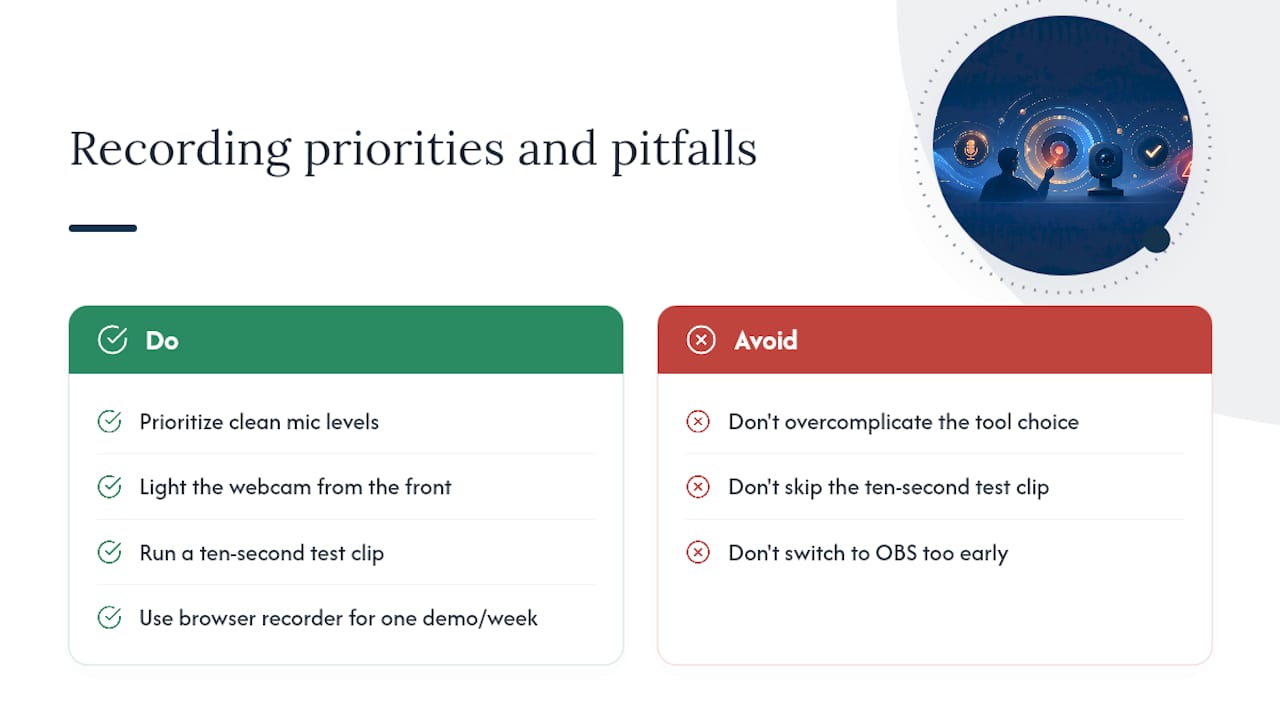
If you take one thing from this guide, make it the ten-second test clip. Skipping it is the single most common reason people re-record an entire tutorial. Check your sync, check your audio levels, then commit to the full take.
Sources
- Camera doesn’t work in Windows – Microsoft Support
- Online screen and camera recorder | Clipchamp
- Free Webcam Screen Recorder – Record Screen and Camera Together | YoRecord
- How to Record Screen and Webcam at the Same Time — Ceedo
FAQ
How do I record both my screen and webcam at the same time?
Open a recorder like Clipchamp, OBS, or your OS’s built-in tool, select your screen or window as one source, enable your webcam as a second source, then start recording. Both feeds save into a single file.
Can I screen record and use my camera at the same time?
Yes. Browser recorders, native OS tools, and desktop apps like OBS all support recording your screen and camera simultaneously, though only browser tools and OBS typically let you position the webcam as a visible overlay.
How do I screen record and show my camera on top of it?
Use a recorder that supports a webcam overlay, such as Clipchamp, Capso, or OBS, then drag the webcam bubble into a corner of the screen capture before you hit record.
How can I record my screen and myself at the same time on a budget?
Free browser recorders like Clipchamp or YoRecord let you capture both without installing anything, though free tiers often limit recording length or add a watermark. OBS Studio is free and unlimited but takes a few extra minutes to set up.
Why doesn’t my webcam show up when I try to record?
Another app, often a video calling tool like Zoom or Teams, is likely holding exclusive access to your camera. Close it, then check that your browser or OS has granted camera permission before trying again.