Submagic Review
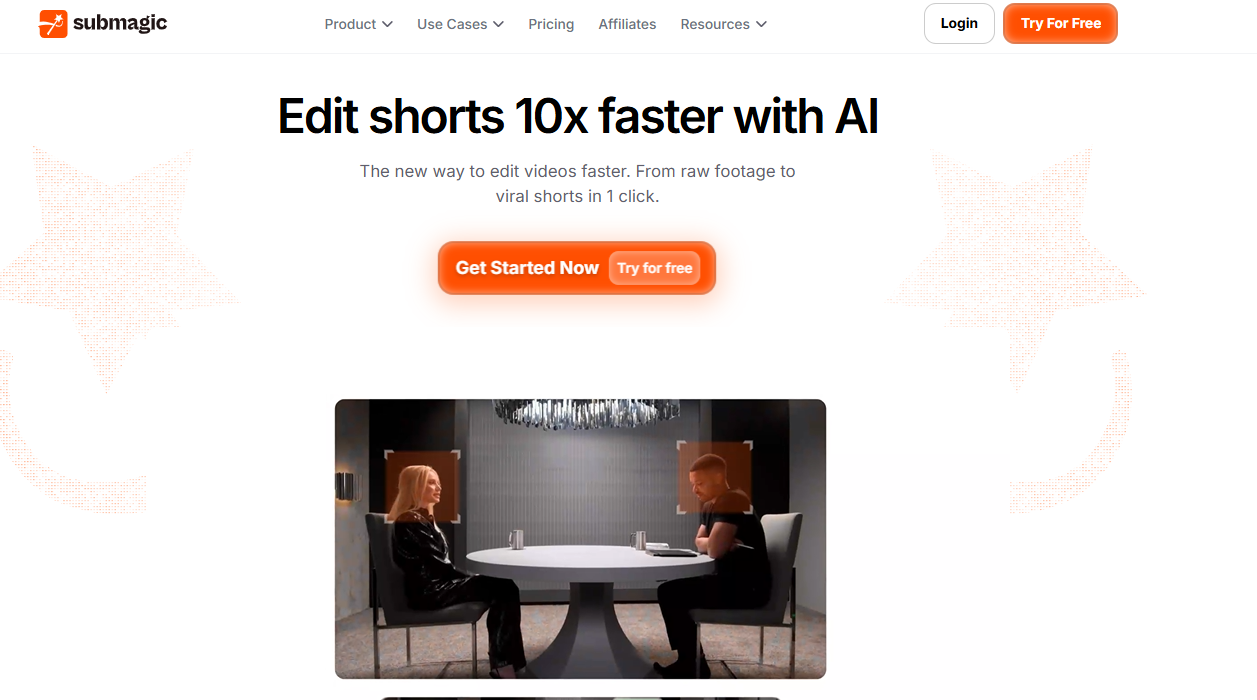
Submagic is one of the strongest tools I have used for turning creator footage into polished Shorts, Reels, and TikToks with animated captions, auto-emojis, b-roll, and fast export. It is not the best first tool for finding viral clips or doing full timeline editing, but it is excellent as the short-form polish layer.
Disclosure: TechVideoBlog may earn a commission if you buy through the Submagic link. That does not change the score, pricing notes, user objections, or client-work caveats in this review.
Quick verdict
Submagic is worth it if captions and b-roll are slowing down your short-form workflow.
If you already know which clip you want to publish, Submagic is one of the fastest ways to make it look finished. My best use case is taking a podcast, talking-head video, webinar, or client interview clip and turning it into a polished short with captions, emojis, b-roll, hooks, and cleanup.
Best fit
- YouTube Shorts, TikTok, and Instagram Reels
- Talking-head creators who need better captions fast
- Freelancers repurposing client long-form content
- Small teams that need repeatable short-form output
Fast decision
Submagic is the pick for polish. It is not the pick for every editing job.
| If you need… | Pick | Why |
|---|---|---|
| Best caption polish, hooks, emojis, and quick b-roll | Submagic | Best fit when the clip is already chosen and needs to look finished fast. |
| Long-form clip discovery from podcasts or interviews | Opus Clip | Better first-pass tool when your problem is finding the short, not polishing it. |
| Free or manual timeline control | CapCut | Better when you want hands-on editing control or a lower-cost workflow. |
| Broader browser editing and team-friendly review | VEED | Better if captions are only one part of a larger browser-based editor need. |
| Mobile-first creator captions | Captions.ai | Better fit when your whole workflow already happens on mobile. |
Score breakdown
Why Submagic gets 9.1/10
I score Submagic highest for the job it is best at: turning known clips into polished short-form videos. I lower the score for clipping reliability, refund friction, render delays, and policy questions that creators should recheck before uploading sensitive client footage.
Video walkthrough
Watch a Submagic workflow walkthrough.
This embedded walkthrough gives readers a faster visual sense of the Submagic workflow. Replace it later with your own TechVideoBlog screen recording showing upload, captions, b-roll review, export, and where Submagic still needs manual checks.
Who should skip it
Do not buy Submagic for the wrong job.
Skip if you only need free captions
CapCut and several lower-cost caption tools may be enough if you only need basic subtitles and you are not billing clients for the output.
Skip if you expect a full editor
Submagic can trim, style, add b-roll, and polish. It should not replace a full timeline editor for complex edits, long videos, heavy brand motion, or detailed audio work.
Be careful with annual billing
Submagic’s terms and help center describe monthly and annual fees as non-refundable, with cancellation taking effect at the end of the billing cycle. Test with one real workflow before committing annually.
Verify before sensitive client footage
The public terms and privacy pages describe customer content rights, processing, subprocessors, and opt-out for promotional use. I still treat AI training and sensitive client footage as a policy recheck item before agency-scale use.
Owner experience
What I have actually used Submagic for
Hands-on notes
I have used Submagic heavily for over 1 year. It is my default tool for Shorts because the auto-emoji placement, caption styling, and AI b-roll have become non-negotiable in my 2026 short-form workflow. The biggest win is that automated editing replaced the human-editor step for many Shorts and saves hours each week.
Submagic is stronger than Opus Clip for the final caption and b-roll polish layer. Opus is still my preferred tool for first-pass clip discovery and virality ranking. My biggest pain with Submagic is render time during peak usage, especially when I am trying to finish multiple client or channel clips in one production block.
Experience level
Heavy user. This is based on repeated creator and client workflow usage, not just vendor claims.
Client-work status
Used actively for client repurposing when the output needs fast captions, b-roll, and social-video polish.
Best plan direction
Most serious creators should test Pro first because b-roll, hooks, clean audio, translation, and brand kit matter more than the lowest price.
Author note
Product screenshots
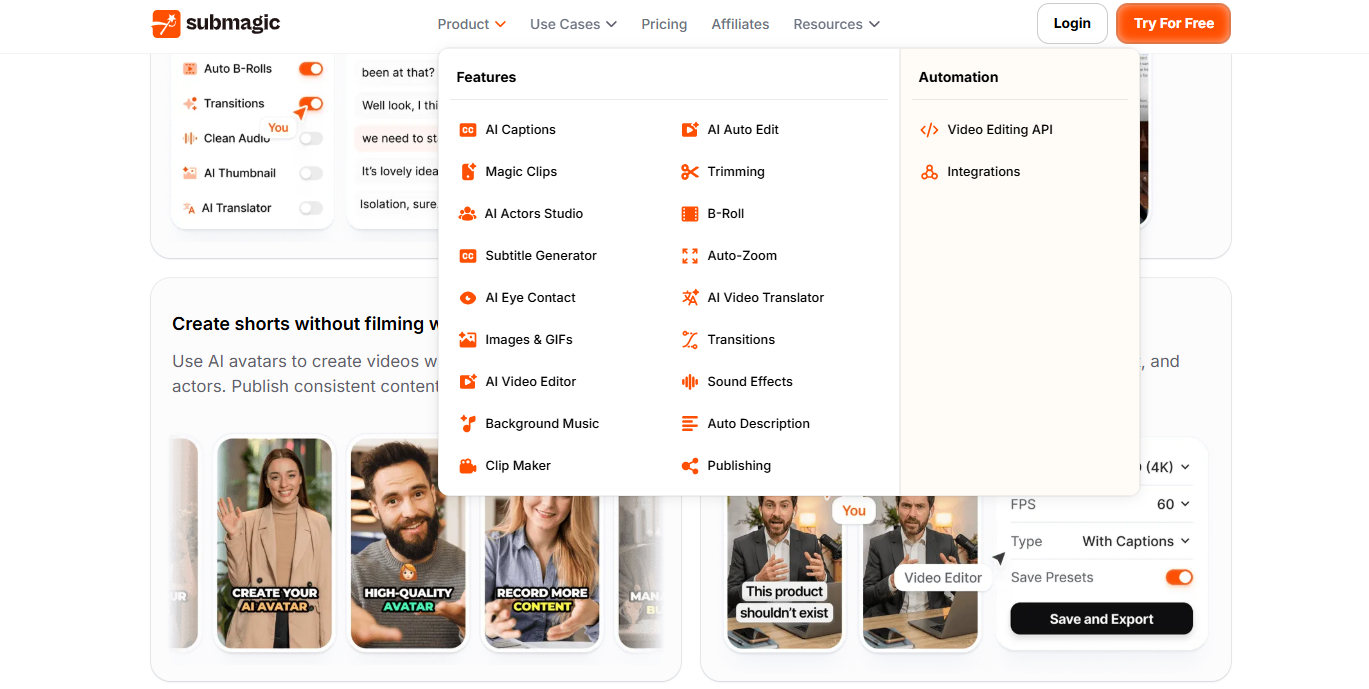
What Submagic looks like in the workflow
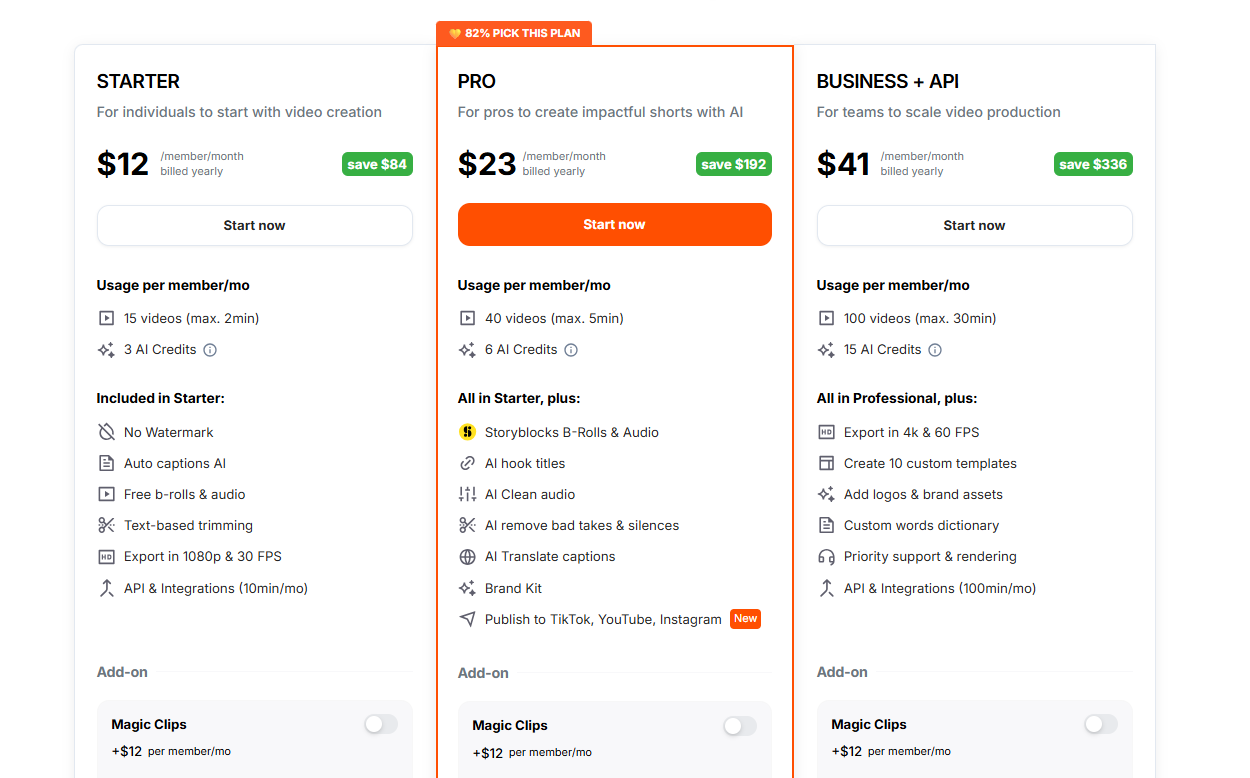
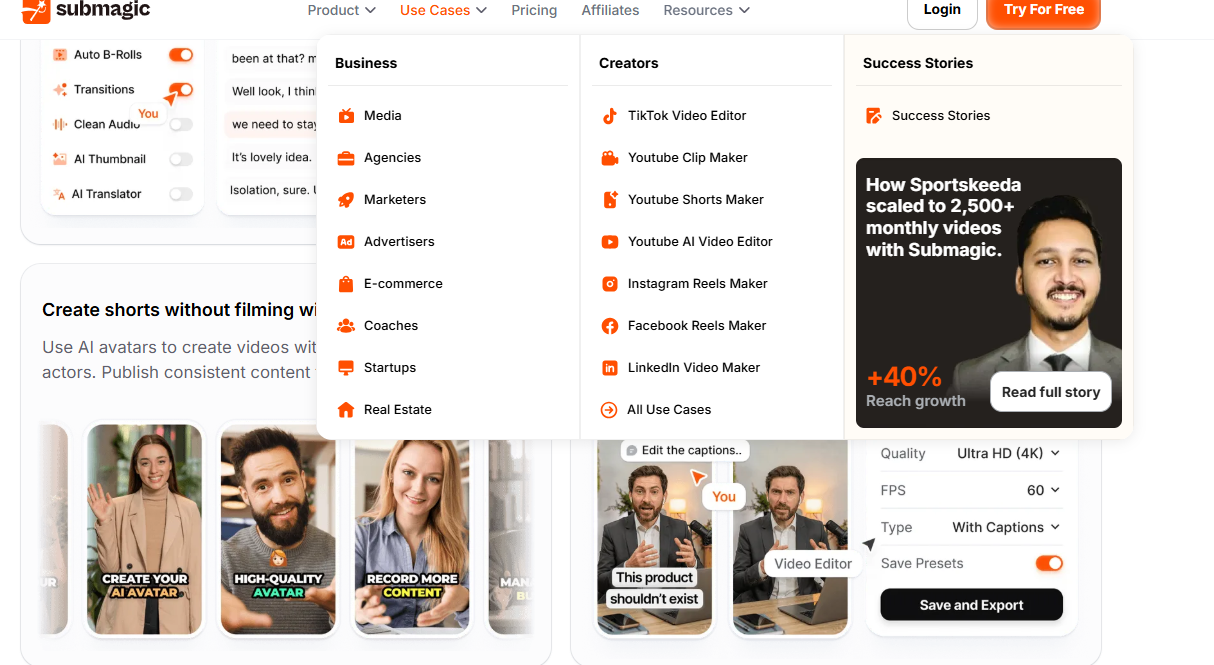
These screenshots make the review more useful than a generic listicle. They show the front-end product experience, pricing, use-case positioning, and feature set readers should inspect before buying.
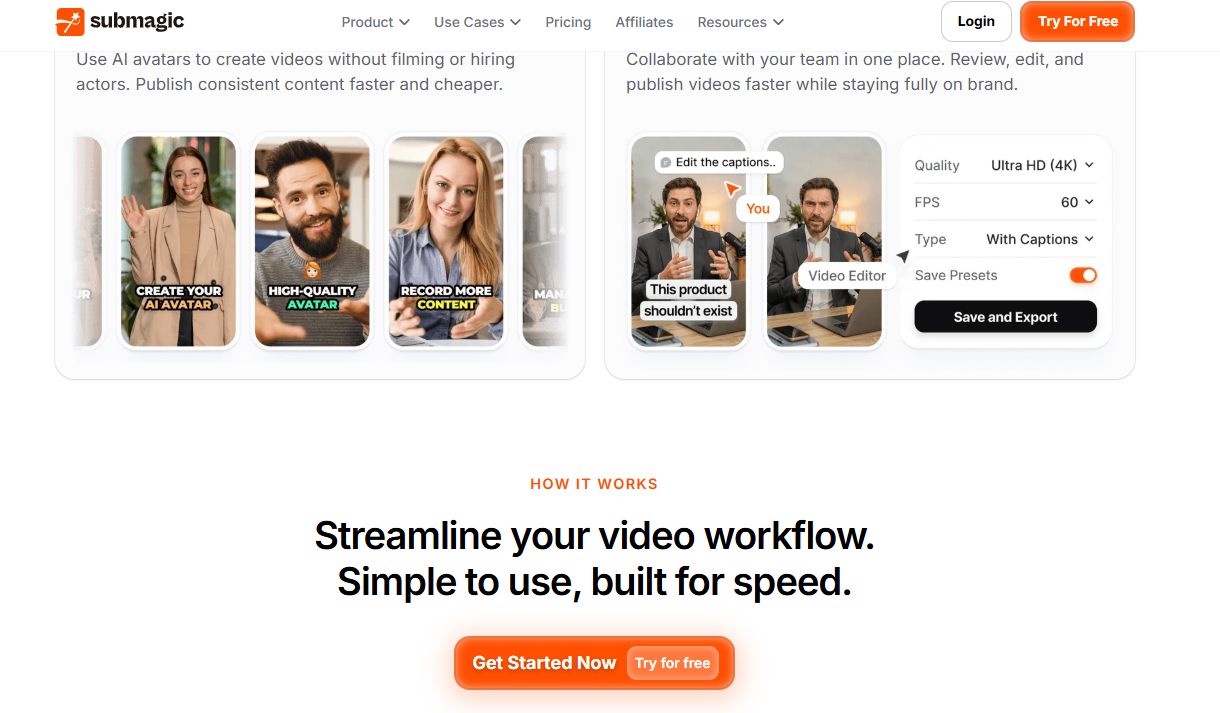
How I read the product promise
Submagic should be judged by whether it makes a real creator clip publishable faster, not by whether it can replace every editing app. The best test is simple: upload one real clip, apply a style, review captions and b-roll, then count cleanup time before export.
- Good test input: talking-head clip, podcast segment, webinar answer, UGC ad, or expert tip.
- Bad test input: footage that needs deep storytelling, complex audio, or frame-level timeline edits.
- Best success metric: fewer manual caption and b-roll decisions per finished Short.
Workflow fit
Where Submagic fits in a creator stack
Submagic is best treated as the caption, b-roll, and short-form polish layer. It pairs especially well with Opus Clip for discovery and CapCut or Premiere for final manual assembly.
Use Submagic for
- Animated captions and word highlights
- Auto-emojis, hooks, zooms, and social pacing
- AI b-roll suggestions from transcript context
- Client content repurposing at weekly volume
- Fast polishing after the clip is selected
Use another tool for
- Finding the best clips from long-form video
- Full timeline editing and frame-level control
- Complex long-form assembly
- Advanced audio mixing or color work
- Sensitive client footage without policy review
Recommended stack
- Opus Clip for first-pass clip discovery
- Submagic for captions, b-roll, hooks, and polish
- CapCut, Premiere, or Descript for final timeline fixes
- Google Drive or Frame.io for client review
Pricing snapshot
Submagic pricing and plan limits
Submagic pricing is less about the headline monthly cost and more about monthly video count, maximum video length, AI credits, watermark status, Magic Clips add-on pricing, and export quality. Pricing was checked against Submagic’s public pricing page on May 16, 2026.
| Plan | Monthly | Annual equivalent | Usage | What matters | TechVideoBlog verdict |
|---|---|---|---|---|---|
| Free | $0 | Not applicable | 3 free videos. Historical database note: max 1m30s each. | Useful for testing the interface. Expect watermark and strict limits. | Use only to test caption style and workflow feel. |
| Starter | $19/member/mo | $12/member/mo billed yearly | 15 videos/month, max 2 minutes each, 3 AI credits. | No watermark, auto captions, free b-rolls/audio, text-based trimming, 1080p 30fps, API/integrations 10 minutes/month. Magic Clips is an add-on. | Good first paid test, but the 2-minute limit may feel tight for client clips. |
| Pro | $39/member/mo | $23/member/mo billed yearly | 40 videos/month, max 5 minutes each, 6 AI credits. | Adds Storyblocks b-rolls/audio, AI hook titles, clean audio, bad-take and silence removal, caption translation, brand kit, and publishing. | Best starting point for serious creators and freelancers. |
| Business + API | $69/member/mo | $41/member/mo billed yearly | 100 videos/month, max 30 minutes each, 15 AI credits. | 4K up to 60fps, custom templates, logos and brand assets, custom dictionary, priority support/rendering, API/integrations 100 minutes/month. | Best for small teams, agencies, or repeat client content systems. |
Sources: Submagic pricing, checked May 16, 2026. Submagic pricing pages include annual discounts and Magic Clips add-on variants, so verify the final checkout page before purchasing.
Best next step
Test one real short before annual billing.
The pricing table only matters if Submagic saves time on the footage you actually publish. Run one creator clip or client clip through captions, b-roll, export, and review before choosing a monthly or annual plan.
30-minute buyer test
Run this test before paying annually
This is the practical workflow test I would use before deciding whether Submagic belongs in a creator or client-work stack.
| Test step | What to do | Pass condition | Why it matters |
|---|---|---|---|
| 1. Upload one real clip | Use a creator clip, client interview, podcast segment, webinar answer, or UGC ad that you would actually publish. | The editor imports the file cleanly and generates usable captions without major timing issues. | Do not test with a perfect demo clip. Use the messy footage you really work with. |
| 2. Apply caption style | Choose a style that matches your channel or client brand and review font, color, placement, and emoji timing. | Caption cleanup is mostly wording and proper nouns, not rebuilding the whole layout. | Caption polish is the main reason to use Submagic. |
| 3. Review b-roll | Turn on AI b-roll and count how many suggestions you keep, swap, or delete. | You keep enough suggestions that the tool saves time versus manual stock searching. | B-roll is powerful, but generic or mismatched clips can hurt a client deliverable. |
| 4. Export and time it | Export the finished clip and note render time, resolution, watermark status, and final file quality. | The render time fits your publishing or client deadline. | Render queues are the main workflow pain point in my use. |
| 5. Compare with your stack | Try the same clip in Opus Clip, CapCut, Captions.ai, or VEED if you already use them. | Submagic produces a better final short or saves enough time to justify the monthly cost. | The right answer depends on your existing stack, not only Submagic’s feature list. |
Community research
What users complain about
A good affiliate review should include the complaints. Reddit and creator discussions show four recurring concerns: clipping quality, pricing/value, refund expectations, and whether auto b-roll is good enough for professional work.
Complaint: Magic Clips can be weaker than dedicated clippers
Some community reports say Submagic’s clip discovery can feel less coherent than Opus Clip for finding the best moments from a long video. My take: judge Submagic mainly as the polish layer, not as the only clipping tool in your stack.
Complaint: pricing stacks up fast
Creators often already pay for Opus, CapCut Pro, Canva, stock assets, or caption tools. Submagic is easier to justify when it replaces real editing time or client labor, not when it is only a nicer caption preset.
Complaint: refund friction
Submagic’s terms and help center describe fees as non-refundable, with cancellation taking effect after the current billing cycle. That makes the trial workflow important before annual billing.
Complaint: auto b-roll still needs taste
AI b-roll saves time, but it does not replace editorial judgment. For client work, review every b-roll insert and be ready to swap clips that feel generic, off-brand, or too literal.
Community sources reviewed include Reddit discussions in r/ContentCreators, r/VideoEditors, and r/ContentCreators video editing threads. Individual comments are treated as community-reported signals, not universal proof.
Client-work safety
Is Submagic safe enough for client work?
Workflow-wise, yes for many creator-service and agency deliverables. Policy-wise, keep the risk rating at medium until your client content rules are clear.
| Check | Current source-backed note | Practical recommendation |
|---|---|---|
| Commercial workflow fit | Submagic’s public use-case navigation includes agencies, marketers, advertisers, e-commerce, coaches, startups, real estate, and creators. | Good fit for deliverables like captioned Shorts, Reels, TikToks, UGC-style clips, coaching clips, and client repurposing. |
| Customer content responsibility | Terms say users are responsible for content legality and rights, and must have rights to the content they upload. | Get client permission before uploading raw footage, especially interviews, private events, paid course material, or unreleased campaigns. |
| Content license and promotional opt-out | Terms say users retain content rights, while granting Submagic a broad license to use content on and through the platform. Terms also mention opting out of promotional use by emailing support. | For sensitive client work, request written clarification or opt out before uploading. Do not rely on generic assumptions. |
| Infrastructure and subprocessors | Privacy page identifies AWS, Vercel, Supabase, and Stripe among subprocessors for hosting, storage, processing, authentication, database, and payments. | Normal for SaaS, but agencies should disclose third-party processing in client SOPs when required. |
| Retention and privacy rights | Terms mention account data up to 3 years after account closure, billing data for 10 years, connection logs for 12 months, and GDPR-style access, erasure, portability, objection, and restriction rights. | Acceptable for many creator workflows, but not enough for highly confidential footage without client approval. |
| AI training clarity | The public pages reviewed did not give me a simple, buyer-facing answer that sensitive uploaded videos are never used for model training. | Keep risk as medium and recheck before enterprise, NDA, health, legal, or unreleased brand campaign footage. |
Sources: Submagic Terms of Use and Submagic Privacy Policy, checked May 16, 2026. This is not legal advice.
Creator stacks
Best Submagic stacks by workflow
Most creators do not need one perfect tool. They need a stack that makes publishing faster without losing control.
| Workflow | Recommended stack | Why it works | Watch-out |
|---|---|---|---|
| Solo creator Shorts | Opus Clip + Submagic + CapCut | Opus finds the clips, Submagic polishes captions and b-roll, CapCut handles final manual fixes. | Do not pay for every tool long term unless each one removes a real bottleneck. |
| Freelancer client repurposing | Opus Clip or Vizard + Submagic + Drive review flow | Useful for turning client podcasts, interviews, and webinars into repeatable weekly short-form packages. | Create a privacy and upload-permission checklist before client onboarding. |
| UGC or social ad content | HeyGen or Arcads + Submagic + CapCut | AI avatar or UGC-style draft first, then Submagic for captions, hooks, and pacing. | Review every claim, testimonial, and b-roll asset before paid ads. |
| Budget creator test | CapCut + Submagic free or Starter | Lets you test whether Submagic saves enough time over CapCut’s free captions. | Starter’s video length limit can block longer client clips. |
Alternatives
Best Submagic alternatives to compare
Submagic is strongest for caption-led short-form polish. Compare these tools when the bottleneck is clip discovery, mobile editing, full browser editing, or transcription.
| Alternative | Choose it if | Skip it if | Best paired with Submagic? |
|---|---|---|---|
| Opus Clip | You need clip discovery, virality scoring, and batch shorts from podcasts or interviews. | You already selected the clip and only need caption/b-roll polish. | Yes. This is my favorite pairing. |
| CapCut | You need manual timeline control, mobile editing, templates, or free captions. | You want a faster web workflow for captioned client shorts. | Yes. Use it for final manual edits. |
| Captions.ai | You want a mobile-first creator caption app and avatar/generative features. | You prefer a web-first workflow and b-roll polish. | Usually no. Compare and pick one caption layer. |
| VEED | You need a broader browser editor with subtitles, resizing, recording, and team workflows. | Your only job is fast creator-style captions and b-roll. | Sometimes, but there is overlap. |
| Vizard or Klap | You need another long-form to short-form clipping workflow to compare against Opus. | You care most about final caption polish. | Possibly. Use one clipper plus Submagic. |
Methodology
How this Submagic review was built
This review uses TechVideoBlog’s evidence labels so readers can see which claims come from hands-on use, official sources, or community research.
Owner-tested
Heavy Submagic use for over 1 year, including 100+ long-form videos and 300+ short-form pieces. Owner has used it for client repurposing work.
Official-source verified
Pricing, features, terms, privacy, refund, and API pages were reviewed on May 16, 2026.
Community-reported
Reddit and creator discussions were scanned for objections around pricing, clipping quality, b-roll, refund expectations, and alternatives.
Final verdict
Try Submagic if you publish short-form video every week.
Submagic is one of the first tools I would test for a creator, freelancer, or small team that needs better captioned Shorts without hiring a dedicated short-form editor. My recommendation is to run one real project through Submagic before annual billing. If it saves enough caption, b-roll, and cleanup time, Pro is the plan most likely to make sense. If you still need a clip discovery tool, pair it with Opus Clip instead of expecting Submagic to do every job.
Disclosure: TechVideoBlog may earn a commission if you buy through the Submagic link. The review keeps owner experience, pricing limits, user objections, and policy caveats visible because the best recommendation depends on workflow fit.
FAQ
Submagic FAQ
Is Submagic worth it?
Submagic is worth it if you publish short-form videos often enough that captions, b-roll, hooks, and cleanup are costing real time. It is harder to justify if you only need occasional free captions.
Which Submagic plan should creators start with?
Use the free plan to test the workflow. Serious creators should compare Starter and Pro carefully. Pro is the more realistic starting point if you need Storyblocks b-roll, hooks, clean audio, translation, brand kit, and more monthly video capacity.
What is the best Submagic alternative?
The best alternative depends on the bottleneck. Use Opus Clip for clip discovery, CapCut for manual editing, Captions.ai for mobile creator captions, VEED for broader browser editing, and Vizard or Klap for long-form repurposing alternatives.
Is Submagic better than Opus Clip?
Submagic is better for caption styling, b-roll polish, and finishing a short-form clip. Opus Clip is better for finding promising clips from long-form podcasts, interviews, and webinars. Many creators should test them together instead of treating them as identical tools.
Can Submagic replace CapCut?
Not completely. Submagic can replace a lot of repetitive caption and polish work, but CapCut is still better for manual timeline control, mobile edits, and final assembly when a clip needs detailed adjustments.
Does Submagic remove watermarks?
Submagic’s pricing page lists no watermark on paid plans. The free plan is best treated as a test plan with limits and watermark expectations. Always verify at checkout because plan details can change.
Is Submagic good for client work?
Yes for many short-form client workflows, especially podcast clips, talking-head clips, coaching clips, and social repurposing. For sensitive client footage, get upload permission and recheck the terms, privacy policy, and content-use language before using it at scale.