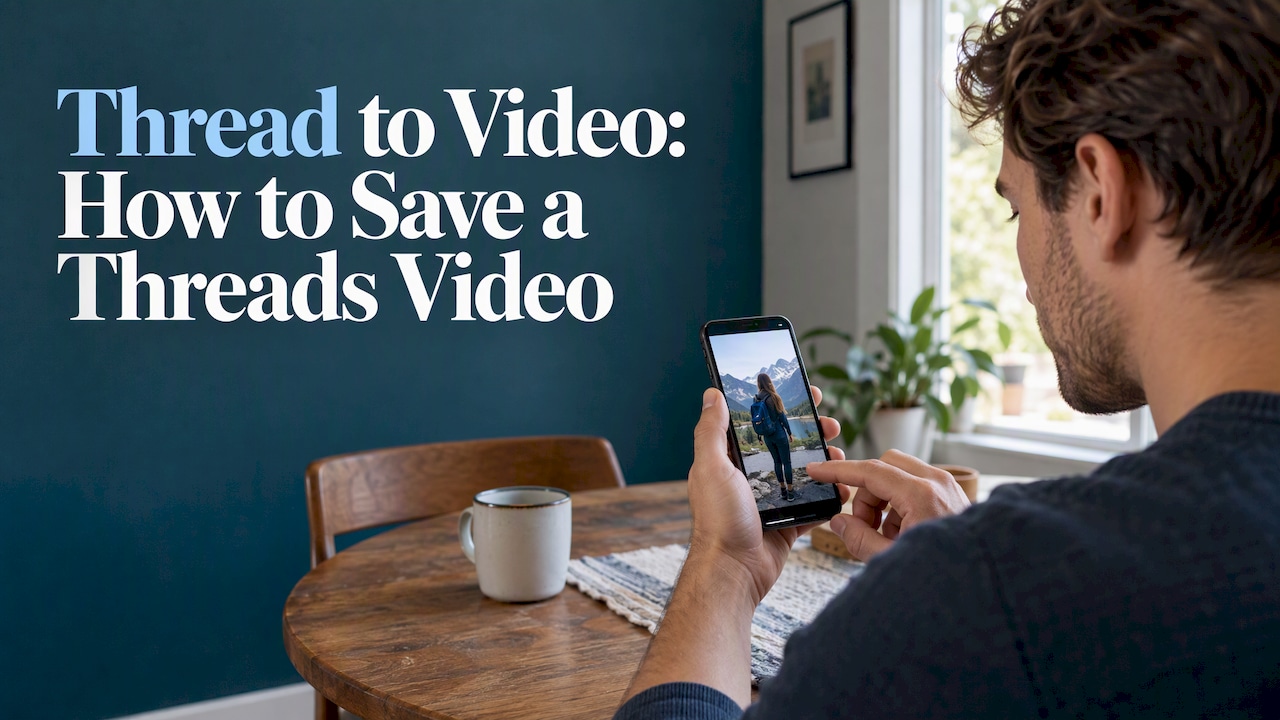
There is no download button in Threads, so saving a video from a post takes a short workaround: copy the post’s link, paste it into a browser-based downloader, and save the MP4 it returns. It works on iPhone, Android and desktop, needs no Threads account, and only works for public posts. The harder part is not the download. It is knowing what quality to expect, why a link fails, and what you may legally do with the file afterward.
I have tested this kind of link-to-file workflow while reviewing video tools, and the same handful of problems come up every time. This guide covers the steps, the device differences, the failures, the rights question, and what to do if what you actually want is the reverse: a text thread turned into a video.
TL;DR
- Copy the link of the exact public post, paste it into a browser-based downloader, and save the MP4. No account or app is needed.
- Threads has no built-in download button, so a third-party tool is the only route for saving someone else’s video. Source: Clipzuno guide
- Expect up to 1080 pixels wide, not 4K. Threads compresses uploads, so “4K” claims cannot add detail that is not there.
- Private, deleted and follower-only posts cannot be fetched, and a link to a profile or reply thread instead of the post is the most common cause of errors.
- Saving a video is easy. Republishing it without the creator’s permission is copyright infringement in most cases.
Table of Contents
- What “thread to video” actually means
- How to download a video from a public Threads post
- Saving on iPhone, Android and desktop
- What quality to expect: MP4, 1080p and no watermark
- Why a Threads video fails to download
- Photos, GIFs and carousels
- Before you reuse a downloaded video
- Perspective: why we treat downloads as a research step, not a content strategy
- The reverse job: turning your own Threads thread into a video
- Find the right tool for your workflow
- A short checklist
- FAQ
- Sources
What “thread to video” actually means
People type this query for two different jobs, and they need different tools.
- Saving a video that someone posted on Threads. You want the file on your phone or laptop, to keep a reference, send it to a colleague, or use it with permission.
- Turning a Threads text thread into a video. You wrote a strong run of posts and want to repurpose it as a short vertical clip for YouTube Shorts, Reels or TikTok.
The first is what most readers want, and it takes up most of this article. The second is covered near the end, because it is where video creators get the most value from their own threads.
How to download a video from a public Threads post
The method is the same on every device. The only differences are where the file ends up and how you copy the link.
Step 1: Copy the link to the exact post
In the app, tap the share icon (the paper plane) under the post and choose to copy the link. On a computer, open the post in your browser and copy the URL from the address bar, or use the share icon and pick Copy link. Threadster’s walkthrough describes both routes.
Open the post itself before you copy. A link taken from a profile page or from inside a reply chain points to the wrong thing, and that is the single most common reason a download fails. StoriesFly lists this alongside private profiles and deleted posts.
Step 2: Paste the link into a browser-based downloader
The tools that rank for this query are web pages, not installs. You paste the URL, the page reads the public post, shows a preview, and offers the video file. You do not need a Threads account or special software, because these tools work from publicly available links. The same logic applies to open-source command-line tools such as threads-dlp, which fetch publicly viewable posts by URL without a login.
Some practical rules from testing this category:
- Use a site that does not ask for your Threads password. A downloader for public posts never needs it. If one asks, close the tab.
- Skip anything that wants you to install a browser extension or an APK just to save one clip.
- Expect ads on free tools. Do not click the large “Download” buttons that sit in the ad slots; the real file link appears after the preview loads.
Step 3: Save the MP4
Choose the download option and the file goes to your device. Threads videos come back as MP4, which plays on phones, tablets and computers and imports into every editor I use. Clipzuno confirms the MP4 format. Rename the file right away with the creator’s handle and the date, because the default filenames are generic and you will not find them later.
Saving on iPhone, Android and desktop
| Device | Where to copy the link | Where the file goes | Watch out for |
|---|---|---|---|
| iPhone | Share icon in the Threads app, then Copy link | Preview opens in a new tab; use the share menu to save to Photos or Files | Do the download in Safari, not inside another app’s built-in browser |
| Android | Share icon in the Threads app, then Copy link | Downloads folder, and often the gallery | Check the Files app if the gallery does not show it |
| Desktop | Address bar of the open post | Your browser’s Downloads folder | Pop-up blockers can hide the save prompt |
On iPhone, the downloader may open the video in a preview tab instead of saving it. That is normal. Tap the share icon in the browser and choose Save to Photos or Save to Files. Thredra describes this iOS behavior, and it matches what I see on current iOS builds. On Android and desktop, a browser download typically lands in the default Downloads folder, as Threadster notes.
If you save many clips for research, make one folder per project and keep a text file of the original post URLs. You will need the source link when you credit or ask permission.
What quality to expect: MP4, 1080p and no watermark
Several downloader pages promise “4K” or “original quality”. Read that carefully. Threads re-encodes and compresses what people upload and serves video at up to 1080 pixels wide, so no 4K version exists for any tool to fetch, according to Clipzuno’s quality guide. A tool can label a file 4K by upscaling it, but upscaling does not restore detail.
The same guide notes that Threads itself does not add a watermark to videos. If you see one on a saved clip, it was usually burned in by the creator or carried over from another platform such as TikTok, where the clip was first posted. No downloader can cleanly remove that, and cropping it out is a separate rights question (see below).
What this means in practice:
- For reference and sharing in chat: the downloaded 1080p MP4 is fine.
- For a presentation or edit: it holds up at phone-screen and laptop size, but it will look soft on a large display.
- For your own videos: never rely on a Threads download as your master. Keep the original export from your editor. A Threads copy is a second-generation compressed file.
Why a Threads video fails to download
When the tool returns an error, the cause is almost always one of these.
- The profile is private or the post is follower-only. Downloaders can only reach publicly accessible posts. This is a hard limit, not a bug, as the threads-dlp project and SaveAnyLink both state.
- The post was deleted. If the creator removed it, no link will bring it back.
- The link is wrong. A profile URL or a reply thread URL instead of the exact post. Open the post alone and copy again.
- The post has no video. Text, image and link posts return nothing. Carousels may contain a mix, and some tools list each item separately.
- A short or shared link was truncated. Paste the full URL and check that nothing was cut off at the end.
- The tool is overloaded or blocked. Free downloaders break when the platform changes how pages load. Try another browser, wait, or use a different tool of the same type.
If the post is yours and the original upload is gone, check your phone’s camera roll and your editing app’s project history first. That is nearly always a better source than a compressed copy from Threads.
Photos, GIFs and carousels
Most of these tools handle more than video. Some save photos at full available resolution and pull each item out of a carousel, for example Grablet, which lists both videos and photos among the carousel items it saves. The quality ceiling applies here too: you get what Threads serves, not the creator’s original camera file.
For a GIF, expect either a short MP4 loop or a GIF file, depending on the tool. If you plan to use it in an edit, the MP4 is usually cleaner and smaller.
Before you reuse a downloaded video
This is the part most guides skip, and it matters more than any technical step.
In the United States, a creator holds the copyright in an original video the moment it is fixed in a tangible form. No copyright symbol or registration is required for that. That is the framing used in a guide on the legality of downloading Threads videos, and it matches the general US rule. The same guide says that using someone else’s video in your own product, advertising or monetized content without permission is clear infringement in most jurisdictions.
So the line is roughly this:
- Saving a copy to watch or reference privately: low risk in practice, though the platform’s terms still apply.
- Reposting, re-uploading, adding it to a monetized video or an ad: you need permission.
- Using a clip inside commentary or criticism: this can be fair use, but only a court decides that case by case.
Fair use is not a safe harbor you can claim in advance. The US Copyright Office’s fair use FAQ explains the concept, and the Office itself says it cannot tell you whether a limitation applies to your intended use or grant permission for you, as Circular 16A on obtaining permission states. A 2025 federal ruling, Gwinn v. City of Chicago, shows that even non-commercial use may fail the test if the use is not sufficiently transformative.
The practical route is simple. Message the creator on Threads, say exactly where and how you will use the clip, and get a yes in writing. A screenshot of the reply is enough for most small projects. Credit them in the caption even when they agree. If you work for a client or an agency, put the permission in the project folder.
If a clip involves bullying, harassment or intimate imagery shared without consent, do not save and redistribute it. Meta’s community standards on safety prohibit those behaviors, and reporting the post is the right move.
Perspective: why we treat downloads as a research step, not a content strategy
We review AI video tools for a living, so we see the downloader question from the repurposing side. Our view is blunt: a downloaded clip is a reference file, and the creators who grow are the ones who rebuild the idea in their own footage, voice and captions.
That is partly about rights and partly about results. A compressed 1080p copy of someone else’s vertical video carries its baked-in captions, its crop and its on-screen handles. Dropped into your timeline, it looks borrowed and performs like it. The same idea, rewritten as a script and filmed or generated with your own b-roll, gets you a clean asset you own.

For teams, the better habit is a small, repeatable pipeline. Save public posts only as research. Log the source link. Ask permission whenever any frame will appear in published work. Keep your own masters in an organized folder so you never need to pull your own video back from a social platform.
When we test tools that claim to “download in 4K” or “remove watermarks”, we check the output file’s resolution and compare it against the source. If the file has not gained real detail, the claim is marketing. Judge any tool in this category the same way.
— H
The reverse job: turning your own Threads thread into a video
If you are a creator or marketer, your best Threads posts are already a script. A run of five to eight short posts has a hook, a few beats and a closing line, which is the structure of a 30 to 60 second vertical video.
A workable process:
- Pick the thread that already performed. Posts that got replies and saves have a proven hook. Start with those.
- Cut it to one idea. A thread can wander. A short video cannot. Keep the hook, three beats and a single call to action.
- Rewrite for speaking. Read each line aloud. Shorten anything you stumble on and remove references like “as I said above”.
- Choose the visual format. Talking-head, text-on-screen with b-roll, or a faceless narrated clip all work. Faceless is the quickest for text-first creators.
- Generate captions. Most viewers watch with sound off, so burned-in captions are not optional. Check them manually for names and product terms.
- Export vertical 9:16 at 1080 by 1920 and post the same cut to Threads, Shorts and Reels.
- Title, describe and tag it with the phrases people search for, not the phrases you used in the thread. Guidance on optimizing videos for SEO is useful once the clip lives on a platform with search, such as YouTube.
AI video tools can compress steps 3 to 5 into minutes: script clean-up, text-to-speech or voice cloning, stock or generated b-roll, and auto-captions. They still need a human pass for tone and facts. That is where tools differ most, and where hands-on testing matters more than feature lists.
What to look for in a tool for this job
- Caption accuracy and editability. You must be able to fix words without regenerating the whole video.
- Vertical templates that do not require manual cropping.
- Honest pricing. Watch for export limits, watermarks on free tiers and credit systems that run out mid-project.
- Commercial-use terms for any generated voices, avatars and stock clips.
Find the right tool for your workflow
We built TechVideoBlog for exactly this decision. The directory covers editors, caption generators, repurposing tools, voice cloning, avatar tools, thumbnail makers and screen recorders, with hands-on reviews, verified pricing, workflow tests and side-by-side comparisons. Rankings follow use-case fit and workflow results, not paid placement, so you can see which tools suit YouTube Shorts, podcast clips or faceless videos before you commit to a subscription.

Start on the TechVideoBlog homepage and filter by the job you need done.
A short checklist
- Is the post public, and did you copy the link from the exact post?
- Do you need the file for reference, or will it appear in published work? If published, get permission first.
- Did you keep the source URL and the creator’s handle?
- Are you expecting more than 1080p? You will not get it.
- Is this your own video? Use your original export instead.
- If you are repurposing your own thread, have you rewritten it for speech and added captions?
FAQ
Can I download a Threads video without an account?
Yes, for public posts. Browser-based downloaders read the public link, so you do not need to log in to Threads or install software. Private profiles and follower-only posts are out of reach for these tools.
Why is my downloaded Threads video not 4K?
Threads compresses uploads and serves video at up to 1080 pixels wide, so there is no 4K version to download. A file labeled 4K has been upscaled, which adds size but not real detail. For your own clips, use the original export from your editor.
Does Threads add a watermark to videos?
No, Threads does not watermark videos itself. A visible mark usually comes from the creator or from another platform, such as TikTok, where the clip first appeared. Removing someone else’s mark can create its own rights problem.
Is it legal to download and repost someone else’s Threads video?
Saving a public video for private reference is a different act from republishing it. In the US, the creator owns the copyright automatically, and using the clip in your own content or ads without permission is usually infringement. Ask the creator in writing, and see a copyright attorney if the use is commercial or high stakes.
Why does the downloader say the video was not found?
The usual causes are a private account, a deleted post, or a link to a profile or reply thread instead of the exact post. Open the post on its own page, copy the link again, and retry. If it still fails, try a different browser or tool.
Sources
- How to Download Threads Videos, Threadster
- How to Download Threads Video: The Complete 2026 Guide, Clipzuno
- What Quality Are Threads Videos? Clipzuno
- How to Download Threads Videos on iPhone, Android and PC, StoriesFly
- threads-dlp on GitHub
- Threads Video Downloader, SaveAnyLink
- Threads Downloader, Thredra
- Threads video downloader, Grablet
- Is Downloading Threads Videos Legal? ThreadsVid
- Fair Use FAQ, US Copyright Office
- Circular 16A: How to Obtain Permission, US Copyright Office
- Gwinn v. City of Chicago summary, US Copyright Office
- Meta Safety Center policies