Property marketing guide
Best AI Tools for Real Estate Videos
Compare AI tools for real estate video editing, captions, listing explainers, short-form clips, and property-marketing workflows. Use AI to speed up production while keeping property details, disclosures, and branding accurate.
Practical buyer checks
Independent editorial guide
Updated November 2026
Prices checked November 2026
Real Estate Video Needs Accuracy Before Automation
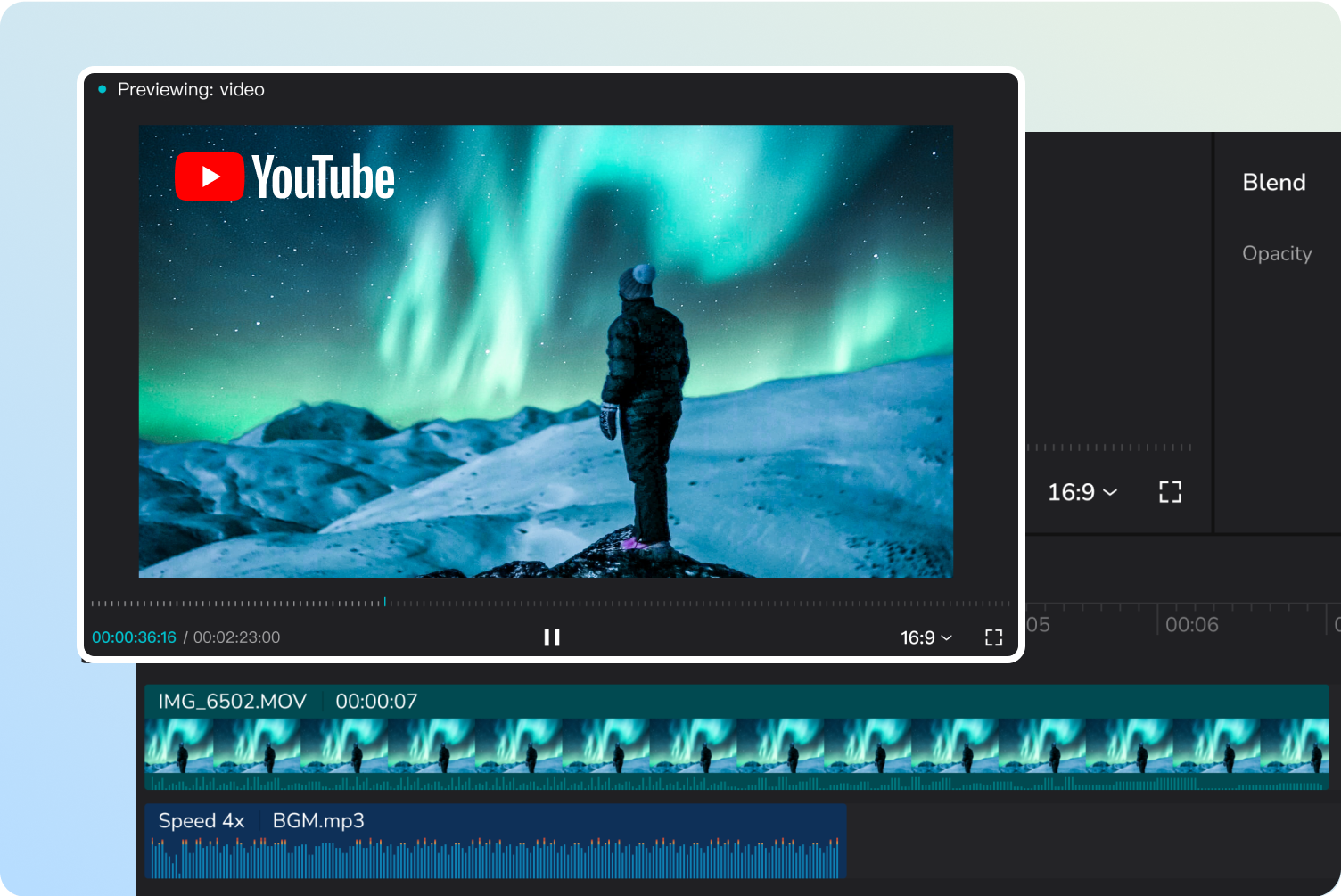
CapCut can suit short-form editing, VEED can support browser-based captions and revisions, and Canva Video can help with branded visual assets. AI can accelerate packaging and versions, but no tool should invent property details, local claims, or visual changes that misrepresent a listing. The most useful AI tool is usually the one that removes a repeatable bottleneck without moving the same work into a different screen. Start with one real project, test the output against your usual standard, and note the time spent correcting it. That is more reliable than comparing feature lists or marketing clips.
| Tool | Primary role | Use it when | Verify first |
|---|---|---|---|
| CapCut | Mobile-first property clips and social edits | You need efficient vertical edits from existing property footage | Confirm exports and avoid misleading templates or effects |
| VEED | Browser editing, captions, and resizes | Teams need a straightforward browser workflow for video updates | Check final framing, captions, and branded elements |
| Canva Video | Design and video assets | Marketing needs branded covers, supporting graphics, and simple visual versions | Use real property imagery and approved brand assets |
| Tool | Best for | Starting price |
|---|---|---|
| CapCut | Quick vertical property clips | Free $0; Pro $19.99/mo or $179.99/yr |
| VEED | Browser captions + team review | Free $0; Lite ~$12/mo billed annually |
| Canva Video | Branded packaging | Free $0; Pro $18/mo or $144/yr |
Prices checked November 2026. Verify the current vendor page before buying — AI tools reprice often.
Show the Property Clearly and Keep Claims Reviewable
Start with accurate footage, a verified property brief, and approved language. Use AI for editing, captions, versions, and supporting visual elements, then have the responsible agent or broker review the final video before publishing. Keep the original footage and final approvals organized. Build the workflow in sequence: source material, planning or script, production, editing, captions or finishing, and publishing. A single platform can cover more than one step, but the best result often comes from using a focused tool for the stage where it is strongest. Define what must be editable before you export, especially when a client, editor, or subject-matter reviewer needs to approve the result. For a fair trial, give every option the same source video, script, or creative brief. Review first-pass output, correction time, export controls, and the total cost at your expected monthly volume. This keeps a fun demo from becoming a difficult production workflow.
Tools to Compare for This Workflow
These recommendations map to different parts of the job. They are not a blanket ranking for every creator.
1. CapCut
Short-form edit
A practical tool to compare for quick social edits and vertical property video versions.
Best starting point for: You need efficient vertical edits from existing property footage.
Price: Free $0 (exports without watermark from free assets; Pro-gated AI tools/templates stay locked); Pro $19.99/mo or $179.99/yr; Standard $9.99/mo (phone app only); Ultra $79/mo; Teams $12.49/seat/mo. Pro is the tier that follows you to desktop/web. Web prices are labelled “reference only” — final price after sign-in, varies by region/device/promotion.
2. VEED
Captions and review
Relevant for teams that need captions and simple video revisions without a heavier desktop editor.
Best starting point for: Teams need a straightforward browser workflow for video updates.
Price: Free $0 (watermark, 720p, ~10 video min/mo, 2GB storage); Lite ~$12/mo billed annually ($19/mo monthly); Pro ~$24/mo billed annually ($49/mo monthly); Enterprise custom. Subtitle minutes are capped per year (Lite 120 min/yr, Pro 1,440 min/yr). VEED prices are approximate — the vendor’s pricing grid does not render as text, so verify at checkout.
3. Canva Video
Branded packaging
Useful for building consistent visual packaging around approved property footage.
Best starting point for: Marketing needs branded covers, supporting graphics, and simple visual versions.
Price: Free $0 (core video editing included); Pro $18/mo or $144/yr ($12/mo effective), one person only, 30-day free trial; Business $25/person/mo or $250/person/yr; Enterprise custom. Pro is a single-user licence — a second person means Business.
Some links on this page are affiliate links — TechVideoBlog may earn a commission when you buy through them, at no extra cost to you. Read the affiliate disclosure.
Questions to Ask Before You Pay
Can you correct the output quickly?
AI output needs editorial review. Check whether you can edit the text, timing, visual framing, audio, caption styling, or script without starting over. Correction controls matter more than a strong first demo when you publish weekly.
Does the plan fit your real volume?
Check current credits, minutes, exports, watermarks, resolution, storage, user seats, and overage behavior directly on the vendor site. A low entry price may only cover a few short projects, while a higher plan can be cheaper when it removes the limit that slows down production.
Can the result survive a human review?
Review names, claims, pronunciations, captions, source rights, and brand language. A creator can publish an imperfect draft quickly, but a freelancer or agency should budget for approval and revision before delivery.
What happens to client files?
Read the tool’s terms and privacy policy before uploading confidential material, voices, customer recordings, or unreleased campaign assets. Look for account access controls, data-use language, retention terms, and a clear support path for questions.
Keep Editorial and Client Decisions Separate
TechVideoBlog can help you create a shortlist, but it cannot make the legal, privacy, or brand decision for a specific project. If work involves a client’s footage, likeness, voice, customer data, or confidential plans, obtain consent and check the vendor’s current policies before upload. Keep the source files, approval steps, and final exports organized so a client can understand what was generated and what was edited by a person. Our evidence labels distinguish owner-tested, creator-tested, community-reported, official-source verified, and research-only information. Read How We Test AI Tools for the methodology, and review the Affiliate Disclosure for commercial relationships.
Where Creator Stacks Often Break
Choosing the broadest feature set: A tool with fewer features can be better when it makes one critical task repeatable. Skipping the review step: Automated captions, clips, scripts, and synthetic media all need a human check before publication. Buying annual too early: Use a monthly plan or trial until the workflow has handled several real projects. Forgetting downstream formats: Confirm the export, aspect ratio, caption format, and editable assets you need before you build around a platform. Using sensitive client material as a test: Start with non-confidential material until data-use and account controls are understood.
How This Guide Is Maintained
This is a decision guide, not a promise that every product has been personally tested by TechVideoBlog. We use public product documentation, clearly labeled owner experience where it exists, and research about recurring creator workflow concerns. Product features, policy language, availability, and pricing change quickly. Verify the current vendor pages before buying or using a tool for client work. We update pages when a tool changes, better evidence becomes available, or the creator workflow shifts. The purpose is to make the next decision easier, not to preserve an outdated ranking. Updated November 2026. Prices checked November 2026.
Best AI Tools for Real Estate Videos FAQs
Which tool should I try first?
Start with the tool that handles the step currently slowing you down. Test it on a real project and compare the correction time, not only the first output.
Are free plans enough for a serious workflow?
Free plans are useful for testing. Before you commit, check whether they restrict exports, watermarks, resolution, credits, team access, or commercial workflow needs.
Can one tool replace my entire stack?
Sometimes, but most creators get better control from one primary production tool plus one focused tool for captions, clipping, thumbnails, voice, or final polish.
How often should I recheck my tools?
Recheck before annual renewal, a major client engagement, or when a product changes its pricing, credits, privacy policy, or key workflow features.
How much does CapCut Pro cost?
Free $0, then Pro $19.99/mo or $179.99/yr. Standard is $9.99/mo (phone app only) and Ultra is $79/mo. Prices checked November 2026.
How much does VEED cost?
Free $0, then Lite ~$12/mo billed annually ($19/mo monthly). Pro is ~$24/mo billed annually ($49/mo monthly). Prices are approximate — verify at checkout. Prices checked November 2026.
How much does Canva Pro cost?
Free $0, then Pro $18/mo or $144/yr ($12/mo effective), one person only. Business is $25/person/mo or $250/person/yr. Prices checked November 2026.